Limited time discount Book Smarter This Christmas
Up to 50%Off

How do I assign services to employees in Amelia

The Services tab inside the employee profile is where you manage which services an employee can provide. While services are initially connected to employees during service creation, this tab is used later to adjust assignments, capacities, and pricing on a per-employee level.

Alert Please note

Services must be created before they can be assigned to employees. Also, Amelia does not allow creating a service without assigning at least one employee to it. Because of this, the Services tab inside the employee profile is mainly used after services already exist, to fine-tune assignments, pricing, and capacity.
Where do I assign services to an employee?

To assign services to an employee, open the Employees page, create a new employee or edit an existing one, and switch to the Services tab. This tab displays all created services grouped by their categories.

You can assign or remove services for the employee at any time. Changes take effect immediately after saving the employee.

Services tab inside the employee profile showing available services

How does the service selection inside categories work?

Services are grouped by their categories and shown in a collapsed view by default. Each category contains a checkbox that reflects the employee’s current assignment status.

Each category checkbox can have three different states:

  • Checked – the employee is assigned to all services inside that category.
  • Dash (-) – the employee is assigned to only some services from that category.
  • Empty – the employee is not assigned to any services from that category.

Clicking the category checkbox assigns or removes the employee from all services inside that category at once. This allows you to quickly assign employees to entire groups of services.

If you click on a category card instead of the checkbox, the category expands and shows all individual services inside it. From there, you can manually select or deselect specific services for that employee.

The search field at the top of the tab allows you to search through both categories and individual services, which is especially useful when working with a large number of services.

How do I access individual service settings for an employee?

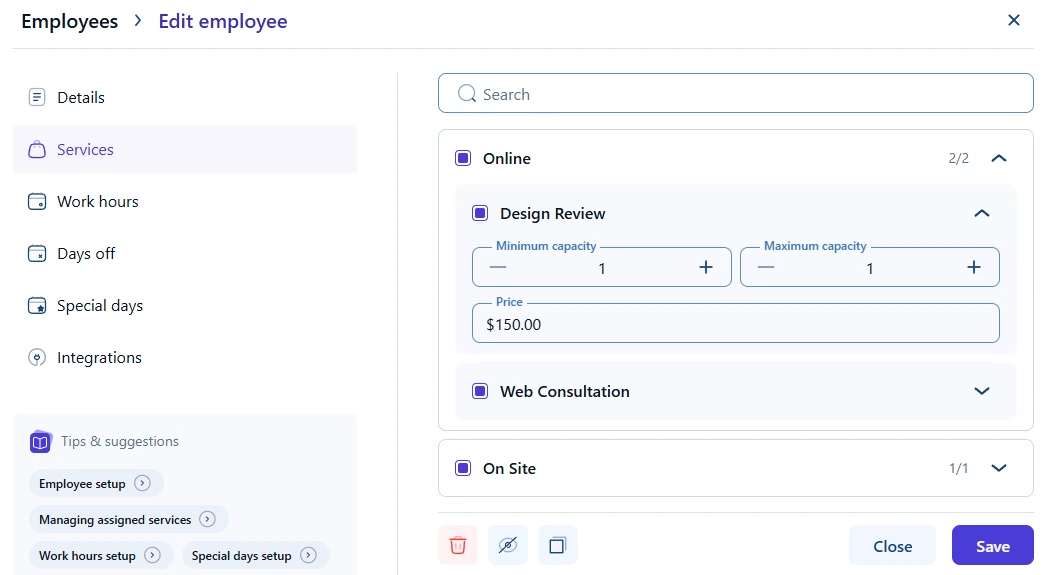
To access employee-specific service settings, first expand the service category, then expand the individual service row.

Once the service row is expanded, you can manage employee-specific capacity and pricing for that service.

Expanded service inside employee Services tab showing minimum and maximum capacity and custom price fields

How do I change the service capacity for a specific employee?

Inside the expanded service row, you can define a custom minimum and maximum capacity for the selected employee.

These values override the default capacity defined in the service settings and apply only to this specific employee.

For example, if the service default capacity is set to 1, but a specific employee can handle 2 customers at the same time, you can increase the maximum capacity here and availability on the front end will automatically adjust.

How do I set a different service price per employee?

The Price field inside the expanded service row allows you to define a custom price for that employee.

Once saved, this price overrides the default service price only for the selected employee and is automatically displayed on the front end during booking.

This allows you to apply different pricing for the same service depending on who provides it, without creating duplicate services.

What happens when a service is not assigned to any employee?

If a service is not assigned to at least one employee, it cannot be booked on the front end.

Amelia always requires a direct connection between a service and at least one employee in order to display available time slots and accept bookings.

Can multiple employees be assigned to the same service?

Yes. A single service can be assigned to multiple employees at the same time.

During the booking process, customers will be able to choose between available employees based on your booking form configuration and each employee’s availability.

Alert Please note

If multiple employees are assigned to the same service, each employee can receive their own appointments independently. This means that if 5 employees are available at the same time, up to 5 separate appointments can be booked. The capacity of each appointment depends on the service capacity defined per employee. One booking will not block all employees for that service.

To limit the total number of appointments for a service regardless of employees, you need to use Resources, which is available on Pro and Elite plans.
