



How does the Customers page work in Amelia
The Customers page lets Administrators and Amelia Managers view, manage, and organize all customers who interact with the booking system. Customers are added automatically when they book an appointment, or you can add them manually from the back end. This page helps you track each customer’s history, details, and booking activity in one place.
How do I add a new customer?
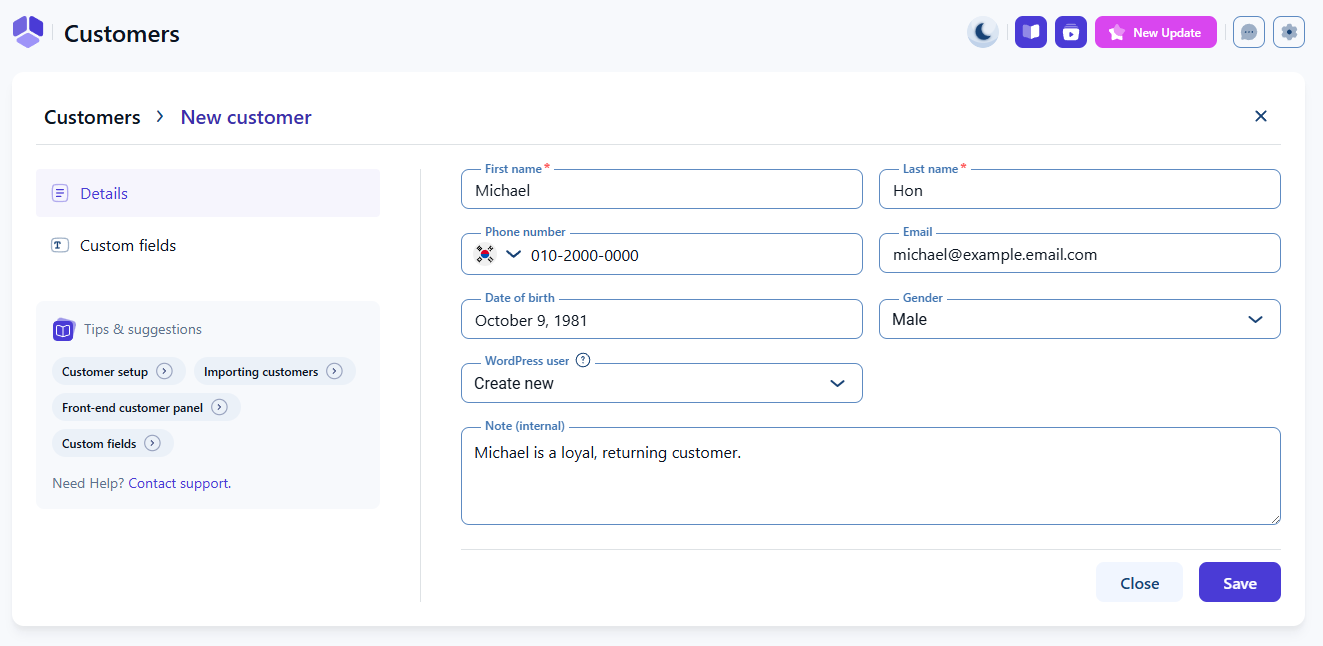
Open Amelia → Customers and click + Customer. First and last name are required fields. Phone number, email, date of birth, gender, WordPress user, and an internal note are optional.
Linking a WordPress user connects the customer profile to an existing account with the Amelia Customer role or creates a new one. Linked users can log in and view or cancel their appointments in the back end.
More details are available on the WordPress roles in Amelia page.
What customer information can I collect?
In addition to basic contact information, you can store a date of birth, which is useful for the Birthday greeting notification or for sending targeted coupons through the Coupons feature. You can also add internal notes that help track specific preferences or details relevant to the customer relationship.
How do customer custom fields work?
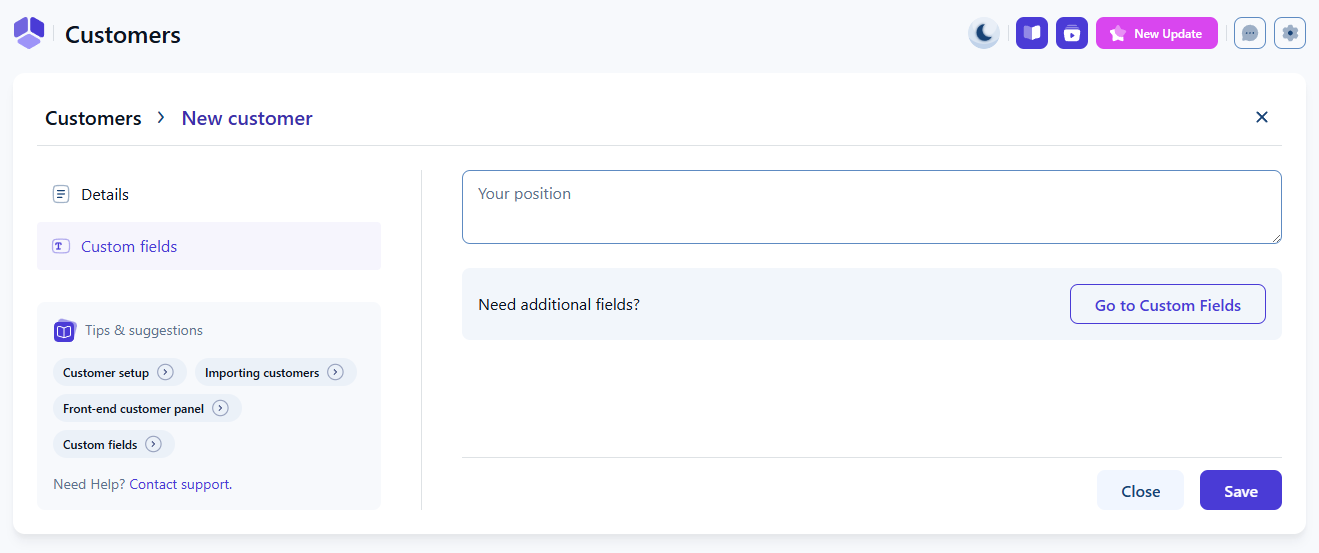
If the Custom fields feature is enabled, a Custom fields tab appears when creating or editing a customer. This tab displays all customer-related custom fields you have created. You can enter new values, update existing ones, or review information submitted during bookings. These fields allow you to store additional customer data that does not fit into the default customer fields.
Learn more about creating custom fields on the Custom fields page.
How do I edit an existing customer?
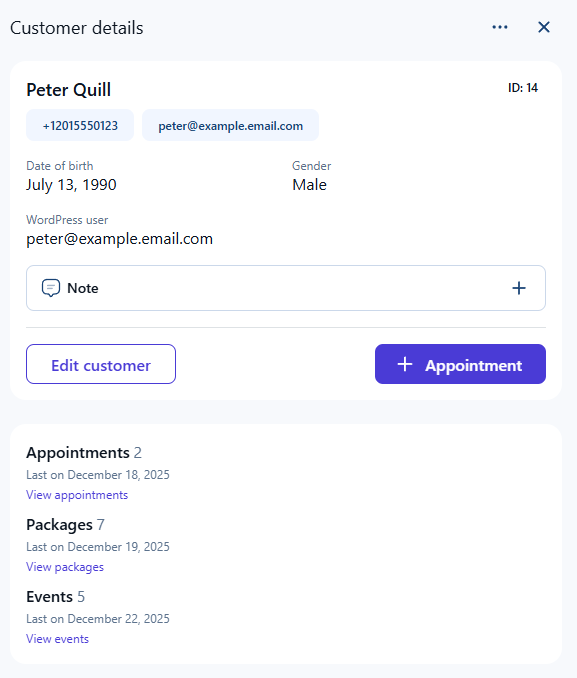
To edit customer information, you can click the three-dots menu → Edit or click on the customer’s card and click Edit customer in the Customer details popup panel. Any changes made to a customer profile apply to all past and future appointments linked to that customer.
What information does the customer list show?
The customer list displays all existing customers and shows their ID, name, phone number, email, internal notes, last booking date, total number of bookings, and associated WordPress user.
You can reorder or hide columns by clicking the Edit table button, except for the Name column which is always visible. Sorting helps you review customer activity or quickly find frequently returning customers.

Can I import or export customer data?
You can import customers from a CSV file using the Import customers button. This is helpful when migrating from another system or adding existing clients in bulk. For detailed rules and field mapping, see the Importing customers article.
You can also export the customer list to a CSV file at any time to review, back up, or transfer information.
What should I keep in mind when managing customers?
- Customers are created automatically when a booking is made.
- Editing a customer updates their information everywhere it appears.
- Linking a WordPress user gives the customer back end access to their appointments.
- The date of birth field enables automated birthday notifications.
- Importing customers requires a properly formatted CSV file.
- Exporting is useful for backups or external CRM processing.