


How can I set up working hours in Company settings
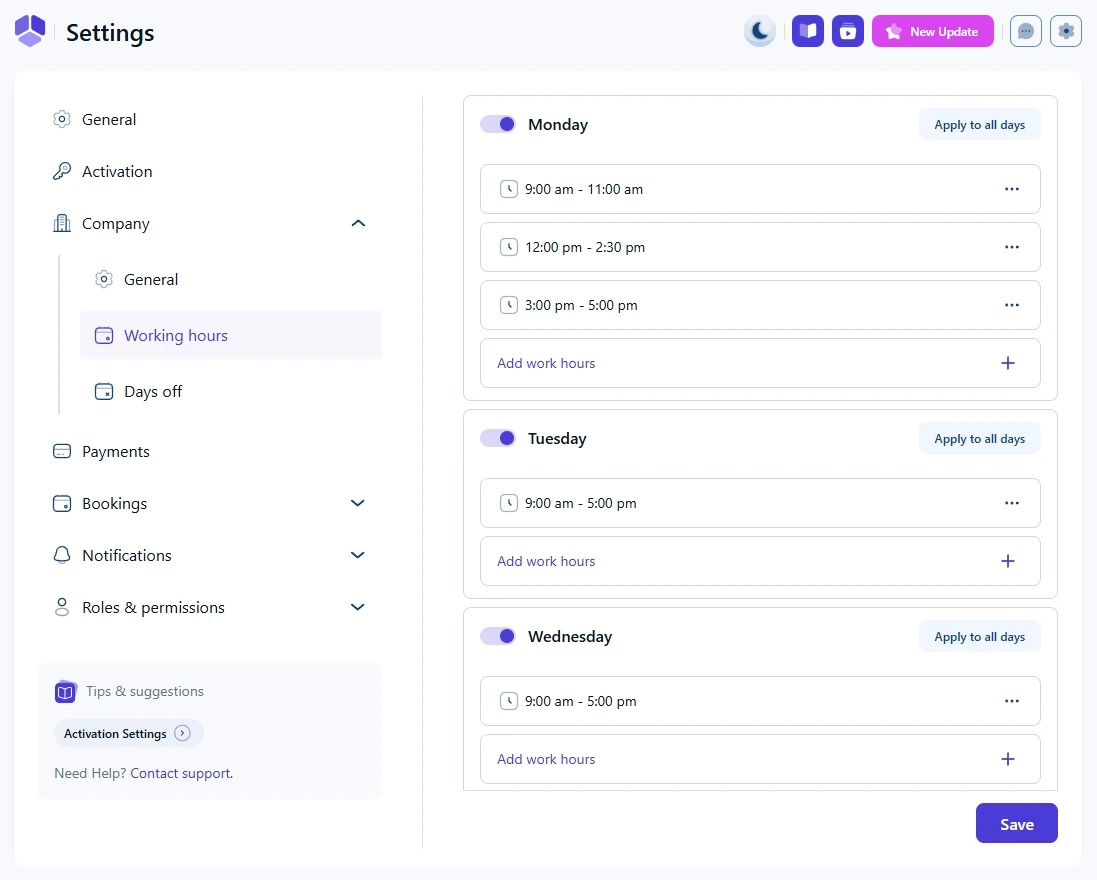
Company working hours define the default schedule that new employees inherit when they are created. These hours are fully optional and can be customized to fit your business needs.
What are the default working hours in Amelia?
Amelia comes preconfigured with 9:00 am to 5:00 pm, Monday to Friday as the default company-wide schedule.
You can adjust these times to match your actual business hours.
How can I apply the same working hours to all days?
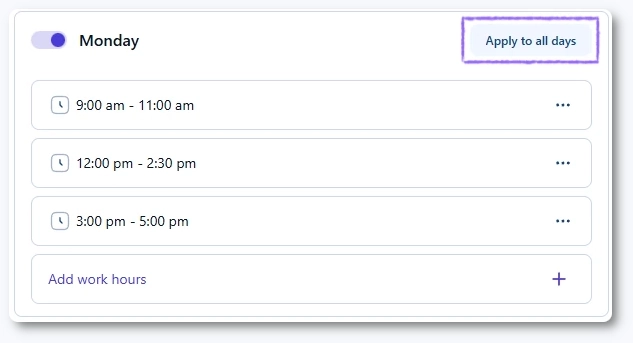
You can set the hours for one day and then click Apply to all days.
This instantly copies the selected day’s hours to every day of the week.
Do company working hours affect my employees’ schedules?
Company working hours serve as templates for new employees, so you don’t have to configure working hours from scratch each time.
Changing the company schedule later does not override the working hours of existing employees.
Each employee has their own schedule that must be edited individually through the Employees page.
If your team shares the same working hours, configure the company template first so every new employee starts with the correct schedule.
How do breaks work in Company settings?
Breaks are not created as separate items in the Company working hours.
Instead, they are formed naturally by splitting the day into multiple working periods.
For example, setting 9:00 am to 12:00 pm and 1:00 pm to 3:00 pm creates a one-hour break between the two periods.
How do I add, edit, or delete working hour periods?
Working hours are managed as separate time periods.
To add a period, click the Add work hours + card. This opens a modal where you define a new time range. To edit or remove an existing period, use the three-dot menu on the period card.
Edit opens the same modal used for adding. Delete removes the selected period.
Are there any rules when adding working hour periods?
Yes. Amelia requires periods to be added from earliest to latest within the day. If a period already exists from 9:00 am to 5:00 pm, you cannot add another period that starts earlier, such as 8:00 am or 7:00 am.
You can only add periods that begin after the last existing period ends.
This ensures that working hours are created in a logical order and prevents overlaps.