How do the company settings work in Amelia
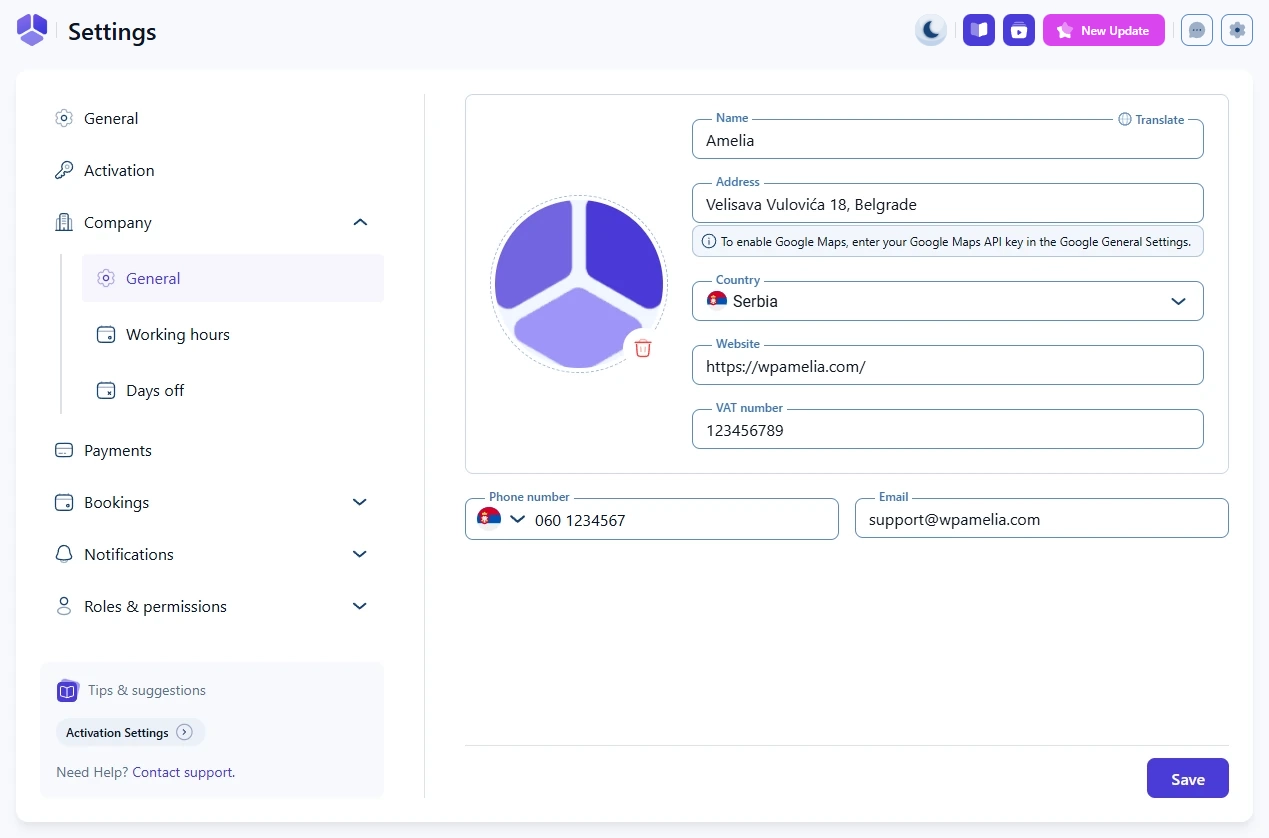
The Company settings section lets you add your business details such as name, logo, address, and contact information. These fields are optional, but some of them appear on invoices and on the front end booking form.
Which company details can I configure in Amelia?
You can configure your company name, logo, address, country, website, VAT number, phone number, and email.
None of these fields are mandatory, so you can skip this section completely if you prefer, but filling it in helps personalize your booking experience and your invoices.
How does the address field work in Company settings?
The Address field behaves like a normal text field until you enter a Google Maps API key. Once the API key is added, the field becomes location-aware and supports address suggestions from Google Maps.
The API key is added in Features and Integrations → Google Calendar and Google Meet → Set up → General.
If you do not add the Google Maps API key, the address works as a regular typed field without map suggestions.
Where do the company details appear in Amelia?
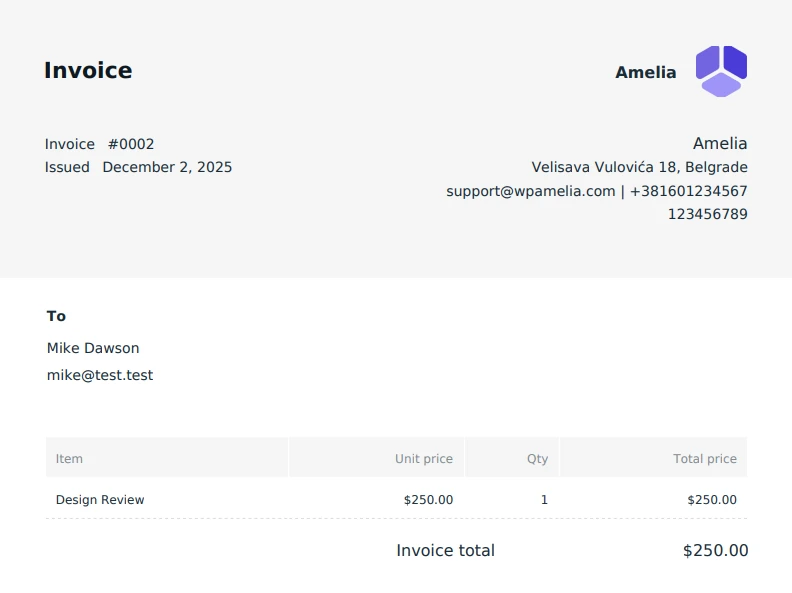
Details like name, logo, address, email, phone number, and VAT number appear on invoices when the Invoices feature is enabled in Features and Integrations.
Your email and phone number also appear at the bottom of the left menu in the front end booking form so customers can quickly reach you.
Do I have to fill out the company settings?
No. All fields here are optional, and Amelia works normally even if you leave everything blank.
However, adding your company details helps present a complete and professional booking experience, especially if you plan to use automated invoices.