


How to upgrade from Amelia Lite to the full version
If you have been using the free Lite version of Amelia and have purchased a premium license, you need to follow a manual upgrade process to unlock all the full features.
The upgrade is handled slightly differently than a regular plugin update, but the process outlined below ensures that all your previously created settings and booking data remain intact.
Where can I download the full Amelia plugin?
First, you need the premium ameliabooking.zip file.
If you purchased on our website:
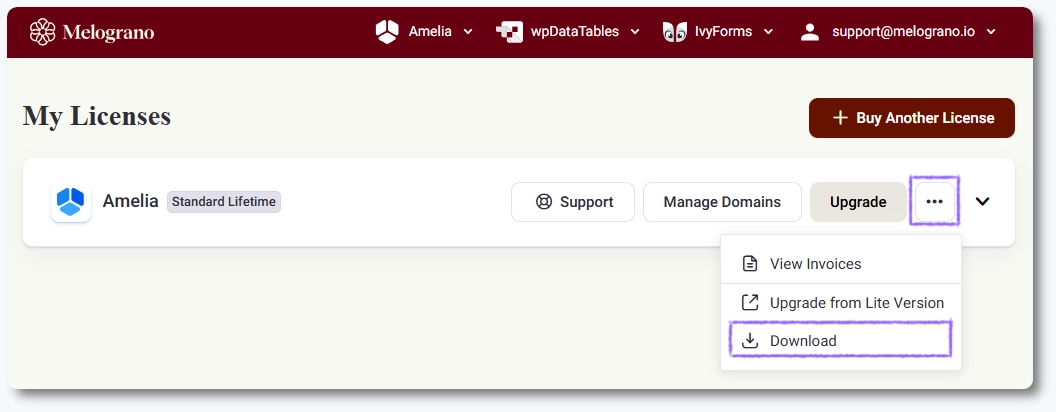
Log in to your account, find your license card, click the three-dot menu (⋯), and choose Download. You can also use the download link included in your purchase confirmation email.
If you purchased on CodeCanyon/Envato:
Access Codecanyon’s Downloads page and download the installation file from there.
How do I upgrade to the full version through WordPress admin?
Once you downloaded the installation file, you need to upload it to WordPress.
- In your WordPress admin panel, go to Plugins → Add New → Upload Plugin.
- Click Choose File and select the ameliabooking.zip file you downloaded, then click Install Now.
- Since the Amelia Lite plugin is already active, WordPress will display a message stating that the directory already exists and will ask if you want to replace the existing plugin with the uploaded one. Click Replace current with uploaded.
- Click Activate Plugin once installation is complete.
You do not need to deactivate or delete the Lite version first. However, if you choose to delete the Lite plugin, make sure not to check the "Delete tables, roles, files and settings once the Amelia plugin is deleted" checkbox in a popup that appears when you deactivate Amelia. Leaving it checked will permanently delete all your existing appointments, employees, and services.
Do I need to clear cache after upgrading?
It is absolutely paramount that you clear the cache on your site immediately after installing the full version. This ensures that your website loads the new premium files and prevents visual or functionality errors.
You must clear the cache if you use:
- A caching plugin (like WP Rocket, LiteSpeed Cache, or WP Super Cache).
- A server-side cache (provided by your hosting provider).
- A CDN cache (like Cloudflare or Sucuri).
Can I upgrade manually via FTP instead?
Yes. If the upload step doesn’t work, you can install the full version using FTP.
- Unzip ameliabooking.zip on your computer.
- Connect to your server using FileZilla, Cyberduck, or another FTP client.
- Open /wp-content/plugins/.
- Upload the ameliabooking folder there, replacing the Lite folder if it exists.
- Go to WordPress admin → Plugins and activate Amelia.
Both methods result in the same full installation, just remember to purge the cache once the premium version is installed.
Why do I see a file size or upload limit error?
If you see the error message “The link you followed has expired”, it indicates a common WordPress upload limit issue, not a problem with the Amelia plugin file. The premium plugin file is large (it grows with every update as we add more features), and your server’s maximum upload size is too small.
You will need to increase the following values in your server’s configuration (usually in the php.ini file or your hosting panel):
upload_max_filesizepost_max_sizemax_execution_time
If you are unable to locate these settings yourself, please contact your hosting provider for assistance.
For more detail on resolving this, learn how to fix the upload size limit here.