



Most people don’t realize how easy it is to share Google Calendar with others until they’ve spent way too long emailing back-and-forth about availability.
Google Calendar gives you real control over what others can see, whether that’s full event details, basic free/busy status, or edit access for a whole team.
This guide covers everything: sharing with specific people, making a calendar public, generating a shareable link, managing permission levels, and fixing the most common issues when a shared calendar won’t show up.
Read on if you want a quick guide on how to share Google Calendar with others in this article created by our team at Amelia (the best WordPress appointment scheduling plugin with Google Calendar integration).
What Google Calendar Sharing Does
Google Calendar has over 500 million monthly active users, and a big part of what makes it useful for teams is how sharing actually works (EarthWeb, 2023).
Sharing a calendar does one specific thing: it gives another person access to a particular calendar you own. Not your Google account. Not every calendar you have. Just the one you choose.
This is worth being clear about. A lot of people assume sharing a calendar means someone gets full visibility into everything on their Google account. That’s not how it works.
When you share a calendar, the recipient sees it appear in their own Google Calendar sidebar after accepting the invitation. They can overlay it with their own schedule, which is genuinely useful for coordinating availability.
What sharing controls:
- Which specific calendar someone can see
- How much detail they can view (just availability, or full event details)
- Whether they can add or edit events
- Whether they can manage the sharing settings themselves
One thing sharing does not do: it does not sync calendars between platforms. If you share a Google Calendar with someone using Apple Calendar, they get a read-only subscription view, not a live two-way sync.
Sharing settings are also calendar-specific. If you have three calendars (say, Work, Personal, and a project calendar), you control sharing for each one separately. Sharing your Work calendar doesn’t automatically expose your Personal one.
And for anyone on scheduling appointments with Google Calendar, shared calendar access is what makes collaborative booking actually work. Without it, you are just managing your own schedule in isolation.
Google Calendar Permission Levels Explained
Before you share anything, pick the right permission level. Getting this wrong is the most common reason shared calendars cause headaches. Either someone can see too little, or you accidentally hand over full control.
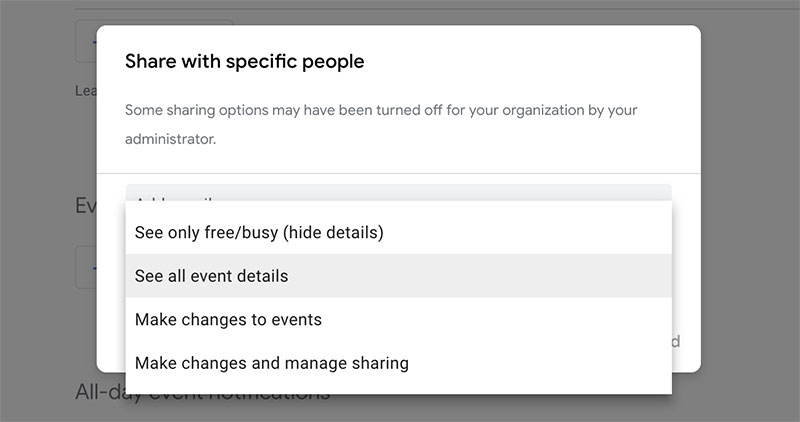
Google gives you four options.
| Permission Level | What They Can See / Do | Best For |
|---|---|---|
| See only free/busy | Only availability blocks, no event details | Clients, external contacts |
| See all event details | Full event info, read-only | Colleagues, family members |
| Make changes to events | Add, edit, and delete events | Team members, assistants |
| Make changes and manage sharing | Full control including sharing settings | Calendar co-owners, admins |
The free/busy level is useful when you want someone to schedule around you without seeing your actual agenda. A client booking a meeting doesn’t need to know your event titles.
“See all event details” is probably the most common choice for team members. They can check what’s on your calendar, but they can’t touch anything.
One thing to be careful about: “Make changes and manage sharing” means that person can share your calendar with anyone else. Only give this to someone you fully trust with that kind of control. In a Google Workspace environment, this is often reserved for an executive assistant or a calendar admin.
If you’re unsure, start lower and adjust later. You can change permission levels any time from the same sharing settings page.
How to Share a Google Calendar with Specific People
83% of users schedule their meetings using Google Calendar (Gitnux, 2024). Most of them share calendars regularly, yet the steps still trip people up because the settings are buried a few clicks deep.
Sharing from Google Calendar on Desktop
This is where you have the most control. The mobile app handles it too, but desktop is easier for managing permissions.
- Open Google Calendar in your browser
- In the left sidebar, find the calendar under “My Calendars”
- Hover over the calendar name and click the three-dot menu
- Select “Settings and sharing”
- Scroll to “Share with specific people or groups”
- Click “Add people and groups” and enter their email address
- Choose the permission level from the dropdown
- Click Send
The recipient gets an email invitation with a link to add the calendar. They must click that link to accept it. Until they do, the calendar won’t appear in their account.
Important: If the person doesn’t have a Google account, they can still receive the invitation, but their access is more limited. Non-Google users get a view-only link rather than a fully integrated shared calendar.
Sharing from the Google Calendar Mobile App
The process is similar on mobile, but a couple of options are only available on desktop. This is worth knowing before you start.
- Open the Google Calendar app on Android or iPhone
- Tap the hamburger menu (top-left)
- Tap the calendar name you want to share
- Tap “Share with specific people”
- Add the email address and set the permission level
- Tap Send
Public sharing and organization-wide sharing settings are not available in the mobile app. You need a browser for those.
How to Share a Google Calendar with Your Whole Organization
Google Workspace has over 6 million paying business customers worldwide (Patronum, 2023). For most of them, org-wide calendar sharing is how teams stay coordinated without manually adding every colleague one by one.
When you enable organization sharing, everyone in your Google Workspace domain can find and subscribe to your calendar. People outside your organization still can’t see it.
How to set it up:
- Go to Settings and sharing for your calendar
- Under “Access permissions for events,” check “Make available for [your organization]”
- Choose the access level from the dropdown (free/busy or all event details)
The default permission for org-wide sharing is usually “See all event details,” but you can change it to free/busy if you just want colleagues to see your availability.
For larger companies using Google Workspace Admin Console, an admin can control how much sharing is allowed across the organization. They can cap the maximum permission level for external sharing, meaning even if an individual employee tries to share full event details with someone outside the domain, the admin’s policy overrides it.
A good real-world use case: Hunterdon Healthcare uses Google Workspace to coordinate across departments, freeing up significant staff time for direct work rather than administrative coordination (Thrive Agency, 2024). Shared calendars with org-wide access are a core part of how that kind of coordination happens.
If you manage teams, also worth looking at: employee scheduling software that integrates with Google Calendar, especially for businesses that need more structured shift management alongside shared calendar visibility.
How to Make a Google Calendar Public
Making a calendar public means anyone can view it. No Google account required. The calendar can even appear in Google Search results and get embedded on websites.
This is not something most people need for their personal or work calendars. But for specific use cases, it is exactly the right tool.
Common use cases for public calendars:
- Community event schedules for nonprofits or local organizations
- Studio or class timetables for yoga studios, gyms, or music schools
- Public-facing team availability for client-facing businesses
- Content creator or podcast release schedules
To make a calendar public:
- Open Settings and sharing for the calendar
- Under “Access permissions for events,” check “Make available to public”
- Choose whether to share free/busy only or all event details
- Click OK on the warning prompt (Google will remind you this is visible to everyone)
One thing to think about before enabling this: any event detail you’ve included in your calendar becomes publicly visible. Meeting titles, locations, descriptions. If your calendar has anything personal or confidential in it, create a separate calendar specifically for public events rather than making your main calendar public.
After enabling public access, you can get the public URL from the same settings page under “Integrate calendar.” That link can be shared directly or embedded anywhere.
For businesses thinking about embedding a Google Calendar on a website, this public calendar setting is what makes that possible.
How to Share a Google Calendar via Link
Not every sharing situation needs email invitations and permission tiers. Sometimes you just need a link.
Google Calendar gives you two types of shareable links, and they work differently.
| Link Type | What It Does | Requires Google Account? |
|---|---|---|
| Public calendar URL | Opens calendar in Google Calendar (view-only) | No |
| iCal (.ics) link | Subscribes to calendar in any calendar app | No |
Both links are read-only. No one can edit your calendar through a shared link, regardless of what you set elsewhere.
To get these links:
- Go to Settings and sharing for the calendar
- Scroll to “Integrate calendar”
- Copy either the Public URL or the Secret address in iCal format
The iCal link is particularly useful when sharing with people who use Apple Calendar, Microsoft Outlook, or any other non-Google calendar app. They can paste it into their app and your calendar shows up as a subscribed feed.
One limitation: iCal subscriptions don’t always update in real time. Apple Calendar, for example, refreshes subscribed calendars roughly every hour by default. So if you make a last-minute change, the other person might not see it immediately.
The embed code option (also found in the “Integrate calendar” section) lets you paste your calendar into a website using an HTML iframe. This is the same approach covered in our guide on how to send a Google Calendar invite for event-driven workflows where visibility is key.
For teams that need more structure around appointments and bookings than Google Calendar’s native sharing provides, it’s worth exploring a WordPress booking plugin that integrates on top of your existing calendar setup.
How to Share a Google Calendar on iPhone and Android
Nearly 80% of employees with remote-capable jobs work in hybrid or fully remote arrangements as of early 2025 (Vena). That’s a lot of people scheduling on phones.
The mobile experience for sharing Google Calendar is close to desktop, but not identical. A few things are only possible in a browser, and one key sharing feature works on Android but not iOS.
Sharing from the Android App
Android users get the most complete mobile sharing experience.
- Open the Google Calendar app
- Tap the three-line menu (top left)
- Tap the calendar name you want to share
- Tap “Share with specific people”
- Add an email address and set permissions
- Tap Send
This works for sharing with specific people. Public sharing and organization-wide access settings are not available in the app. You need a browser for those.
Sharing from the iPhone App
The iOS version of Google Calendar is more limited for sharing. CalendarBridge’s 2024 guide confirms that calendar sharing via “Shared with” settings is only available in the Android app, not iOS.
On iPhone, your options are:
- Use a mobile browser (Safari or Chrome) to access calendar.google.com and share from there
- Switch to desktop view within your mobile browser
Once someone shares a calendar with you, accepting it on iPhone is straightforward. Open the invitation email, tap the link, and it adds to your Google Calendar app automatically.
One tricky thing specific to iPhone: new shared calendars sometimes don’t sync immediately. Go to calendar.google.com/calendar/syncselect in your browser, find the shared calendar under “Shared Calendars,” check the box, and force a sync. That URL is not obvious, but it fixes the issue almost every time (FonePaw, 2022).
For anyone coordinating across both Apple and Google ecosystems, the guide on sharing an iCloud calendar covers the equivalent steps for Apple Calendar, which behaves differently and requires separate configuration.
How to Manage, Edit, or Remove Calendar Sharing
Sharing settings are not set-and-forget. Teams change, projects end, and people leave organizations. Knowing how to update or revoke access is just as important as knowing how to share in the first place.
72% of employees say knowing coworkers’ availability would improve hybrid meeting scheduling, according to a PwC survey reported by Marketing Scoop (2023). That relies on calendar access staying accurate and current.
How to View and Change Existing Permissions
To see who currently has access:
- Open Google Calendar on desktop
- Go to Settings and sharing for the calendar
- Scroll to “Share with specific people or groups”
- You’ll see a list of everyone with access and their current permission level
To change a permission level, click the dropdown next to the person’s email and select a new level. Changes take effect immediately. No new invitation is sent.
Revoking Access
Removing someone is one click. In the same “Share with specific people” section, click the X next to their name. Their access is cut off immediately.
The calendar disappears from their “Other calendars” section in Google Calendar. Any events they added while they had edit access remain on the calendar. Their own future access is gone, but their past edits stay unless you manually remove them.
Transferring Ownership
This one is Google Workspace only.
Personal Google accounts don’t support calendar ownership transfers. In Workspace, an admin can reassign a calendar using the Admin Console, which is useful when an employee leaves and their calendar needs to stay active under a different owner.
Worth knowing: even with full “Make changes and manage sharing” access, you cannot permanently delete a calendar you don’t own (Google Calendar Help). Only the original owner can do that.
For teams managing multiple staff calendars alongside client bookings, a dedicated scheduling tool for small businesses can reduce how much manual permission management you’re doing in Google Calendar itself.
Common Google Calendar Sharing Problems and Fixes
Most sharing issues come down to a small set of repeatable causes. Same problem, different packaging.
| Problem | Most Likely Cause | Fix |
|---|---|---|
| Invitation email never received | Spam filter or wrong email address | Check spam, re-share with correct address |
| Calendar not showing after accepting | Hidden in sidebar or wrong Google account | Check “Other calendars,” verify account login |
| Not showing on iPhone/Android app | Sync not enabled for that calendar | Visit syncselect URL, toggle calendar on |
| “Oops” error when sharing | Temporary Google server issue | Wait 24 hours and try again |
| Can’t share a calendar you don’t own | Missing “manage sharing” permission | Ask calendar owner to upgrade your access |
Shared Calendar Not Showing Up
This is the most common complaint. The fix depends on which device you’re on.
On desktop: Look in the left sidebar under “Other calendars.” If the calendar is listed but unchecked, click it. A white box means hidden. A colored box means visible.
On mobile: The calendar may have been added but sync is off for it. On Android, go to app Settings, tap the calendar, and confirm Sync is toggled on. On iPhone, use the syncselect URL fix described in the previous section.
The most common root cause, based on community reports, is being logged into the wrong Google account on the device. The person sharing used your work email. Your phone is logged into your personal Gmail. The calendar lands on an account you’re not actively viewing (BSIMB, 2024).
Permission Errors in Google Workspace
Workspace environments add a layer that personal accounts don’t have: admin-level policies that can override individual sharing settings.
If you’re hitting permission errors despite having the right access level, the organization’s admin may have capped external sharing at free/busy only. You can’t work around this yourself. The fix sits in the Google Admin Console, and only a Workspace admin can change it.
Also worth checking: Google limits sharing to up to 75 accounts per calendar per day. If you hit that and get an “Oops” error, you’ve reached a daily sharing limit. Wait 24 hours (Saint Mary’s College Google Workspace documentation).
If your team needs more robust booking and scheduling beyond what Google Calendar sharing can offer, tools like Google Calendar alternatives or a booking plugin that connects directly to your calendar can handle more complex scenarios without running into these native limitations. You might also find it helpful to understand how syncing Google Calendar with Outlook works if your team uses both platforms.
FAQ on How To Share Google Calendar With Others
How do I share my Google Calendar with someone?
Open Google Calendar on desktop, click the three-dot menu next to the calendar name, and select Settings and sharing. Under “Share with specific people,” add their email, choose a permission level, and click Send.
Can I share a Google Calendar with someone who doesn’t have Gmail?
Yes, but their access is limited. Non-Google users receive a view-only link rather than a fully integrated shared calendar. For two-way collaboration, a Google account is needed.
What are the Google Calendar permission levels?
There are four: free/busy only, see all event details, make changes to events, and make changes and manage sharing. Each controls how much a person can view or edit.
Why is my shared Google Calendar not showing up?
The recipient may not have accepted the invitation, or the calendar is hidden in their sidebar. On iPhone, visit calendar.google.com/calendar/syncselect and enable the shared calendar manually.
Can I share a Google Calendar from my phone?
On Android, yes. Open the app, tap the calendar, and select “Share with specific people.” On iPhone, the Google Calendar app doesn’t support sharing. Use a mobile browser instead.
How do I make my Google Calendar public?
Go to Settings and sharing, find “Access permissions for events,” and check “Make available to public.” Anyone can view it, including without a Google account. Choose free/busy or full event details.
How do I get a shareable Google Calendar link?
In Settings and sharing, scroll to “Integrate calendar.” Copy the public URL or the iCal (.ics) link. The iCal link works with Apple Calendar, Outlook, and other non-Google apps.
Can I share a Google Calendar with my whole organization?
Yes. In Settings and sharing, check “Make available for [your organization].” Everyone in your Google Workspace domain can then find and subscribe to it. External users won’t have access.
How do I remove someone’s access to my Google Calendar?
Go to Settings and sharing, find the person under “Share with specific people,” and click the X next to their name. Access is revoked immediately. Past edits they made remain on the calendar.
Can I change someone’s calendar permission after sharing?
Yes. Go to Settings and sharing, find their email in the shared list, and use the dropdown to select a new permission level. The change applies immediately with no new invitation required.
Conclusion
This conclusion is for an article presenting how to share Google Calendar with others, covering everything from permission levels to public calendar links and mobile sharing.
Whether you’re coordinating a team schedule in Google Workspace, setting up a shared family calendar, or giving a client view-only access via an iCal link, the process is straightforward once you know where to look.
Start with the right access level for each person. Free/busy for external contacts, full event details for colleagues, edit access for close collaborators.
And if something doesn’t show up after sharing, check the invite acceptance, the sidebar visibility, and the sync settings. Nine times out of ten, it’s one of those three.

Explore topics

Read Inspiring Customer Stories
Check out how our user set Amelia for his business