
Your calendar app is probably one of the few things you open dozens of times a day. So the wrong one isn’t a minor annoyance. It’s a small tax on every single day.
The Google Calendar versus Apple Calendar question runs deeper than which one looks nicer. It’s about platform compatibility, how far the collaboration goes, privacy, and how cleanly each app slots into the devices you already own.
Both are free. Both nail the basics. But they’re built for different people with different workflows, and the rest of this digs into where that actually shows up: cross-platform access, sync behavior, sharing, privacy, business use, and offline access.
What Is Google Calendar?
Google Calendar is a cloud-based time management and scheduling tool built into the Google Workspace suite. It launched in beta in April 2006 and went publicly available in July 2009.
It runs on Android, iOS, macOS (through a browser), Windows, and Linux. Any device with a browser and an internet connection can reach a full-featured version of the app at calendar.google.com.
Google Calendar has over 500 million monthly active users (EarthWeb, 2024), which tells you how deeply it’s woven into daily scheduling habits worldwide.
An estimated 398,368 organizations currently use it, with education, marketing, and training leading the adoption (EarthWeb, 2024). It’s free with any Google account and included in all Google Workspace plans for business, education, and government.
Google Calendar ties directly into Gmail, Google Meet, Google Drive, and Google Tasks. Book a flight or a restaurant through Gmail and Google Calendar can create the event for you. That kind of passive event creation is something most standalone scheduling tools still don’t offer.
The app has racked up over 3 million Play Store reviews at a 4.4-out-of-5-star average (EarthWeb, 2024). That review volume, after nearly two decades on the market, reflects steady satisfaction rather than launch hype.
Google Calendar Core Features at a Glance
Google Calendar covers the full scheduling workflow from creation through collaboration. There are multiple calendar views, day, week, month, year, and a scrollable Schedule list. Event search indexes titles, descriptions, attachments, and linked Gmail threads. Auto-event creation pulls booking confirmations from Gmail on its own. Google Meet integration drops a Meet link onto any event in one click. Google Tasks integration shows your tasks and deadlines next to calendar events. And appointment scheduling lets others book your open slots without the email back-and-forth.
The Schedule view is genuinely useful in a busy week. It shows a compact, scrollable list of upcoming events with locations, attachments, and inline details. Worth knowing: the Gemini AI assistant, added to Google Workspace plans, can now suggest the best meeting times based on email context.
What Is Apple Calendar?
Apple Calendar (formerly iCal) is a native scheduling app pre-installed on every iPhone, iPad, Mac, and Apple Watch. It launched as iCal in 2002 on macOS and became “Calendar” with iOS 6 in 2012.
The app syncs automatically through iCloud using an Apple ID, with no separate account setup needed. Apple has over 2.5 billion active devices worldwide as of January 2026 (Apple Q1 2026 earnings), which means Apple Calendar reaches an enormous installed base without anyone downloading a thing.
Apple Calendar is free. It isn’t available natively on Android or as a standalone web app with full functionality. The iCloud.com calendar interface exists, but it’s limited next to what the native macOS or iOS app gives you.
What Apple Calendar Does Well
Its ecosystem integration runs deep. Apple Calendar works tightly with Siri, Apple Reminders, Apple Mail, Maps, and FaceTime, and Siri can create and modify events through natural language without you ever opening the app.
It also handles cross-account support through open protocols, connecting to Google Calendar, Microsoft Exchange, Yahoo, and any CalDAV server. So even Apple Calendar users can pull accounts from multiple providers into a single view.
And the iCloud sync is reliable. Events sync instantly across every Apple device on the same Apple ID, with no manual setup and no third-party sync tool needed inside the Apple ecosystem.
One honest observation from managers who use it: the layout feels a touch dated, and the cross-organization sharing is simpler than what Google Calendar or Microsoft Outlook offer (Calendar.com, 2023). That’s not necessarily a flaw if you only need personal scheduling, but it matters for team use.
Apple Calendar vs iCal: The Same App
Apple Calendar and iCal are the same application. Apple rebranded iCal as “Calendar” starting with OS X Mountain Lion (2012) and iOS 6, and the underlying CalDAV protocol support stayed put.
Some third-party tools still say “iCal” when they mean Apple Calendar, or when they’re referring to .ics calendar files. If you run across instructions for importing iCal into Google Calendar, they’re usually about .ics file imports, not the app itself.
How Do Google Calendar and Apple Calendar Handle Cross-Platform Access?
This is where the two diverge most clearly. Google Calendar works on any device with a browser. Apple Calendar is built for Apple hardware and noticeably limited everywhere else (Novacal, 2026).
| Platform | Google Calendar | Apple Calendar |
|---|---|---|
| Android | Full native app | Not available |
| iOS / iPadOS | Full native app | Full native app |
| macOS | Full via browser | Full native app |
| Windows | Full via browser | Limited via iCloud for Windows |
| Linux | Full via browser | Not available |
Google Calendar Cross-Platform Reach
Google Calendar works identically across Android, iOS, Windows, macOS, and any Linux browser. Switch from a Windows work laptop to an iPhone and nothing about the experience changes.
The web app at calendar.google.com is a full product, not a stripped-down mobile companion. Drag-and-drop event creation, calendar sharing settings, appointment slots, Google Meet integration, all of it works from the browser. That web-first design is deliberate. Google built Calendar as a cloud product from day one.
For offline access on desktop, you have to enable Chrome’s offline mode in advance. Events viewed offline sync automatically once the connection returns. The mobile apps cache recent events locally, so offline viewing works with no setup.
Apple Calendar Platform Restrictions
Apple Calendar is native on iPhone, iPad, Mac, and Apple Watch. Step outside the Apple ecosystem and things get tricky fast.
Windows users can install iCloud for Windows to reach Apple Calendar, but the sync has documented reliability issues and the feature set is limited. There’s no iCloud Calendar web app that matches the functionality of Google Calendar’s browser version.
Android users have no direct path to Apple Calendar at all. Working around it means CalDAV configuration or a third-party sync tool, both of which take technical setup that most personal users won’t bother with.
For mixed-device households or teams where some people are on Android and others on iPhone, Apple Calendar creates friction that Google Calendar simply doesn’t.
How Do Google Calendar and Apple Calendar Sync with Other Apps?
Both support CalDAV and Microsoft Exchange, so they can connect to each other and to most enterprise calendar systems. But the integration depth beyond those protocols is a different story.
Google Calendar connects natively to Gmail, Google Meet, Google Drive, Google Tasks, Slack, Zoom, Trello, Asana, Notion, and Todoist. HubSpot uses Google Calendar to sync appointments right inside customer profiles (syncthemcalendars.com, 2024). That kind of CRM-level integration is a real business use case, not a power-user edge case.
Apple Calendar integrates tightly with Apple Mail, Siri, Apple Reminders, Maps, Messages, and FaceTime. It also connects to anything supporting CalDAV or Apple’s EventKit framework. The ecosystem is smaller, but the integrations that exist feel native and seamless on Apple hardware.
Gmail and Google Calendar Auto-Events
Auto-event creation from email is one of Google Calendar’s most practical features. When Gmail spots a flight booking, hotel reservation, restaurant confirmation, or event ticket, it can create a calendar event with the relevant details on its own.
This works because Google processes Gmail content to extract structured data. It’s useful. It’s also exactly why some privacy-focused users prefer Apple Calendar, which doesn’t auto-import events from Apple Mail by default.
Siri and Apple Calendar Event Creation
Siri can create, edit, and query Apple Calendar events without opening the app. Say “Schedule a meeting with Sarah tomorrow at 2pm” and you’ve got a properly formatted event in seconds.
Google Calendar supports Google Assistant voice commands with similar functionality. The difference is context awareness. Siri pulls from Apple Contacts and Apple Mail to fill in details like locations and contact info. Google Assistant pulls from Gmail and Google Contacts.
Both work well. Which one works better depends entirely on which ecosystem the rest of your apps live in.
Third-Party App Support Comparison
| Tool | Google Calendar | Apple Calendar |
|---|---|---|
| Zoom | Native add-on | Via CalDAV (limited) |
| Slack | Native integration | Not natively supported |
| Notion | Native sync via 2sync | Not natively supported |
| Microsoft Exchange | Supported | Supported |
| Trello / Asana | Native integrations | Not natively supported |
How Do Google Calendar and Apple Calendar Handle Shared Calendars and Collaboration?
Shared access and collaboration is where Google Calendar holds a clear structural advantage, especially for team scheduling and business use.
A single Google Calendar can be shared with up to 75 people (EarthWeb, 2024). The permissions are granular: view only, see all details, make changes, or full management access. You can share a Google Calendar with others by email address, and recipients don’t need a Google account for read-only access via a public URL.
Google Calendar Sharing Features
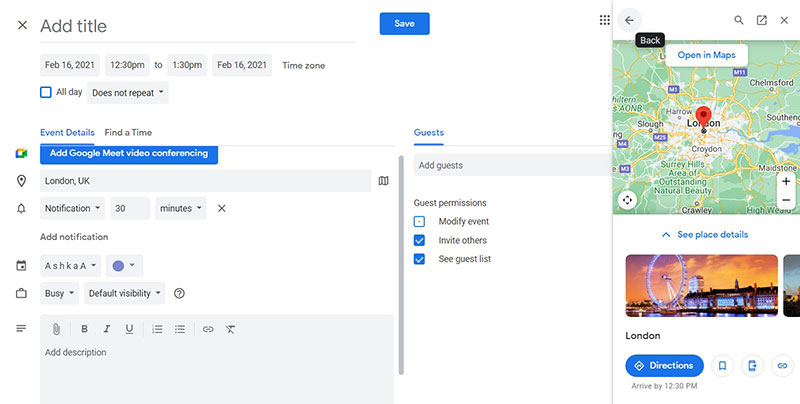
Google Workspace users get a layer of collaboration tools beyond the free tier. The “Find a Time” feature checks availability across all invited attendees and suggests open slots automatically. “Suggested Times” gives AI-powered recommendations based on participants’ existing schedules.
Room and resource booking lets you reserve conference rooms and shared equipment alongside events.
A working location indicator lets team members mark whether they’re remote or in office. And calendar delegation lets assistants manage calendars on behalf of executives with full edit access.
Google Workspace covers over 3 billion active users a month and 11 million paying business customers as of Q4 2025 (Alphabet earnings, 2026), with Calendar sitting in that workflow as the default scheduling layer for every Workspace tool.
Apple Calendar Sharing Features
Sharing an iCloud calendar with another Apple user is easy. They accept the invite and see real-time updates immediately. Share with a non-Apple user, though, and you get a read-only .ics subscription link. They can view events but can’t add or edit anything on the shared calendar.
Apple Calendar has no “Find a Time” equivalent for group scheduling, and no native meeting poll. Fantastical (a third-party app built on top of iCloud and other providers) adds those features, but that means a paid subscription.
For families where everyone’s on iPhone, Apple Calendar’s shared iCloud family calendar is genuinely excellent. One setup, no friction, instant sync. For cross-platform teams, it breaks down quickly.
How Do Google Calendar and Apple Calendar Handle Privacy and Data?
This section matters more than most people realize. Both apps encrypt data in transit and at rest. But how that data is used, and who can reach it, differs significantly.
Apple Calendar Privacy Posture
Apple doesn’t use calendar data for ad targeting. That’s a meaningful distinction from Google’s model, given Google’s core revenue comes from advertising.
iCloud Calendar data is encrypted in transit (TLS) and at rest (AES-256). It is not end-to-end encrypted, though, even with Advanced Data Protection enabled. Apple states plainly that this is because calendar data has to interoperate with external CalDAV systems (Apple Support, 2024).
So in practice, Apple can technically access your calendar data on its servers, since they hold the encryption keys for calendar content. That said, Apple’s business model doesn’t depend on monetizing that data, which sets up a different incentive structure than Google’s.
Apple’s App Tracking Transparency framework limits third-party tracking from iOS apps, Apple Calendar included. For users in healthcare, legal, or other regulated fields, Apple Calendar’s privacy posture is generally considered lower-risk than Google Calendar’s.
Google Calendar Privacy Posture
Google Calendar encrypts data in transit and at rest using the same standards as Apple. Google doesn’t directly scan calendar event content to serve ads. But its ad targeting model leans on behavioral signals across the entire product suite, and usage patterns, meeting frequency, travel behavior, event categories, can feed into broader audience profiles.
Google Workspace business accounts add another layer. SOC 2 Type II, ISO 27001, and HIPAA compliance certifications are available, which matters for healthcare organizations that need to use Google tools under a signed Business Associate Agreement.
Google Takeout allows a full data export of all calendar events, and Apple provides equivalent iCloud data downloads. Either way, you’re not locked in without a way out.
Which Is More Private?
Apple Calendar wins on privacy in practice. There’s no ad-driven incentive to analyze your data, no cross-product profiling, and local-first processing where possible through Apple Intelligence’s on-device features.
That said, neither app offers true end-to-end encryption for calendar data. Anyone who needs genuinely end-to-end encrypted scheduling needs a different tool entirely, Proton Calendar for instance. For most people, the real privacy question is whether you trust Apple’s incentive structure or Google’s.
How Do Google Calendar and Apple Calendar Compare on Interface and Usability?
Both apps are well-designed. The difference is philosophy. Google Calendar prioritizes information density and quick access to controls, while Apple Calendar prioritizes visual clarity and native platform feel.
Google Calendar Interface Features
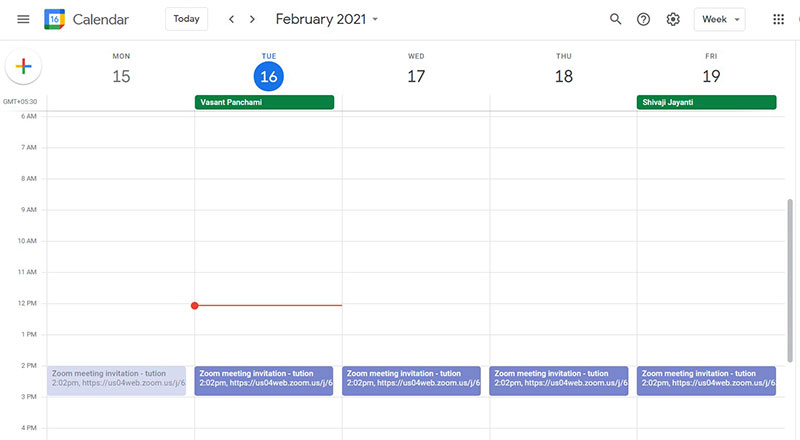
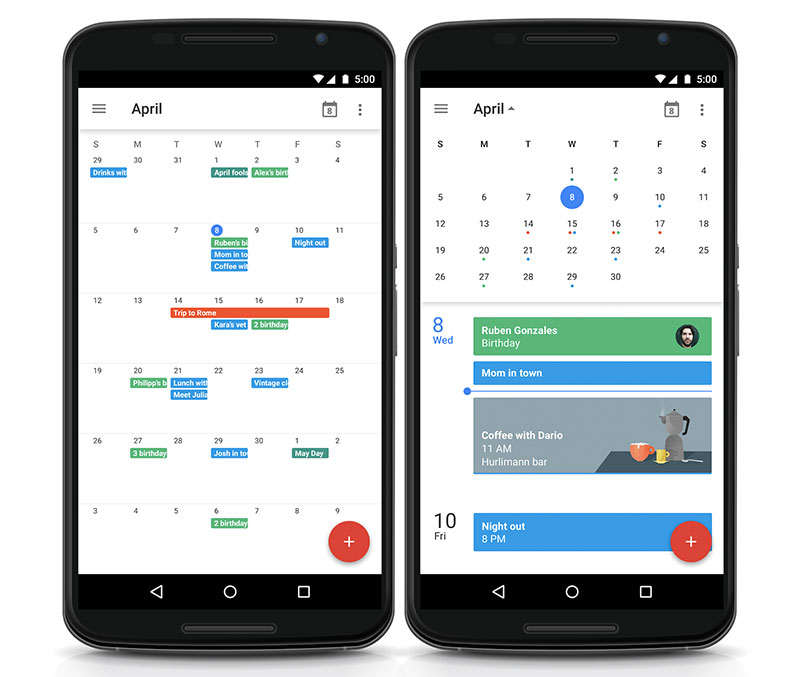
Google Calendar uses a card-based, color-coded layout with six views: day, week, month, year, schedule, and 4-day.
The Schedule view is the most distinctive of them. It lays out upcoming events as a continuous scrollable list with inline location data, attached files, and event descriptions. Power users tend to live in this view, since it strips out the visual clutter of empty time blocks on a weekly grid.
Search is genuinely useful here. Google Calendar indexes event titles, descriptions, attached Drive files, and linked Gmail content, so a search for “doctor appointment” returns not just the calendar event but the confirmation emails and attached documents from the same meeting context.
The interface can feel dense on first use, with a lot of controls on screen. For someone coming from a paper calendar or a simple to-do app, the learning curve is real.
Apple Calendar Interface Features
Apple Calendar follows Apple’s design language: clean typography, minimal visual noise, tight integration with the macOS and iOS system animations. It feels fast on Apple hardware because it’s a native app, not a web app rendered in a browser.
Natural language input works well. Type “Lunch with Tom at Nobu Tuesday at 1pm” into the event field and it fills in the title, location, and time correctly most of the time. Siri handles the same input from a voice command.
What Apple Calendar leaves out is also worth knowing. There’s no Schedule-style list view, only day, week, month, and year. No searchable event attachments. No inline task integration on par with Google Tasks. And no daily agenda email digest.
For people who want a minimal UI and clean design on Apple devices, Apple Calendar is fast and comfortable. For people managing complex schedules with multiple calendars, attached files, and cross-tool connections, Google Calendar gives them more to work with.
Mobile Experience Side by Side
| Feature | Google Calendar (mobile) | Apple Calendar (mobile) |
|---|---|---|
| Default view | Schedule or month | Month with day list below |
| Drag-and-drop events | Yes | Yes |
| Widget support | Yes (Android & iOS) | Yes (iOS only) |
| Voice event creation | Google Assistant | Siri |
| Auto-event from email | Yes (from Gmail) | No (not by default) |
How Do Google Calendar and Apple Calendar Handle Recurring Events and Reminders?
Both handle recurring events and reminders well for standard use. The gaps show up at the edges, specifically around automatic event creation and how notifications get managed across devices.
Recurring Event Options in Both Apps
Google Calendar and Apple Calendar support the same core recurrence patterns: daily, weekly, monthly, and yearly; custom intervals like every 2 weeks or the first Monday of the month; and either recurrence end dates or a fixed occurrence count.
Google added bi-weekly custom recurrence for appointment schedules in July 2024 (Google Workspace Updates, 2024). Apple Calendar has supported custom recurrence patterns on macOS and iOS since earlier versions, with no equivalent scheduling-page feature available natively.
Auto-Events from Email
Google Calendar auto-creates events when Gmail detects flight bookings, hotel reservations, restaurant confirmations, concert tickets, and medical appointments (Google Support, 2025).
The events appear with a confirmation number, a location, and a link back to the original Gmail thread, and they stay updated if the booking changes. The feature is on by default in most countries, though users in the EU, Switzerland, the UK, and Japan have to enable it manually because of regional data regulations.
Apple Calendar doesn’t auto-import events from Apple Mail by default. Apple Intelligence can detect dates in messages and screenshots and suggest events, but you have to confirm each one. That friction is intentional given Apple’s privacy-first stance, but it does mean Google Calendar saves more time for anyone fielding a lot of booking confirmations.
Reminders and Notification Behavior
Google Calendar supports multiple reminders per event by push notification, email, or both, and offers a daily agenda email each morning listing that day’s events. Notification delivery hits all signed-in devices at the same time.
Apple Calendar uses iOS and macOS system notifications exclusively. Reminders are set per event (or as default rules), and the app ties into Apple Reminders as a separate app for task-level alerts. Its location-based reminders, powered by Apple Maps, tell you when to leave based on real-time traffic, and that specific feature has no direct equivalent in Google Calendar.
How Do Google Calendar and Apple Calendar Perform for Business Users?
For most teams, Google Calendar is the default. It sits inside Google Workspace alongside Gmail, Meet, Drive, and Docs, which means it’s already where the work happens. Google Workspace serves over 3 billion active users a month and 11 million paying business customers as of Q4 2025 (Alphabet earnings, 2026), and Google Calendar is the scheduling layer embedded across that entire system.
Apple Calendar shows up in businesses mostly because people already have iPhones. It connects to Microsoft Exchange, which keeps it relevant in corporate environments, but it doesn’t compete on collaboration features.
Google Calendar Business Features
Google Workspace unlocks a layer of business-specific scheduling that the free tier doesn’t include. Room and resource booking reserves conference rooms and equipment alongside event invites. Calendar delegation lets executives grant assistants full management access. A working location indicator flags whether team members are in office or remote. Appointment scheduling pages let clients book open slots directly, with Stripe payment collection on paid plans. And Focus Time blocks automatically decline meetings during deep work.
Gemini AI, added to Workspace plans in 2024, can now suggest optimal meeting times based on email context. HubSpot uses Google Calendar to sync client appointments straight inside CRM contact profiles, which keeps sales teams from bouncing between tools (syncthemcalendars.com, 2024).
Apple Calendar in Corporate Environments
Apple Calendar connects to Microsoft Exchange out of the box, which covers most corporate environments where Outlook is the standard.
On a Mac or iPhone, it feels faster and more native than a Google Calendar browser tab, and that matters to people who open their calendar dozens of times a day. The tradeoff is no “Find a Time,” no meeting poll, and no room booking interface without third-party tools like Calendly or Fantastical.
For small teams where everyone’s on Apple devices, the iCloud family calendar model scales reasonably well. For cross-platform teams, scheduling through Google Calendar stays the more practical setup.
Business Feature Comparison
| Feature | Google Calendar | Apple Calendar |
|---|---|---|
| Room booking | Yes (Workspace) | No |
| Calendar delegation | Yes | Yes (Exchange / CalDAV) |
| Find a Time / availability | Yes | No |
| Appointment booking page | Yes (Workspace) | No (needs Fantastical) |
| AI scheduling assistant | Gemini (Workspace plans) | Siri / Apple Intelligence |
How Do Google Calendar and Apple Calendar Handle Offline Access?
Apple Calendar does better offline, and the reason is simple: it’s a native app that stores data locally by default. Google Calendar’s offline behavior depends on which device and browser you’re using.
Apple Calendar Offline Access
Apple Calendar caches all events locally on iPhone, iPad, and Mac automatically, no setup required. When the device is offline, the full calendar is available for viewing and editing across every connected account type, iCloud, Google, and Exchange calendars added to the app included.
Changes sync automatically once connectivity returns. The offline experience on Apple hardware is identical to the online one. No separate mode to enable, no prior configuration, no browser dependency.
Google Calendar Offline Access
Google Calendar went offline-capable for Android, iOS, and ChromeOS users in April 2024, with no opt-in required for the mobile apps (Google, 2024).
On mobile, recent events cache locally and sync within seconds of reconnection. Creating and editing events while offline works, and the changes persist even after a device restart. The mobile offline experience is reliable for most people.
On desktop, though, offline access requires Chrome with offline mode manually enabled in Google Calendar’s settings. The web app doesn’t cache automatically in other browsers, so anyone relying on Firefox or Safari for Google Calendar won’t get offline access without switching to Chrome or installing the Calendar Progressive Web App.
Which Handles Offline Better?
Apple Calendar wins here without much debate. There’s zero setup on any Apple device, it works across all connected accounts rather than just iCloud, and there’s no browser dependency for full offline functionality.
Google Calendar’s mobile offline mode is good enough for most people. The gap shows up on desktop, where Apple Calendar’s native macOS app needs no configuration while Google Calendar’s Chrome-only offline setup is a step most users never take.
Which Is Better: Google Calendar or Apple Calendar?
Neither app is objectively better. The right one comes down to the devices you use, how much you need to collaborate, and how much you care about privacy.
Apple devices account for roughly 55% of email opens globally (Litmus, 2025), which means a sizeable share of professionals already have Apple Calendar sitting on their phones by default. But available and optimal aren’t the same thing.
When to Choose Google Calendar
Google Calendar is the stronger choice when you use Android, Windows, or hop between operating systems regularly. Or when your team runs on Google Workspace (Gmail, Drive, Meet). Or when you need to share calendars with people across different device types. Or when you want deep integration with Zoom, Slack, Trello, Asana, or other third-party tools. Or when you book client appointments and need a scheduling page.
Freelancers and consultants tend to default here. Appointment scheduling pages, cross-platform access, and scheduling Google Meet calls straight from the calendar make client workflows easier. If you’re already using a WordPress calendar plugin on your website to handle bookings, syncing it with Google Calendar is generally simpler than connecting it to iCloud.
When to Choose Apple Calendar
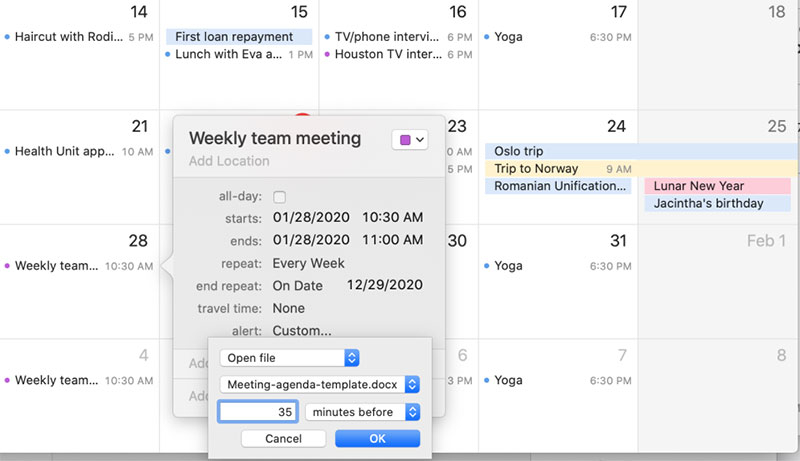
Apple Calendar makes more sense in a few specific cases.
For all-Apple households or teams, the iCloud family calendars sync instantly with zero setup and no third-party tool needed.
For privacy-focused users, there’s no ad-driven incentive to analyze your scheduling data, and on-device Apple Intelligence processing keeps event analysis local.
And for people who want zero friction on Apple hardware, the native app performance on Mac and iPhone beats any browser-based calendar, while the location-based reminders and Siri integration are genuinely useful daily features.
If you’re already sharing an iCloud calendar with family or a small team, switching to Google Calendar for personal scheduling adds complexity without much payoff. Stick with what works.
Using Both Apps Together
You don’t have to pick one exclusively. Both support CalDAV, so you can add a Google account to Apple Calendar and see all your events in a single native interface on your iPhone or Mac.
Most people who mainly use Apple devices but work in Google Workspace do exactly this. Apple Calendar shows the full picture, iCloud and Google events side by side, without you having to open a browser. Events created in either app sync back to the correct account automatically.
Third-party sync tools like CalendarBridge and OneCal handle bidirectional sync between iCloud and Google Calendar for anyone who needs events to appear correctly in both places rather than just viewing one inside the other.
If you need a purpose-built booking system on top of whichever calendar you use, dedicated scheduling software for small businesses is worth a look. Native calendar apps handle personal and team scheduling well. High-volume appointment booking for clients usually needs a tool built specifically for that.
FAQ on Google Calendar vs Apple Calendar
Is Google Calendar better than Apple Calendar?
Google Calendar is better for cross-platform users and teams. Apple Calendar is better for people fully inside the Apple ecosystem who want a clean, native experience. Neither is objectively superior. The right choice depends on your devices and workflow.
Can I use Google Calendar on an iPhone?
Yes. Google Calendar has a full native iOS app on the App Store. It works on iPhone and iPad alongside Apple Calendar, and many iPhone users run both at once, with Google Calendar handling work and iCloud handling personal events.
Can Apple Calendar sync with Google Calendar?
Yes. Adding your Google account to Apple Calendar on iPhone or Mac pulls all your Google Calendar events into the native app. Both calendars display side by side, and events created in either app sync back to the correct account automatically using CalDAV.
Which calendar app is more private?
Apple Calendar has a stronger privacy posture. Apple doesn’t use calendar data for ad targeting. Google’s business model involves advertising, though Google states it doesn’t read event content directly. For regulated industries, Apple Calendar is the lower-risk option.
Does Apple Calendar work on Windows?
Partially. iCloud for Windows allows access to Apple Calendar on a Windows PC, but the sync reliability is inconsistent and the features are limited. Google Calendar works fully on Windows through any browser with no extra software.
Which app is better for scheduling appointments?
Google Calendar. It offers built-in appointment scheduling pages on Workspace plans, letting clients book open slots directly. Apple Calendar has no native booking page feature. Third-party tools like Fantastical or Calendly add this to Apple Calendar.
Do both apps support recurring events?
Yes. Both support daily, weekly, monthly, yearly, and custom recurrence patterns. Google Calendar also auto-creates events from Gmail booking confirmations. Apple Calendar doesn’t do that by default, though Apple Intelligence can suggest events detected in messages and screenshots.
Which calendar app works better offline?
Apple Calendar. It caches all events locally on iPhone, iPad, and Mac automatically with no setup. Google Calendar’s mobile apps handle offline access well, but desktop offline mode requires Chrome and manual configuration in the settings.
Can I share my Apple Calendar with Android users?
Only as a read-only link. Non-Apple users receive an ICS subscription link and can view events but can’t add or edit them. For true cross-platform calendar sharing with edit access, Google Calendar handles this more reliably than iCloud sharing.
Is there a cost difference between Google Calendar and Apple Calendar?
Both are free. Google Calendar comes with any Google account, and Apple Calendar is pre-installed on all Apple devices. Advanced features in Google Calendar, like appointment scheduling pages and room booking, require a paid Google Workspace subscription starting at $7 per user per month (billed annually) as of 2025.
Conclusion
This conclusion is for an article presenting the core differences between Google Calendar and Apple Calendar across platform access, collaboration, privacy, and offline use.
Google Calendar wins on third-party integrations, cross-device scheduling, and team coordination. Apple Calendar wins on native performance, location-aware reminders, and a privacy posture that does not depend on advertising revenue.
Neither app is the wrong choice. They serve different users.
If your workflow involves iCloud sync, Apple-only devices, and minimal external collaboration, Apple Calendar is fast and frictionless. If you manage recurring appointments, shared calendars, or a mixed-device setup, Google Calendar gives you more control.
You can also run both. Add your Google account to Apple Calendar and get the best of each without committing to one.

Explore topics

Read Inspiring Customer Stories
Check out how our user set Amelia for his business