
An out-of-office note and an order confirmation look like different things, but they come from the same mechanism. Something happens, and a message goes out without anyone typing it. The event that sets it off decides what the email has to say.
Some replies fire because you are away. Others fire because a customer filed a ticket or did something on your site, like signing up or buying. A vacation notice needs a return date. A ticket acknowledgement needs a response time, and an order email needs an order number.
Every responder that answers incoming email automatically, from a vacation notice to a helpdesk acknowledgement, falls under RFC 3834 (IETF, 2004). It recommends that each automatic reply carry an Auto-Submitted: auto-replied header and that a responder not answer any message whose Auto-Submitted value is anything other than “no”.
Out-of-office reply examples for vacation, holidays and leave
A good out-of-office reply gives the dates you are gone and a person to contact. That is most of the job. Below are replies for vacation, holidays, long leave and travel with limited access, and the trigger is the same each time: a message arriving while the responder is switched on.
Short vacation and holiday replies
A personal vacation reply can be this short.
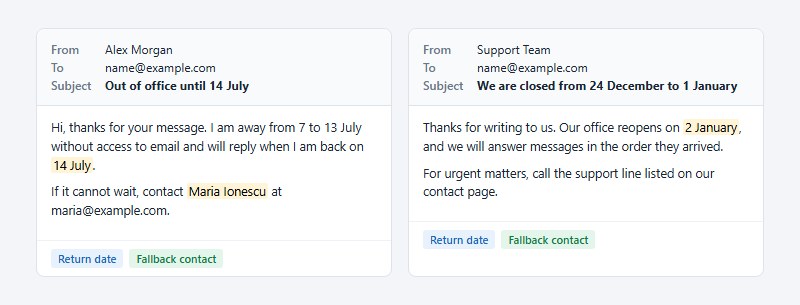
Subject: Out of office until 14 July
Hi, thanks for your message. I am away from 7 to 13 July without access to email and will reply when I am back on 14 July.
If it cannot wait, contact Maria Ionescu at [email protected].
A company closing over the holidays needs a slightly different version.
Subject: We are closed from 24 December to 1 January
Thanks for writing to us. Our office reopens on 2 January, and we will answer messages in the order they arrived.
For urgent matters, call the support line listed on our contact page.
Change the dates and the rest carries over. The return date comes first in both, and the fallback contact follows.
Extended and parental leave replies
Long absences make a different promise, which is that nobody is reading mail at all.
Subject: On leave until 3 March
Thank you for your email. I am on leave until 3 March and am not checking messages during that time.
Chen Wei is covering my accounts and can be reached at [email protected]. Your message has not been forwarded, so please resend it to Chen if it is time-sensitive.
Settle who covers, and whether they know yet. Then decide whether messages are forwarded or stay in the inbox, and whether the reply goes to everyone or only to your contacts. The wording depends on those answers.
Gmail has a checkbox that sends the reply to contacts only, according to Google Help. It suits leave messages sent from a personal address.
Business travel and after-hours replies
A travel reply can read like this: “I am traveling until 20 March with limited email access. I will answer within two working days of my return, and Sam Okafor can help with urgent requests.”
An after-hours one is plainer: “You have reached us outside our working hours, Monday to Friday, 9:00 to 17:00. We will reply on the next working day.”
The travel version gives a return date. After-hours replies can’t, since they fire on the time a message arrives and there is no single date to point to, so working hours take its place.
Which automated replies work for support tickets and contact forms?
The ones that work confirm receipt and say when the sender will hear back. A reference number or an urgent contact helps too. The trigger here is a created ticket or a submitted form, so the message can repeat details the sender typed.
Zendesk ships a default trigger called “Notify requester and CCs of received request,” which emails the customer as soon as their message becomes a ticket (Zendesk documentation).
Ticket acknowledgement
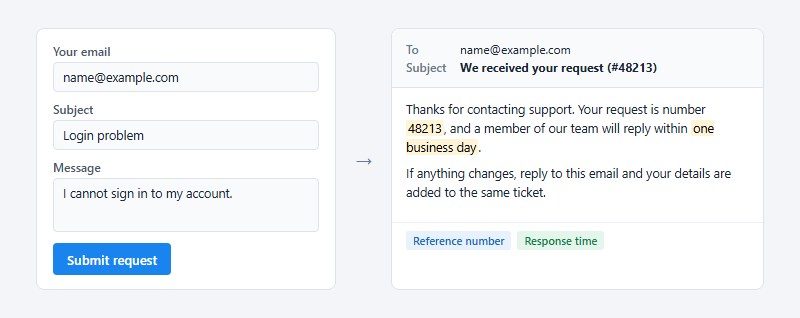
Subject: We received your request (#48213)
Thanks for contacting support. Your request is number 48213, and a member of our team will reply within one business day.
If anything changes, reply to this email and your details are added to the same ticket.
The reference number gives the customer something to quote, and the stated response time sets expectations. Replying to the email keeps the whole conversation in one thread.
Skip the mailbox out-of-office feature for this job. Exchange’s Out of Office Assistant sends one reply per sender, so a customer’s second ticket gets no acknowledgement (Microsoft Learn). Helpdesk triggers such as Zendesk’s fire when each ticket is created, which means a second ticket gets its own acknowledgement. Help Scout, by contrast, limits repeats to once per address per 24 hours.
The stated response time has to match the real first-response time. If the team promises one business day and misses it, a helpful reply turns into a complaint.
Contact form confirmation
A form confirmation repeats what the sender submitted.
That proves the form worked and gives the sender a copy to look back at.
Subject: Thanks, we have your message
Hi Priya, thanks for getting in touch. The message you sent is copied below this note, and we will reply within two working days.
On a sales form, add a link for booking a call, since the visitor already showed interest. A support form is better off with the ticket number and a link to the help center.
Outage and maintenance notices
The support team switches these on for as long as a known incident lasts. The message itself can be short: “We are aware of a login problem and are working on it. We will email you when it is fixed.”
The payoff is fewer repeat tickets about the same fault, and BoldDesk’s guide lists maintenance and known issues among its standard auto-reply scenarios.
Switch the notice off when the incident closes. A stale outage message arriving weeks later costs more trust than the outage did.
Welcome, order and cart emails: automated responses for sales and ecommerce
Signup, purchase, shipment, booking and abandoned cart cover most ecommerce automation, and each one pairs with a single message type.
| Trigger | Message | Must contain |
|---|---|---|
| Signup | Welcome email | Greeting, what to expect, one next step |
| Purchase | Order confirmation | Order number, items, total, support contact |
| Shipment | Shipping notification | Carrier, tracking link, delivery estimate |
| Booking | Booking confirmation | Date, time, place or meeting link, change policy |
| Abandoned cart | Cart recovery email | Items left, link to the cart, shipping and tax details |
Order and shipping messages count as transactional. Welcome and cart emails don’t, they’re marketing, and that split decides which legal rules apply.
Welcome email
Welcome emails are the easiest automation to justify with numbers. They earned $6.16 per email sent in Omnisend’s 2025 dataset, which covers 470 million automated sends from 27,000+ brands.
Subject: Welcome, here is what happens next
Thanks for signing up. You will get one email a week, and you can change that any time from the link at the bottom.
To start, here is our most-read guide.
One next step beats five links.
Order confirmation and shipping notification
An order confirmation says something like “Your order 10482 is confirmed” and then lists the items, the total, the delivery address and a support contact. The shipping notice follows with “Your order 10482 is on its way,” plus the carrier, a tracking link and a delivery estimate.
Shipping confirmations posted a 62.67% open rate in Omnisend’s 2025 data, the highest of any email type. Apple Mail Privacy Protection can inflate open counts, so read that as a direction, not a measurement.
Customers open these to check a delivery, so the tracking link goes at the top.
Abandoned cart email
Seven in ten carts are abandoned before purchase.
Baymard Institute puts the average documented abandonment rate at 70.22%, calculated across 50 studies. Its research lists unexpected extra costs such as shipping and tax as the leading stated reason.
Subject: You left something in your cart
The items below are still waiting. Shipping and tax are shown before you pay, and the link takes you straight back to your cart.
Naming the costs in the email removes the surprise that sent the shopper away. Omnisend’s 2025 data shows abandoned cart emails earning $3.59 per send.
Booking confirmation
A booking confirmation fires when a customer reserves a slot, and it carries the details they will look up later.
Subject: Booking confirmed for Thursday 12 November at 14:00
Your appointment is confirmed for Thursday 12 November at 14:00 at our Main Street studio. To change or cancel, use the link below at least 24 hours ahead.
The same details fit in a short message, so the email can be paired with a text confirmation of the appointment.
If bookings come in through your WordPress site, a booking plugin such as Amelia can send these as email, SMS or WhatsApp notifications for each booking, so nobody types them by hand. Off WordPress, Trafft, the hosted booking software from the same team, covers the same job with automated reminders and online payments. Templates for approved, pending, rejected, canceled and rescheduled bookings follow in the next section.
Appointment email templates: approved, pending, rejected, canceled, rescheduled, reminder and follow-up
A business that takes bookings sends the same handful of emails again and again, one for each thing that can happen to an appointment. It gets approved, waits for approval, gets declined, canceled or moved, then comes round as a reminder and ends with a follow-up. Each of these deserves its own template, written once and filled in by the system.
Every template below comes in two versions. The formal one suits clinics, law firms and consultants. The informal one suits studios, salons and coaches. Swap the bracketed fields for your own details, or for placeholders if your booking tool has them.
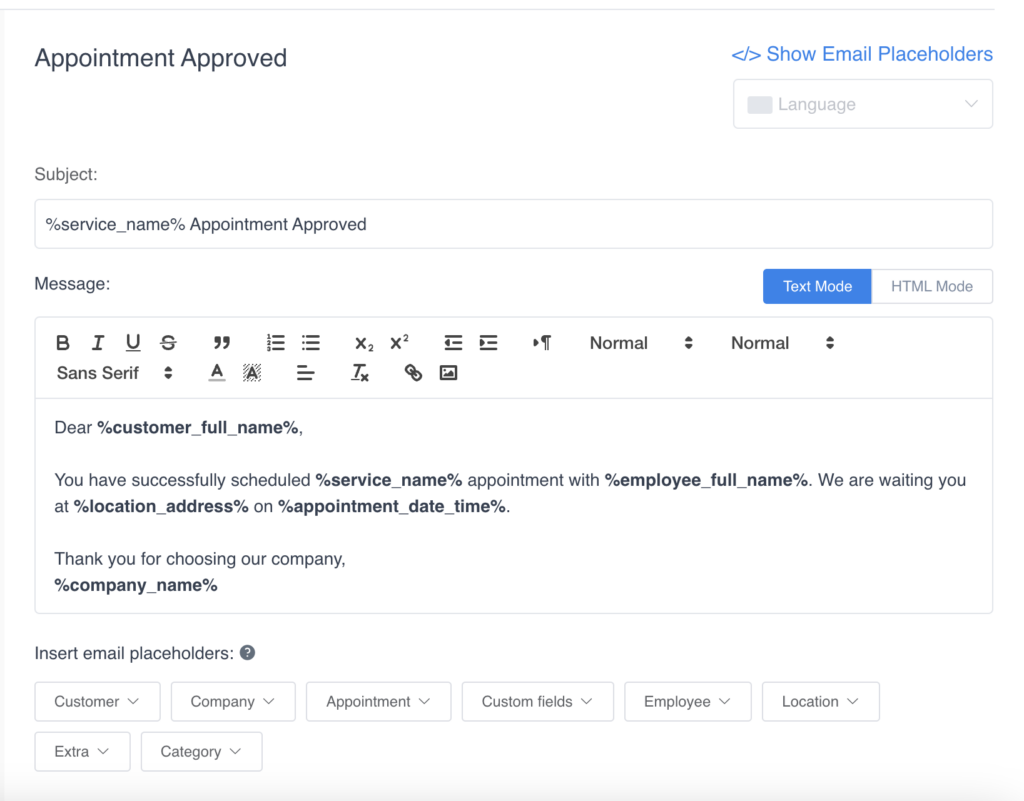
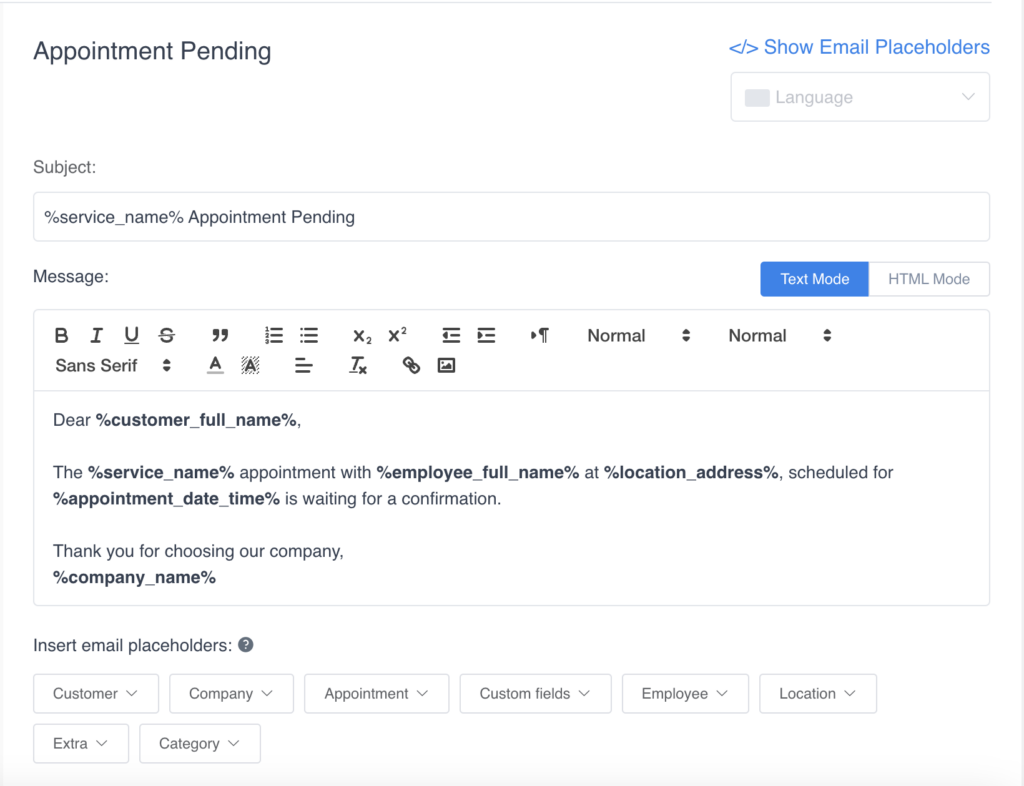
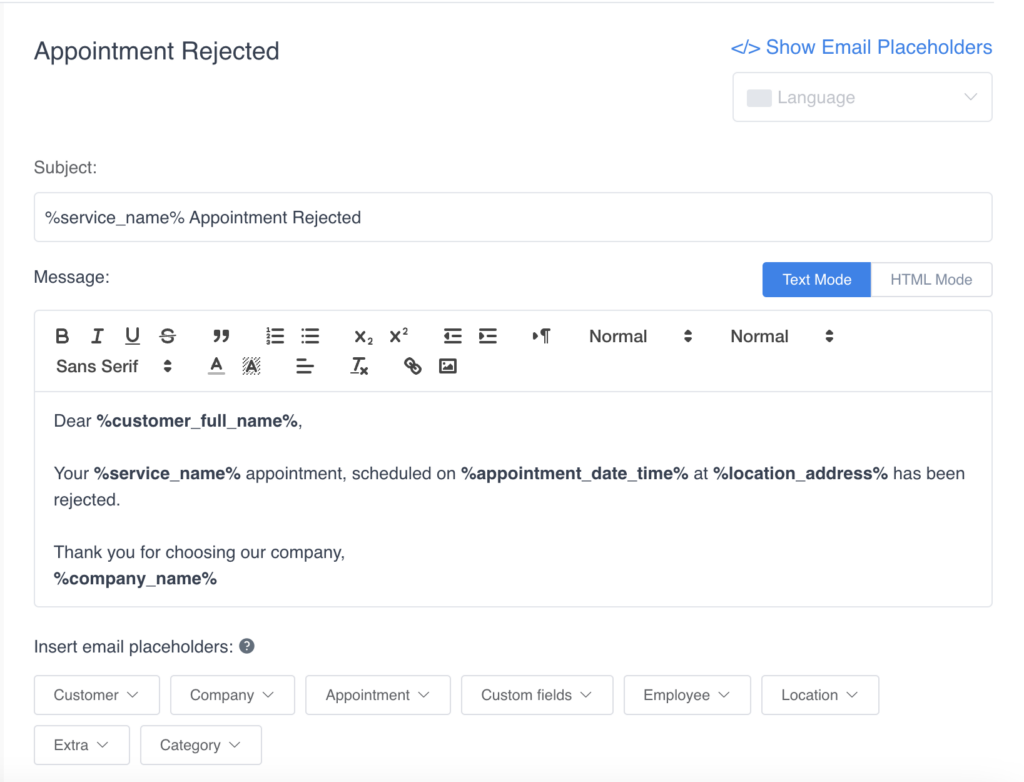
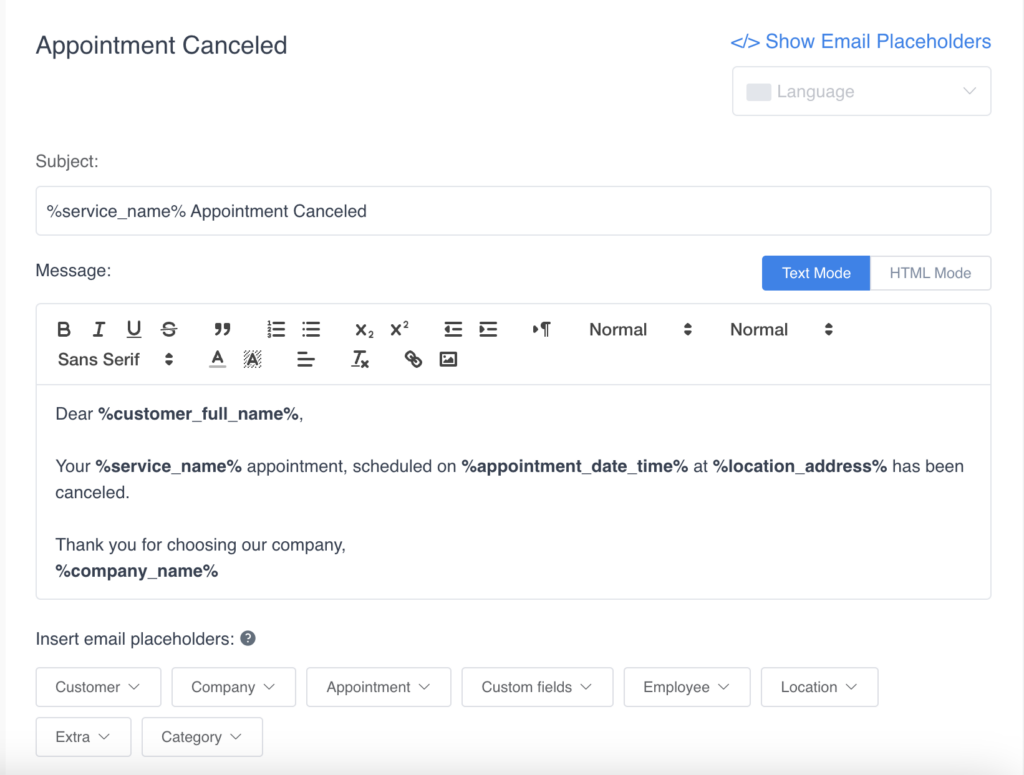
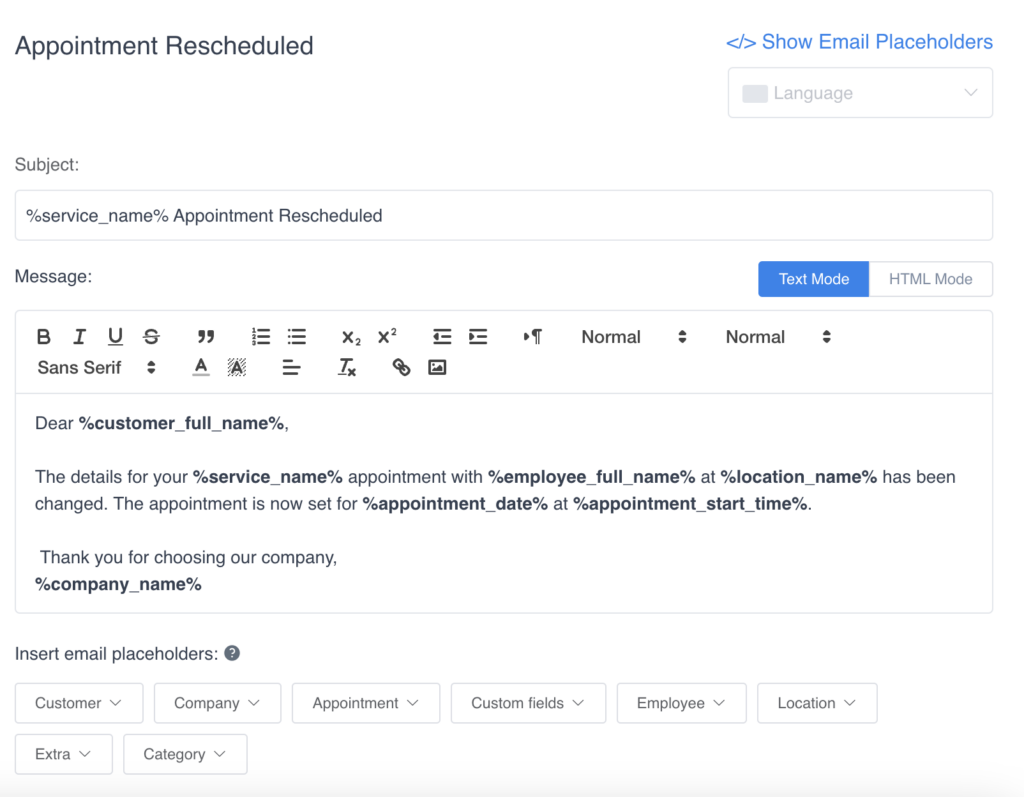
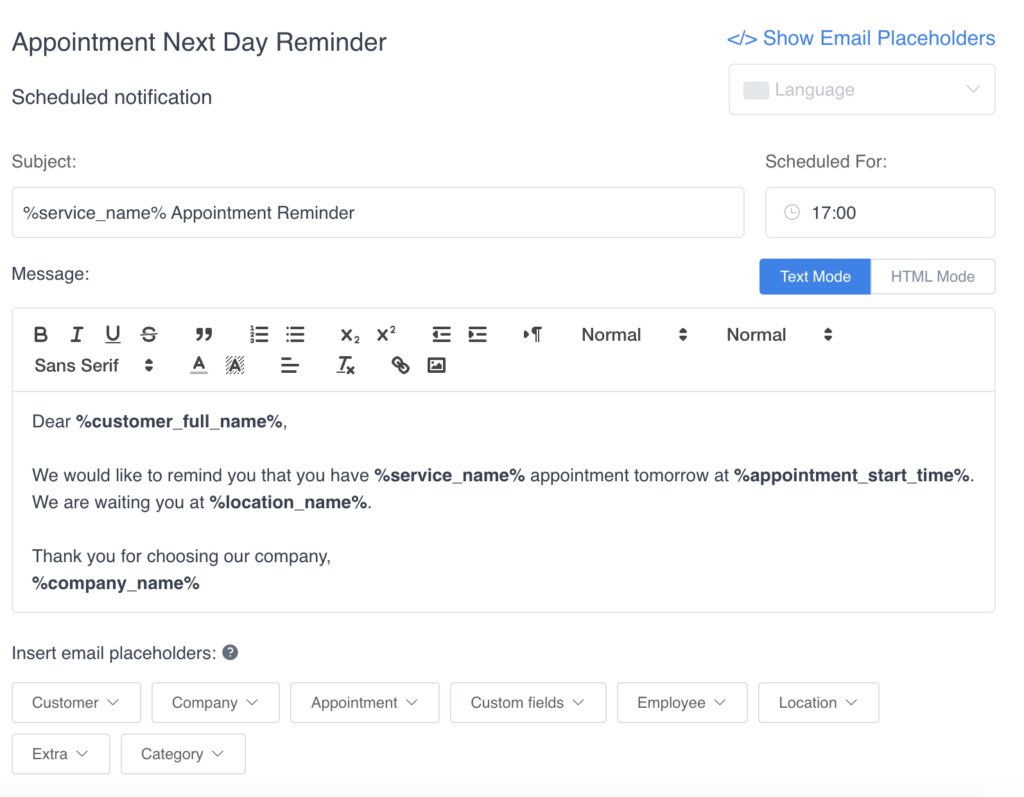
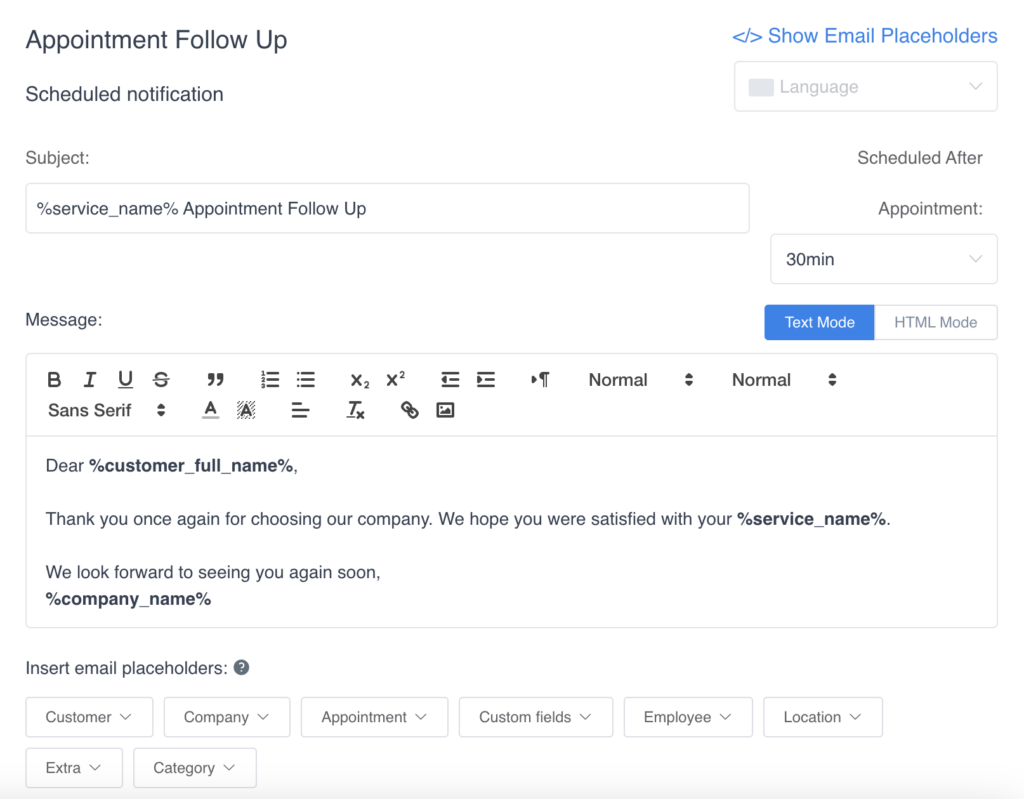
The screenshots show how the same emails look as notification templates in Amelia, a WordPress booking plugin. The text between percent signs, such as %customer_full_name%, %service_name%, %employee_full_name%, %location_address%, %appointment_date_time% and %company_name%, is filled in for each booking when the email goes out. An “Insert email placeholders” menu under the editor lists the rest, and every template can be edited in a text or an HTML mode.
Appointment approved email
This email fires when a booking is accepted, whether the system approves it by itself or a person does it by hand. It repeats the service, date and time so the customer has everything in one place.
Formal version
Subject: Confirmation of Your Approved Appointment
Dear [Customer’s Name],
Your appointment for [Service/Event Name] on [Date & Time] has been approved. We look forward to seeing you.
If you have any questions before your visit, please get in touch.
Best regards,
[Your Name]
[Your Business Name]
Informal version
Subject: Your Appointment Is Confirmed
Hi [Customer’s Name],
Good news: your appointment for [Service/Event Name] on [Date & Time] is booked and locked in. See you then!
Need anything before the day? Just reply to this email.
Cheers,
[Your Name]
[Your Business Name]
Appointment pending email
Use this one when bookings need your approval before they count. It tells the customer the request arrived, that nothing is confirmed yet and that an answer is coming. Without it, people book twice or call to ask.
Formal version
Subject: Acknowledgment of Your Pending Appointment Request
Dear [Customer’s Name],
Thank you for requesting an appointment for [Service/Event Name] on [Date & Time]. We are reviewing your request and will confirm its status shortly.
Thank you for your patience.
Kind regards,
[Your Name]
[Your Business Name]
Informal version
Subject: We Got Your Appointment Request
Hi [Customer’s Name],
Thanks for asking for an appointment for [Service/Event Name] on [Date & Time]. We are checking the calendar and will let you know very soon.
Questions in the meantime? Just ask.
Best,
[Your Name]
[Your Business Name]
Appointment rejected email
Declining a request is where tone matters most. Say the answer plainly, give the reason if you can share it and offer another way forward, so the customer does not hit a dead end.
Formal version
Subject: Your Appointment Request Could Not Be Accepted
Dear [Customer’s Name],
We are sorry to tell you that we cannot accept your appointment request for [Service/Event Name] on [Date & Time] because of [Reason for Rejection].
If you would like to look at other dates or services, please contact us and we will help.
Kind regards,
[Your Name]
[Your Business Name]
Informal version
Subject: We Can’t Take That Appointment
Hi [Customer’s Name],
Sorry, we are not able to take your request for [Service/Event Name] on [Date & Time].
Want to try another day or a different service? Reply here and we will find something that works.
Best,
[Your Name]
[Your Business Name]
Appointment canceled email
A cancellation email goes out when you or the customer cancels. State what was canceled, say whether anything is owed or refunded and point to the next step. For a policy on notice and fees, see how businesses handle cancelled appointments.
Formal version
Subject: Notification of Cancellation: Your Appointment
Dear [Customer’s Name],
Your appointment for [Service/Event Name] on [Date & Time] has been canceled. We apologize for any inconvenience.
If you would like to book a new time, please contact us.
Kind regards,
[Your Name]
[Your Business Name]
Informal version
Subject: Your Appointment Was Canceled
Hi [Customer’s Name],
Your appointment for [Service/Event Name] on [Date & Time] has been canceled. Sorry for the change of plans.
If you want to rebook or have a question, we are here.
Take care,
[Your Name]
[Your Business Name]
Appointment rescheduled email
When a booking moves, the new time has to be impossible to miss, because customers often keep the old calendar entry. Put the new date and time in the subject line or the first sentence.
Formal version
Subject: Confirmation of Rescheduled Appointment
Dear [Customer’s Name],
Your appointment for [Service/Event Name] has been moved to [New Date & Time]. Thank you for your flexibility.
If this time does not suit you, please contact us.
Kind regards,
[Your Name]
[Your Business Name]
Informal version
Subject: Your New Appointment Time
Hi [Customer’s Name],
We have moved your appointment for [Service/Event Name] to [New Date & Time].
Does the new time not work? Let us know and we will sort it out.
See you soon,
[Your Name]
[Your Business Name]
Next-day appointment reminder email
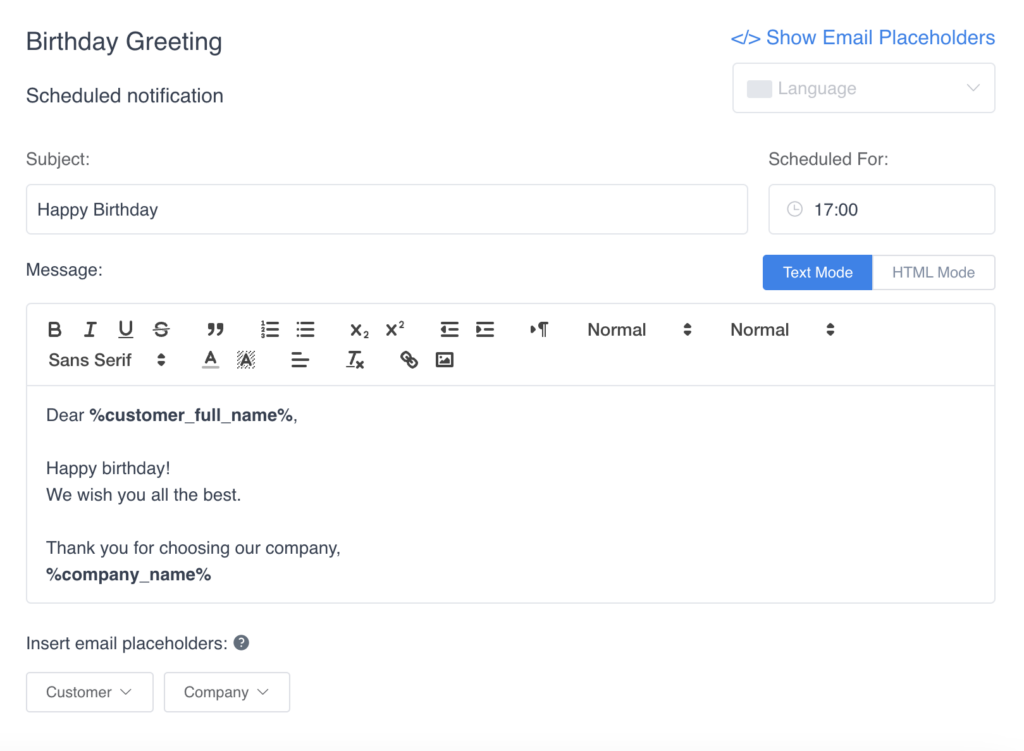
Reminders are scheduled rather than triggered by a booking. In Amelia, a “Scheduled For” field sets the time of day the reminder goes out, 17:00 in the screenshot, which means customers get it the evening before. If you would rather not write and send these yourself, appointment reminder apps do it on a timer.
Formal version
Subject: Reminder: Your Appointment Is Tomorrow
Dear [Customer’s Name],
This is a reminder that your appointment for [Service/Event Name] is tomorrow at [Time]. We look forward to seeing you.
If you need to reschedule, please contact us as soon as you can.
Best regards,
[Your Name]
[Your Business Name]
Informal version
Subject: See You Tomorrow
Hi [Customer’s Name],
A quick reminder that your appointment for [Service/Event Name] is tomorrow at [Time].
Something came up? Message us and we will move it.
See you soon,
[Your Name]
[Your Business Name]
Appointment follow-up email
A follow-up goes out after the visit. It thanks the customer and asks one simple thing, such as a review or a rebooking. Amelia lets you set the delay after the appointment, 30 minutes in the screenshot. A short gap works best, while the visit is still fresh.
Formal version
Subject: Feedback Request: Your Recent Appointment
Dear [Customer’s Name],
Thank you for your recent appointment for [Service/Event Name]. Your feedback helps us improve.
Could you take a moment to share your thoughts?
Thank you,
[Your Name]
[Your Business Name]
Informal version
Subject: How Did It Go?
Hi [Customer’s Name],
Thanks for coming in for [Service/Event Name]. We would love to hear how it went.
Got a minute to tell us what worked and what could be better?
Cheers,
[Your Name]
[Your Business Name]
Birthday greeting email
A birthday email is not tied to an appointment, but it helps strengthen client relationships at almost no cost. It runs on a schedule like the reminder, and if you attach an offer, state what it is and when it expires.
Formal version
Subject: Birthday Wishes from [Your Business Name]
Dear [Customer’s Name],
Everyone at [Your Business Name] wishes you a happy birthday. As a thank-you for being our customer, here is a birthday offer for you: [Offer].
Warm wishes,
[Your Name]
[Your Business Name]
Informal version
Subject: Happy Birthday, [Customer’s Name]
Hi [Customer’s Name],
Happy birthday from all of us! Here is a little something to celebrate: [Offer].
Enjoy your day,
[Your Name]
[Your Business Name]
What should an automated email response include?
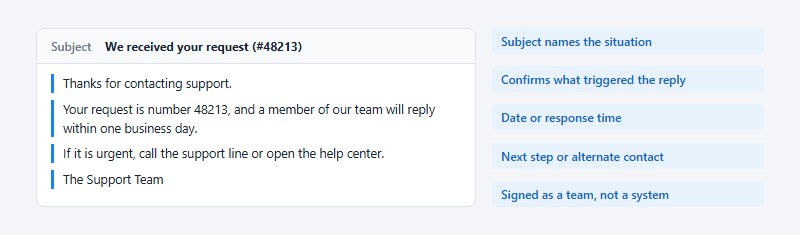
Start with a subject line that names the situation. Then confirm what triggered the reply, give a date or response time, offer a next step or an alternate contact, and make it clear who sent it.
Everything else is optional, and most of it hurts.
Subject lines
Clear ones tell the reader what happened.
- Out of office until 14 July
- We received your request (#48213)
- Order 10482 is on its way
Vague ones tell them nothing.
- Re: your message
- Hello!
- Important update
- Quick note
RFC 3834 (IETF, 2004) covers the subject of an automatic reply, and Thunderbird’s reply-with-template filters follow it by prefixing “Auto: ” (Mozilla Bugzilla, bug 904458).
In Gmail, adding a subject line to a vacation reply delivers it as a separate email instead of inside the existing conversation thread, per Google Help.
Body elements
Confirm receipt in one sentence. Give a return date for absences or a reply window for tickets. Add a name and an address for the next step, or a link to the help center. And sign it as a person or a team, so the reply does not look like an anonymous system message.
Gmail appends your signature below a vacation reply (Google Help). Check that it still makes sense for an automated message. A branded HTML email signature that reflects your brand’s identity keeps automatic replies consistent with the rest of your mail.
What to leave out
Anything the sender does not need in order to act can go.
Personal details beyond a name and a work contact stay out (BoldDesk advises giving a high-level reason for the absence, without unnecessary personal details). So does a response time the team cannot meet, and so does a long explanation of why you are away.
Nobody reads a long auto reply. They skim it, and the return date gets missed.
How to set up automated email responses in Gmail, Outlook and helpdesk tools
Where you set a reply up depends on what kind it is. Mailbox replies live in the settings of Gmail or Outlook. Ticket replies go in a helpdesk’s auto reply or workflow panel, and lifecycle emails need a marketing or ecommerce automation builder. Whichever you pick limits the triggers you can use.
| Tool type | Trigger it handles | Best for |
|---|---|---|
| Mailbox auto reply (Gmail, Outlook) | Any incoming message inside a date range | Absences and leave |
| Helpdesk (Help Scout) | First email in a new conversation | Receipt confirmations |
| Marketing platform (Mailchimp) | Signup, tag or purchase event | Welcome series |
| Ecommerce flow (Klaviyo) | Started Checkout or Added to Cart | Cart recovery |
Mailbox auto replies
Gmail’s vacation responder is set up like this.
- Open Gmail on a computer.
- Click Settings at the top right, then See all settings.
- Stay on the General tab and scroll to Vacation responder.
- Select Vacation responder on.
- Fill in the date range, subject and message.
- Click Save Changes at the bottom of the page.
While it runs, a banner shows across the top of the inbox, and End now switches it off early (Google Help, current page as of October 2026).
In new Outlook, go to View settings, Accounts, Automatic Replies, then turn the toggle on and pick a time period. Classic Outlook goes through File, Automatic Replies, Send automatic replies, with an optional date range. Neither works for Gmail, Yahoo and other POP or IMAP accounts added to Outlook.
For those accounts, Microsoft’s support article (dated August 2026) points to a reply rule instead. The rule only runs while Outlook stays open.
Helpdesk triggers
Help Scout’s inbox auto reply fires on the first email of a conversation only, so a message inside an existing thread gets nothing (Help Scout Docs).
- Enable the auto reply on the inbox that receives the mail.
- Write the message and check the From Name in the inbox settings, because the reply uses it.
- Send a test, then look for the reply in the sender’s inbox.
Do not look for it in the conversation history. Help Scout sends it in the background and does not show it there.
Marketing and ecommerce flows
Every Mailchimp welcome flow starts with a “Signs up for Email” starting point (Mailchimp Help). Contacts added by import enter the flow too, unless the exclusion checkbox in the trigger settings is ticked.
Most pre-built Klaviyo abandoned cart flows trigger on Started Checkout, which fires once a shopper enters their details at checkout (Klaviyo Help Center). Some ecommerce integrations track Added to Cart instead, which catches shoppers earlier, though a Klaviyo employee’s forum answer adds that Added to Cart only reaches tracked profiles.
Mailchimp’s risk is who gets in, so keep your email list clean. Timing is where Klaviyo catches people out.
When is an automated email response sent, and how often?
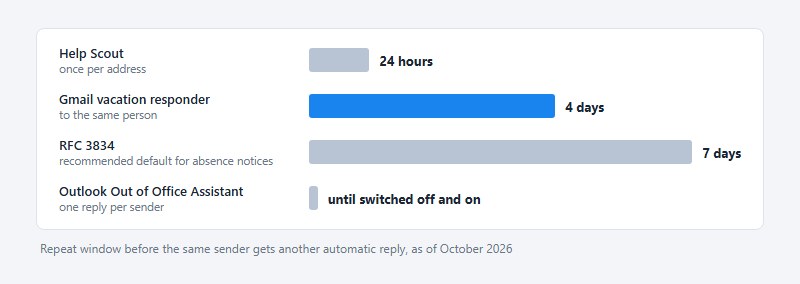
A triggered email sends when its trigger fires, plus any delay set on that step. A mailbox or helpdesk reply sends once per sender, then stays quiet for a window that differs by system.
As of October 2026, the repeat windows look like this.
- Gmail’s vacation responder runs from 12:00 AM on the start date to 11:59 PM on the end date, and it repeats after 4 days to the same person (Google Help)
- RFC 3834 recommends 7 days as the default before repeating an absence notice to one sender (IETF, 2004)
- Help Scout sends once per address per 24 hours by default (Help Scout Docs)
- Outlook sends one reply per sender until the feature is switched off and on (Microsoft Learn)
That is four systems with four different windows. The RFC’s 7 days is only a recommendation, and Gmail repeats sooner.
Instant and delayed sends
Mailchimp’s default one-click welcome automation sends immediately after signup, and the delay can be changed in Automation Builder (Mailchimp Help).
Absence notices have no delay at all. They fire the moment the message lands.
Start dates, end dates and edits
In Gmail, editing the reply while it is running means anyone who already got the first version receives the updated one when they write again (Google Help).
In classic Outlook, a date range is optional, and without one the reply runs until someone turns it off manually (Microsoft Support). Toggling Outlook’s automatic replies off and on also clears the list of senders already answered (Microsoft Learn).
Replying to every message
A client-side Outlook reply rule answers a sender once per Outlook session, and only while Outlook is running. Restarting Outlook deletes that list, and the rule starts over (Microsoft Learn).
For a reply on every message, Microsoft Learn says to use Rules instead of the Out of Office Assistant.
CAN-SPAM and GDPR rules for automated email responses
CAN-SPAM and GDPR both judge an automated message by what it is for. A purchase confirmation or an absence notice carries few obligations, while any message that promotes something brings opt-out or consent rules.
| Rule point | CAN-SPAM (US, FTC) | PECR and GDPR (UK, EU) |
|---|---|---|
| Marketing email | Accurate headers, postal address, opt-out | Consent, or a narrow soft opt-in |
| Stopping marketing | Honor opt-outs within 10 business days | Right to object at any time (GDPR Article 21) |
| Transactional or service message | Exempt from most rules, routing info stays truthful | Service messages sit outside direct marketing |
| Mixed message | Subject line and content placement decide | Any promotional element makes it marketing |
When a message counts as transactional
The FTC reads the transactional categories narrowly. A message qualifies only if all it contains is one of the following.
- Confirms or completes a transaction the customer already agreed to
- Gives warranty, recall, safety or security information about a purchase
- Notifies the customer of a change to an account, subscription or membership
- Provides employment or benefits information
- Delivers goods or services already agreed
Order confirmations and shipping notices fit. Welcome and cart emails carry promotional content, so they follow the marketing rules.
For mixed messages, the FTC looks at the subject line and at whether the transactional part opens the email. Put a sale banner in an out-of-office reply and, under ICO guidance, the whole message counts as direct marketing.
What marketing automation must carry
Headers have to be accurate, so From, To and Reply-To identify the business that sent the message, and the subject line reflects what the email contains. Every promotional message carries an ad disclosure and a postal address. Opt-out requests are honored within 10 business days, with no fee and no extra data demanded.
Each violating email can draw penalties of up to $53,088, per the FTC’s CAN-SPAM compliance guide (figure in force since January 2025). Handing sends to Mailchimp or Klaviyo does not transfer that responsibility.
The service message trap
The ICO fined Halfords 30,000 pounds in September 2022 for 498,179 emails the retailer called service messages. The emails encouraged recipients to book a free bike assessment, which the ICO ruled was marketing.
Under GDPR Article 21, the right to object to direct marketing must be brought to the person’s attention at the latest at the first communication, clearly and separately from other information.
A welcome email is usually that first communication, which makes it the natural place for the notice.
Where automated email responses fail
Most failures are loops between responders or replies that reach the wrong audience. Content problems, like promising too much or revealing too much, make up the rest.
Loops and headers
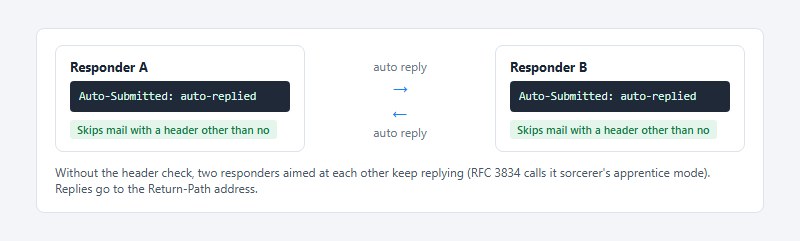
Two responders aimed at each other keep replying. RFC 3834 calls this “sorcerer’s apprentice mode.”
The RFC (IETF, August 2004, updated by RFC 5436) puts these requirements on a responder.
- Mark every automatic response with Auto-Submitted: auto-replied
- Do not answer any message carrying an Auto-Submitted header with a value other than “no”
- Send the reply to the Return-Path address, not to Reply-To or From
- Address each response to one recipient
- The envelope sender of the reply may be empty (<>) or an address that never auto-replies
The Precedence header is optional and non-standard. The RFC recommends no particular value for it.
Mailing lists and backscatter
An absence notice should never go to a mailing list, and junk mail doesn’t deserve one either.
Gmail skips them: mail in the spam folder and mail addressed to a mailing list you subscribe to get no vacation reply (Google Help).
Outlook does not skip by default when replies go to external senders. Microsoft warns that the reply then goes to every message, including newsletters, advertisements and junk, and recommends limiting it to contacts.
The RFC lets a responder ignore messages with a Precedence of “list” or any List- header. It also names forged return addresses as a risk, since a reply can land on someone who never wrote. That misdirected reply is commonly called backscatter.
Content failures
The most common one is a response time the team misses, which Email Meter’s guidance flags as the main risk of any acknowledgement. Absence notices can also reveal too much. RFC 3834 lists disclosure of personal information and recent mailbox activity among its security considerations, and allows replies to known correspondents only. Then there is the generic reply with no next step, which helps nobody. Before launch, run an SPF record check so the sending domain is authenticated, and try A/B testing on subject lines to see which reply gets read.
There are also cases where no reply should go out at all.
- If the incoming message is itself automatic, skip the reply and check the Auto-Submitted header first.
- If it came through a mailing list, skip it, or limit external replies to contacts.
- If the sender needs a human right now, an auto reply cannot help, so give an alternate contact.
- If the reply carries a promotion, remove it, because it turns a service message into direct marketing.
- If the account is POP or IMAP in Outlook, the native feature is missing, so use a rule and keep Outlook running.
Automated Email Response FAQ
How is an automated email response different from an autoresponder or a transactional email?
Any pre-written message that goes out without manual action after a trigger counts as an automated email response. Autoresponders are usually a reply or sequence fired by a signup or incoming message, while a transactional email confirms a transaction the customer already agreed to.
RFC 3834 adds a technical split, into Service, Personal and Group responders.
How do I turn off an automatic reply?
Turn it off where you turned it on. In Gmail, click End now in the inbox banner, and in classic Outlook, select Turn off in the message under the ribbon.
With a date range set, both stop by themselves at the end time.
How long should an auto reply be?
Keep it short. RFC 3834 says responses from personal responders should be brief and in plain text, without significant content quoted from the original message.
Three lines cover most cases. Confirm receipt, give a date or response time, and name one contact.
Should I send an auto reply after closing a ticket?
Yes, a closing notice works, as long as it cannot start a loop. Zendesk’s current standard triggers no longer include a solved-request notice, so build a custom trigger on the Solved status that tells the customer the ticket is solved and invites an update.
Add Auto-Submitted: auto-replied to the message so other responders ignore it.
Can I send different out-of-office messages to colleagues and outside senders?
Yes, with a work or school account in Outlook. The Automatic Replies box has an Inside My Organization tab and an Outside My Organization tab, so each audience gets its own message.
Microsoft recommends the contacts-only option for outside senders.
Which Automated Email Response to Set Up First
Build the ticket and contact form acknowledgement first. It fires on every new inquiry, and it carries the one promise a business has to keep.
Take the stated reply time from first-response data the team already meets, not from a target. Check it each quarter against the helpdesk’s own reports, and change the message when the numbers move.
After that, switch on an absence notice before the next planned leave. Welcome and cart emails come last, once the opt-out path works.
The trade-off is slower revenue from lifecycle emails in exchange for a clean base. A broken acknowledgement costs trust on every ticket, while a broken cart flow costs a single channel.
Position verified 30 October 2026. It changes if Google, Microsoft or a helpdesk vendor alters its repeat window, or if RFC 3834 is superseded.

Explore topics

Read Inspiring Customer Stories
Check out how our user set Amelia for his business