



You just finished a 90-minute hair color appointment. Your client is happy, you’re happy and then you glance at your calendar. The next client walks in three minutes. Your station isn’t clean, your notes aren’t saved, and there’s zero time to even grab a glass of water.
Sound familiar? That’s what happens when your schedule has no breathing room. And it doesn’t just affect you, it affects how every single client experiences your service.
This is where appointment buffer time comes in. It’s one of those small scheduling settings that makes a massive difference in how your day flows, how your team performs, and how professional your business looks to the people who matter most: your clients.
In this guide, we’ll break down exactly what buffer time is, how long buffer times in the appointment schedule should be for different industries, how to set buffer time between appointments in Google Calendar and other tools, and how to automate the whole thing so you never have to think about it again.
What Is Appointment Buffer Time?
Appointment buffer time is the intentional gap you add before or after a booking to give yourself (or your employees) room to prepare, reset, and transition between clients.
Think of it as a cushion. It’s not part of the appointment itself; your clients don’t see it, and it doesn’t change the service duration. But behind the scenes, it’s protecting your schedule from the domino effect that happens when one session runs long and takes down every appointment after it.
Here’s a quick example. Let’s say you offer 60-minute consultations. Without buffer time, your calendar might show openings at 9:00, 10:00, 11:00 — back-to-back with no gaps. Add a 15-minute buffer after each session, and your available slots become 9:00, 10:15, 11:30. That small shift gives you space to wrap up notes, take a breath, and show up fully present for the next client.
The beauty of buffer time? It’s invisible to your clients. They just see your available slots and book into them. But for you and your team, it’s the difference between a manageable day and total burnout.
Why Appointment Buffer Time Matters More Than You Think
It’s tempting to skip buffer time and squeeze in as many appointments as possible. More bookings means more revenue, right? Not exactly. Here’s what actually happens when your schedule has no gaps.
It prevents the domino effect
All it takes is one late client or one session that runs five minutes over. Without buffer time, every following appointment starts late, even if the next client arrives on time. By mid-afternoon, you’re 30 minutes behind and scrambling. Buffer time absorbs those small delays before they snowball.
Every client gets your best
When you jump from one appointment straight into the next, you’re carrying mental baggage from the previous session. Maybe it was a tough conversation, maybe it was just intense. Buffer time gives your team the space to reset, review notes, or mentally prepare. That means every client gets your full attention, not leftovers from the last appointment.
It keeps the back office running
Buffer time isn’t just about breaks. It’s when your team catches up on the admin tasks that keep your business organized: sending follow-up emails, updating records, sanitizing equipment, preparing the room for the next client. Without this window, those tasks pile up and get forgotten.
It reduces no-shows and cancellations
Here’s something most people overlook. When clients feel rushed, when they notice you’re frazzled or running behind, their perception of your service drops. A calm, on-time experience builds trust. And clients who trust you are far less likely to cancel or ghost on future appointments.
How Long Should Buffer Times in the Appointment Schedule Be?
There’s no one-size-fits-all answer here. The right buffer time depends on your industry, the type of service, and what needs to happen between appointments. But here’s a practical guide to get you started.
5–10 minutes: Quick reset services
This works for services that don’t require much transition. Think private tutoring sessions, short coaching check-ins, or quick grooming services in a beauty salon, like eyebrow threading. You just need enough time to greet the next client and reset your workspace.
10–15 minutes: Standard appointments
Most service businesses land here. This covers salon services like blowouts and basic cuts, fitness training sessions, short medical consultations, and a photography studio’s mini sessions. It gives you enough time to clean up, check notes, and prepare for what’s next.
15–30 minutes: Complex or high-touch services
If you need to sanitize equipment, review detailed client files, or travel between locations, you’ll want a longer buffer. This is typical for healthcare providers who need to update patient records, automotive shops that need to prep a bay, photography studios that offer full photography shoots, which involve gear setup, and deep-tissue massage or spa treatments at a beauty salon.
30+ minutes: Travel or intensive prep
Home service providers, mobile groomers, or consultants who drive between appointments should factor in travel time as buffer time. It’s also smart for intensive sessions like therapy appointments or complex coaching calls that require emotional decompression before the next session.
Pro tip: Start with 15 minutes as a default and adjust from there. Track how your day flows for a week, and you’ll quickly see which services need more breathing room and which ones are fine with less.
Buffer Time Before vs. After an Appointment: When to Use Each
Most scheduling tools let you add buffer time before the appointment, after it, or both. But when should you use which?
Buffer time before the appointment
Use this when preparation is key. If you need to review a client’s file, set up a room, or calibrate equipment before they arrive, a before-buffer ensures you’re ready. This is especially important for healthcare providers, consultants, and personal trainers who customize each session.
Buffer time after the appointment
This is the more common choice. After-buffers give you time to wrap up: cleaning your workspace, writing session notes, processing payments, or simply taking a mental breather. For salons, clinics, and studios, the after-buffer is usually the most impactful.
Buffer time on both sides
For complex or high-value services, use both. A therapist might need 10 minutes before a session to read a client’s history, and 15 minutes after to document notes and decompress.
How to Set Buffer Time Between Appointments in Google Calendar
If you’re already using Google Calendar, you might be wondering whether you can set buffer time between appointments natively. The short answer: sort of, but it’s limited.
Google Calendar’s built-in options
Google Calendar offers two features that help with spacing out your schedule. First, there’s Speedy Meetings, which you can enable in Settings > Event Settings. This automatically shortens meetings — 25-minute meetings instead of 30, and 50-minute meetings instead of 60. It’s a simple hack that creates a small buffer, but it’s not true buffer time because it changes the meeting duration rather than blocking time around it.
Second, if you use Google Calendar Appointment Schedules (the feature that lets others book time with you), there’s a dedicated buffer time setting. You can find it by clicking your appointment schedule, selecting “Edit appointment schedule,” going to “Booked appointment settings,” and checking the box next to “Buffer time.” This adds actual gaps between bookings.
The limitation: It’s not designed for service businesses
Google Calendar’s buffer time works fine for meeting scheduling, like consultants booking 1:1 calls. But if you’re running a service business with multiple employees, different service durations, and varying buffer needs, it falls short quickly.
You can’t set different buffer times per service. You can’t configure before and after buffers separately. And the buffer doesn’t integrate with a booking form that your clients use to self-schedule.
This is exactly where a dedicated WordPress booking plugin like Amelia fills the gap. Amelia lets you set buffer time between appointments and sync everything to Google Calendar automatically.
Your clients book through your website, Amelia enforces the buffers, and the events (including the buffer periods) show up in your Google Calendar so nobody accidentally schedules over them.
How to Set Up Appointment Buffer Time in Amelia
Setting up buffer time in Amelia takes just a few clicks and it’s far more flexible than anything Google Calendar offers on its own. Here’s how to do it.
Step 1: Navigate to your service settings
In your WordPress dashboard, go to Amelia → Services. Select the service you want to add buffer time to (or create a new one).
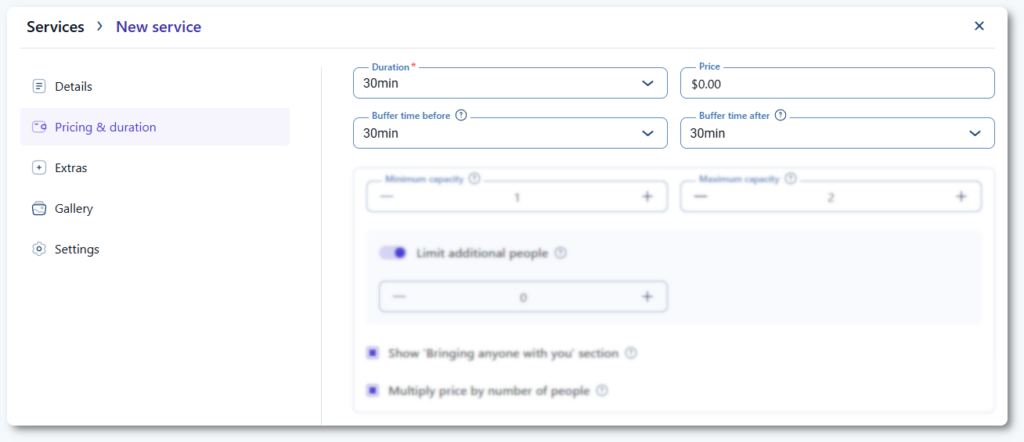
Step 2: Set your buffer time
In the service settings, you’ll find the option to add buffer time before and/or after the appointment. Set the duration that makes sense for this specific service. A 30-minute haircut might need a 10-minute after-buffer for cleanup. A 60-minute deep-tissue massage might need 15 minutes after and 5 minutes before.
Step 3: Choose how buffer time affects your slots
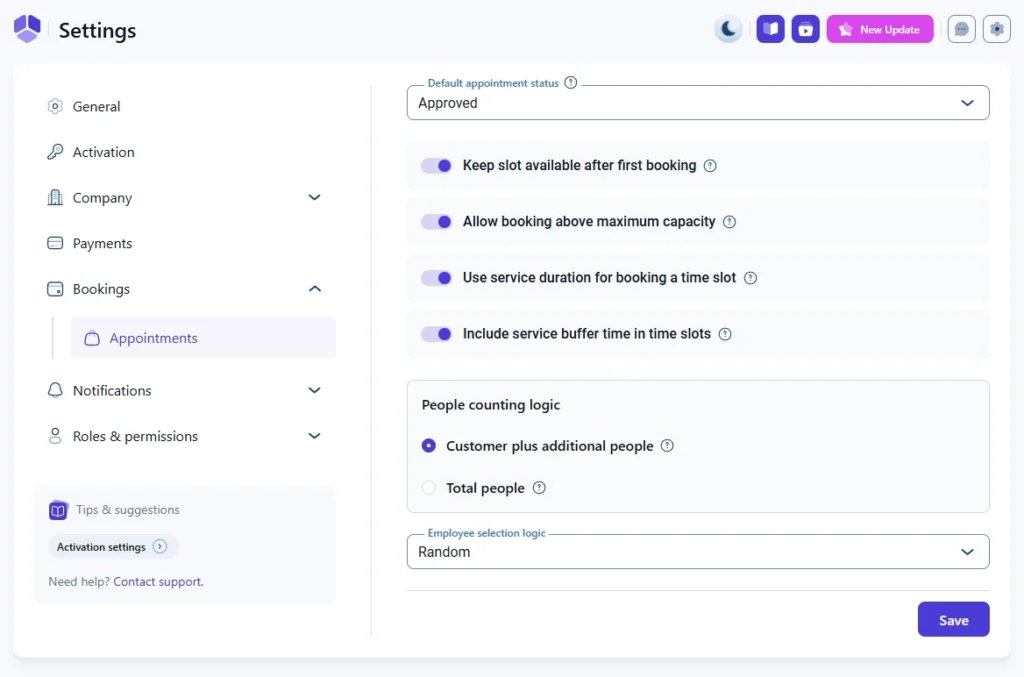
Here’s where Amelia gets really smart. Under Settings → Bookings → Appointments, you’ll find the “Include service buffer time in time slots” option. This gives you two different approaches:
Option A: Fixed schedule (setting enabled): Buffer time is baked into the time slot grid from the start. If you have a 60-minute service with a 30-minute after-buffer, your clients see slots at 9:00, 10:30, 12:00. The schedule is predictable and buffer time is always enforced. This works great for busy businesses with a steady stream of appointments.
Option B: Flexible schedule (setting disabled): Time slots appear without buffer time factored in, so clients initially see 9:00, 10:00, 11:00. But once someone books the 10:00 slot, Amelia dynamically applies the buffer and removes surrounding slots that would overlap. This is ideal for businesses with lower booking volume who want to offer maximum flexibility.
Step 4: Sync with Google Calendar
If you’ve connected your Google Calendar with Amelia, you can enable the “Include buffer time in calendar events” option in your Google Calendar integration settings. This ensures that the buffer periods are reflected in your Google Calendar events, preventing anyone from accidentally booking over them outside of Amelia.
Appointment Buffer Time Tips for Different Industries
Not all businesses need the same buffer time setup. Here’s how to think about it based on your industry.
Salons and barbershops
In a salon, you’re typically cleaning stations, sanitizing tools, and switching between very different services (a quick trim vs. a full color treatment). Set different buffer times per service, for example, 5 minutes for a beard trim, 15 minutes for a full highlight session. And always use an after-buffer to account for cleanup.
Healthcare and clinics
Doctors, dentists, and therapists typically need buffer time on both sides. Cosmetic practices can use aesthetic clinic management software to link schedules with patient records before each treatment.
A 10-minute before-buffer to review patient files, and a 10–15 minute after-buffer to update records, clean the exam room, and prepare for the next patient. This also helps manage the common problem of patients arriving late and throwing off the entire schedule.
Fitness and personal training
Gym sessions often run back-to-back, so even a 5–10 minute buffer can make a huge difference. Use it to wipe down equipment, review the next client’s workout plan, and mentally shift gears. For group classes, consider a 15-minute buffer so participants can filter out and the room can be reset.
Photography studios
In a photography studio, sessions involve gear setup, backdrop changes, and reviewing shot lists. A 15–20 minute before-buffer for setup and a 10–15 minute after-buffer for packing up and saving files keeps your day flowing without the stress of rushing between shoots.
Coaching and consulting
Coaching and consulting sessions are mentally intensive. A 10-minute before-buffer to review the client’s goals and history, and a 15-minute after-buffer to jot down notes and decompress, will keep you sharp session after session.
Common Buffer Time Mistakes (and How to Avoid Them)
Setting the same buffer for every service
A 5-minute trim and a 2-hour color session don’t need the same reset time. Use your booking software to set per-service buffer times. In Amelia, you configure this at the service level, so your haircut buffer and your spa treatment buffer are completely independent.
Using buffer time as productive work time
It’s tempting to cram admin tasks into every buffer. Resist the urge to overload it. Buffer time should include light wrap-up tasks, but its primary purpose is transition and reset. If you fill every gap with work, you lose the mental health benefits entirely.
Not syncing buffer time across platforms
If your buffer time only exists in your booking tool but doesn’t show up in Google Calendar or Outlook, someone on your team might book a meeting right in that gap. Always sync buffer time to your external calendars. Amelia’s Google Calendar integration and Outlook Calendar integration both support this.
Forgetting to communicate with clients
If a client sees you’re “available at 10:00” on your website but you need to start prepping at 9:45, make sure your buffer time is properly configured so that 9:45–10:00 slot isn’t bookable. Automated buffer time handles this silently, no awkward conversations needed.
FAQ About Appointment Buffer Time
What is appointment buffer time?
Appointment buffer time is the gap you intentionally add before or after a booking to allow for preparation, cleanup, notes, or mental reset. It’s not visible to clients; it just ensures your schedule has breathing room between appointments.
How long should buffer times in the appointment schedule be?
It depends on your service type. Quick services like tutoring or eyebrow threading need just 5–10 minutes. Standard salon or fitness appointments work well with 10–15 minutes. Complex services like healthcare, photography, or therapy sessions typically need 15–30 minutes. Start with 15 minutes and adjust based on your real-world experience.
Can I set buffer time between appointments in Google Calendar?
Google Calendar offers limited buffer time through its Appointment Schedules feature and the Speedy Meetings setting. However, for service businesses that need per-service buffers, before/after configuration, and multi-employee support, a dedicated booking plugin like Amelia offers far more control and syncs everything back to Google Calendar automatically.
Does buffer time reduce the number of appointments I can book in a day?
Technically, yes, you’ll have fewer slots available. But in practice, the quality of each appointment improves, no-show rates drop, and client satisfaction goes up. Many business owners find that the improved experience leads to better reviews, more referrals, and higher revenue per client. It’s not about cramming in more appointments, it’s about making each one count.
How does Amelia handle buffer time differently from other booking tools?
Amelia gives you two unique approaches. With the “Include service buffer time in time slots” setting enabled, buffers are baked into a fixed slot schedule. With it disabled, slots appear flexible and buffers are applied dynamically after someone books. You can also set separate before and after buffer times for each service, and sync buffer time to Google Calendar and Outlook so it’s respected across all your calendars.
Should I add buffer time before or after appointments?
After-buffers are more common and cover cleanup, notes, and transitions. Before-buffers are useful when you need prep time: reviewing files, setting up equipment, or personalizing the session. For high-value or complex services, use both.
Take Control of Your Schedule with Smarter Buffer Time
Buffer time might seem like a small detail, but it’s the kind of setting that transforms how your entire business operates. Less stress, happier clients, smoother days, and a team that actually has time to do their best work.
If you’re managing appointments on a WordPress site, Amelia makes it effortless. Set per-service buffer times, choose between fixed and flexible scheduling, sync with Google Calendar and Outlook, and let your clients book without ever seeing the behind-the-scenes magic.
Get started with Amelia and give your schedule the breathing room it deserves.

Explore topics

Read Inspiring Customer Stories
Check out how our user set Amelia for his business