



You just wrapped a meeting and realized no one hit record. It happens more than it should.
Knowing how to record a Zoom meeting properly, whether to the cloud or your local device, saves you from that exact situation. It also matters for compliance, async teams, and anyone who needs a reliable meeting archive.
This guide covers everything: recording permissions, desktop and mobile steps, cloud setup, and the fixes for when things go wrong.
By the end, you’ll know exactly how to capture, access, and share your Zoom recordings without guesswork.
What Zoom Recording Is
Zoom recording captures everything in your meeting, including video, audio, and shared screens, and saves it as a file you can watch later. There are two distinct types, and choosing the wrong one for your setup causes headaches.
Local recording saves the MP4 video file, M4A audio file, and VTT transcript directly to your device. Cloud recording saves everything to Zoom’s servers and requires a paid plan.
| Type | Where It Saves | Plan Required | Best For |
|---|---|---|---|
| Local | Your device (Windows/Mac) | Free or paid | Desktop users, offline access |
| Cloud | Zoom’s servers | Pro, Business, or Enterprise | Mobile users, easy sharing |
Zoom now facilitates over 3.3 trillion meeting minutes annually (DemandSage, 2024). That’s a staggering amount of content that could be captured and referenced later.
Worth knowing: mobile devices can only use cloud recording. Local recording is desktop-only.
Recording Permissions in Zoom
By default, only the host can record. Everyone else is locked out unless the host changes that.
Permission levels work like this:
- Host: Can record locally or to the cloud at any time
- Co-host: Can start cloud recording; local recording depends on admin settings
- Participant: Cannot record unless the host explicitly grants permission during the meeting
To give a participant recording access mid-meeting, the host right-clicks their name in the participant panel and selects “Allow Record.” That’s it. One click.
Admin-level settings in the Zoom web portal control what’s possible by default across the whole account. In-meeting toggles only override what the admin allows. If the record button is greyed out for everyone, the issue is almost always at the admin level, not the meeting level.
If permission is denied after a recording has started, Zoom stops the recording immediately and notifies the host.
How to Record a Zoom Meeting on Desktop
Zoom has over 300 million daily meeting participants (Zoom, 2024). Most of them are on desktop, where recording is the most straightforward.
How to Record on Windows
Steps to start local recording on Windows:
- Open Zoom and start or join a meeting as host
- Click Record in the bottom toolbar
- Select “Record on this Computer”
- A red blinking indicator appears top-left confirming it’s active
- Click Stop Recording or end the meeting
After the meeting ends, Zoom converts the recording automatically. The default save location is C:Users[YourName]DocumentsZoom.
To change where files save before recording, go to Settings > Recording > Local Recording and update the path.
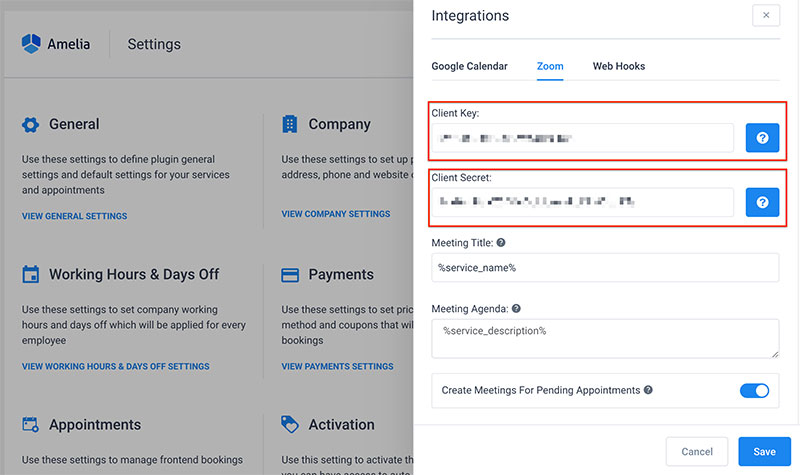
Another great tool that can help your business grow is Amelia. Amelia is an automated booking software with Zoom integration.
How to Record on Mac
The process on macOS mirrors Windows almost exactly. One difference: the default save path is /Users/[YourName]/Documents/Zoom.
One thing that trips people up on Mac: Zoom needs screen recording permission in System Preferences under Privacy & Security. If Zoom isn’t listed or the toggle is off, recording the screen will fail silently. Check this first if nothing seems to be saving.
QuickTime Player is sometimes used as a fallback for screen capture on Mac, though it won’t capture the Zoom audio channel cleanly without extra routing.
How to Record a Zoom Meeting on Mobile
Mobile recording works differently. Local recording is not supported on iOS or Android. You need a paid Zoom plan with cloud recording enabled.
On iPhone (iOS):
- Join as host
- Tap the three-dot “More” button in the bottom-right
- Tap Record to the Cloud
- A recording indicator appears at the top of the screen
On Android: same flow. More > Record to the Cloud.
Participants joining from mobile who don’t have a paid plan can’t initiate recording at all, even if the host grants them permission. That’s a limitation worth communicating before your meeting starts.
After the meeting ends, the cloud recording processes and shows up in your Zoom account’s recording section within a few minutes to a few hours, depending on file size.
How to Enable Cloud Recording
Cloud recording is off by default, even on paid plans. You have to turn it on manually in the Zoom admin portal.
To enable it:
- Sign in at zoom.us
- Go to Settings > Recording
- Toggle on “Cloud Recording”
- Save changes
Pro and Business plans include 5 GB of cloud storage per account. Enterprise plans get unlimited cloud storage. When storage fills up, Zoom stops saving new recordings and sends an email alert.
Old recordings don’t get deleted automatically to make room. You have to manually clear space or download files to Google Drive, Dropbox, or another service. Some institutions like CUNY set retention policies of 120 days before recordings are purged.
Also useful: the auto-recording setting. Under Settings > Recording, you can toggle “Automatic Recording” so every meeting starts capturing without any manual steps. Helpful for recurring meetings or teams that always need a record.
How to Record a Zoom Meeting Without Host Permission
This comes up constantly. You’re a participant, the host isn’t around or won’t grant access, and you need the meeting recorded.
Ask the host first. Seriously. Just ask. Most hosts don’t realize they can grant recording permission mid-meeting, and a quick message in the chat fixes it in seconds.
If that’s not an option, third-party screen recorders work:
- OBS Studio – free, works on Windows and Mac, captures full screen or specific windows
- Windows Game Bar (Win + G) – built into Windows 10/11, quick and easy
- QuickTime Player – built into macOS, decent for basic screen capture
One real limitation: third-party tools record whatever is on your screen. They won’t separate audio tracks per participant or generate a VTT transcript the way native Zoom recording does.
The legal side matters here. Eleven states including California, Florida, Illinois, and Massachusetts require all-party consent before recording a conversation (LegalExaminer). The other 38 states plus D.C. follow one-party consent rules under federal law (18 U.S.C. § 2511). Recording without telling anyone in a two-party consent state can result in civil liability and in some cases criminal penalties. Zoom itself displays an automatic notification to all participants when recording starts, but third-party tools don’t. That gap is where legal risk lives.
If you’re regularly recording meetings for work and scheduling them in advance, the cleaner solution is to get proper host access or co-host status, so you’re never in this situation.
How to Access and Share Zoom Recordings
Where your recording ends up depends entirely on which method you used. Local and cloud recordings live in completely different places.
| Recording Type | Where to Find It | How to Share |
|---|---|---|
| Local (Windows) | Documents/Zoom/[date] | Upload to Drive, Dropbox, or YouTube |
| Local (Mac) | /Users/[name]/Documents/Zoom | Upload manually to any platform |
| Cloud | zoom.us > Recordings tab | Shareable link, expiry date, passcode |
Cloud recordings can take a few minutes to several hours to process after the meeting ends, depending on file size. You’ll get an email notification when it’s ready.
A screen share recording uses roughly 20 MB per hour. Full video recording is closer to 200 MB per hour (HitPaw, 2024). Worth keeping in mind before sharing large files over email.
Sharing Cloud Recording Links
By default, anyone with the link can view a cloud recording. That’s a problem if the meeting included anything confidential.
Three settings worth changing before you share:
- Viewer authentication: Restrict to signed-in Zoom users only
- Passcode protection: Require a code to open the recording
- Expiry date: Set a cutoff so the link stops working automatically
Zoom also provides recording analytics showing view counts, watch duration, and download numbers per recording. Access this under Recording and Transcript Management in the web portal (CCC TechConnect).
Sharing Local Recordings
Local MP4 files can’t be shared directly from Zoom. You need to upload them somewhere first.
Google Drive and Dropbox are the most common options. YouTube works too, and unlisted videos give you a shareable link without making the content public.
One thing people forget: local recordings include an M4A audio file and a VTT transcript file alongside the MP4. If you’re only sharing the MP4, the other files stay on your device.
Zoom Recording Settings Worth Knowing
A 2024 survey found that 54% of organizations use both local and cloud recording depending on the meeting type (GoTranscript). The right settings make both methods work better.
Audio Transcription
Zoom’s built-in audio transcription generates a VTT file alongside your cloud recording automatically. It currently supports English only for the native transcript feature (University of Michigan ITS).
To enable it: Settings > Recording > Advanced Cloud Recording > check “Create audio transcript.”
One thing to know: you can’t apply this setting retroactively. If transcription wasn’t on when you recorded, that file won’t have a transcript. Turn it on before you need it, not after.
Separate Audio Files Per Participant
Under Settings > Recording, there’s an option to record each participant’s audio as a separate M4A file. Most people never turn this on.
It’s genuinely useful if you’re recording a podcast, a legal deposition, or anything where you need clear speaker attribution. Each file is labeled with the participant’s name automatically.
Worth noting: this feature works for both local and cloud recordings, though cloud is more reliable for multi-participant sessions (Sonix Help, 2024).
Auto-Recording and Third-Party Editor Optimization
Auto-recording: turns on at the moment the first participant joins, including any pre-meeting dead air. Fine for internal meetings. Not ideal for client-facing calls where you want control over when capture starts.
Optimize for third-party editors: found under local recording settings. Increases the file size but improves compatibility with tools like DaVinci Resolve and Premiere Pro. Turn it on if you’re editing the footage afterward.
Common Zoom Recording Problems and Fixes
Most recording issues come down to three things: permissions, storage, or the Zoom client itself being out of date (Quora, Zoom community, 2024).
Record Button Is Greyed Out
This is the most common complaint. Almost always a permissions problem, not a technical bug.
Check these in order:
- Are you the host? Participants can’t record unless granted access
- Is recording disabled at the admin level in the Zoom web portal?
- Are you on a free plan trying to use cloud recording?
- Is the Zoom client out of date? Update via Zoom Menu > Check for Updates
On Mac specifically, check System Preferences > Privacy & Security > Screen Recording. If Zoom isn’t listed or is toggled off, the button stays greyed out regardless of permissions.
Recording Failed to Convert
Local recordings convert after the meeting ends. If conversion fails or produces a corrupt file, the usual causes are low disk space, insufficient CPU, or Zoom being closed mid-conversion (Hollyland, 2024).
Quick fix: Zoom stores a temporary .zoom file during recording. If conversion fails, navigate to DocumentsZoom and look for this file, then manually trigger conversion through Zoom’s Settings > Recording.
No Audio in the Recorded File
The most common cause is the wrong microphone being selected in Zoom, or another app (Skype, Teams, FaceTime) holding the mic during the session (Zoom Community).
Close competing apps before the meeting. Confirm your active mic in Zoom Settings > Audio > Microphone. Test it before you hit record, not after.
On Windows, some users have also reported that the default media player (Movies & TV) won’t play Zoom M4A audio. Switching to Windows Media Player or VLC fixes playback without any issue with the actual file.
Cloud Recording Not Showing in the Portal
Cloud recordings take time to process. If it’s been under an hour, wait. If it’s been several hours, here’s what to check:
- Did the meeting end properly, or did it drop unexpectedly?
- Is your cloud storage full? Zoom stops saving new recordings when storage hits its limit
- Check the Zoom account settings to confirm cloud recording was actually enabled at the time
Recordings initiated by a co-host only appear in the host’s recording list, not the co-host’s. That trips up a lot of teams. If a co-host recorded and can’t find the file, the host needs to check their own portal (Zoom Support).
If you rely on Zoom recordings regularly alongside other virtual collaboration tools, pairing it with a solid comparison of Google Meet vs Zoom can help you decide which platform fits your workflow better long-term.
FAQ on How To Record A Zoom Meeting
Can I record a Zoom meeting on the free plan?
Yes, but only as a local recording saved to your device. Cloud recording requires a paid plan (Pro, Business, or Enterprise). Free users also can’t record from mobile at all. Desktop only.
Where do Zoom recordings save after the meeting?
Local recordings save to DocumentsZoom on Windows and /Users/[name]/Documents/Zoom on Mac. Cloud recordings appear in the Recordings tab of your Zoom web portal after processing, which can take a few minutes to several hours.
Why is the record button greyed out?
Usually a permissions issue. You may not be the host, recording may be disabled at the admin level, or you’re on a free plan trying to access cloud recording. On Mac, also check screen recording permissions in System Preferences.
Can a participant record without the host’s permission?
No, not through Zoom natively. The host must grant recording access mid-meeting. Without that, participants can use third-party screen capture tools like OBS Studio or Windows Game Bar, though these won’t generate separate audio tracks or transcripts.
What file format does Zoom save recordings in?
Video saves as MP4, audio as M4A, and transcripts as VTT files. Screen share recordings are smaller, around 20 MB per hour. Full video recordings run closer to 200 MB per hour depending on quality settings.
How do I record a Zoom meeting on my phone?
Tap More during the meeting, then select Record to the Cloud. Mobile recording requires a paid Zoom account. Local recording isn’t supported on iOS or Android. The file appears in your Zoom web portal once processing is complete.
Is it legal to record a Zoom meeting without telling people?
It depends on your location. Eleven states including California and Florida require all-party consent before recording. Federal law and most other states require only one-party consent. Zoom displays an automatic notification when recording starts, but check local laws before proceeding.
How long does Zoom keep cloud recordings?
It varies by plan and account settings. Some institutions set automatic deletion at 90 or 120 days. Pro and Business accounts get 5 GB of storage. When storage fills up, new recordings stop saving until you clear space or upgrade.
Can I share a Zoom recording with someone who doesn’t have Zoom?
Yes. Cloud recordings generate a shareable link that works in any browser. You can add a passcode, restrict access to signed-in users only, or set an expiry date. Local recordings can be uploaded to Google Drive, Dropbox, or YouTube and shared from there.
Why is there no audio in my Zoom recording?
The most common cause is the wrong microphone being selected, or another app holding the mic during the session. Close competing apps like Teams or Skype before recording. Also check that your active microphone is correctly set in Zoom Settings under Audio.
Conclusion
This conclusion is for an article presenting every recording option Zoom offers, from local MP4 capture on desktop to cloud recording on mobile.
Getting the setup right before your meeting starts matters. Permissions, storage limits, consent laws, and file formats all affect whether your recording playback works the way you need it to.
The record button is straightforward. Everything around it, including admin settings, auto-recording, separate audio tracks, and VTT transcripts, takes a bit more attention.
Sort those details once, and capturing your virtual meetings becomes second nature.
Need more control over how you set up Zoom meetings before you hit record? That’s a solid next step.

Explore topics

Read Inspiring Customer Stories
Check out how our user set Amelia for his business