The post 10 Best WordPress Cache Plugins in 2026 (AI-Powered Optimization Compared) appeared first on Amelia WordPress Booking Plugin.
]]>Site owners now ask Claude or ChatGPT to check their sites, and a cache plugin with an MCP server (the open standard that lets AI assistants use software tools) can answer directly: purge this page, warm the cache, tell me why the booking page is slow, fix it, then prove it. This guide compares the best WordPress cache plugins in 2026 with that shift in mind, alongside the usual questions of hosting fit, price, free-tier depth and whether a booking form keeps working.
Install counts, ratings and versions come from the WordPress.org Plugin API, and prices come from each vendor’s own pricing page, all checked on 5 October 2026. Where xSpeed loses on a criterion, the tables say so.
Quick Summary: Which WordPress Cache Plugin Should You Use?
Short on time? Find your situation in the left column.
| If you want to… | Use this | Price | Why it fits |
|---|---|---|---|
| Let Claude or ChatGPT tune, fix and monitor your site | xSpeed Cache | Free; Pro from $29/yr | MCP server and AI tools in the free plugin, one AI connection for every site through xSpeed Hub, free site scan |
| Install one paid plugin and stop thinking about speed | WP Rocket | $59.95/yr for 1 site | Caching and file optimization switch on at activation, on any host |
| Get the fastest free cache on LiteSpeed hosting | LiteSpeed Cache | Free | A server-level page cache with 7,000,000+ active installs |
| Squeeze Core Web Vitals with a premium tool | FlyingPress | $59/yr for 1 site | Strong front-end optimization, 14-day free trial |
| Control every caching layer for free | W3 Total Cache | Free; Pro $99/yr | Page, database, object and browser caching with Redis or Memcached |
| Cache, clean the database and compress images in one free plugin | WP-Optimize | Free; Premium from $49/yr | Three jobs in one plugin, cart-safe defaults for WooCommerce |
| Pay once and never renew | WP Fastest Cache | Free; Premium $49 one time | Premium is sold as a one-time lifetime licence |
| Keep it as simple as possible, for free | WP Super Cache | Free | Made by Automattic, one “Caching On” switch |
| Hand optimization to a cloud service | NitroPack | Free tier; paid from $7/mo | Optimization runs on NitroPack’s servers, metered by pageviews |
| Cache HTML at Cloudflare’s edge on the free Cloudflare plan | Super Page Cache | Free; Pro available | Uses Cloudflare Cache Rules, with a disk cache fallback |
Best for AI-managed sites and agencies: xSpeed Cache. It is the only plugin here with an MCP server in the free version, and it reached 10,000+ active installs about three weeks after its public launch.
Best for beginners who want to pay once a year and forget it: WP Rocket.
Best free option on LiteSpeed hosting: LiteSpeed Cache.
Best for booking and service sites: any plugin on this list, as long as you follow the five rules in the booking-site section below.
Why Booking and Service Sites Need a WordPress Cache Plugin
WordPress builds every page from scratch by default. Each visit runs PHP, queries the database and assembles HTML before the first byte leaves your server. A page cache stores the finished HTML and hands it to the next visitor without that work.
The effect on server response is large. Across 2,030 WordPress sites in the xSpeed Scan archive (our own dataset, so read it with that in mind), a cache hit cut the median time to first byte from 674 ms to 193 ms. The same study found that the cache moved median mobile Largest Contentful Paint by only 136 ms. Caching fixes the server half of speed. Images, fonts and scripts are the other half, which is why the plugins on this list also optimize files, and why a plugin that can diagnose which half is slow is worth more than one that only caches.
Why this matters more for a booking site than a blog:
- Speed is revenue. According to Deloitte’s “Milliseconds Make Millions” study for Google, a 0.1-second improvement in mobile site speed raised travel conversions by 10.1% and retail conversions by 8.4%. Booking an appointment is the same kind of decision.
- Google measures it. Google’s Core Web Vitals guidance on web.dev sets “good” at an LCP under 2.5 seconds, an INP under 200 milliseconds and a CLS under 0.1. INP replaced FID in March 2024, and booking forms full of JavaScript are exactly where INP goes wrong.
- Most traffic is mobile. Clients book from their phones between other things. A slow first byte on 4G feels much worse than on office Wi-Fi.
AI Is the New Caching Criterion: What Changed Since 2024
Two years ago, a cache plugin was a settings page you configured once and forgot. Now three things have changed how site owners pick one.
AI assistants can operate WordPress plugins. The Model Context Protocol (MCP) lets Claude, ChatGPT, Cursor and other AI clients call a plugin’s functions directly. With an MCP-enabled cache plugin, “is caching working on my booking page?” becomes a question you type, not a settings page you learn. The assistant checks the cache status, reads the response headers, runs a speed test, changes a setting, and runs the test again.
One AI connection can cover many sites. For agencies and freelancers, the bigger change is fleet control. A hub that links every client site to one account means one assistant can purge, warm and audit 25 sites in a single request instead of 25 logins.
Diagnosis comes before configuration. Free scanners now grade a site and map each failing check to a fix. Combined with an MCP server, the AI can apply that fix and re-verify the score.
| Change | When | What it means for you |
|---|---|---|
| INP replaced FID as a Core Web Vital | March 2024 | Delaying and deferring JavaScript matters more than before |
| WP Engine acquired NitroPack | July 2024 | NitroPack is now part of a hosting company’s product family |
| Speculative loading shipped in WordPress core 6.8 | April 2025 | WordPress can prefetch the next page on its own, so some “preload links” features overlap with core |
| MCP servers arrive in cache plugins | 2025–2026 | xSpeed Cache ships one in its free plugin with a multi-site hub; WP Rocket added one in version 3.23, connected one site at a time |
| A new AI-first cache plugin reaches 10,000+ installs | Sep–Oct 2026 | xSpeed Cache went from public launch to 10,000+ active installs in about three weeks |
| WP Rocket added a 14-day free trial | 2026 | You can test the best-known premium plugin before paying (a card is required) |
| WordPress 7.1 is current | 7.1.2, Sep 2026 | Every plugin we installed for this guide ran on 7.1.2 |
How We Chose and Ranked These 10 Plugins
We started from the plugins that rank for “best WordPress cache plugins” today and the ones Google’s AI Overview names, then added newer tools that change the picture. Each plugin was judged on criteria a site owner can verify before buying:
| Criterion | What we checked | Where the data came from |
|---|---|---|
| AI and MCP control | Can an AI assistant read and change the plugin? Is it free? Does it work across many sites? | Vendor documentation, our own MCP session |
| Free-tier depth | Is the free version enough for a real business site? | Vendor feature pages, our own install |
| Hosting fit | Does the page cache work on Apache, Nginx and LiteSpeed, or only on one stack? | Plugin readme and our own install |
| Ease of setup | Can a non-technical owner get a working cache in under 10 minutes? | Our install on WordPress 7.1.2, PHP 8.3 |
| Price and licence shape | Free tier, annual, lifetime or metered | Vendor pricing pages, 5 October 2026 |
| Track record and momentum | Active installs, ratings, years in the directory, recent growth | WordPress.org Plugin API, 5 October 2026 |
| Booking-form safety | Can you exclude scripts and pages so a dynamic form keeps working? | Vendor docs, Amelia support guidance, our own test |
What we did not do: run a speed benchmark and crown a winner on milliseconds. A caching benchmark on shared hardware mostly measures the test setup, and two runs of the same page can differ by more than the gap between two good plugins. We installed eight of the 10 plugins on the same clean WordPress 7.1.2 site to capture real settings screens (WP Rocket and FlyingPress are paid-only and not in the WordPress.org directory, and NitroPack needs an account, so we show their public pricing pages instead).
Best WordPress Cache Plugins Compared: Master Table
| Rank | Plugin | AI / MCP control | Free version | Paid from | Active installs | Rating | Hosting needed | Best for |
|---|---|---|---|---|---|---|---|---|
 1 1 |
xSpeed Cache |  Free MCP server + multi-site Hub Free MCP server + multi-site Hub |
Yes (100+ features) | $29/yr | 10,000+ | 5.0★ (17) | Any | AI-managed sites, agencies, mixed hosting |
 2 2 |
WP Rocket | MCP server (paid, per site) |
No (14-day trial) | $59.95/yr | Not on WordPress.org | Not on WordPress.org | Any | Owners who want results with no tuning |
 3 3 |
LiteSpeed Cache |  |
Yes | Free | 7,000,000+ | 4.8★ (2,775) | LiteSpeed server or QUIC.cloud | Sites on LiteSpeed hosting |
| 4 | FlyingPress | |
No (14-day trial) | $59/yr | Not on WordPress.org | Not on WordPress.org | Any | Core Web Vitals tuning |
| 5 | W3 Total Cache | |
Yes | $99/yr | 900,000+ | 4.4★ (5,420) | Any | Developers who want every layer |
| 6 | WP-Optimize | |
Yes | $49/yr | 1,000,000+ | 4.8★ (2,614) | Any | Free all-in-one, WooCommerce |
| 7 | WP Fastest Cache | |
Yes | $49 one time | 1,000,000+ | 4.9★ (4,225) | Any | A lifetime licence |
| 8 | WP Super Cache | |
Yes | Free | 1,000,000+ | 4.3★ (1,346) | Any | Simple blogs and brochure sites |
| 9 | NitroPack | |
Yes (1,000 pageviews) | $7/mo | 90,000+ | 4.3★ (311) | Any | Hands-off cloud optimization |
| 10 | Super Page Cache | |
Yes | Pro available | 70,000+ | 4.8★ (515) | Any (Cloudflare optional) | Free Cloudflare edge caching |
Installs, ratings and prices checked on 5 October 2026. Ranks weigh AI and MCP control and free-tier depth alongside hosting fit and track record; they are not a speed benchmark. On LiteSpeed hosting with no interest in AI control, LiteSpeed Cache is the stronger free choice.
The 10 Best WordPress Cache Plugins in 2026, Reviewed
1. xSpeed Cache: Best AI-Powered Cache Plugin and Performance Hub
xSpeed Cache is the newest plugin on this list, and it has grown quickly: it reached 10,000+ active installs on WordPress.org about three weeks after its public launch in September 2026, and on 5 October 2026 it held a 5.0-star rating from 17 reviews. The reason is the design choice behind it: xSpeed treats AI as the main way you run your site’s performance, not as a feature bolted onto a settings page.
AI is the core, not an add-on
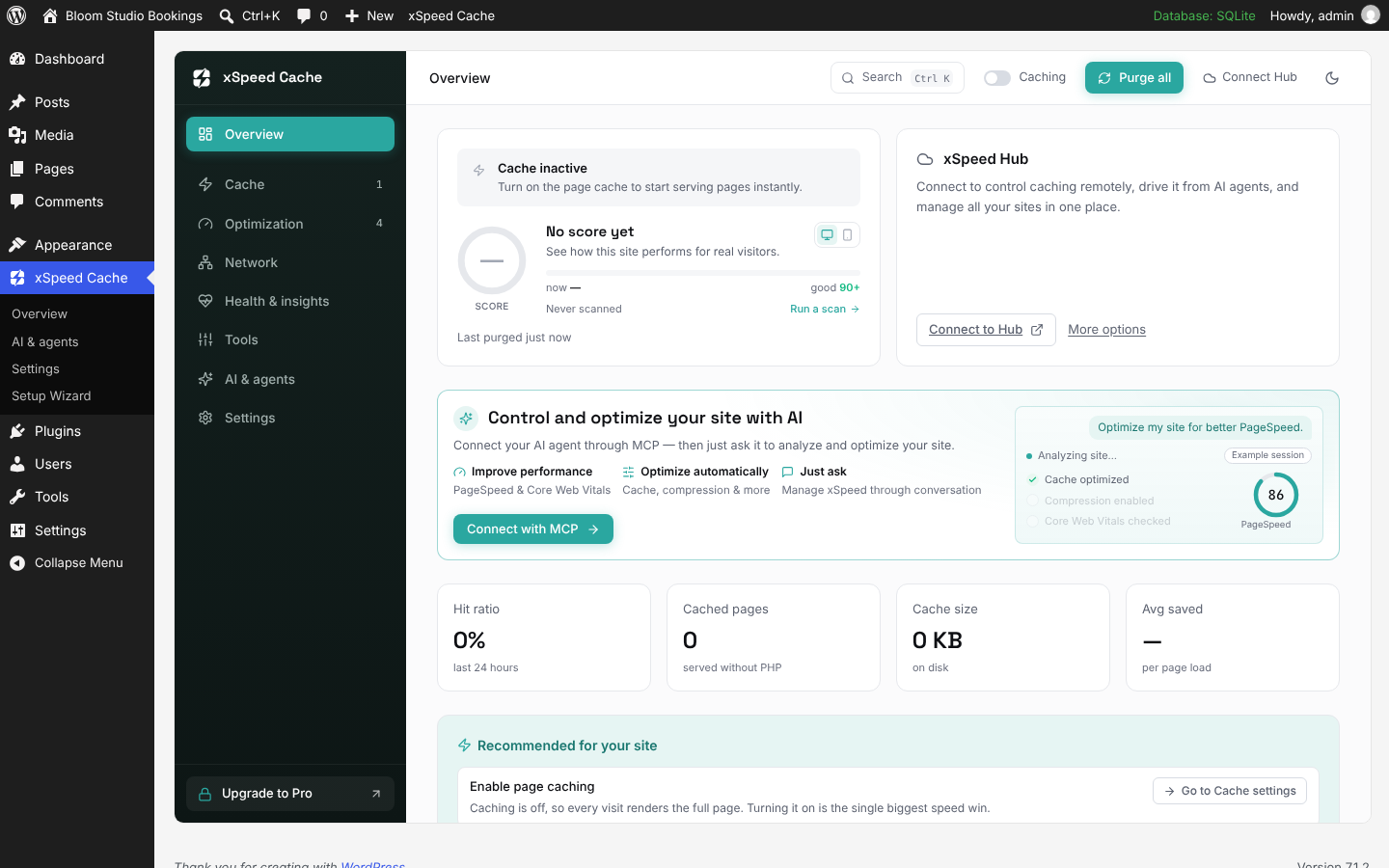
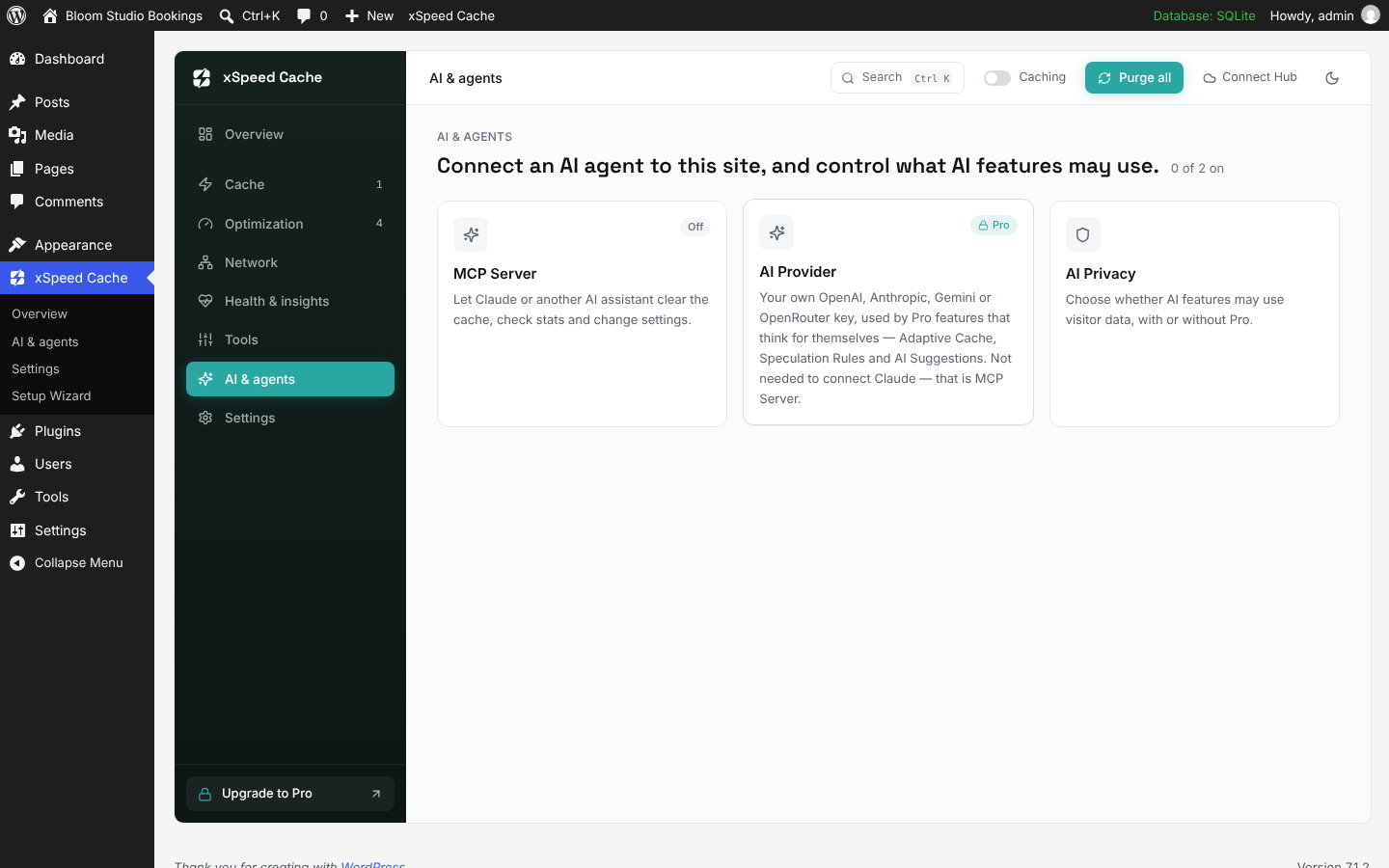
Most cache plugins expect you to learn their settings. xSpeed expects you to ask. Its MCP server is part of the free plugin, so you can connect Claude, ChatGPT, Cursor or any MCP client and give instructions in plain language: check whether caching works, purge a page, warm the cache after a deploy, run a PageSpeed test, generate critical CSS, connect Cloudflare or change a module’s settings. Every AI action is recorded in an audit log, and read and write access can be scoped separately. According to xSpeed’s Free vs Pro page, 9 of the 12 “AI & Agents” features are in the free version. Pro adds bring-your-own AI provider features such as AI-tuned cache lifetimes (“Adaptive Cache”), speculation rules and AI suggestions.
One hub for every site
xSpeed Hub turns the plugin into a control center. Connect any number of sites to one account and a single AI connection reaches all of them through the same MCP tools: purge, preload, benchmark, check health, toggle modules or apply recommendations on one site, a group, or every site at once. The Hub connection is included in the free plugin. Each site attaches with its own revocable token, and no second secret is created.
Here is a real session from 5 October 2026. We asked Claude, connected to our own xSpeed Hub, about three WPDeveloper product sites. It called the Hub’s get_cache_status tool once per site and answered in seconds:
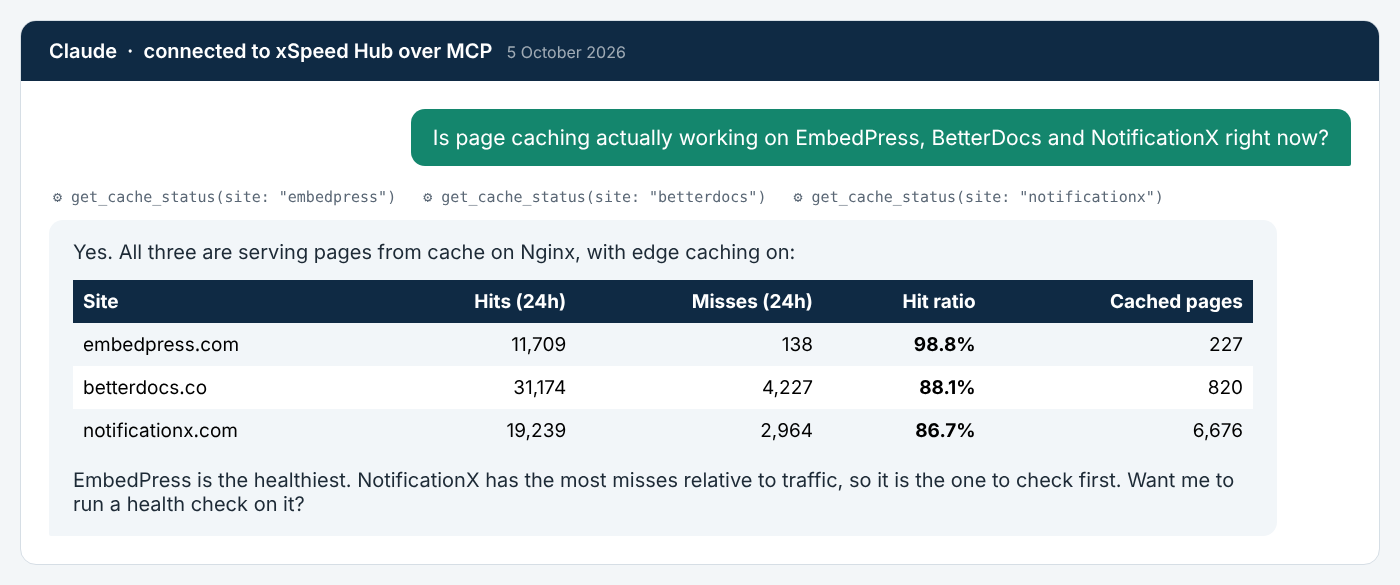
Real responses from the xSpeed Hub MCP server on 5 October 2026 (our own sites), reformatted for reading. EmbedPress served 11,709 cache hits against 138 misses in 24 hours, a 98.8% hit ratio.
That is the difference AI control makes. The same check without it means logging into three dashboards, or reading response headers by hand.
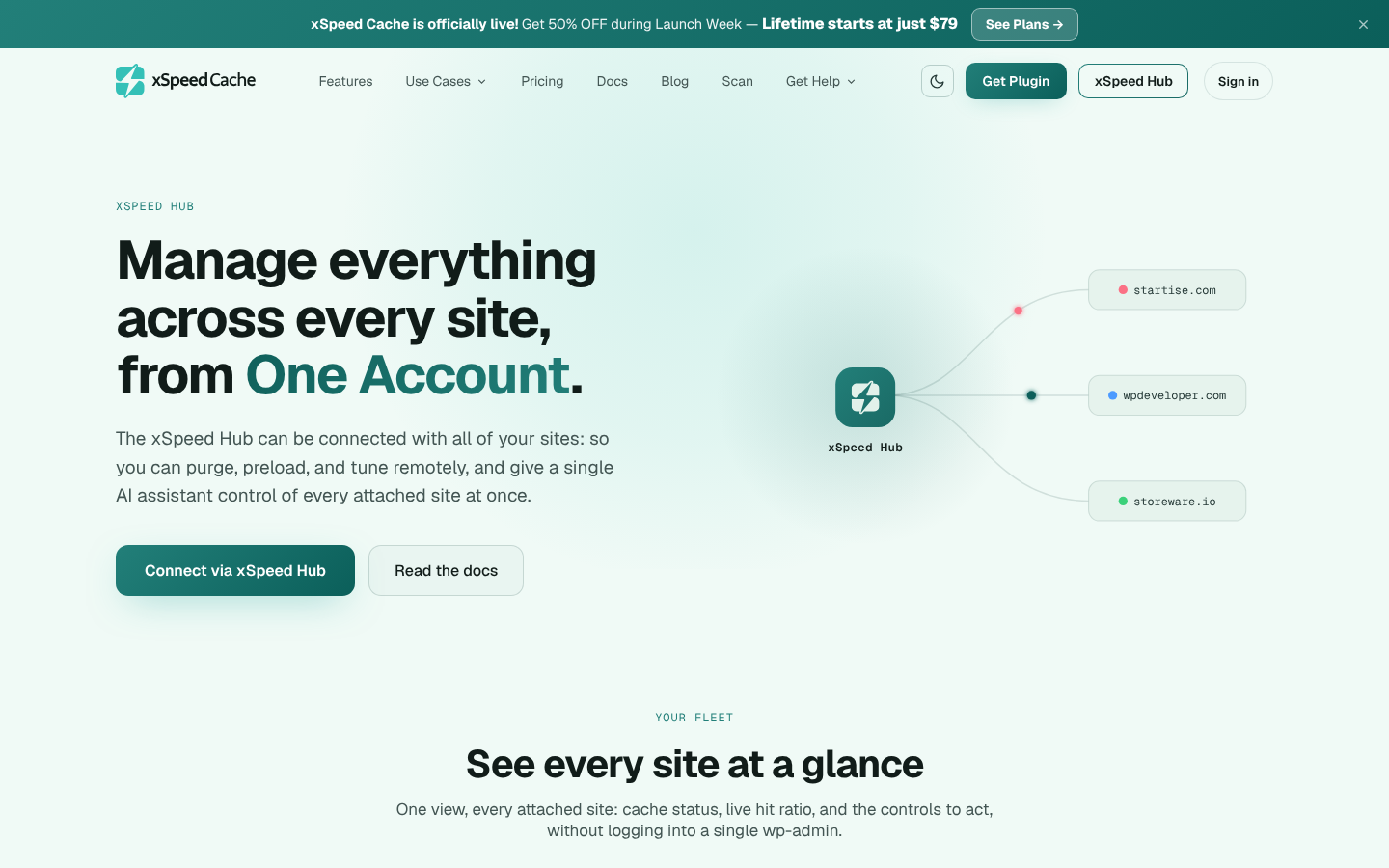
xSpeed Hub connects every site to one account and one AI connection.
A free scan that names the fix
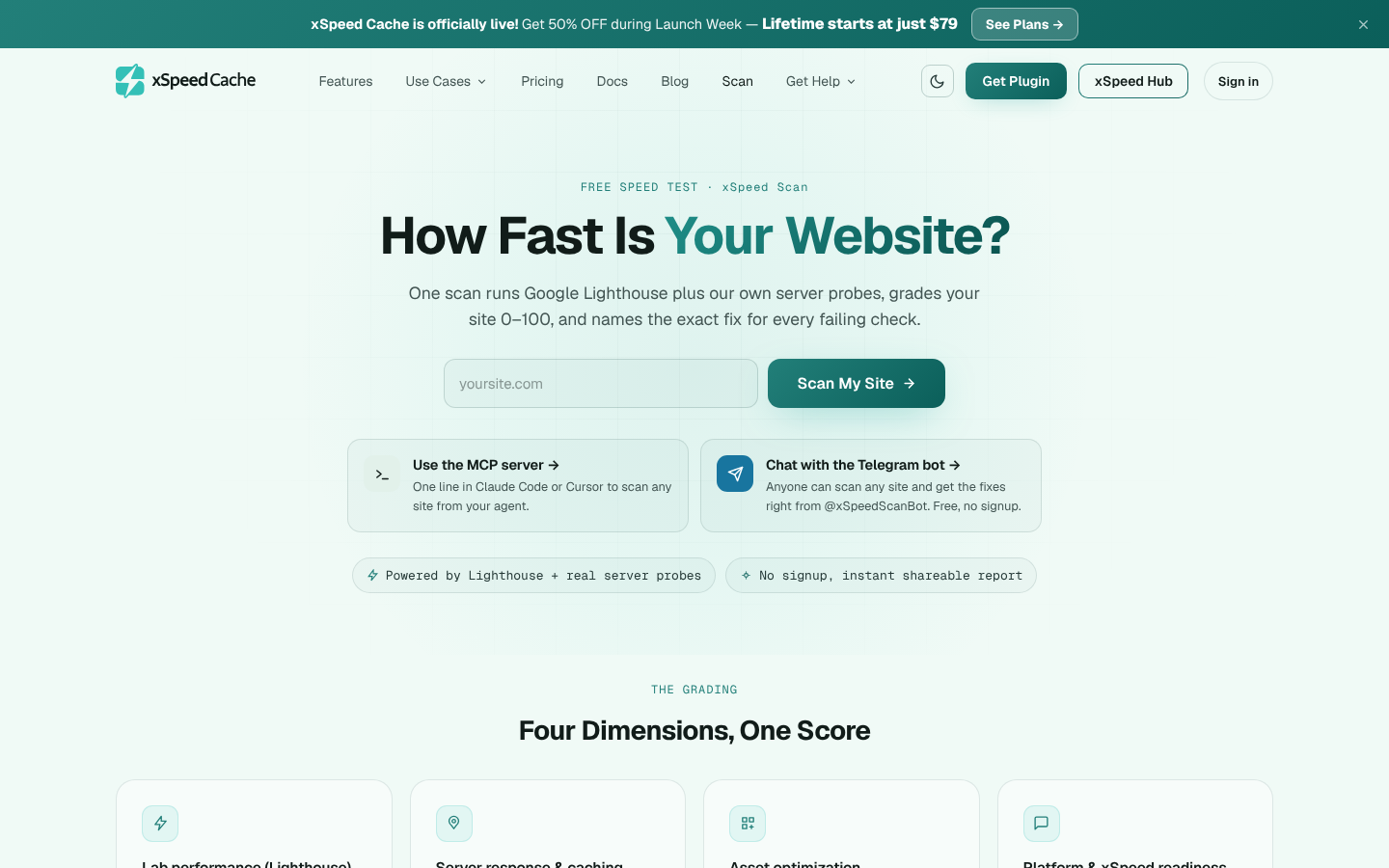
xSpeed Scan is free, needs no account, and works on any website, not only sites running xSpeed. One scan runs Google Lighthouse plus xSpeed’s own server probes, grades the site from 0 to 100 across four areas (lab performance, server response and caching, asset optimization, and platform readiness), and lists the exact fix for each failing check, with a copy-paste AI prompt per fix. You can run it from the website, from the @xSpeedScanBot Telegram bot, or from your AI assistant through the Scan MCP server. On a site running xSpeed with its MCP server connected, the assistant can apply the report’s fixes and re-scan to verify.
The public scan archive also shows how much room most sites have. On 5 October 2026 it held 3,085 scanned sites with a median score of 66 out of 100; 57% scored below 70, and 526 of the 2,079 WordPress sites ran no caching plugin at all.
The free version is enough for most sites
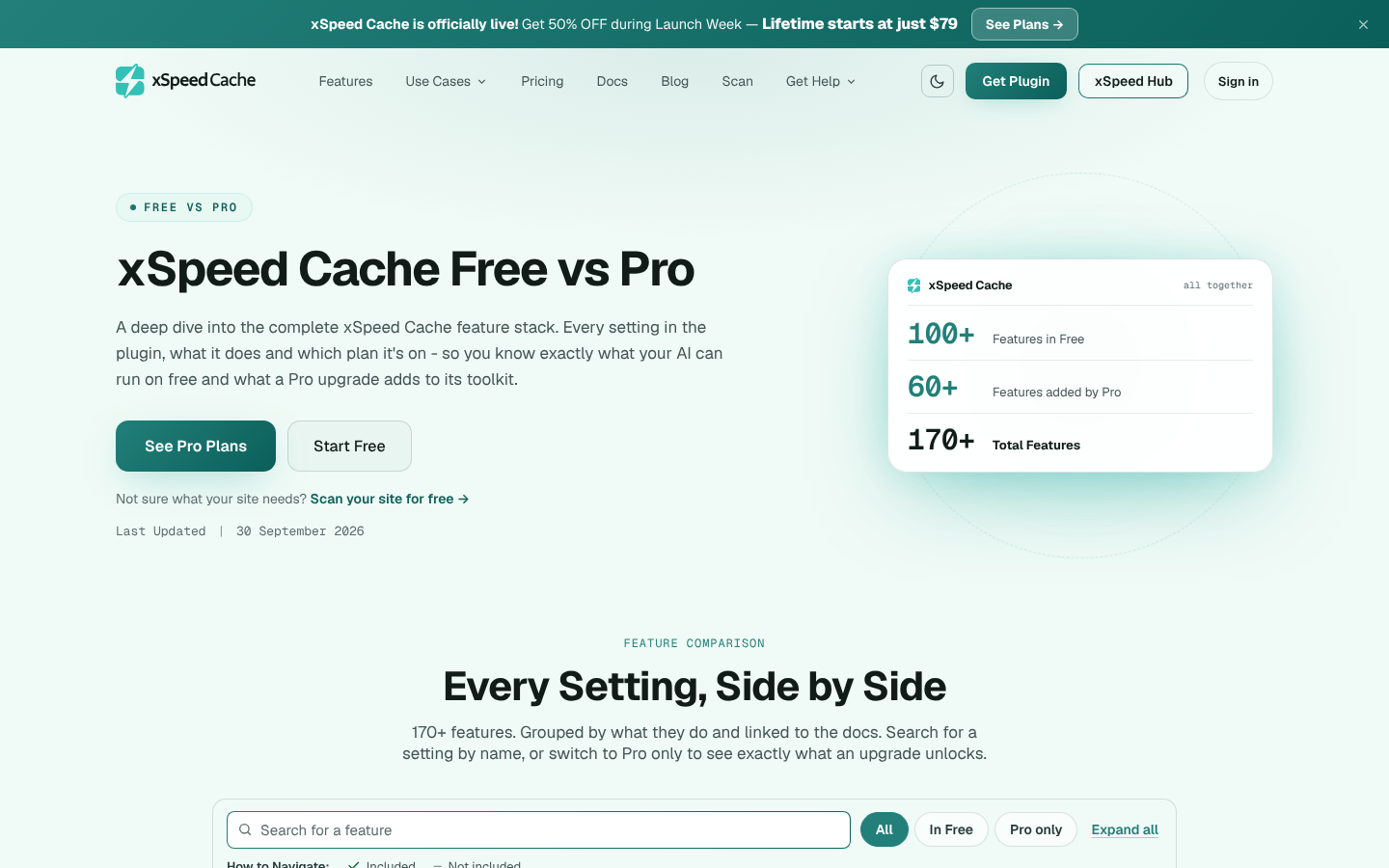
You do not need Pro to get a fast, AI-managed site. xSpeed’s Free vs Pro page (updated 30 September 2026) lists 100+ features in the free plugin and 60+ added by Pro. The free version includes:
- Caching: static page cache served before PHP loads on Apache, Nginx, LiteSpeed and IIS, browser caching, GZIP, preloading, and Redis or Memcached object caching (28 free cache features).
- Optimization: minify CSS, JavaScript and HTML, Smart Delay for JavaScript, lazy loading and font optimization (43 free optimization features).
- AI and agents: the MCP server, audit log and xSpeed Hub connection.
- Health and tools: health checks, PageSpeed tests from the dashboard, database cleanup, settings migration from other cache plugins, WP-CLI and a setup wizard.
- Proof: an X-XSpeed-Cache response header (HIT, MISS or BYPASS) on every page, so you can confirm a cache hit from outside the site.
Pro adds the deeper layer: AI provider features, more advanced CSS and image work, Cloudflare integration, white-label branding and priority support.
How to Get Started with xSpeed Cache
- Install xSpeed Cache from Plugins → Add New.
- Follow the 30-second setup wizard, which checks your PHP version, server, permalinks and conflicting cache plugins.
- Turn on Caching in the top bar, then reload a page twice and look for X-XSpeed-Cache: HIT.
- Open AI & agents → MCP Server, copy the endpoint into Claude, ChatGPT or Cursor, and ask: “Is caching working, and what should I fix first?”
- Running more than one site? Click Connect to Hub and manage all of them from one AI connection.
Pros and Cons
| Pros |
Cons |
|---|---|
| MCP server and AI control in the free version |
Months, not years, of public track record |
| One AI connection for every site through xSpeed Hub |
17 ratings so far, far fewer than older plugins |
| Free scan for any website, with a fix per failing check |
AI provider features and Cloudflare integration need Pro |
| 100+ features in the free plugin, same cache behavior on any server |
Smaller community and fewer third-party tutorials |
| Annual or lifetime licences (Pro from $29/yr, lifetime from $79) |
Best for: owners who want an AI assistant to handle routine speed work, and agencies running client sites on different hosts from one place.
2. WP Rocket: Best Premium Cache Plugin for Set-and-Forget Speed
WP Rocket is the plugin most reviewers and hosting companies name first, and Google’s AI Overview for this query calls it “widely considered the best overall for ease of use and performance.” Page caching, cache preloading, GZIP compression and browser caching switch on as soon as you activate it, so a site gets faster before you open a single settings tab.
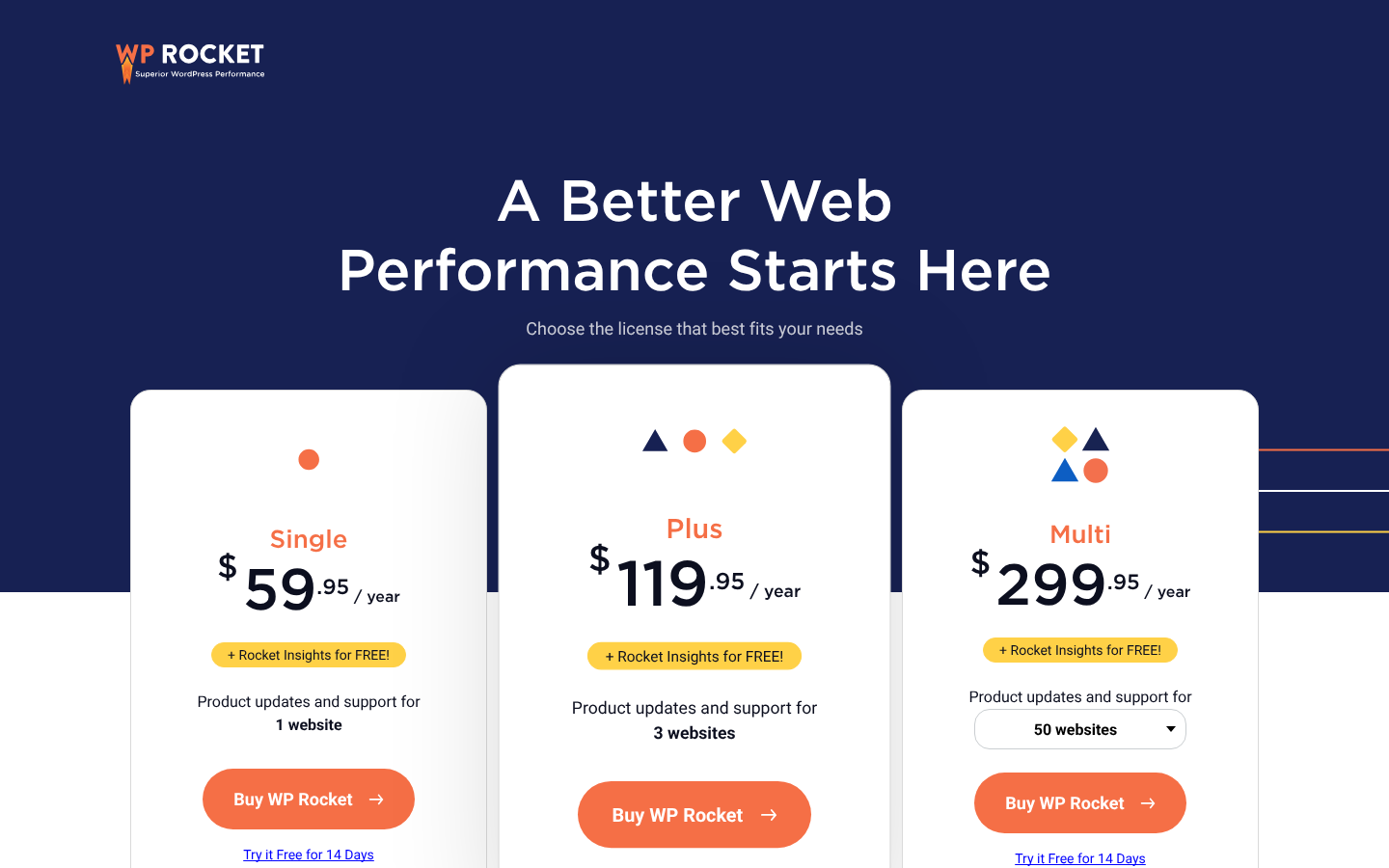
The difference from most free plugins is the optimization layer on top of the cache: Delay JavaScript execution, Remove Unused CSS, lazy loading and font optimization are all one checkbox each. WP Rocket also added an MCP server in version 3.23, which is connected one website at a time and needs an active licence. As of 5 October 2026, every plan includes Rocket Insights, and WP Rocket now offers a 14-day free trial with a card on file, plus a 14-day refund window.
It suits owners who would rather pay than tune. It is a weaker fit for agencies with 4 to 49 sites, because pricing jumps from 3 sites to 50 with nothing in between.
Key Features
- Instant page cache: Caching and preloading are active the moment the plugin is activated.
- File optimization: Minify and combine CSS/JS, Remove Unused CSS, and Delay JavaScript execution.
- Media: Lazy loading for images, iframes and videos, plus missing image dimensions.
- AI and add-ons: An MCP server (per site, paid), RocketCDN and Rocket Insights.
How to Get Started with WP Rocket
- Buy a licence or start the 14-day trial on the WP Rocket website.
- Upload the plugin zip under Plugins → Add New → Upload, then activate.
- Leave the defaults on, then open File Optimization and test Delay JavaScript on a staging copy first.
- On a booking page, add the booking plugin’s scripts to the JavaScript exclusion list (see the booking-site section below).
Pros and Cons
Best for: a salon, clinic or studio owner who wants one paid plugin that makes the site fast on day one without learning what “critical CSS” means.
3. LiteSpeed Cache: Best Free Cache Plugin for LiteSpeed Hosting
LiteSpeed Cache is the most installed cache plugin in the WordPress directory, with 7,000,000+ active installs and a 4.8-star rating from 2,775 reviews (WordPress.org, 5 October 2026). On a LiteSpeed or OpenLiteSpeed server it caches at the web-server level, which skips PHP entirely and is hard for any plugin-based cache to beat.
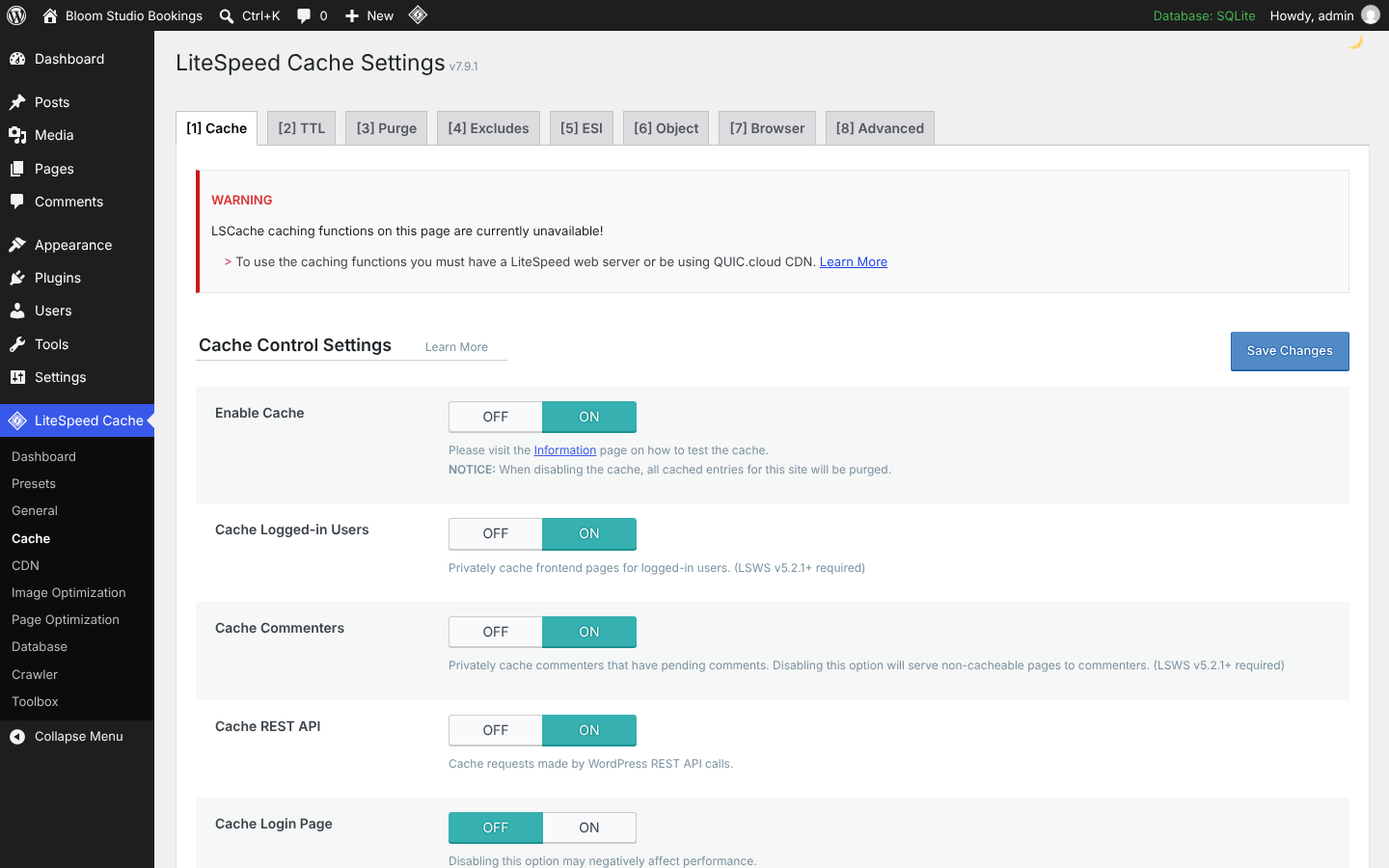
There is one condition, and it decides everything. LiteSpeed’s own readme separates “General Features,” which work on any server, from “LiteSpeed Exclusive Features,” which need a LiteSpeed server or the QUIC.cloud CDN. Full-page caching is in the exclusive group. We saw this directly: on our test site (not LiteSpeed), the Cache settings page opened with a red warning. It has no MCP server, so AI assistants cannot operate it directly.
LiteSpeed powers about 14% of websites, according to W3Techs (September 2026), so most sites are not on it. Check your server before choosing this plugin.
Key Features
- Server-level page cache: On LiteSpeed servers, pages are served without loading PHP.
- Free object cache support: Redis and Memcached connections are in the free plugin (your host must run them).
- ESI: Edge Side Includes let parts of a page stay dynamic while the rest is cached.
- Free extras: Image optimization, critical CSS and a crawler through QUIC.cloud, with free quotas.
How to Get Started with LiteSpeed Cache
- Confirm your server: run curl -sI https://yoursite.com | grep -i server or ask your host.
- Install LiteSpeed Cache from Plugins → Add New.
- Open LiteSpeed Cache → Presets and apply the “Essentials” or “Basic” preset.
- If you are not on LiteSpeed, connect QUIC.cloud or pick another plugin from this list.
Pros and Cons
| Pros |
Cons |
|---|---|
| Completely free, including object cache support |
Page cache needs a LiteSpeed server or QUIC.cloud |
| Fastest option on LiteSpeed hosting |
Eight settings tabs can overwhelm beginners |
| Largest install base and 10 years in the directory |
No MCP server or AI control |
| ESI keeps dynamic blocks dynamic |
Some features rely on QUIC.cloud quotas |
Best for: anyone on Hostinger, A2, NameHero or other LiteSpeed-based hosting who wants top speed at zero cost and manages settings by hand.
4. FlyingPress: Best for Core Web Vitals Tuning
FlyingPress is a premium plugin with a strong following among performance-focused developers. It combines page caching with front-end optimization that targets Core Web Vitals directly: removing unused CSS, delaying JavaScript, preloading the LCP image and lazy rendering of below-the-fold HTML.
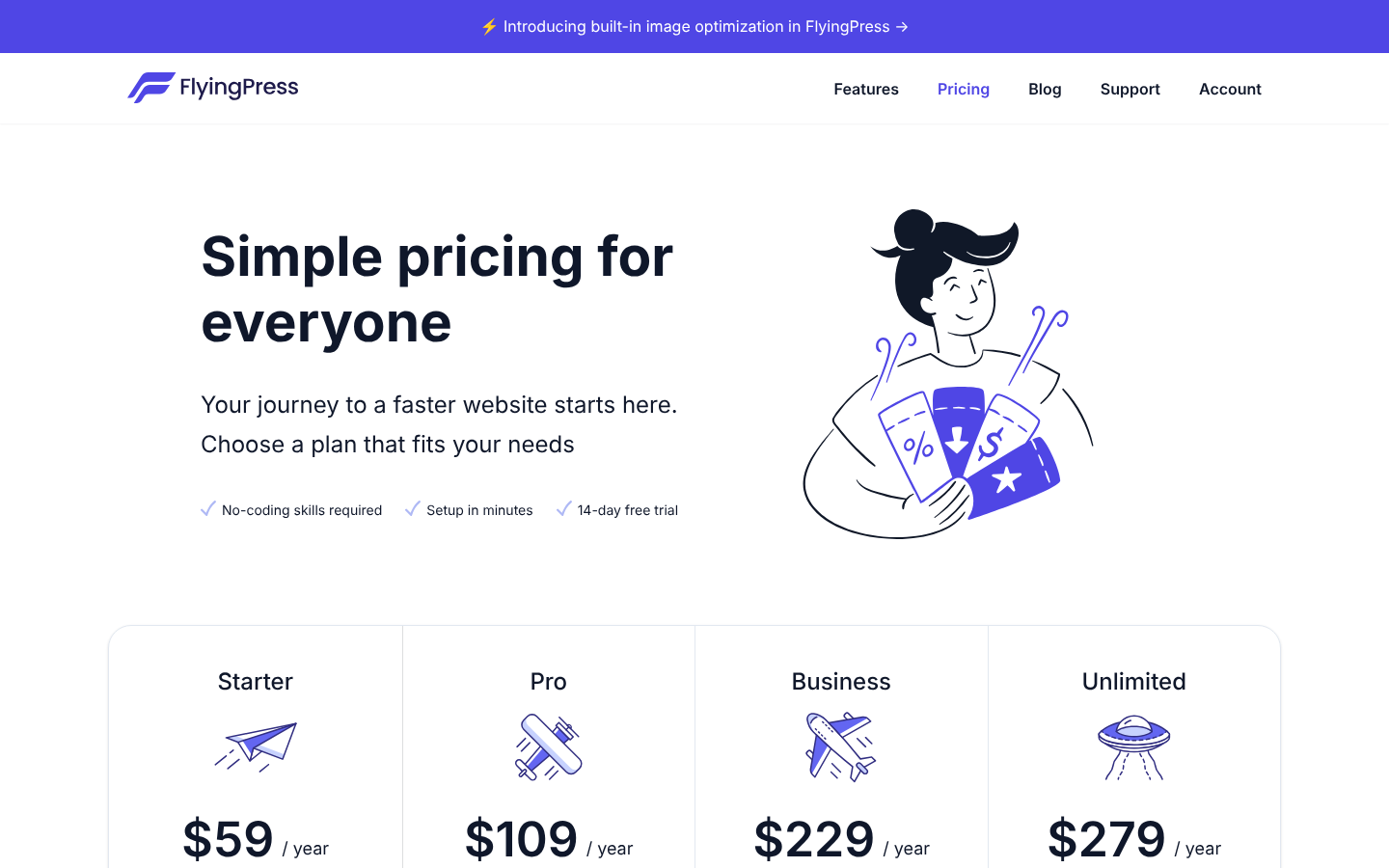
As of 5 October 2026, FlyingPress has four annual plans from $59 for one site to $279 for unlimited sites, all with a 14-day free trial, and it has added built-in image optimization. Its optional FlyingCDN is billed separately.
Key Features
- Remove Unused CSS and Delay JS: Aimed at LCP and INP.
- Lazy render: Defers rendering of HTML sections below the fold.
- Image optimization: Now built in, alongside lazy loading and LCP preloading.
- Staging-friendly licensing: Staging and development sites do not count against the licence.
How to Get Started with FlyingPress
- Start the 14-day trial from the FlyingPress pricing page.
- Upload and activate the plugin, then enter your licence key.
- Enable caching, then turn on CSS and JS optimizations one at a time while checking key pages.
Pros and Cons
| Pros |
Cons |
|---|---|
| Optimization aimed at real Core Web Vitals |
No free version |
| 14-day free trial on every plan |
No MCP server or AI control |
| Agency-friendly 25-site and unlimited tiers |
CDN costs extra |
Best for: site owners and developers who already have a cache and want a better Core Web Vitals report.
5. W3 Total Cache: Best Free Plugin for Full Manual Control
W3 Total Cache has been in the directory since 2009 and has 900,000+ active installs with 5,420 ratings, more reviews than any other plugin here (WordPress.org, 5 October 2026). It caches pages, database queries, objects and browser assets, with backends including disk, Redis, Memcached and APCu, all in the free version.
That depth is also its weakness for non-technical owners. It has more settings screens than any plugin in this guide, wrong combinations can slow a site down, and there is no AI assistant to set it up for you. A setup guide opens on activation and walks you through page, database and object caching with a built-in test for each.
Key Features
- Every caching layer: Page, database, object, browser and fragment caching.
- Many backends: Disk, Redis, Memcached, APC and APCu.
- CDN integration: Works with most CDN providers.
- Pro: Delay Scripts, fragment caching and extra integrations for $99/year per site.
How to Get Started with W3 Total Cache
- Install from Plugins → Add New and run the Setup Guide.
- Let it test each cache type and accept the fastest result.
- Leave minify off until the basics work, then test it on a staging copy.
Pros and Cons
| Pros |
Cons |
|---|---|
| Free object and database caching |
Steep learning curve, no AI help |
| Works on any server |
Easy to misconfigure |
| Long track record and active development |
Proves a cache hit with an HTML comment, which Cloudflare can strip |
Best for: developers and technical owners who want fine manual control over every layer, especially on a VPS with Redis.
6. WP-Optimize: Best Free All-in-One Cache Plugin
WP-Optimize, from the team behind UpdraftPlus, has 1,000,000+ active installs and a 4.8-star rating (WordPress.org, 5 October 2026). It does three jobs in one plugin: page caching, database cleanup and image compression.
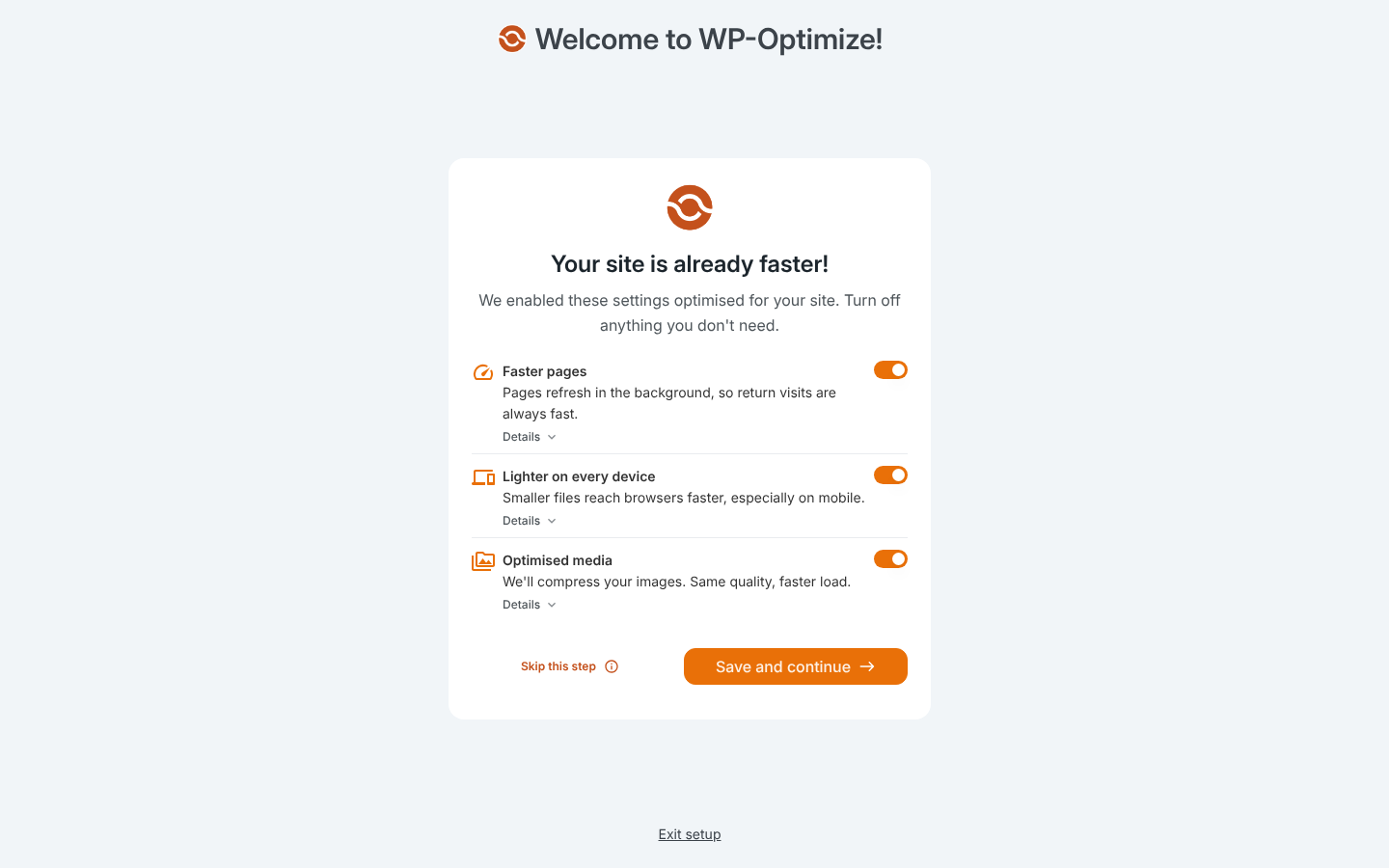
On activation it opens a short onboarding screen with “Faster pages,” “Lighter on every device” and “Optimised media” already switched on. For WooCommerce stores, its defaults stop a shopper with items in the cart from writing a page into the public cache, a gap most other plugins only close after configuration.
Key Features
- Page cache with preloading: Works on any host.
- Database cleanup: Removes revisions, spam comments and transients on a schedule.
- Image compression: WebP conversion and lossy or lossless compression.
- Minify and Delay JS: CSS, JS and HTML minification, plus JavaScript delay, in the free plugin.
How to Get Started with WP-Optimize
- Install from Plugins → Add New and complete onboarding.
- Take a backup, then run the first database cleanup.
- Check Cache settings and add any booking or account pages to the exclusion list.
Pros and Cons
| Pros |
Cons |
|---|---|
| Three speed jobs in one free plugin |
No object cache in the free version |
| WooCommerce cart-safe defaults |
No MCP server or AI control |
| Simple onboarding |
Database cleanup needs a backup first |
Best for: small business sites that want one free plugin for caching, cleanup and images.
7. WP Fastest Cache: Best for a One-Time Payment
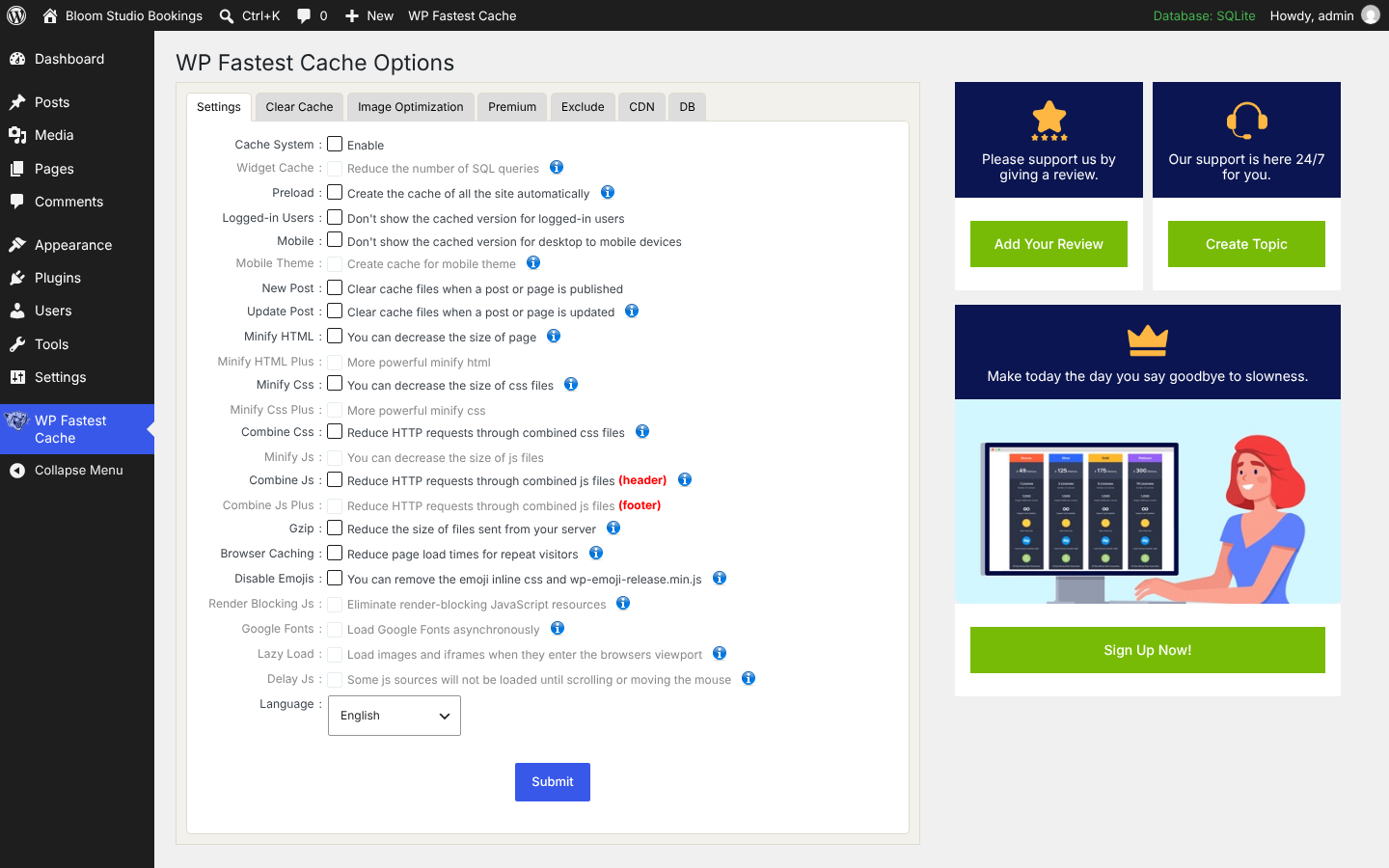
WP Fastest Cache has 1,000,000+ active installs and the highest average rating among the large plugins here: 4.9 stars from 4,225 reviews (WordPress.org, 5 October 2026). Its settings fit on one screen of checkboxes, which makes it one of the easiest free plugins to set up.
Its Premium version is sold as a one-time payment: $49 for one site, labelled lifetime on the vendor’s site. Premium unlocks the greyed-out options you can see below, such as Delay JS, Lazy Load and render-blocking JS fixes.
Key Features
- Simple page cache: One checkbox to enable, plus preload and auto-clear on publish.
- Minify and combine: HTML and CSS free; JS options in Premium.
- Exclude rules: Exclude pages, user agents and cookies.
- Premium: Lifetime licence with Delay JS, lazy load and image optimization.
How to Get Started with WP Fastest Cache
- Install from Plugins → Add New.
- Tick Cache System, Preload, New Post and Update Post, then Submit.
- Use the Exclude tab for booking, cart and account pages.
Pros and Cons
| Pros |
Cons |
|---|---|
| Very easy, one-page settings |
Advanced JS features need Premium |
| Lifetime Premium licence from $49 |
No object cache or AI control |
| Excellent rating from 4,000+ reviews |
Proves a cache hit with an HTML comment only |
Best for: owners who want a simple plugin and dislike annual renewals.
8. WP Super Cache: Best Minimal Free Cache Plugin
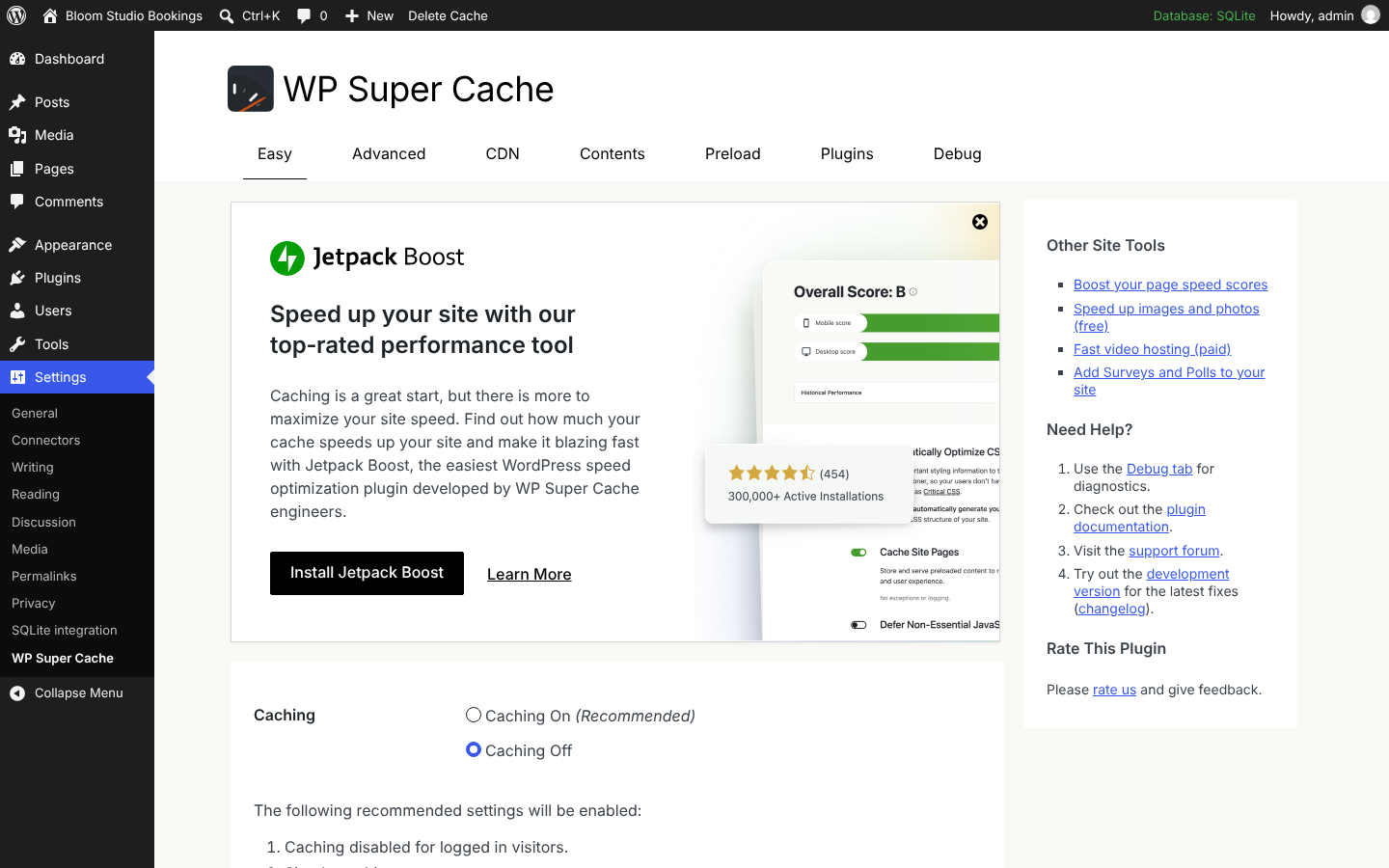
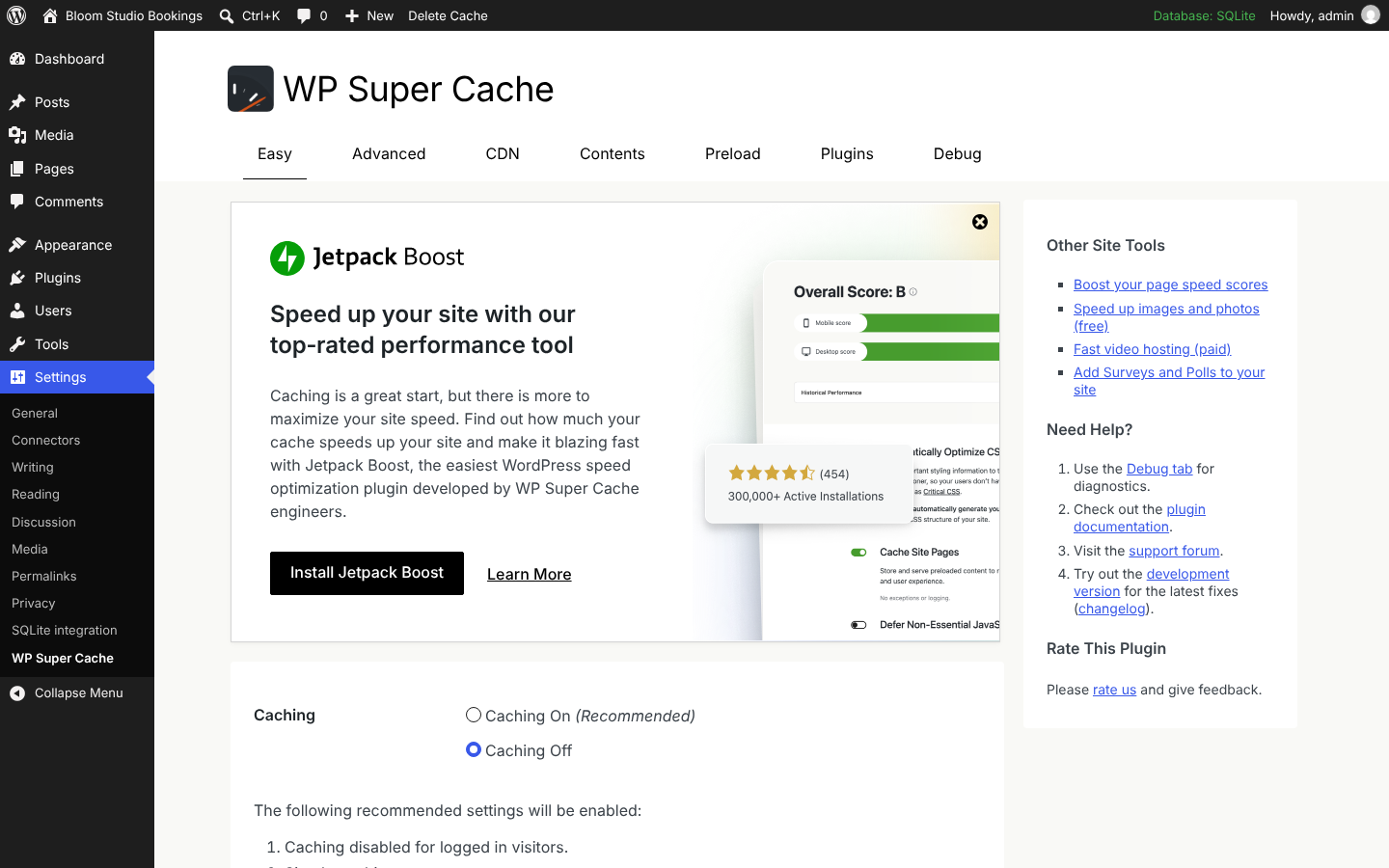
WP Super Cache is built by Automattic, the company behind WordPress.com, and has been in the directory since 2007. It has 1,000,000+ active installs (WordPress.org, 5 October 2026). Its “Easy” tab has one decision: Caching On or Caching Off.
It is a pure page cache. There is no minification, no image work and no JavaScript delay, and the settings screen now promotes Automattic’s separate Jetpack Boost plugin for those jobs. For a brochure site or blog, that simplicity is the appeal.
Key Features
- Static HTML cache: Serves cached files with very little overhead.
- Preload mode: Builds the cache for all posts ahead of visitors.
- CDN support: Rewrites static file URLs to a CDN.
How to Get Started with WP Super Cache
- Install from Plugins → Add New; make sure permalinks are not set to “Plain.”
- Choose Caching On and update.
- Use Advanced → Rejected URL strings to exclude booking and account pages.
Pros and Cons
| Pros |
Cons |
|---|---|
| Free forever, made by Automattic |
No file or image optimization |
| One-switch setup |
Needs a second plugin for Core Web Vitals work |
| 18 years of track record |
Advanced tab is dated and technical |
Best for: simple blogs and brochure sites that only need a reliable page cache.
9. NitroPack: Best Hands-Off Cloud Optimization
NitroPack works differently from the rest of this list. The plugin connects your site to NitroPack’s cloud, which caches pages, optimizes CSS, JavaScript, images and fonts, and serves assets through its CDN. You do very little configuration. NitroPack has been part of WP Engine since its acquisition in July 2024.
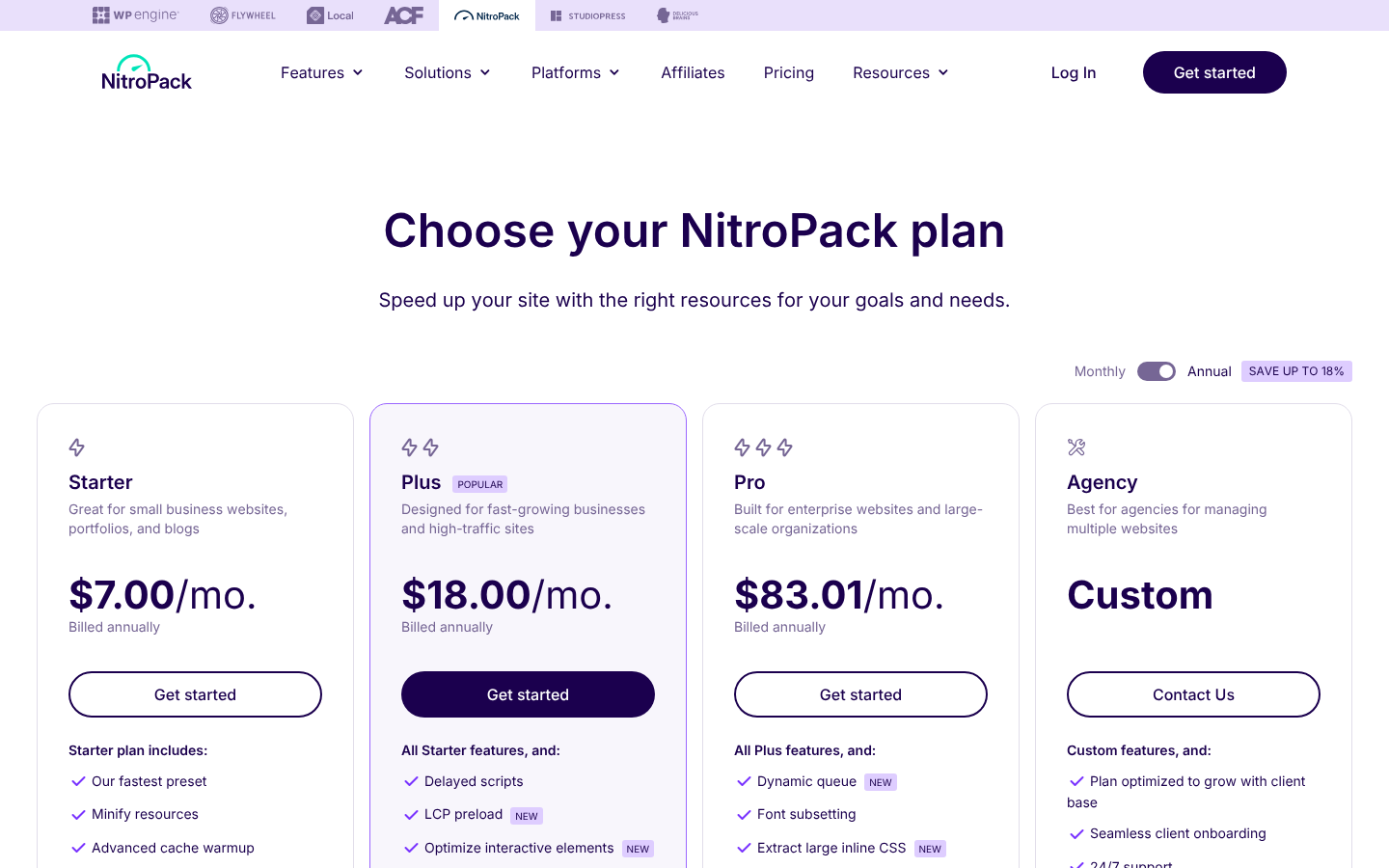
Pricing is metered. As of 5 October 2026, the free plan covers one site and 1,000 pageviews a month; Starter is $8/month ($7 billed annually) for 8,000 pageviews; Plus is $22/month ($18 annually) for 40,000 pageviews; and Pro is $99.99/month for three sites. If traffic grows, so does the bill.
Key Features
- Cloud optimization: Work happens on NitroPack’s servers, not yours.
- Built-in CDN: Bandwidth is included up to plan limits.
- Automatic presets: Choose a preset instead of individual settings.
How to Get Started with NitroPack
- Create a NitroPack account and pick a plan.
- Install the NitroPack plugin and connect it with your site ID and key.
- Choose a preset, then test your booking page and forms.
Pros and Cons
| Pros |
Cons |
|---|---|
| Almost no configuration |
Metered by pageviews and bandwidth |
| CDN and image optimization included |
Optimization depends on an external service |
| Free plan for small sites |
Monthly cost grows with traffic |
Best for: owners of small-to-medium sites who want the most automation without an AI assistant and accept a monthly fee.
10. Super Page Cache: Best for Free Cloudflare Edge Caching
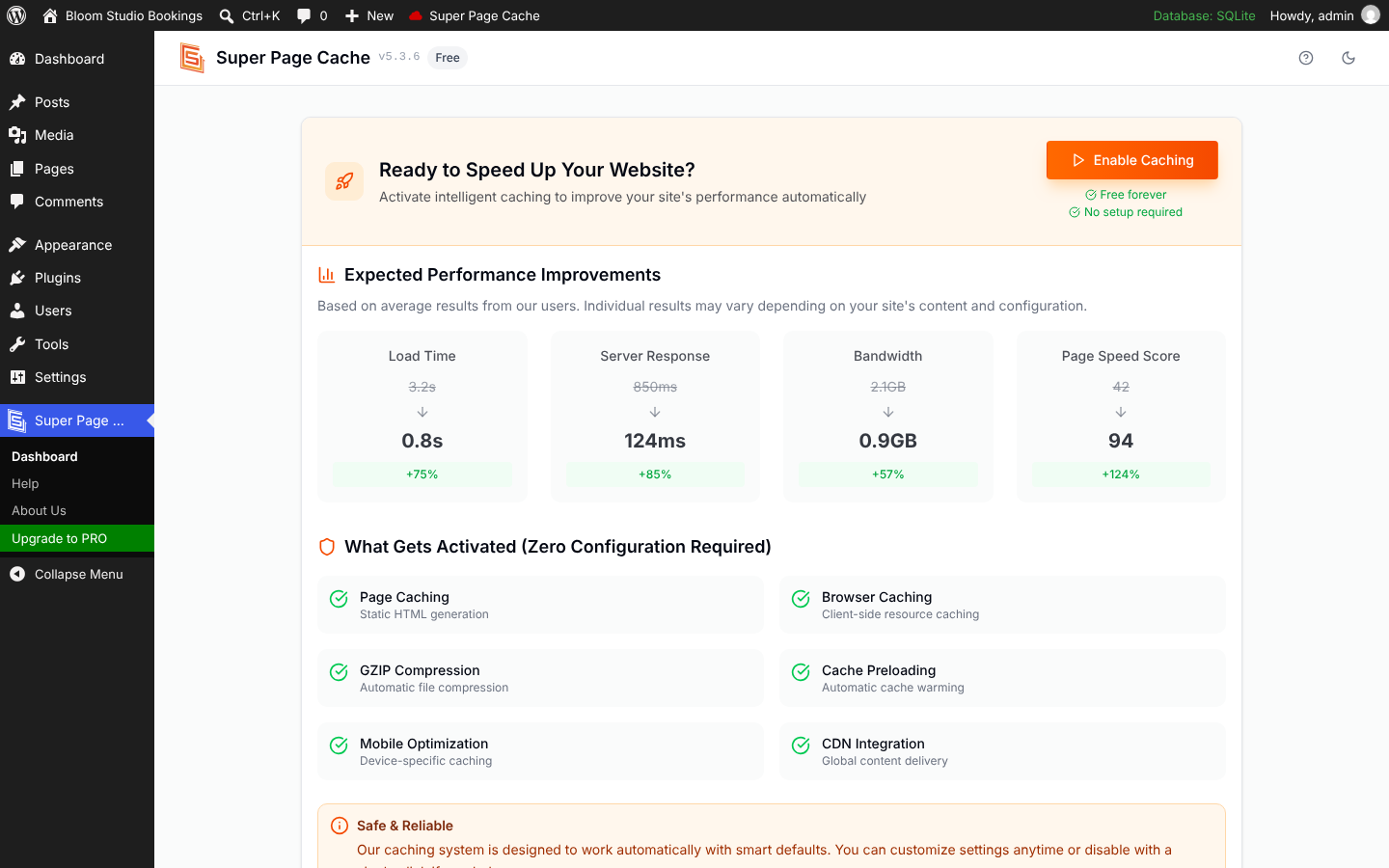
Super Page Cache, developed by Themeisle, has 70,000+ active installs and a 4.8-star rating (WordPress.org, 5 October 2026). Its specialty is caching full HTML pages at Cloudflare’s edge using Cache Rules, and its readme says this works with the free Cloudflare plan.
By default Cloudflare does not cache HTML pages, only static files. Super Page Cache closes that gap, so visitors far from your server get pages from a nearby Cloudflare location. Without Cloudflare, it still works as a normal disk cache.
Key Features
- Cloudflare edge HTML caching: On the free Cloudflare plan, through Cache Rules.
- Disk cache fallback: Works without Cloudflare.
- Free extras: Lazy loading, Google Fonts optimization, database cleanup and preloading.
- Pro: Delay JS and ignoring marketing query parameters for a better hit rate.
How to Get Started with Super Page Cache
- Install from Plugins → Add New and click Enable Caching.
- To add edge caching, connect your Cloudflare account with an API token.
- Exclude booking and account URLs before you turn on edge caching.
Pros and Cons
Best for: sites already on Cloudflare’s free plan with visitors in several countries.
| Pros |
Cons |
|---|---|
| Free edge caching for Cloudflare users |
Cloudflare setup needs an API token |
| One-click start |
Delay JS is Pro only |
| Works without Cloudflare too |
No MCP server or AI control |
Also considered: Breeze (free, by Cloudways), SiteGround Speed Optimizer (best kept on SiteGround hosting), Hummingbird (WPMU DEV) and Perfmatters (a script manager that pairs with a cache plugin rather than replacing one).
How to Cache a Booking Website Without Breaking It
Booking pages are the part of a service site that people worry about most. Will a cached page show slots that are already taken? Will the form stop working?
We tested this. On 5 October 2026 we installed Amelia (Lite 2.4.11) and xSpeed Cache 1.3.7 on WordPress 7.1.2, added a booking page with the [ameliastepbooking] shortcode, turned on page caching and loaded the page three times as a logged-out visitor.
| Load | Cache header | Booking data request |
|---|---|---|
| 1st | X-XSpeed-Cache: MISS |
1 live request to admin-ajax.php?action=wpamelia_api |
| 2nd | X-XSpeed-Cache: HIT (php) |
1 live request |
| 3rd | X-XSpeed-Cache: HIT (php) |
1 live request |
The page itself came from the cache, but the form fetched its data with a fresh request every time, and that response carried Cache-Control: no-cache, must-revalidate, max-age=0, no-store, private. The cached HTML contained no nonce. In this setup, page caching made the booking page faster without freezing the booking data.
That is one test on a simple configuration (Amelia Lite, no services configured, no payment gateway), so check your own site. The biggest risk is not page caching but JavaScript optimization. When a user reported a broken form with WP Rocket, Amelia’s support team advised turning off “Minify JavaScript files,” because the newer booking form is built on Vue 3, or excluding Amelia’s scripts with a pattern like /amelia/*.js.
Five rules for caching any booking site:
- Cache the page, not the data. Make sure availability and checkout requests (admin-ajax.php, /wp-json/) are never cached. Most plugins exclude these by default; confirm it.
- Exclude the booking plugin’s scripts from minify, combine and Delay JS. For Amelia, exclude /amelia/*.js. Delayed scripts can make the form appear only after a click or scroll.
- Exclude customer pages. Customer panels, “My bookings,” cart and checkout pages should be in the “never cache” list.
- Purge after changing services or prices. Prices and service names in the page HTML stay old until the cache is cleared.
- Test as a logged-out visitor. Use a private window, book a test appointment, and check that the confirmation email arrives.
With an AI-managed plugin, you can hand these rules to the assistant. On a site running xSpeed with its MCP server connected, a prompt like “exclude /amelia/*.js from minify and delay, never cache /my-bookings/, purge everything, then confirm the booking page returns a cache HIT” covers the first four rules in one request.
Supporting Comparison Tables
AI and MCP Feature Matrix
| AI capability | xSpeed Cache | WP Rocket | All other 8 plugins |
|---|---|---|---|
| MCP server for Claude, ChatGPT, Cursor | Free |
Paid licence |
|
| One AI connection for many sites | xSpeed Hub (free connection) |
One site at a time |
|
| Audit log of AI actions | Free |
Not documented | |
| Free site scan that maps each issue to a fix | xSpeed Scan, any site |
|
|
| Scan available through MCP and Telegram | |
|
|
| AI-tuned cache lifetimes and AI suggestions | Pro |
|
|
Checked against vendor documentation on 5 October 2026.
Feature Comparison Matrix
| Feature | xSpeed Cache | WP Rocket | LiteSpeed Cache | FlyingPress | W3 Total Cache | WP-Optimize | WP Fastest Cache | WP Super Cache | NitroPack | Super Page Cache |
|---|---|---|---|---|---|---|---|---|---|---|
| Page cache on any server | |
|
* |
|
|
|
|
|
|
|
| Free version | |
|
|
|
|
|
|
|
|
|
| MCP server | (free) |
(per site) |
|
|
|
|
|
|
|
|
| Minify CSS/JS | |
|
|
|
|
|
|
|
|
|
| Delay JavaScript | |
|
|
|
Pro | |
Premium | |
|
Pro |
| Object cache (Redis/Memcached) free | |
|
|
|
|
|
|
|
|
|
| Lifetime licence | |
|
n/a | |
|
|
|
n/a | |
|
| Free trial of paid tier | (free tier instead) |
14 days |
n/a | 14 days |
|
|
|
n/a | Free plan | |
* LiteSpeed Cache’s page cache needs a LiteSpeed server or QUIC.cloud.
LiteSpeed Cache’s page cache needs a LiteSpeed server or QUIC.cloud CDN. Features checked against vendor documentation on 5 October 2026.
Implementation Difficulty
| Plugin | Technical skill | Time to a working cache | Wizard or onboarding | Can an AI set it up for you? |
|---|---|---|---|---|
| xSpeed Cache | Low | 5 minutes | Setup wizard |
|
| WP Rocket | Low | 5 minutes | Defaults on | (paid) |
| LiteSpeed Cache | Medium | 10–20 minutes | Presets | |
| FlyingPress | Low to medium | 10 minutes | Defaults on | |
| W3 Total Cache | High | 20–40 minutes | Setup guide |
|
| WP-Optimize | Low | 5 minutes | Onboarding |
|
| WP Fastest Cache | Low | 5 minutes | One settings page | |
| WP Super Cache | Low | 2 minutes | One switch | |
| NitroPack | Low | 10 minutes (account needed) | Presets | |
| Super Page Cache | Medium with Cloudflare | 5–15 minutes | One button | |
Which Plugin for Which Host?
| Your hosting | Strong first choice | Alternatives |
|---|---|---|
| Nginx or Apache shared hosting | xSpeed Cache (free) or WP Rocket (paid) | WP-Optimize, WP Fastest Cache, WP Super Cache |
| LiteSpeed or OpenLiteSpeed (Hostinger, A2, NameHero and others) | LiteSpeed Cache | xSpeed Cache (it detects LiteSpeed and avoids conflicts) |
| Managed host with its own page cache (Kinsta, WP Engine and others) | Keep the host’s cache; add front-end optimization only | xSpeed Cache or WP Rocket with page cache settings the host allows |
| SiteGround | SiteGround Speed Optimizer | WP Rocket |
| Cloudflare in front of any host | Super Page Cache | xSpeed Cache Pro or WP Rocket with Cloudflare integration |
| VPS with Redis | xSpeed Cache or W3 Total Cache | LiteSpeed Cache on OpenLiteSpeed |
| Many client sites on different hosts | xSpeed Cache with xSpeed Hub | WP Rocket Multi, FlyingPress Business |
WordPress Cache Plugin Pricing: Free vs Paid
| Plugin | Free option | Paid entry price | Sites on entry plan | Licence model |
|---|---|---|---|---|
| xSpeed Cache | Full free plugin (100+ features, MCP, Hub, Scan) | $29/yr launch price (regular $58), lifetime from $79 | 1 | Annual or lifetime |
| WP Rocket | 14-day trial | $59.95/yr | 1 | Annual |
| LiteSpeed Cache | Full plugin | Free (QUIC.cloud usage above free quota) | Unlimited | Free |
| FlyingPress | 14-day trial | $59/yr | 1 | Annual |
| W3 Total Cache | Full free plugin | $99/yr | 1 | Annual |
| WP-Optimize | Full free plugin | $49/yr | 2 | Annual |
| WP Fastest Cache | Full free plugin | $49 | 1 | One-time (lifetime) |
| WP Super Cache | Full plugin | Free | Unlimited | Free |
| NitroPack | 1,000 pageviews/month | $7/mo billed annually | 1 | Metered subscription |
| Super Page Cache | Full free plugin | Pro (see vendor) | Varies | Annual |
Prices from each vendor’s pricing page on 5 October 2026. xSpeed’s $29 is a 50% founding-customer price for the first six months.
Budget guidance: a single booking site can get excellent results for $0. xSpeed Cache’s free version adds AI control and a free scan on any host; LiteSpeed Cache is the free pick on LiteSpeed hosting; WP-Optimize is a solid free all-rounder. Paying makes sense when you want AI provider features, deeper CSS and image work, or a done-for-you premium plugin like WP Rocket.
Common WordPress Caching Mistakes to Avoid
- Running two page caches at once. Most cache plugins write the same wp-content/advanced-cache.php file, so the second one either silently overrides the first or silently fails. Use one page cache. A script manager such as Perfmatters alongside it is fine.
- Choosing LiteSpeed Cache on a non-LiteSpeed server. You get the optimization features but not the page cache, unless you connect QUIC.cloud.
- Turning on every optimization at once. Enable Delay JS, Remove Unused CSS and combine options one at a time, and test your booking form after each. An AI assistant connected over MCP can make one change at a time and re-test after each.
- Caching logged-in or customer pages. Customer dashboards and checkout must stay dynamic.
- Forgetting to purge after price changes. Old prices in cached HTML lead to awkward conversations at the front desk.
- Judging the cache by a PageSpeed score. A cache mainly improves server response time. Check the response header for a HIT, or run a free external scan that tests caching directly.
- Ignoring the host. If your server takes 2 seconds to respond on a cache miss, cached pages will be fast and every uncached request will still be slow.
Frequently Asked Questions About WordPress Cache Plugins
Which is the best WordPress cache plugin in 2026?
For AI-managed sites and agencies, xSpeed Cache: it is the only plugin here with a free MCP server, a multi-site hub and a free scan. For a paid set-and-forget plugin, WP Rocket. On LiteSpeed hosting, LiteSpeed Cache is the strongest free choice for manual setup.
What is an MCP server in a cache plugin?
It is a connection that lets AI assistants such as Claude, ChatGPT or Cursor use the plugin’s functions. Instead of opening settings pages, you ask the assistant to check cache status, purge, run a speed test or change a setting, and it does it through the plugin.
Can AI tools like Claude or ChatGPT manage my cache plugin?
Yes, if the plugin has an MCP server. xSpeed Cache includes one in its free plugin and connects many sites through xSpeed Hub. WP Rocket added one in version 3.23 that connects one site at a time. The other eight plugins in this guide have none.
Is the free version of a cache plugin good enough?
Usually, yes. Eight of the 10 plugins here have a free version that caches pages permanently. xSpeed Cache’s free version goes further than most, with 100+ features including the MCP server, Hub connection, object caching and JavaScript delay.
Is a cache plugin safe to use with a booking plugin like Amelia?
Yes, with exclusions. In our test, Amelia’s booking page was served from cache while the form loaded its data through a fresh, uncached request on every visit. The main risk is JavaScript minification and delay, so exclude the booking plugin’s scripts as Amelia’s support team recommends.
How do I check whether my cache is working?
Run a free scan such as xSpeed Scan, which tests server response and caching directly, or open your browser’s developer tools (Network tab) and look for a cache header such as x-litespeed-cache or X-XSpeed-Cache. Some plugins only add an HTML comment, which Cloudflare can strip.
Can I use two cache plugins at the same time?
You should not run two page caches. They compete for the same drop-in file and cause hard-to-debug problems. You can pair one cache plugin with a separate script or image optimizer.
Will a cache plugin fix my Core Web Vitals?
Partly. Caching mostly improves time to first byte. LCP and INP also depend on image size, fonts and JavaScript, so use the plugin’s file optimization features, and use a scan that tells you which half is slow.
My host already caches pages. Do I still need a plugin?
Maybe not for page caching. Many managed hosts run their own page cache and block conflicting plugins. You may still want a plugin for minification, delayed JavaScript, AI control and monitoring. Ask your host which plugins they allow.
How long until I see results after installing a cache plugin?
Server response time improves on the second visit to each page, once it has been cached. Turn on preloading so the cache is built before visitors arrive, then measure again after 24 hours.
Which cache plugin is best for agencies managing many client sites?
xSpeed Cache with xSpeed Hub, because one AI connection can purge, warm, benchmark and audit every client site in a single request. WP Rocket Multi covers 50 sites and FlyingPress has 25-site and unlimited plans, but neither manages sites from one AI connection.
How often should I clear the cache?
Most plugins clear the relevant pages automatically when you publish or update content. Clear everything after changing your theme, menus, prices or booking services, or ask your AI assistant to do it if your plugin supports MCP.
Final Picks: The Best WordPress Cache Plugin for Your Goal
Caching is still the fastest single improvement for a WordPress site, and in the xSpeed Scan data it cut median first-byte time by roughly 70%. What changed in 2026 is who runs it. A plugin your AI assistant can operate, across every site you manage, saves more time than any single setting.
| Your goal | Best choice | What to expect |
|---|---|---|
| Best overall for AI-powered optimization | xSpeed Cache | AI control and Hub in the free plugin, free scan, same cache on any server |
| Best paid, no tuning | WP Rocket | Caching and optimization on from day one |
| Best free on LiteSpeed hosting | LiteSpeed Cache | Server-level speed at $0 |
| Best for Core Web Vitals tuning | FlyingPress | Front-end optimization aimed at LCP and INP |
| Best free manual control over every layer | W3 Total Cache | Page, object and database caching for $0 |
| Best free all-in-one | WP-Optimize | Cache, database cleanup and images together |
| Best one-time payment | WP Fastest Cache | $49 once for Premium |
| Best minimal free cache | WP Super Cache | One switch, nothing else |
| Best hands-off cloud | NitroPack | Automation with metered pricing |
| Best free edge caching | Super Page Cache | Cloudflare edge HTML caching |
What to do this week:
- Scan first: Run the free xSpeed Scan on your booking page to see whether your problem is server time, page weight or both.
- Check your server: Find out whether you are on LiteSpeed, Nginx or Apache. That rules options in or out.
- Install one plugin: Start with the free version of the plugin that matches your host, and remove any other page cache.
- Connect your AI assistant: If your plugin has an MCP server, connect Claude or ChatGPT and ask it what to fix first.
- Protect your booking flow: Exclude customer pages and your booking plugin’s scripts from JavaScript optimization, then make a test booking.
A fast site gets more people to the booking form. Once they are there, a form like Amelia’s can take it from there.
The post 10 Best WordPress Cache Plugins in 2026 (AI-Powered Optimization Compared) appeared first on Amelia WordPress Booking Plugin.
]]>The post Amelia vs. Calendly: In-Depth 2026 Comparison To Help You Choose appeared first on Amelia WordPress Booking Plugin.
]]>That’s the real split between Calendly and Amelia. Calendly is a hosted SaaS scheduler — you get a polished calendly.com link, priced per seat per month. Amelia is a WordPress booking plugin — it runs on your site, under your domain and branding, for a single annual license that covers your whole team. Both let clients book online without creating an account. Where they part ways is ownership, what you can actually sell, and how the bill grows.
Here’s an honest, side-by-side look so you can pick the one that fits how you work.
Amelia vs Calendly overview
 Embed/widget only, not native
Pricing and features as of September 2026. Calendly plans and prices from calendly.com/pricing; Amelia plans from wpamelia.com/pricing. We build and maintain Amelia — this comparison is written to be fair, and we’ve linked Calendly’s own pages so you can verify every row.
The core difference: a WordPress plugin vs a SaaS platform
This is the decision everything else hangs off.
Calendly is a scheduling service you sign into. Your booking page is a calendly.com link, your availability and client records live on Calendly’s servers, and you pay for each person on the team who needs a link. It’s fast to start and genuinely good at one thing: getting a meeting on two calendars.
Amelia is a plugin you install on your WordPress site. The booking form sits on your own pages, under your own domain and design. The appointments, customers, and payment records land in your site’s database — not a platform you rent. There’s one annual license per site, and it covers unlimited services, staff, and bookings rather than charging by the seat.
If you already run your business on WordPress, that difference compounds. Your booking system becomes part of the site you control instead of a widget pointing off to someone else’s brand.
Booking types: appointments and events in one place
Calendly is built around meetings — 1:1, round-robin, collective, and group event types. If your world is sales calls, consultations, and interviews, that model fits well.
Amelia covers the same appointment scheduling and runs events: one-off, recurring, and multi-day ticketed events with capacity limits and group bookings. A yoga studio can take 1:1 privates and sell class passes; a tour operator can book guided sessions and sell tickets to a weekend workshop — all from one plugin, without bolting a second tool onto the site. That “one system for appointments and events” is the single most common reason customers pick Amelia over a point solution.
Getting paid: WooCommerce vs Stripe links
Both tools take money online, but at different depths.
Calendly can collect payment through Stripe or PayPal on its paid plans — you attach a price to an event type and the invitee pays when they book. It’s the full amount, up front.
Amelia takes payments natively through WordPress: direct Stripe, PayPal, Mollie and Razorpay, or the full WooCommerce checkout with its 50+ gateways, tax rules, and invoicing. It also supports deposits and partial payments, so you can charge a percentage to hold the slot — useful for higher-ticket services and events where you don’t want to invoice the whole amount at booking. If you already sell anything through WooCommerce, bookings become just another order in the same store.
Amelia vs Calendly: which is more AI-ready?
“AI-ready” isn’t about having a chatbot bolted onto a settings page — it’s about whether an AI assistant can actually reach your booking system and do useful work with it. This is where the self-hosted-vs-SaaS split shows up again. Because Amelia lives on your own WordPress site, it can expose its capabilities to AI workflows through an MCP-based connection, so an assistant can create appointments, look up services and staff, and work with the data alongside your forms and tables — all on infrastructure you own. Calendly has added AI features of its own, but they stay inside its closed, hosted platform: helpful within Calendly, but not something you can point your own AI stack at or run on your own terms.
- Amelia — AI acts on your own site. Through its AI booking for WordPress foundation, an AI assistant can take real actions — book appointments, list services and employees, add customers, assign people to events — via one MCP connection, with all data staying in your WordPress database.
- Amelia — part of a bigger WordPress workflow. The same architecture connects to IvyForms and wpDataTables, so AI can collect with forms, book with Amelia, and report on the data — a workflow that spans plugins instead of a single tool.
- Amelia — you own the data the AI works with. Because nothing is rented from a third-party platform, you keep full control (and your GDPR posture) over the records an assistant reads or writes.
- Calendly — AI features inside a closed platform. Calendly offers AI-assisted extras like meeting notes and lead routing, but they operate within its hosted SaaS and aren’t yours to host, extend, or plug into your own AI workflows.
- Calendly — access via its API, on its terms. Programmatic access exists on higher tiers through Calendly’s API, but the data lives on Calendly’s servers and the scope is defined by the platform, not by you.
The short version: both are adding AI, but only one lets your AI work directly with your booking data on infrastructure you control. Amelia doesn’t stop at bookings — with Amelia you can build the whole booking website itself. Using the WordPress AI website builder, you can spin up a complete, booking-ready WordPress site — pages, layout, and a working Amelia booking form — so an independent professional or small team can go from nothing to taking appointments online without hiring a developer. Calendly gives you a scheduling link to embed somewhere; Amelia lets you create the site and the booking system, all in one place and all yours to own.
One MCP connection and a much bigger WordPress workflow
Amelia doesn’t have to work alone. IvyForms and wpDataTables can also expose AI-ready capabilities, opening the door to workflows that move beyond a single plugin — all through the same AI booking for WordPress foundation.
Amelia
Take action on bookings
Create appointments, list services and employees, add customers, and assign people to recurring events.
IvyForms
Work with submitted information
Give your AI workflows access to form and entry data, including everything collected before or around a booking.
wpDataTables
Work with structured data
Query table data and build AI-assisted reporting workflows from your booking and form data.
The bigger idea?
→
Book with Amelia
→
Work with the data in wpDataTables
All accessible to your AI workflow through the same MCP-based WordPress architecture. See how it starts with AI booking for WordPress, and where it leads with the WordPress AI website builder.
Pricing: per seat every month vs one license per site
Calendly’s Standard plan is $10/seat/month and Teams is $16/seat/month (both cheaper billed annually), with Enterprise starting around $15k/year for 50+ seats. The math is simple and it scales with headcount: five people who need booking links is five seats, every month, forever.
Amelia is an annual license per website — €49 (Starter), €89 (Standard), €199 (Pro, 5 sites), €339 (Elite, unlimited sites) — and a license covers unlimited employees and bookings on that site. A five-person salon pays once for the site, not five times per month. For a team of any size, or an agency running booking on client sites, that’s usually the bigger long-term saving. (Both offer a free tier to start: Calendly’s free plan gives you one event type; Amelia’s free version lives on WordPress.org.)
Data ownership and independence
Because Calendly is hosted, your client list and booking history live inside Calendly. Because Amelia is self-hosted, all of that sits in your WordPress database — you control it, you can export it, and it’s covered by your own privacy and GDPR posture rather than a third party’s. For privacy-conscious practitioners and anyone who’d rather not hand their customer relationship to a platform, owning the data is the point.
For agencies and developers
Amelia exposes WordPress hooks and a documented API, and its data model is clean enough to build on — including white-labeled booking on client sites under the client’s own brand. Calendly offers an API too, but on higher tiers and always within its hosted model. If you’re building and maintaining booking for other people on WordPress, Amelia gives you something you can extend and hand off; Calendly gives you a service to embed.
Amelia’s key features
- If you have business with multiple staff members you can efficiently manage their shifts, assign appointments, and track employee availability.
- Amelia allows you to categorize services, making it easier for clients to find and book the specific services they need.
- Users can create custom booking forms tailored to their business requirements, collecting relevant information from clients during the booking process.
- Amelia supports integration with popular payment gateways, enabling you to accept payments for appointments upfront, reducing no-shows, and enhancing revenue streams.
- Clients receive automated notifications and reminders about upcoming appointments, reducing the likelihood of missed appointments and improving overall customer experience and satisfaction.
- The calendar interface is intuitive, making it easy to view, manage, and organize appointments for optimal resource utilization.
- Amelia’s resource scheduling feature allows you to efficiently manage and allocate resources such as staff members, equipment, or rooms for appointments. With the ability to assign resources to specific services or time slots, you can optimize resource utilization and ensure smooth operation.
- Amelia enables you to create customizable service packages that bundle multiple services together for clients to purchase. With service packages, you can offer discounts, promotions, or specialized packages tailored to clients’ needs, enhancing value proposition and increasing sales opportunities.
Who is Amelia for?

- Amelia is perfect for spas, salons, and beauty clinics that offer services such as massages, facials, haircuts, or manicures. Its employee management features and customizable booking forms streamline appointment scheduling and resource allocation.
- Healthcare practices, including medical clinics, dental offices, and chiropractic clinics, can benefit from Amelia’s advanced scheduling capabilities.
- Fitness centers, gyms, and personal trainers can use Amelia to schedule training sessions, group classes, or personal coaching sessions. Its class scheduling and management features support efficient resource allocation and client engagement.
- Consulting firms, coaches, and professional services providers can leverage Amelia to schedule client consultations, strategy sessions, or project meetings. Its employee scheduling and payment integration features support efficient service delivery and revenue generation.
- Educational institutions, including language schools, music academies, or tutoring centers, can use Amelia to schedule classes, workshops, or tutoring sessions. Its class scheduling, student management, and payment processing features support streamlined operations and student engagement.
- Repair and maintenance businesses, such as automotive repair shops, HVAC contractors, or appliance repair services, can benefit from Amelia’s appointment scheduling and advanced features.
- Healthcare providers, therapists, and wellness professionals can leverage Amelia to manage appointments with patients or clients. Its appointment reminders enhance patient communication and streamline administrative tasks.
- Event planners and organizers can use Amelia to organize events, schedule meetings, consultations, or planning sessions with clients or vendors.
Thank you for subscribing. Check your mail for details
Who is Calendly for?
- Calendly is for solopreneurs or freelancers who offer services such as coaching sessions, consulting meetings, or training sessions. Its intuitive interface and automated scheduling features streamline the booking process for clients and professionals alike.
- Sales professionals and business development representatives can use Calendly to schedule meetings with leads, prospects, and clients. Its integration with CRM systems like Salesforce enhances workflow efficiency and enables seamless lead management.
- Calendly is beneficial for educators, trainers, and tutors who offer classes, workshops, or tutoring sessions. Its customizable availability and integration with virtual meeting platforms like Zoom facilitate the scheduling and delivery of educational sessions.
Amelia Pros & Cons
Calendly Pros & Cons
Pricing as of September 2026. Calendly prices from calendly.com/pricing; Amelia plans from wpamelia.com/pricing. We build and maintain Amelia and have written these pros and cons to be fair to both tools.
Who should pick which
Calendly is the better fit if your need is purely meetings — sales calls, interviews, consultations — you don’t run on WordPress, and you want the fastest possible setup with a hosted link you never have to maintain. It’s excellent at that job.
Amelia is the better fit if you’re on WordPress and want to own your booking system: appointments and events in one plugin, native WooCommerce payments with deposits, your own domain and branding, one annual license instead of per-seat monthly fees, and full control of your data. That’s most studios, clinics, salons, activity operators, and the agencies who build for them.
They’re not really the same product wearing different prices — they’re two philosophies. Calendly rents you a great scheduling widget. Amelia gives you a booking system you keep.
Own your booking system on WordPress. Get Amelia — one license, unlimited staff, appointments and events in a single plugin.
Amelia vs. Calendly Reviews
Both Amelia and Calendly have received positive reviews from users, with each platform earning praise for different aspects:
Amelia
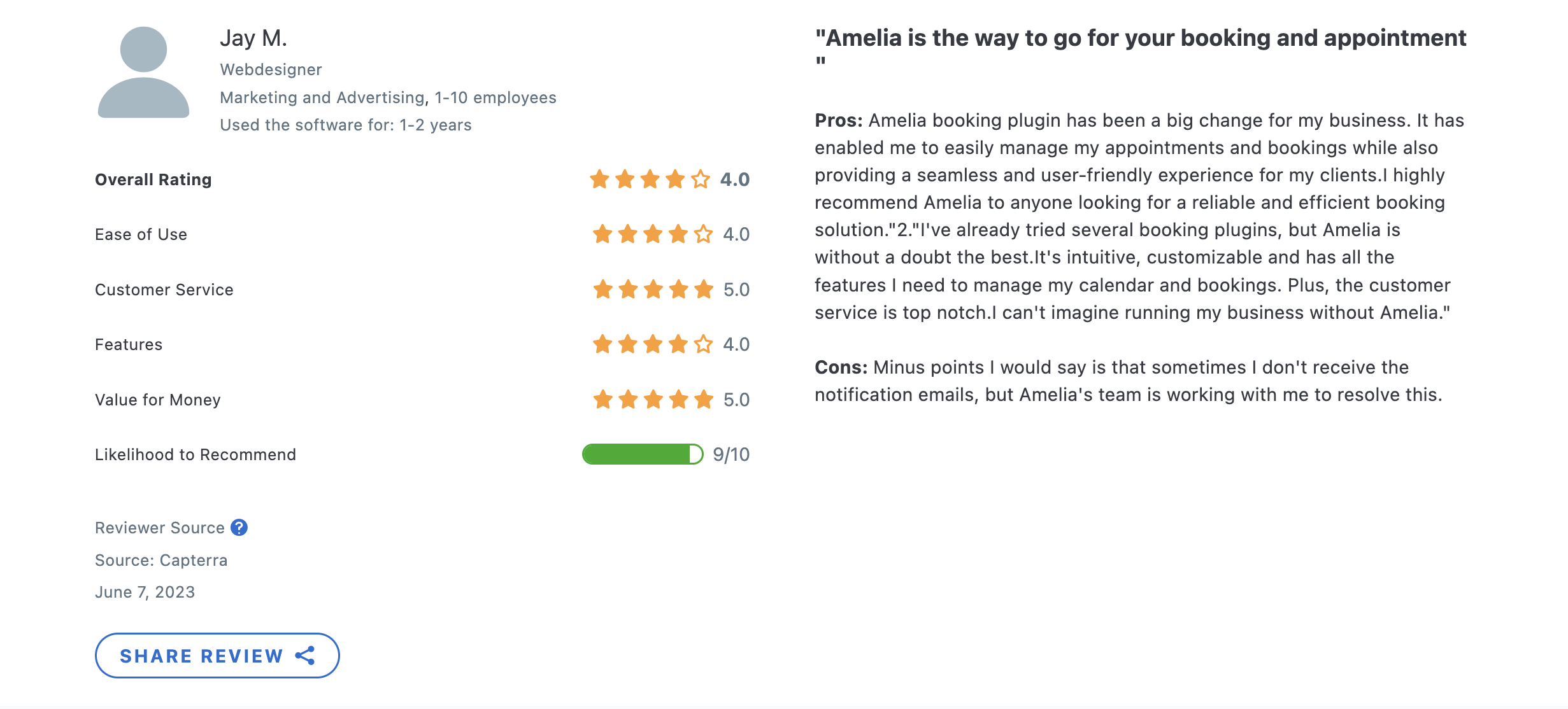
WordPress community loves Amelia! Users appreciate its comprehensive feature set, seamless WordPress integration, and excellent customer support.
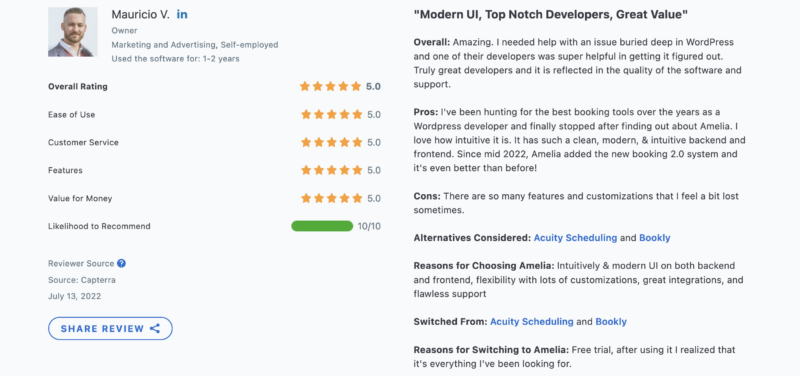
- 4.9 on Capterra
- 4.6 on WordPress.org
Calendly
Source: Capterra
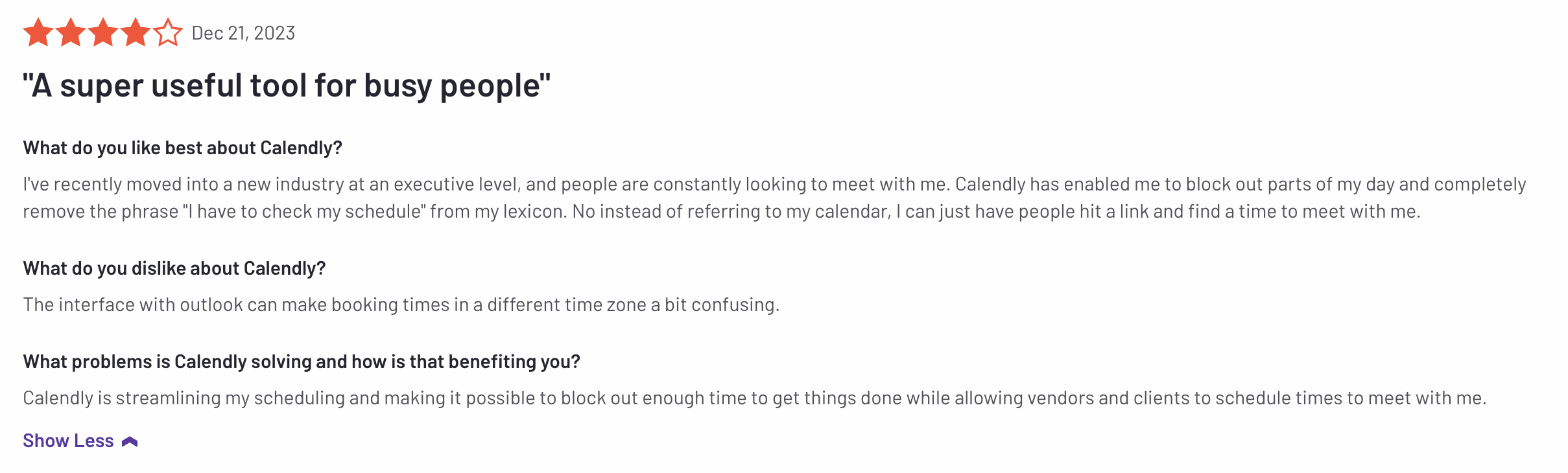
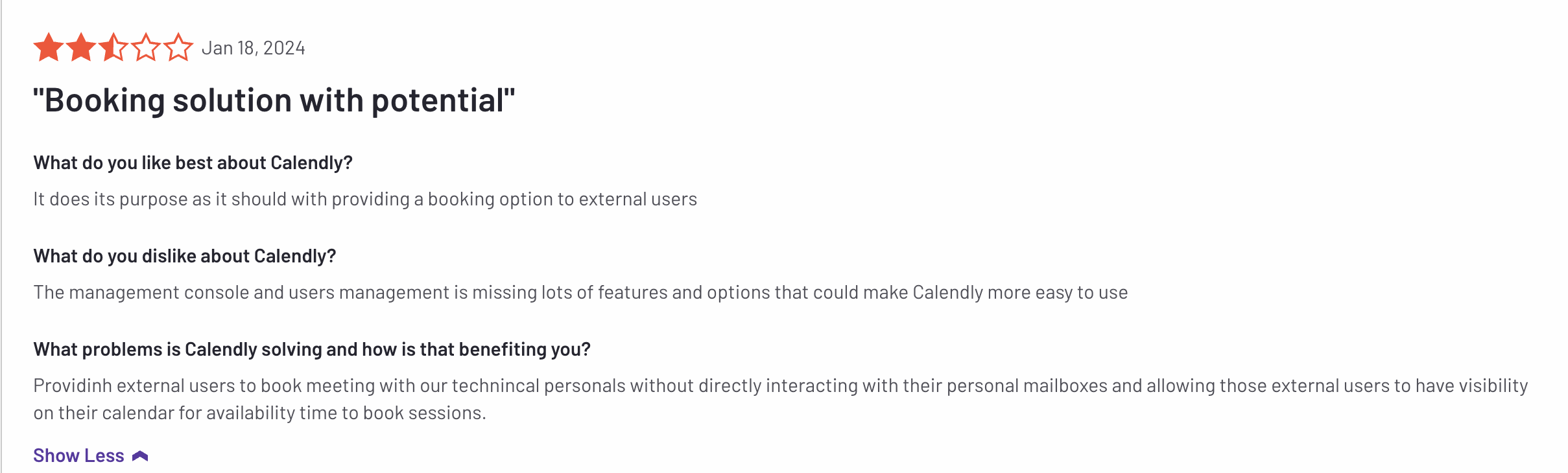
Users commend its user-friendly interface, cross-platform compatibility, and integration with popular tools like Google Calendar and Zoom.
- 4.7 on Capterra
- 4.7 on G2
Source: Capterra
Frequently asked questions
Is Amelia a good Calendly alternative for WordPress?
Yes — Amelia is a WordPress-native alternative to Calendly. Instead of sending clients to a calendly.com link, the booking form runs on your own site under your domain and branding, and every appointment and customer record is stored in your WordPress database. It also handles events and ticket sales, which Calendly doesn’t.
What’s the main difference between Amelia and Calendly?
Amelia is a self-hosted WordPress plugin you own; Calendly is a hosted SaaS you rent per seat. With Amelia your booking data lives on your site and one annual license covers unlimited staff. With Calendly your data lives on Calendly’s platform and you pay per user every month.
Can Amelia take payments like Calendly?
Yes, and with more depth. Amelia takes payments through Stripe, PayPal, Mollie, Razorpay, or the full WooCommerce checkout with 50+ gateways, and it supports deposits and partial payments. Calendly collects full payment via Stripe or PayPal on its paid plans.
Does Amelia do events and group bookings, or just appointments?
Both. Amelia handles 1:1 appointments, group services and classes, and one-off, recurring, or multi-day ticketed events — all in one plugin. Calendly focuses on meetings (1:1, round-robin, collective, and group event types) and isn’t an events or ticketing tool.
Is Amelia cheaper than Calendly?
For teams, usually yes. Amelia is one annual license per site (from €49/year) covering unlimited employees, while Calendly charges $10–$16 per seat per month. A multi-person team pays once for the site with Amelia versus a recurring monthly fee per person with Calendly. Both offer a free tier to start.
Do clients need an account to book with Amelia?
No. Clients can book directly from your website without creating an account, the same no-friction experience Calendly offers — except the booking happens on your site, not a third-party platform.
Does Amelia sync with Google Calendar like Calendly?
Yes. Amelia offers two-way Google Calendar sync, plus Outlook and Apple Calendar, so your availability stays accurate across every calendar — the same two-way syncing you’d expect from Calendly.
The post Amelia vs. Calendly: In-Depth 2026 Comparison To Help You Choose appeared first on Amelia WordPress Booking Plugin.
]]>The post The Best AI Plugins for WordPress (2026) appeared first on Amelia WordPress Booking Plugin.
]]>Content plugins draft text inside the block editor, SEO plugins suggest titles and schema, and a newer category connects through the Model Context Protocol so an outside assistant can operate the WordPress admin on its own.
Anthropic’s own December 2025 announcement puts the number of active public MCP servers at more than 10,000, spanning developer tools and enterprise deployments, the same protocol WordPress plugins now use to expose their actions to an outside assistant.
What are AI plugins for WordPress
AI plugins for WordPress are WordPress plugins that use machine learning or large language models to complete a task an editor would otherwise do by hand.
The category spans content generation, SEO, chat support, design, forms, and workflow automation, and a newer group lets an outside AI assistant operate the WordPress admin directly instead of only suggesting text inside it.
A standard WordPress plugin runs the same logic every time it fires.
An AI plugin sends part of the request to a model, so the output changes based on the prompt, the site’s own content, or the assistant’s own reasoning.
Key figures:
- WordPress runs on 41.2% of all websites worldwide as of July 2026 (W3Techs)
- The WordPress Abilities API, the foundation most AI-connected plugins now build on, shipped with WordPress 6.9 in November 2025 (Make WordPress Core)
- Anthropic open-sourced the Model Context Protocol, the standard behind AI-assistant control of WordPress, on November 25, 2024 (Anthropic)
Those two dates matter because they mark the split between a plugin that writes a paragraph for a human and one an assistant can operate on its own.
How do AI plugins for WordPress work
Most AI plugins for WordPress work by sending a prompt built from the editor’s own input to a language model, then inserting the response into a post, a meta field, or a chat window.
A smaller group works the other way around: the plugin exposes its own actions so an AI assistant can call them directly, without a human clicking through the admin.
What is the WordPress Abilities API
The WordPress Abilities API is a core system that lets a plugin register what it can do in a machine-readable format, so an outside tool can discover the action instead of guessing at it.
- Each ability carries its own input schema, permission check, and execution logic
- Abilities are exposed automatically through REST endpoints under the wp-abilities/v1 namespace
- The same registry works across WordPress core, themes, and plugins
Make WordPress Core confirms the Abilities API landed in WordPress 6.9, and WordPress 7.0 added a client-side counterpart in March 2026.
What is the Model Context Protocol
Anthropic released the Model Context Protocol as an open standard on November 25, 2024, so an AI assistant could connect to outside tools without a custom integration for each one.
How the connection runs:
- An MCP host, such as Claude Desktop, holds the conversation
- An MCP server, published by the plugin or by WordPress itself, exposes a fixed list of tools
- The host calls a tool only when the conversation needs it, and the plugin’s own permission check still applies
wpDataTables, Amelia, and IvyForms each publish their own MCP server on top of this standard, which is why an assistant can build a table on one site and check a booking calendar on another without separate code.
| Path | Where it runs | Who can trigger it | Example |
|---|---|---|---|
| In-editor AI feature | Inside the WordPress admin screen | The logged-in user, one click at a time | Jetpack AI drafting a paragraph |
| In-admin AI assistant | A sidebar or chat panel inside wp-admin | The logged-in user, through natural language | Angie managing IvyForms fields |
| External MCP client | Outside WordPress, on the user’s own computer | An authenticated administrator account | Claude Desktop building a wpDataTables table |
Which AI plugins let an assistant control the WordPress admin directly
Easy MCP AI, wpDataTables, Amelia, and IvyForms each expose their own set of actions so a connected assistant can work the WordPress admin instead of only drafting text inside it.
Each one runs its own MCP server under a separate endpoint, so a connected assistant sees four distinct toolsets rather than one shared WordPress connection.
| Plugin | What it exposes | Delete actions | Admin role required |
|---|---|---|---|
| Easy MCP AI | 242 tools across WordPress, WooCommerce, analytics, SEO | Varies by connected tool | Administrator |
| wpDataTables | 23 actions covering tables, charts, media, and settings | None, no delete ability exists | Administrator (manage_options) |
| Amelia | Services, employees, customers, appointments, and events | Cancel a booking, not a hard delete | Depends on the connected WordPress user’s own capabilities |
| IvyForms | Forms, fields, entries, notifications, templates | None, no delete ability exists | Administrator (manage_options) |
Shared limit: none of the four expose a free-standing delete action, which keeps an assistant from wiping a table, a form, or a booking on its own.
wpDataTables
wpDataTables connects through its own MCP server built on the WordPress Abilities API, and every one of its 23 actions requires the manage_options capability.
Nothing in the action list deletes a table, a chart, or a media file, the same no-delete pattern IvyForms follows below.
- Imports data from CSV, Excel, JSON, XML, and Google Sheets into a new table
- Builds tables from SELECT-only SQL queries, with no write access to the database
- Edits row-level data only on Simple tables, where the rows live inside the table’s own configuration
- Gates a handful of actions, including the Google Sheets import and the Highcharts and ApexCharts engines, behind a Starter or Standard license
Amelia
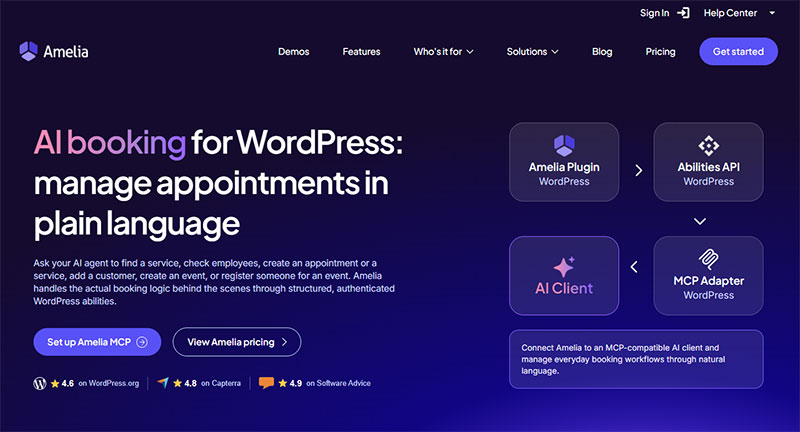
Amelia connects to an AI assistant through its own MCP server, turning the same actions a receptionist runs by hand into tools an assistant calls directly.
- Lists services, employees, customers, appointments, and events, and creates or updates most of them on request
- Requires a WordPress application password plus the @automattic/mcp-wordpress-remote package on the client side, which is why the setup needs Node.js on the machine running the assistant
- Skips customer notification emails on AI-created bookings, and falls back to default color, visibility, and deposit settings
The result works as an AI booking assistant for the site, and Amelia’s own documentation confirms the integration ships in every license plan with no separate toggle to enable.
IvyForms
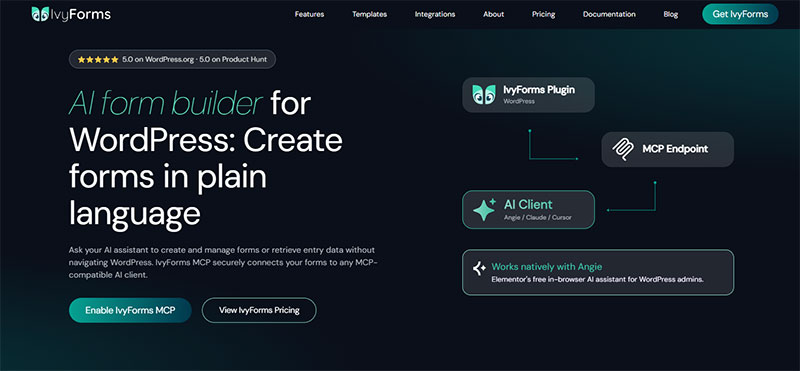
IvyForms ships its MCP server off by default, and an administrator has to switch it on under Settings before any assistant can see the plugin’s tools.
Once enabled, the same connection turns IvyForms into an AI-powered form builder, letting Angie, Elementor’s free AI agent, or an external client such as Claude Desktop manage forms, fields, and entries through natural language.
What stays hidden:
- Entry values submitted through the form
- IP addresses and user agents
- Stored secrets, including API keys and SMTP passwords
One MCP connection and a much bigger WordPress workflowAmelia doesn’t have to work alone. IvyForms and wpDataTables can also expose AI-ready capabilities, opening the door to workflows that move beyond a single plugin. The bigger idea?
All accessible to your AI workflow through the same MCP-based WordPress architecture. |
Easy MCP AI
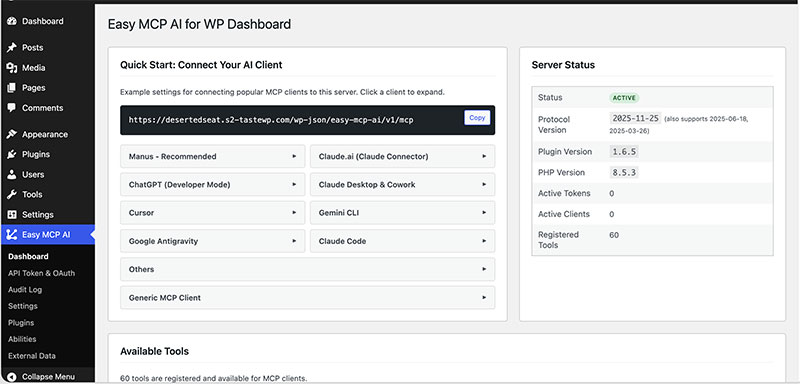
Easy MCP AI’s own documentation lists 242 tools in one free plugin (Easy MCP AI, 2026).
- WordPress core and WooCommerce management
- Site analytics and reporting
- SEO tasks alongside Semrush and DataForSEO data
Widest reach, least specialization: the plugin covers more ground than the other three combined, which fits a site running one assistant across several unrelated tools rather than a single workflow.
What are the best AI content generation plugins for WordPress
Jetpack AI, built by Automattic, Bertha AI, and AI Engine lead the AI content generator category, each drafting posts, product copy, or images directly inside the WordPress editor. For appointment-based businesses, one option goes a step further and lets you generate a booking site with AI, producing a themed WordPress site with services and staff already configured.
The category exists because writing takes time, and an AI content generator turns a rough outline into a publishable first draft in one pass.
| Plugin | Core job | Pricing model | Best for |
|---|---|---|---|
| Jetpack AI | Post drafting, title and excerpt generation | Freemium, bundled with Jetpack | Sites already running Jetpack |
| Bertha AI | Copywriting inside the block editor | Subscription | Marketing and landing page copy |
| AI Engine | Content drafting plus an image generator | Freemium | Bloggers wanting one all-purpose tool |
| WooAI | Product description generation | Freemium | WooCommerce catalogs |
What to check before installing: whether the plugin sends site content to a third-party model over the open internet, since that is the point where a site’s own data leaves WordPress.
What are the best AI SEO plugins for WordPress
Rank Math and Yoast SEO are the two AI SEO plugins WordPress users install most, and both now generate titles, meta descriptions, and schema suggestions instead of only checking them.
Yoast’s own WordPress.org listing describes the plugin as SEO “with built-in AI,” and its 2026 feature set adds schema aggregation and llms.txt management aimed at AI-driven search (Yoast, 2026).
Rank Math: generates SEO titles and meta descriptions from the page content, then scores the result against the target keyword.
Yoast SEO: layers AI-assisted content analysis on top of its existing readability and keyphrase checks, alongside the schema and llms.txt tools built for AI crawlers.
| Plugin | AI feature | Pricing model | Best for |
|---|---|---|---|
| Yoast SEO | AI content analysis, schema for AI agents, llms.txt control | Freemium | Sites optimizing for search engines and AI crawlers |
| Rank Math | AI title and meta generation, content score | Freemium | An all-in-one SEO dashboard |
| AIOSEO | AI title and meta description generation | Freemium | A simpler settings screen |
| GetGenie | AI content plus SEO scoring in one workflow | Subscription | Teams writing SEO content at volume |
What are the best AI chatbot plugins for WordPress
Tidio and MxChat are the two AI chatbot plugins WordPress site owners turn to most often for automated customer support.
Tidio runs its own Lyro AI agent for repeat questions, while MxChat builds its answers from a site’s own content through retrieval-augmented generation.
Tidio

Pros: ready-made live chat widget, a Lyro AI agent that answers routine questions without a human operator, works across WordPress and WooCommerce out of the box.
Cons: requires linking a Tidio account to run, and deeper AI customization sits on paid tiers.
MxChat
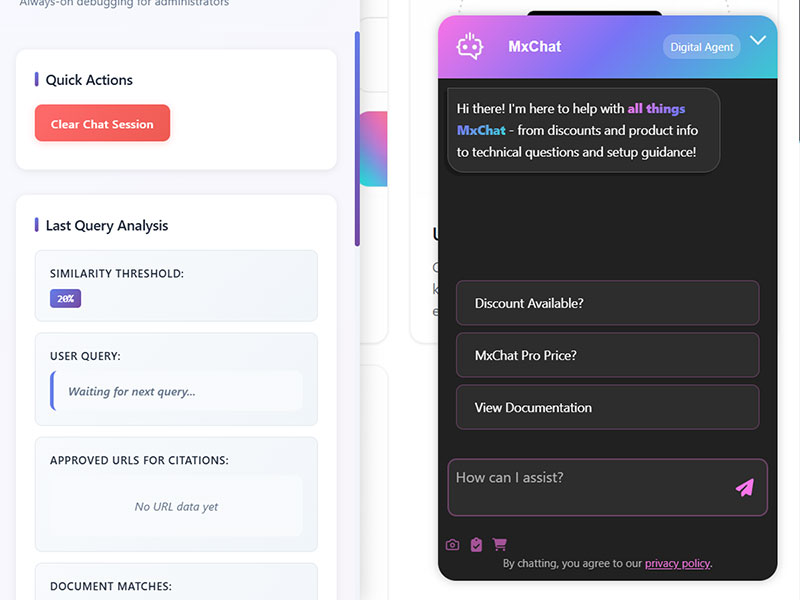
Pros: answers are drawn from the site’s own pages through retrieval-augmented generation, supports more than one underlying AI model, built specifically for support rather than general chat.
Cons: narrower in scope than a full automation suite, and answer quality depends on how complete the site’s own content already is.
What are the best AI design plugins for WordPress
Elementor’s native AI layer reaches more installs than any standalone design plugin, since Elementor itself runs on roughly 31% of WordPress sites, according to W3Techs 2026 data.
Elementor AI and Divi AI are the two page-builder-native options, generating layouts, copy, and images without leaving the visual builder.
Elementor also ships Angie, its own free AI agent, which can call tools from other plugins, including IvyForms, directly inside the WordPress admin.
| Plugin | Runs inside | AI capability | Pricing model |
|---|---|---|---|
| Elementor AI | Elementor page builder | Layout, copy, and image suggestions | Freemium, deeper features on paid tiers |
| Divi AI | Divi theme and builder, by Elegant Themes | Copywriting and image generation in the Visual Builder | Bundled with a Divi or Elegant Themes membership |
| Angie | WordPress admin, alongside any active plugin | Calls other plugins’ registered tools by voice or text prompt | Free, currently in beta |
How much do AI plugins for WordPress cost
Pricing splits along the same lines as function: content and SEO plugins charge for higher AI usage limits, while the newer site-control plugins stay free at the connection layer itself.
What stays free at the connection level:
- Amelia’s AI assistant integration ships in every license plan, based on Amelia’s own documentation
- wpDataTables connects at no extra cost, though a handful of its 23 actions still require a Starter or Standard license
- IvyForms charges nothing extra for the MCP toggle itself, only for whichever IvyForms plan is already active
The pattern holds across the category: connecting an assistant rarely costs more, using it at scale sometimes does.
| Category | Free tier | Paid tier unlocks |
|---|---|---|
| Content generation | Limited monthly AI requests | Higher word counts, more output formats |
| SEO | Basic AI title and meta suggestions | Bulk generation, deeper schema controls |
| Chat support | Capped monthly AI conversations | Unlimited conversations, custom training data |
| Full site control (MCP) | Connection and most actions, per plugin | License-gated actions only, not the connection itself |
How do you connect an AI assistant to a WordPress plugin
Connecting an AI assistant to a WordPress plugin runs through the same core mechanism regardless of which plugin sits on the other end: a WordPress application password.
WordPress introduced application passwords as a core feature in version 5.6, released in December 2020, specifically so a third-party tool could authenticate without the site’s main login password.
- Confirm the WordPress site runs a version that supports the plugin’s MCP server, typically 6.9 or newer for Abilities API-based integrations
- Open the WordPress user profile that will authorize the connection and generate an application password
- Install an MCP-compatible client, such as Claude Desktop or Claude Code, on the same computer
- Add the plugin’s MCP endpoint, the WordPress username, and the application password to the client’s configuration
- Restart the client and confirm the plugin’s tools appear in its available tools list
- Test a read-only request first, then move to a write action only once that succeeds
Skipping the read-only test is the most common point of failure, since a malformed endpoint or an expired password usually shows up on the first call rather than the tenth.
What security risks come with AI plugins for WordPress
Patchstack’s 2025 State of WordPress Security report found that 96% of new vulnerabilities disclosed in 2024 originated in plugins, not in WordPress core.
An AI plugin that can write to the admin carries that same exposure, plus one more: the credential an assistant uses is often an application password tied to a full administrator account.
Where the risk concentrates:
- An unrevoked application password left active after a project ends
- An administrator account used for the AI connection instead of a scoped one
- Site content sent to a third-party model endpoint outside the WordPress database
What most integrations already limit: wpDataTables and IvyForms both block every delete action by design, and Amelia’s booking cancellation stops short of removing a record outright.
None of that removes the underlying exposure. It only narrows what a compromised credential can do once it is inside the admin.
Amelia exposes a focused set of booking actions over MCP — list, create, reschedule, cancel — with no hard-delete and your own role permissions enforced. It ships in every Amelia plan, no toggle to flip.
When do AI plugins not apply
AI plugins for WordPress stop being a good fit once the cost of a wrong or ungrounded answer outweighs the time an assistant saves.
Three conditions cover most of the exceptions: regulated content, outdated infrastructure, and unreviewed publishing.
| Condition | Why it fails | What to do instead |
|---|---|---|
| Medical, legal, or financial claims | A model states an incorrect figure with the same confidence as a correct one | Draft with AI, verify every claim against a primary source before publishing |
| WordPress sites on versions older than 6.9 | No Abilities API, so an assistant has no standardized way to discover plugin actions | Update WordPress first, or rely on a plugin’s own custom REST setup where one exists |
| Content published without human review | Google’s own guidance treats content made mainly to attract search visits as a warning sign, not a pass | Route AI drafts through the same editorial review as any other draft |
A site that cannot grant an administrator-level credential to an outside tool, for internal policy or compliance reasons, is not a candidate for the MCP-based plugins at all, regardless of which one it picks.
FAQ on the best AI plugins for WordPress
Is ChatGPT a WordPress plugin?
ChatGPT itself is not a WordPress plugin. It is a general-purpose AI assistant built by OpenAI. WordPress plugins such as Jetpack AI and AI Engine call its underlying model to draft content inside the editor.
Can you run more than one AI plugin on the same WordPress site?
Yes. A site commonly runs an AI SEO plugin, an AI chatbot, and an AI content generator together, since each targets a different admin task. Conflicts are rare unless two plugins edit the same field.
Do AI plugins slow down a WordPress site?
An AI plugin itself adds little load, since the actual generation happens on the model provider’s server, not on WordPress hosting. Site speed drops only if the plugin loads heavy JavaScript in the admin or queues too many API calls.
Can an AI plugin write content in a language other than English?
Most AI content generators support multiple languages, since the underlying large language model is multilingual by default. Quality varies by language pair, and a plugin’s settings screen usually lists which languages it has actually tested.
Does connecting an MCP-based plugin require installing Node.js?
Some do. Amelia’s own MCP setup runs through an npx command, which needs Node.js installed on the computer running the AI client. Plugins with a built-in MCP server, such as wpDataTables, register directly with WordPress and skip that requirement.
Can an outside AI assistant see private form or customer data through MCP?
Not in full. IvyForms masks entry values, IP addresses, and user agents in its MCP responses, and wpDataTables limits row-level editing to Simple tables only. An assistant sees structure and summaries more often than raw personal data.
What happens to an AI plugin’s access if you revoke its application password?
The connection stops immediately. WordPress treats each application password as a separate credential, so revoking the one an assistant uses ends its access without touching the site’s main login or any other connected tool.
Do AI page builders work only inside Elementor or Divi, or with any theme?
Elementor AI and Divi AI work only inside their own builder, since both generate markup the builder itself renders. A theme-agnostic option like AI Engine or Jetpack AI drafts plain content instead, which works with any WordPress theme.
Can an AI plugin run without sending data to an outside model?
Only a small minority do. Most AI plugins for WordPress route the prompt to a third-party model over the internet, since running a large language model locally needs more computing power than typical WordPress hosting provides.
Is an AI-generated product description safe to publish without editing?
Not reliably. WooAI and similar plugins draft a description from the product title and attributes, but factual errors slip in when the source data is thin. A quick human check before publishing catches most of them.
What Should You Install First From the Best AI Plugins for WordPress?
The best AI plugins for WordPress to install first are an AI SEO plugin and an AI content generator, since ranking and drafting gains compound faster than chatbot automation or a full site-control layer on a site with none installed yet.
The rollout runs in three stages:
- AI SEO plugin first
- AI content generator second, since it compounds with SEO
- Full site-control MCP plugin last, once administrator trust is established
Following that order delays customer support automation and full admin control, so support questions still reach a human inbox longer.
WordPress’s share of the web layered against Elementor’s share of WordPress installs puts Elementor-based sites at roughly 13% of all websites worldwide, a scale no single-category plugin reaches alone.
Site owners past that stage move next into comparing individual MCP-based booking and data plugins.
The post The Best AI Plugins for WordPress (2026) appeared first on Amelia WordPress Booking Plugin.
]]>The post The Best Appointment Scheduling Software for Cutting No Shows appeared first on Amelia WordPress Booking Plugin.
]]>Service businesses such as salons, clinics, and consultancies run it across staff calendars, service menus, and multiple locations, pairing an online booking page with two way calendar sync and automated reminders.
Adoption gets weighed against two outcomes: fewer no-shows and less staff time spent confirming appointments by phone.
Experian Health’s State of Patient Access 2.0 survey found that 73 percent of consumers want to schedule their own medical appointments online, a preference most providers still don’t fully accommodate (Experian Health, 2021).
Appointment Scheduling Software To Use
Ranked by overall merit, in the same order as the shortlist above.
Each pick targets a distinct primary user, so the positioning below doesn’t overlap from one entry to the next.
Getting appointment scheduling right changes two numbers most owners actually care about: no-shows and admin hours.
The real benefits of scheduling software show up in fewer double bookings, automatic reminders, and a booking page that works while the business is closed.
Key figures at a glance:
- Acuity Scheduling: 75% of businesses on the platform report fewer no-shows using deposits and reminders (Acuity data, cited by ZoomInfo, 2026)
- Square Appointments cut its top-tier price 53.7%, from $149 to $69/month, in February 2026 (CostBench)
- Setmore’s free plan covers up to 200 appointments a month across 4 staff logins (Capterra, 2026)
- Calendly holds a 4.7-star rating across more than 4,100 Capterra reviews (Capterra, 2026)
| Software | Starting price | Free plan | Best for |
|---|---|---|---|
| Trafft | ~$13.30/mo | Limited | Multi-location teams |
| Amelia | $49/yr | Lite tier | WordPress site owners |
| Calendly | $10/seat/mo | Yes, limited | Sales and consulting teams |
| Acuity Scheduling | $16/mo | No (trial only) | Package and membership sales |
| Square Appointments | $29/location/mo | Yes, usable | Existing Square users |
| Setmore | $5/user/mo | Yes, generous | Small teams testing booking |
| SimplyBook.me | ~€9.90/mo | Yes, 50 bookings/mo | Niche industry add-ons |
| Zoho Bookings | $6/staff/mo | Yes, 1 staff | Existing Zoho users |
| Microsoft Bookings | Bundled, ~$6/user/mo | No standalone plan | Existing Microsoft 365 shops |
| Mindbody | $79/location/mo | No | Studios wanting marketplace reach |
Trafft – Best for multi-location teams that want staff management without enterprise pricing
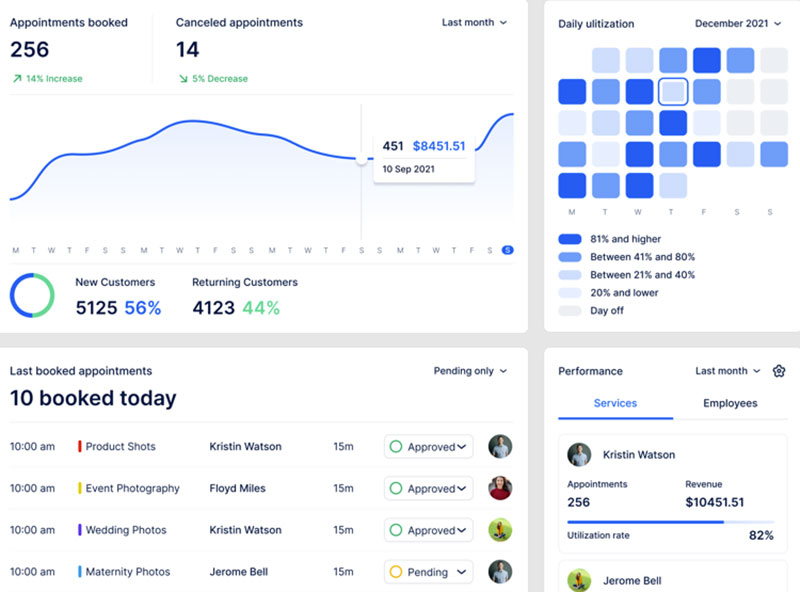
Verdict: Trafft is a cloud scheduling platform built for service businesses running more than one location or staff calendar.
It stands out for putting staff management, payments, and Zoom integration on its entry paid tier instead of gating them behind an enterprise plan.
Best for: salons, clinics, and consultancies managing multiple staff calendars or locations from one dashboard.
Standout capability: full staff and multi-location management available on its cheapest paid tier, not reserved for a top plan.
Key features:
- Online booking widget with real-time availability
- Stripe payment collection at booking
- Google Calendar and Zoom sync
- Employee scheduling and group appointments
Pricing: plans start around $13.30/month, with a limited free tier and a Pro plan near $60/month for advanced reporting and multiple locations. Current tiers sit on the pricing page.
Pros:
- Staff and location management included early, not gated to a top tier
- No coding required for setup
- Available as either a hosted SaaS tool or a WordPress plugin
Cons:
- Advanced reporting and unlimited locations sit on the Pro tier rather than Basic
- SMS reminders run through a third-party provider on credits
Our experience/evidence: Independent reviewers highlight the setup speed and staff-scheduling depth as consistent strengths, with fewer complaints about the interface than pricier competitors. The demos show that setup across industries.
Why it’s on this list: Most budget scheduling tools save staff and multi-location management for a top tier. Trafft doesn’t, which is unusual at this price point.
Amelia – Best for WordPress site owners who want to own the booking system outright
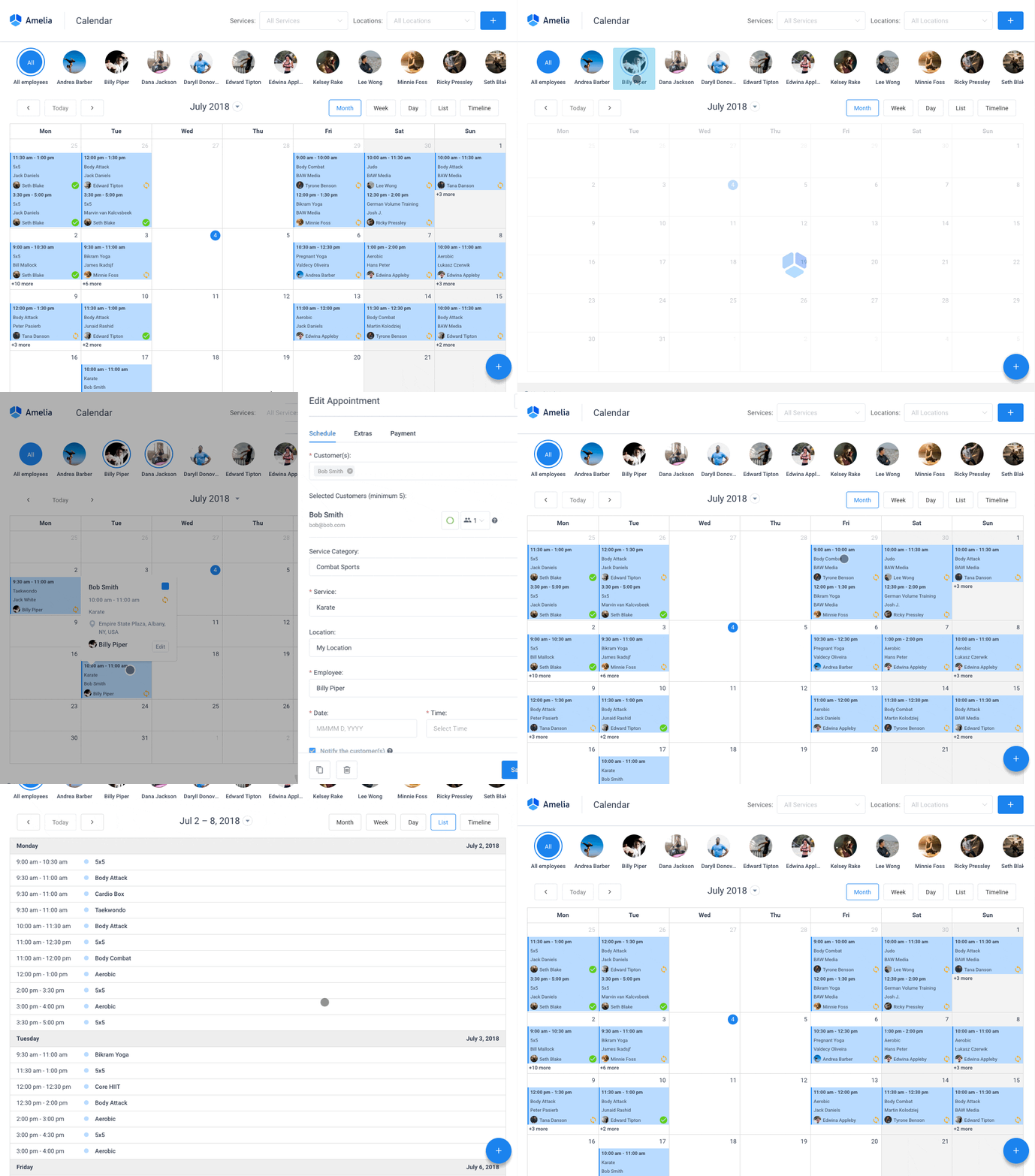
Verdict: Amelia is a WordPress booking plugin sold as a one-time license instead of a subscription.
The appeal is simple: pay once instead of monthly, which changes the long-term cost math for owners already running WordPress.
Best for: WordPress-based salons, clinics, and studios that want to buy a booking system rather than rent one.
Standout capability: one-time license pricing on the plugin tiers, with an optional hosted SaaS version for anyone who’d rather skip WordPress entirely.
Key features:
- Booking wizard with a polished client-facing interface
- Employee management with individual schedules and days off
- Google Calendar and Zoom sync
- Multilingual booking pages
Pricing: paid tiers run as a WordPress booking system with payment gateways built in (Stripe, PayPal, Razorpay), sold as annual or lifetime licenses, with a hosted SaaS option near $60/month. Check the pricing page for the current grid.
The Lite tier works as a free WordPress booking plugin, covering one employee with Square payments.
Pros:
- No recurring fee on the lifetime license tiers
- Polished, modern booking wizard
- Unlimited site licenses on the top tier
Cons:
- Annual licenses cover a year of updates and support, with renewal after that
- WordPress hosting is a separate cost from the license
Our experience/evidence: Amelia has shipped from the same company since 2018. Touch Me Soft d.o.o., the Belgrade studio that launched it at WordCamp Europe, now trades as Melograno Venture Studio, which also builds wpDataTables, MapSVG, Ivy Forms, and Trafft. The release cadence has stayed active throughout.
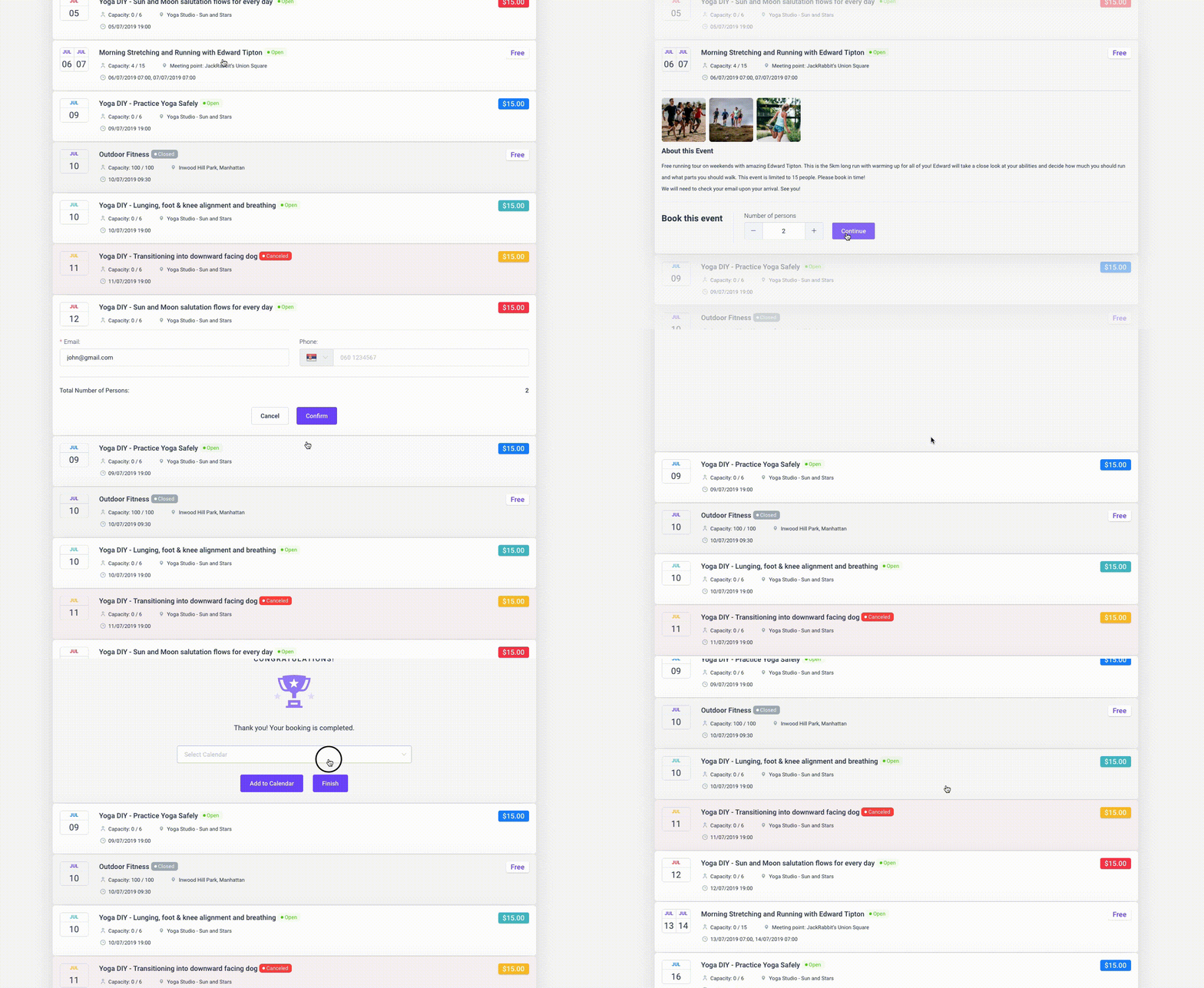
Why it’s on this list: It’s one of the few tools here where the free tier and the paid tier are genuinely the same plugin, not a crippled trial version. The demos cover both.
Calendly – Best for sales teams and consultants scheduling external meetings at volume
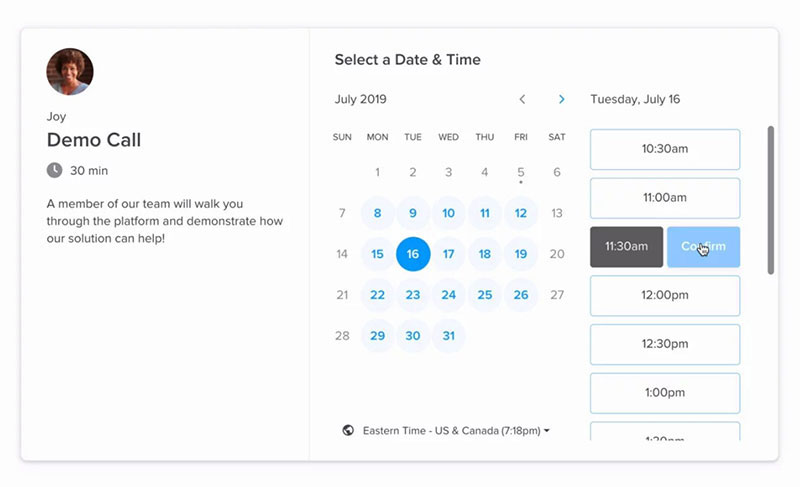
Verdict: Calendly replaces the email back-and-forth of finding a meeting time with a single shareable link.
It separates from the pack once routing and CRM lookups matter, matching leads to the right rep automatically.
Best for: sales reps, recruiters, and consultants booking external meetings with people outside their own calendar system.
Standout capability: routing forms that qualify leads and match them to a rep through live Salesforce or HubSpot lookups.
Key features:
- Unlimited event types on paid tiers
- Multi-calendar sync (up to 6 calendars on Standard)
- Round-robin scheduling
- Zoom and Google Meet integration
Pricing: free for one event type and one calendar. Standard runs $10 per seat monthly and Teams $16 per seat monthly, both billed annually.
Pros:
- 4.7-star rating across more than 4,100 Capterra reviews
- Deep CRM and routing integrations
- Minimal setup time for individual users
Cons:
- Per-seat pricing scales fast for larger teams
- Free tier limited to a single event type
- Advanced routing gated to Teams and above
Our experience/evidence: In a published case study, knowledge-automation company 1up.ai cut missed meetings by 50% and grew international bookings by 40% after adopting Calendly’s round-robin scheduling.
Why it’s on this list: Its newer meeting-package feature (bundled prepaid sessions) now overlaps with a capability most comparison pages still describe as Acuity-only territory. Anyone priced out of the per-seat model can check Calendly alternatives before committing to Teams.
Acuity Scheduling – Best for practitioners selling packages, memberships, or gift certificates
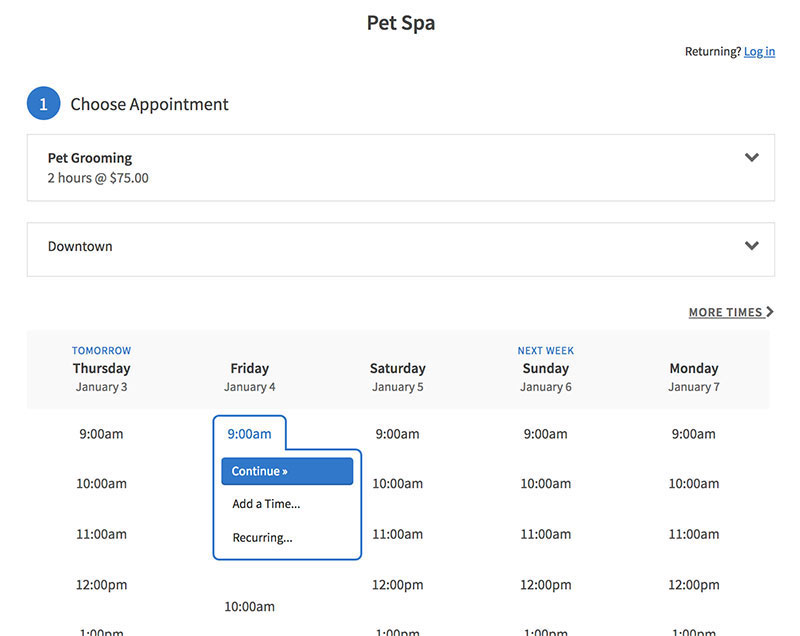
Verdict: Acuity Scheduling, owned by Squarespace, is built for practitioners monetizing repeat visits, not just single appointments.
Packages, subscriptions, and gift certificates all run through the same booking page a client uses to schedule.
Best for: therapists, stylists, and coaches who sell session bundles or memberships alongside one-off bookings.
Standout capability: package and membership sales built into the booking flow, with automatic session tracking.
Key features:
- Client self-scheduling with unlimited services
- Stripe, Square, or PayPal payment collection
- Custom intake forms
- Classes and group scheduling on the Growing tier
Pricing: Starter plan begins at $20/month with no free tier, only a 7-day trial. Growing and Powerhouse tiers add staff seats and SMS reminders.
Pros:
- Package and subscription billing live inside the booking flow itself
- Strong fit for anyone already on Squarespace
- Wide payment processor choice
Cons:
- No free forever plan
- SMS reminders locked to mid and top tiers
- Thinner CRM and routing tools than Calendly
Our experience/evidence: Acuity reports that 75% of businesses on its platform reduced no-shows through deposits, reminders, and cancellation policies, across a base of more than 280,000 businesses booking roughly 15 million appointments a month.
Why it’s on this list: A $200-an-hour therapist selling five-session bundles never sends a client to a separate checkout page here, a detail most side-by-side comparisons skip. The choice between weighing Acuity Scheduling against Square Appointments usually comes down to package sales versus built-in POS.
Square Appointments – Best for businesses already using Square for payments

Verdict: Square Appointments extends Square’s existing payments and POS system into scheduling.
It stands out for a free plan that includes real online booking, not a stripped-down demo of one.
Best for: solo or single-location businesses already processing payments through Square.
Standout capability: native POS tied directly to bookings, plus Instagram and Google profile booking on the free tier.
Key features:
- Online booking with unlimited appointments (Free)
- No-show protection via card on file
- Instagram booking integration
- Resource management on Premium
Pricing: free for one location and one staff member. Plus runs $29 per location monthly and Premium $69 per location monthly.
Pros:
- Genuinely usable free plan, not just a trial
- Tight integration with Square’s existing POS
- Transparent, flat per-location pricing
Cons:
- Google Calendar sync locked behind the Plus tier
- Payment processing fees (2.6% plus $0.10) apply even on the free plan
- Locked into Square as the only payment processor
Our experience/evidence: Square Appointments cut its Premium tier price by 53.7%, from $149 to $69 a month, in February 2026, a rare downward move in a category where prices usually climb.
Why it’s on this list: The free plan’s Instagram integration is a legitimate way to get more bookings straight from a social profile, without buying a separate scheduling link.
Setmore – Best for small teams that want a usable free plan before paying anything
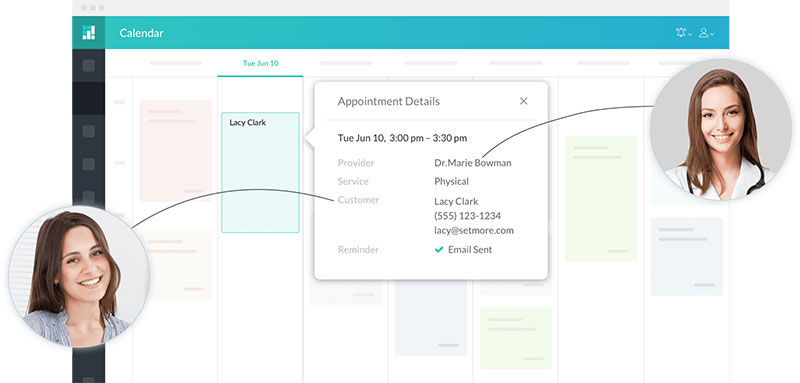
Verdict: Setmore’s free plan supports up to four staff logins and real booking volume, not a single calendar with a watermark.
It stays usable at zero cost longer than most competitors before pushing an upgrade.
Best for: small teams of up to four people testing online booking before committing to a subscription.
Standout capability: a free plan that includes video meetings and social media booking, not just a bare booking page.
Key features:
- Customer self-booking with unlimited appointments on Free
- Free video meetings through Teleport
- Two-way calendar sync on Pro, which stops double booking appointments across connected calendars
- SMS reminders on Pro
Pricing: free for up to 200 appointments a month across 4 staff logins. Pro runs $12 per user monthly, or roughly $5 per user monthly billed annually.
Pros:
- Unusually generous free tier for a four-person team
- No per-user charge until Pro
- Includes free video meetings without a separate Zoom subscription
Cons:
- 200 monthly appointment cap on the Free plan
- Setmore branding stays visible until Pro
- Reporting is thinner than Acuity’s
Our experience/evidence: Capterra’s 2026 listing puts Setmore’s free plan at up to 200 appointments a month, a volume most competitors reserve for a paid tier.
Why it’s on this list: Most “free forever” scheduling plans cap out at one staff member. Setmore’s supports four, which changes who can actually run a small team on it without paying.
SimplyBook.me – Best for niche industries that need add-ons beyond basic booking
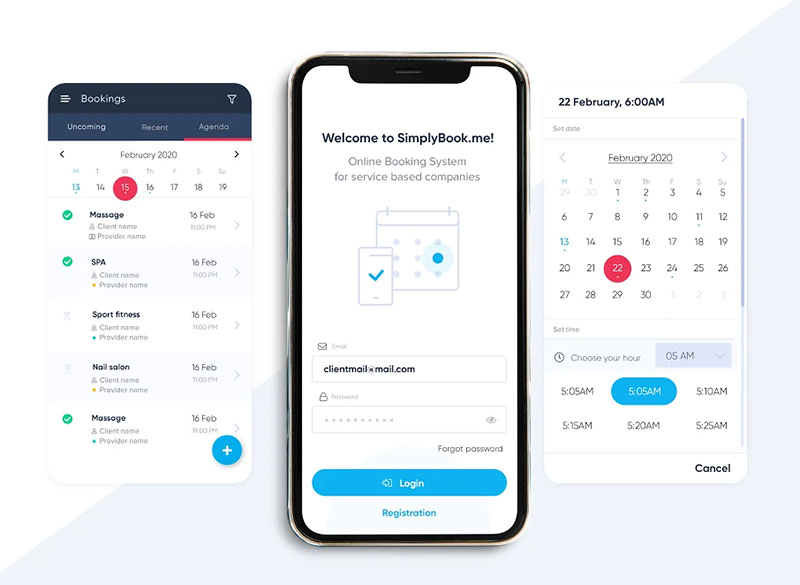
Verdict: SimplyBook.me sells scheduling through a “custom features” model instead of flat feature bundles.
A business picks add-ons like memberships, coupons, or POS rather than paying for a bundle it won’t use.
Best for: multi-location or industry-specific businesses (medical, fitness, beauty) needing niche add-ons like HIPAA support.
Standout capability: modular pricing built around custom feature slots rather than fixed tiers.
Key features:
- Customizable booking widgets and forms
- Multi-location and staff scheduling
- Memberships and class booking
- Point-of-sale add-on
Pricing: free for 50 bookings a month. Paid plans start near €9.90/month for Basic, scaling to €59.9/month for Premium.
Pros:
- Connects with more than 20 third-party tools, including Stripe, PayPal, and WordPress
- Strong fit for niche industries with unusual booking rules
- Flexible add-on model instead of forced bundling
Cons:
- Booking-volume caps rather than user caps can surprise high-volume solo users
- Lower tiers cap custom features at three
Our experience/evidence: Review data based on 547 responses shows SimplyBook.me integrating with more than 20 external tools, more than most flat-tier competitors on this list.
Why it’s on this list: Because pricing ties to booking volume instead of user seats, a solo practitioner with heavy volume can hit the cap faster than a five-person team on the same plan. That’s the inverse of how most competitors price.
Zoho Bookings – Best for teams already running other Zoho apps
Verdict: Zoho Bookings is the scheduling module inside the wider Zoho suite.
It’s built to hand off into Zoho CRM and Zoho Meeting natively, not as a bolted-on integration.
Best for: small teams already using Zoho CRM or other Zoho apps who want scheduling in the same ecosystem.
Standout capability: native handoff into Zoho CRM records without a separate integration step.
Key features:
- Online booking page with basic customization
- Two-way calendar sync on paid tiers
- Custom intake forms
- Zoho Meeting integration on Premium
Pricing: free for one staff member. Standard runs $6 per staff monthly and Premium $9 per staff monthly, among the cheapest paid entry points in this list.
Pros:
- Cheapest per-seat paid tier here
- Works well as scheduling software for small businesses already inside Zoho
- Straightforward setup for existing Zoho users
Cons:
- Free plan limited to one staff member
- Group bookings gated to Premium
- Full value depends on paying for other Zoho products too
Our experience/evidence: Reviewer sentiment on Capterra skews positive, with most complaints tied to features that require a separate Zoho subscription rather than to the scheduling tool itself.
Why it’s on this list: It’s rarely worth adopting in isolation. Its value climbs sharply once a business already runs Zoho CRM, a dependency most standalone reviews don’t spell out.
Microsoft Bookings – Best for businesses already paying for Microsoft 365
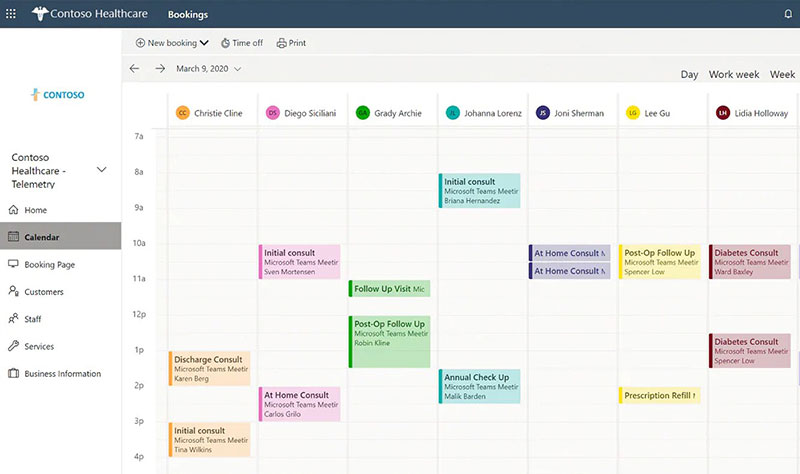
Verdict: Microsoft Bookings comes bundled inside qualifying Microsoft 365 Business plans instead of selling separately.
It works as a no-extra-cost meeting scheduler for anyone already paying for Outlook and Teams.
Best for: businesses and clinics already on Microsoft 365 that want scheduling tied to Outlook and Teams.
Standout capability: zero incremental cost for organizations already on a qualifying Microsoft 365 plan.
Key features:
- Booking page with staff scheduling
- Outlook and Teams calendar sync
- Automated confirmation emails
- Teams meeting links for virtual appointments
Pricing: included starting with Microsoft 365 Business Basic at roughly $6 per user monthly on an annual commitment. No standalone Bookings-only price exists.
Pros:
- Zero added cost for existing Microsoft 365 subscribers
- Tight Teams and Outlook integration
- Familiar interface for staff already using Microsoft tools
Cons:
- No way to buy Bookings without a Microsoft 365 subscription
- Thinner payment processing than dedicated scheduling tools
- Basic feature set next to Acuity or SimplyBook.me
Our experience/evidence: Pricing trackers consistently show the qualifying Microsoft 365 Business Basic tier at around $6 per user monthly on an annual commitment, with no path to buying Bookings on its own.
Why it’s on this list: Because Bookings can’t be purchased alone, the real decision isn’t about scheduling features. It’s whether the business already needs the rest of Microsoft 365.
Mindbody – Best for studios wanting marketplace exposure alongside scheduling
Verdict: Mindbody pairs scheduling with a consumer-facing marketplace app used by people actively searching for classes nearby.
It suits studios where being found matters as much as being booked.
Best for: multi-location fitness, wellness, and beauty businesses wanting new-client discovery built in.
Standout capability: a listing inside the Mindbody consumer app, exposing a business to an existing base of people searching for classes.
Key features:
- Class and appointment scheduling with waitlists
- Integrated payments and staff management
- Marketplace listing in the Mindbody app
- Branded mobile app on the top tier
Pricing: starts at $79 per month per location as of mid-2026, down from an earlier $99 starting point. Higher tiers add marketing automation and a branded app.
Pros:
- Marketplace exposure competitors in this list don’t offer
- Mature class-scheduling tools built for group fitness
- Strong brand recognition in the wellness industry
Cons:
- No free plan or trial
- Long-term contracts common at higher tiers
- Reviewer feedback on ease of use trails most tools on this list
Our experience/evidence: Mindbody’s own pricing update puts its entry tier at $79 per month per location, down from an earlier $99 starting point, while Capterra reviewers give it a comparatively low value-for-money score against competitors like Acuity.
Why it’s on this list: It’s the only tool here selling audience access alongside scheduling. The real comparison against Acuity or SimplyBook.me isn’t features, it’s whether marketplace exposure justifies the higher price. It’s also routinely benchmarked against Vagaro, another salon and spa platform, in Vagaro vs Mindbody comparisons.
When off-the-shelf scheduling software isn’t enough
None of these ten tools replace a full practice-management or EHR system for regulated healthcare providers.
Acuity and SimplyBook.me offer HIPAA-ready options, but that covers booking data, not clinical records.
Situations where these tools fall short:
- Enterprise sales orgs needing deep lead-routing beyond Calendly’s Teams tier usually move to dedicated revenue-operations platforms
- Clinics needing full patient records, billing, and insurance claims need practice-management software, not a booking layer
- Franchises with dozens of locations often outgrow per-location pricing models like Square’s or Mindbody’s
Software also won’t fix process problems on its own. Avoiding common scheduling mistakes still depends on how a business sets buffer times, cancellation windows, and reminder timing, regardless of which tool runs it.
What Is Appointment Scheduling Software
Appointment scheduling software is business software that automates client booking, confirmation, and calendar coordination without manual back-and-forth between a business and its customers.
The category covers a booking page, calendar synchronization, automated reminders, payment collection, and staff management as a single connected system rather than five separate tools.
It’s not the same as a plain calendar app.
A calendar app tracks a person’s own time. Appointment scheduling software lets other people book into that time, then handles the confirmation, reminder, and payment steps that follow.
Who typically runs on it: salons, clinics, consultants, studios, and any service business that sells time slots rather than physical goods.
How Appointment Scheduling Software Works
Two mechanisms sit underneath almost every scheduling tool: the client-facing booking page and the calendar sync that keeps it accurate.
Online Booking Pages
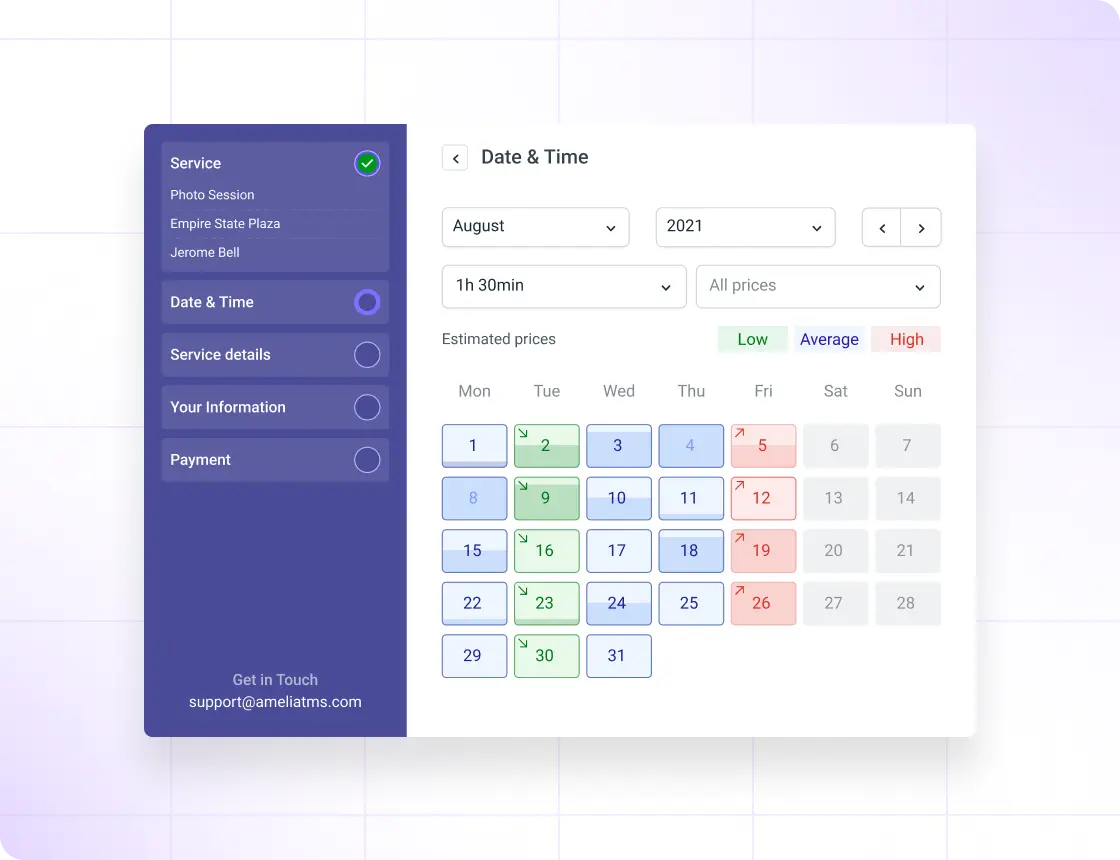
Booking flow: a client picks a service, sees real-time availability, selects a slot, and gets a confirmation, all without a phone call.
- Service selection with duration and price shown upfront
- Live availability pulled from connected calendars
- Time zone detection for remote or out-of-area clients
- Custom branding so the page matches the business, not the software vendor
Recurring appointments and group bookings run through the same page, just with different rules attached to the service itself. The newest platforms go a step further with AI-powered appointment booking, letting a customer describe what they need in one sentence while an AI assistant checks the calendar and confirms the slot.
How Automated Reminders Cut No-Shows
Reminders work because forgetting, not refusing, drives most missed appointments.
A systematic literature review of 105 studies drawn from the Scopus database found the global average no-show rate runs at 23%, ranging from 13.2% in Oceania to 43.0% in Africa (Health Policy, 2018).
Key figures on reminder effectiveness:
- Attendance rose from 67.8% with no reminder to 78.6% with a mobile text reminder (Cochrane Database of Systematic Reviews, 2013)
- Global average no-show rate: 23%, based on 105 studies across all medical specialties (Health Policy, 2018)
- Regional spread: 13.2% (Oceania) to 43.0% (Africa) for the same measure (Health Policy, 2018)
A community mental health clinic in Dublin cut non-attendance from 22.2% to 13.9% within six months of introducing SMS reminders.
Timing and channel both matter less than whether a reminder exists at all. Most scheduling tools send one email confirmation at booking and a second SMS or email 24 hours out, with a same-day nudge on higher tiers.
How Payment Processing Works at the Point of Booking
Payment happens inside the booking flow itself, not on a separate checkout page, on any tool worth using.
Two models cover most businesses:
- Full prepayment, common for classes, workshops, and high-value consultations
- Partial deposit, common for salons and clinics protecting against no-shows without demanding full payment upfront
Gateways vary by tool. Stripe and PayPal cover most SaaS platforms, while some route through a dedicated PayPal booking system instead of a multi-gateway setup.
Processing fees sit on top of the software’s own subscription cost, typically in the 2.6% to 2.9% range plus a small fixed fee per transaction. Package and membership billing differs from single-transaction payment because the software has to track remaining sessions, not just confirm a charge.
Managing Staff and Multiple Locations
Staff scheduling inside a booking tool borrows directly from general shift management practice, just applied to client-facing time instead of internal labor coverage.
Round-robin assignment distributes new bookings evenly across available staff, useful for teams where any qualified person can take the appointment.
Fixed staff calendars work better where clients expect to see the same specialist every time, common in therapy and personal training.
Multi-location businesses hit a pricing fork here. Some tools charge per location, some per staff seat, and the difference changes the total cost fast once a business opens a second site.
Buffer time, the gap left between bookings, is technically a calendar setting but functions as a staff-management decision, since it controls how many clients one person can realistically see per day.
Which Integrations Actually Matter
Three integration categories decide whether a scheduling tool fits into an existing workflow or sits apart from it.
| Integration type | What it connects | Typical tool | When it decides the purchase |
|---|---|---|---|
| CRM handoff | Booking data to customer records | Salesforce, HubSpot | Sales and consulting teams |
| Video conferencing | Virtual appointment links | Zoom, Google Meet | Remote consultations, telehealth |
| Automation platform | Workflow triggers to other apps | Zapier, webhooks | Tools with thin native integrations |
Native CRM handoff beats a workaround almost every time. A booking that pushes straight into a CRM record saves a manual data-entry step a Zapier connection still requires.
Zoom integrations matter most for consultants and telehealth providers who run the whole appointment as a video call rather than an in-person visit.
WordPress-based businesses often add a scheduling layer through WooCommerce appointments when they already sell physical products and want bookings inside the same storefront.
Data Security and Compliance Standards
Three standards come up constantly in scheduling software marketing, and they cover different things.
GDPR applies to any business processing the personal data of EU residents, regardless of where the business itself is based. Violations can draw fines up to €20 million or 4% of global annual turnover, whichever is higher (EU General Data Protection Regulation, Article 83).
HIPAA applies specifically to protected health information in the US. A scheduling tool touching patient data typically needs a signed business associate agreement with the vendor, not just a marketing label reading “HIPAA-ready.”
PCI DSS governs payment card data. Version 4.0, mandatory since March 2025, groups its rules into 12 core requirement areas covering network security, access control, and ongoing monitoring (PCI Security Standards Council).
None of these three standards overlap completely, so a tool compliant with one isn’t automatically compliant with the others.
How Much Does Appointment Scheduling Software Cost
Four pricing models cover almost the entire category, and they don’t compare cleanly against each other.
| Pricing model | Typical range | Best fit | Main limitation |
|---|---|---|---|
| Free (freemium) | $0 | Solo users, low volume | Caps on staff or bookings |
| Per-seat subscription | $6 to $20/user/month | Small to mid teams | Cost scales with headcount |
| Per-location subscription | $29 to $79/location/month | Multi-site retail, fitness | Cost scales with locations, not staff |
| One-time license | $79 to $279 | Single-site WordPress owners | Renewal fees after year one |
Hidden costs cluster in three places: SMS credit charges billed separately from the subscription, payment-processing fees layered on top of the software price, and add-on features locked behind a higher tier than the one a business actually needs.
Free-plan limits split the same way. Some cap the number of staff, others cap monthly booking volume, and a solo user with high volume can hit a booking cap faster than a five-person team on the identical plan.
How to Choose the Right Scheduling Software for Your Business
Four criteria decide this in order of weight: business size, industry compliance needs, integration dependencies, and budget.
Deployment type follows from those criteria more than personal preference does.
WordPress plugin
- Pros: one-time cost option, full data ownership, works inside an existing site
- Cons: hosting and updates become the business’s responsibility, migration risk if ownership changes
Hosted SaaS
- Pros: no server management, automatic updates, fastest setup
- Cons: recurring cost that never stops, less control over data location
Industry-specific platform
- Pros: built-in compliance and features for one vertical (memberships, classes, HIPAA options)
- Cons: paying for features outside that vertical if the business doesn’t fit it exactly
A consultant scheduling software pick usually leans toward hosted SaaS with strong CRM routing, since consultants rarely need industry-specific compliance features a general tool lacks.
How to Set Up Appointment Scheduling Software
Order matters here. Skipping a step out of sequence causes most of the setup errors that surface in week one.
- Connect the primary calendar (Google, Outlook, or iCloud) before anything else, since every later step reads availability from this connection
- Define services with duration, price, and buffer time attached to each one
- Assign staff to services and set individual availability rules
- Connect a payment gateway and decide between deposit or full prepayment
- Publish the booking page and place a schedule an appointment button on the site or social profiles
- Send a test booking through the full flow, including the reminder sequence, before going live
Calendar connection has to happen first because staff availability rules, buffer times, and reminder timing all depend on an accurate calendar feed to calculate against.
Common Appointment Scheduling Mistakes
Zero buffer time causes back-to-back overruns that cascade through an entire day once one appointment runs long.
Weak cancellation policies undermine the reminder system entirely, since a client can cancel or no-show with no consequence attached.
Poor handling of cancelled appointments compounds this. Without an automatic waitlist fill, every cancellation becomes lost revenue instead of a slot offered to someone else.
Ignoring time zone detection breaks bookings for remote or multi-region clients, showing them a slot that doesn’t match their actual local time.
Calendar sync failures go unnoticed until a double-booking actually happens, usually traced back to a one-way sync connection mistaken for a two-way one.
When Appointment Scheduling Software Doesn’t Work
These tools stop short of several jobs businesses sometimes expect them to cover.
What it doesn’t replace:
- Full patient records, insurance claims, or clinical documentation, which require practice management software instead
- Enterprise lead-routing and revenue-operations workflows once a sales team scales past what booking links handle
- Franchise-scale coordination across dozens of locations, where per-location or per-seat pricing stops making financial sense
Enterprise teams doing heavy B2B appointment setting at volume typically outgrow scheduling-link tools and move to dedicated revenue-operations platforms with deeper qualification and routing logic.
The ROI claimed in most scheduling software marketing (hours saved, no-shows reduced) doesn’t show up automatically either.
It depends on a business actually setting buffer times, cancellation windows, and reminder timing correctly, not on the software running in the background by itself.
FAQ on Appointment Scheduling Software
Is a Free Plan Enough, or Do You Need to Pay?
A free plan covers solo users with light volume: one staff member, a basic booking page, and email confirmations.
Paying unlocks SMS reminders, payment collection, and multi-staff calendars. Most businesses outgrow the free tier once bookings or staff count exceed that single-user cap.
Is Scheduling Software Cheaper Than Hiring a Receptionist?
Scheduling software runs $0 to roughly $80 a month per location, far below a receptionist’s salary.
It doesn’t replace judgment calls or complex client conversations. Most service businesses run both: software for routine appointment scheduling, staff for exceptions software can’t resolve.
How Do You Migrate from Manual Booking or Spreadsheets?
Export existing client contacts and recurring appointment patterns into a spreadsheet first.
Import that list into the new platform, then rebuild service menus, staff calendars, and buffer time rules. Run both systems in parallel for one cycle before retiring the spreadsheet.
What Does Appointment Scheduling Software Cost to Maintain?
Appointment scheduling software costs more to maintain than its listed subscription price once per-message SMS reminders and payment-processing fees start accumulating, since vendors bill the reminder channel and the card transaction separately from the monthly license.
Twilio’s own pricing page lists US SMS at $0.0083 per outbound message plus carrier fees, a rate that scales directly with reminder volume, not with staff count (Twilio, 2026).
Three costs compound in this order:
- Reminder volume, billed per message
- Payment-processing percentage, billed per transaction
- Staff-seat additions, billed per license
Reminder volume moves first because it scales with bookings, not with growth decisions a business controls directly.
Staff-seat pricing scales fastest once a location adds part-time coverage, a cost better managed through dedicated employee scheduling software than through a booking platform’s built-in staff calendar.
The post The Best Appointment Scheduling Software for Cutting No Shows appeared first on Amelia WordPress Booking Plugin.
]]>The post Best WordPress MCP Servers & Plugins (2026) appeared first on Amelia WordPress Booking Plugin.
]]>There are two kinds, and picking the right kind matters more than picking the right brand:
- Whole-site MCP servers hand an AI broad control over your entire site — posts, pages, themes, users, WooCommerce, the lot. Powerful, and worth being careful with. For most site owners who want general AI control, Royal MCP is the strongest all-round pick right now (self-hosted, OAuth 2.0, 170+ tools, free), with WPVibe close behind if you live in a page builder.
- Feature-specific MCP servers expose only one plugin’s job — just your bookings, or just your forms — so the AI can manage that one thing and nothing else. If you mainly want an assistant that handles appointments, Amelia’s MCP server is the most complete booking-scoped option; for forms, IvyForms does the same for AI form building and entries.
If the idea of giving an AI the keys to your whole site makes you nervous, that instinct is correct — and it’s exactly why the feature-specific category exists. Below we rank both, show our work, and say plainly where each one is the wrong choice.
Key takeaways
- A WordPress MCP server connects an AI assistant (Claude, ChatGPT, Cursor) to your site so it can perform real actions through conversation, using the open Model Context Protocol.
- Whole-site servers control your entire install; feature-specific servers control one plugin’s job only — the safer default when your need is narrow.
- Best whole-site server for self-hosted WordPress: Royal MCP (free, OAuth 2.0, 170+ tools). Friendliest for content and page builders: WPVibe. Best for developers: the native WordPress MCP adapter.
- Best feature-specific servers: Amelia MCP for bookings and IvyForms MCP for forms — each limits the AI to that plugin and nothing else.
- The one to skip: Automattic/wordpress-mcp, archived in January 2026; use the official WordPress MCP Adapter instead.
How we ranked WordPress MCPs
We scored every server against six things a real WordPress owner cares about, weighted for how much they actually decide the choice:
| Dimension | Weight | What we looked at |
|---|---|---|
| Security & permission model | 25% | OAuth vs. passwords, scoping, audit logs, undo, what the AI can’t touch |
| Capability & scope | 20% | What the AI can actually do for the job you’re hiring it for |
| Maintenance & trust | 20% | Active installs, reviews (with the review count, not just stars), official status |
| Setup & ease of use | 15% | Time from install to a working AI connection; coding required or not |
| AI client compatibility | 10% | Claude, ChatGPT, Cursor, Gemini and other MCP clients |
| Cost & hosting fit | 10% | Free vs. paid, and whether it works on ordinary self-hosted WordPress |
Evidence and dates: every rating, install count and price below was checked first-hand on WordPress.org, each vendor’s docs, and the official repositories on 25 August 2026. Where a plugin is young or a review count is tiny, we say so rather than hide it — a 5.0 rating from 2 reviews is not the same signal as 4.9 from 25. We used competitors’ own “best of” lists only to decide who to evaluate, never as evidence of quality.
Overview of the best MCPs for WordPress
| # | MCP server | Type | Best for | Install / rating | Price |
|---|---|---|---|---|---|
| 1 | Royal MCP | Whole-site | Power + safety, self-hosted | 10,000+ · 5.0 (7) | Free |
| 2 | WPVibe | Whole-site | Content & page builders | 10,000+ · 4.9 (25) | Free + paid |
| 3 | miniOrange Secure MCP | Whole-site | Security-first teams | 500+ · 5.0 (2) | Free |
| 4 | WordPress MCP Adapter | Foundation | Developers | Official · 1.6k★ | Free |
| 5 | InstaWP mcp-wp | Whole-site (dev) | Staging & dev work | Open source | Free |
| 6 | Amelia MCP | Feature-specific | AI for bookings only | Bundled w/ Amelia | With licence |
| 7 | IvyForms MCP | Feature-specific | AI for forms only | Bundled w/ IvyForms | Free |
| 8 | wpDataTables MCP | Feature-specific (data) | AI reporting on your data | Bundled w/ wpDataTables | With wpDataTables |
| 9 | GravityMCP | Feature-specific (forms) | Existing Gravity Forms users | GravityKit | Free (needs GF) |
| 10 | Contact Form 7 · Novamira (not ours) | Feature-specific (forms) | CF7 form structure only | 3rd-party bridge | Paid |
Whole-site WordPress MCP servers
These give an AI assistant broad reach across your WordPress install. Install one when you genuinely want AI to run the site — not just one plugin.
1. Royal MCP — the most complete self-hosted server
Royal MCP is the one to beat if you want an AI assistant that can do almost anything on a self-hosted site without your data ever leaving it. It ships 170+ tools — 85 core WordPress tools (posts, pages, media, comments, menus, SEO metadata, revisions, theme customisation) plus 86 that auto-load for WooCommerce (29), Elementor (11), Divi (9), Advanced Custom Fields (4) and more.
What lifts it above the pack is that the power comes wrapped in genuinely serious safety. Authentication is OAuth 2.0 with PKCE and Dynamic Client Registration, every token, session and audit-log entry stays inside your own database, requests are rate-limited to 60 per minute, and destructive actions get 72-hour undo tokens and dry-run previews. That combination — full CRUD on your store and a way to walk back a mistake — is rare.
It connects to just about everything: Claude, ChatGPT, Gemini, Grok, Llama, Mistral and DeepSeek, plus Cursor, Windsurf, VS Code and local models via Ollama and LM Studio.
- Pricing: free on WordPress.org, no licence checks or telemetry on activation. A Pro tier is announced but not yet released.
- Watch out for: the trust signals are still thin — a 5.0 rating, but from only 7 reviews against 10,000+ installs. It’s clearly capable; it just hasn’t been battle-tested in public for long. And 170 tools is a large attack surface, so lean on the per-tool controls.
- Best for: self-hosted owners and agencies who want maximum AI capability with self-hosted security they control.
2. WPVibe — the popular pick for content and builders
If your day is spent in posts, pages and a page builder, WPVibe (from SeedProd, whose plugins run on a million-plus sites) is the most comfortable fit. It’s the most-reviewed server here — 4.9 out of 5 across 25 reviews on 10,000+ active installs — which for a tool that writes to your site is a meaningful track record.
Beyond standard content, media, categories and tags, it edits theme files through a safe draft → preview → publish workflow, runs WP-CLI commands, manages WooCommerce products and pricing, and edits pages built with Elementor, Bricks, Breakdance, Beaver Builder and Divi — the widest page-builder coverage on this list. It even searches Unsplash for stock imagery inline. It connects to Claude (Desktop, web, Code), ChatGPT, Cursor, Windsurf and OpenCode.
The catch is the pricing model: the plugin is free, but daily action allowances are capped, and lifting the cap means a paid plan. For light editing that’s a non-issue; for an agency running bulk operations it’s a real cost to model before you commit.
- Best for: creators and site builders who want AI help with content and page-builder layouts.
- Skip it if: you need airtight, self-hosted-only credential handling — Royal MCP and miniOrange are more explicit about that
3. miniOrange Secure MCP Server — security-first, still young
miniOrange comes at MCP from its identity-and-security background, and it shows: self-hosted OAuth 2.1 with PKCE, Dynamic Client Registration for one-click setup, per-tool on/off toggles, role-based permissions through an “NHI Registry”, and full activity logging. On paper its tool surface is the largest here — 300+ tools spanning content (93), WooCommerce (45), Yoast SEO (8), the major form plugins including Contact Form 7, WPForms and Gravity Forms (40), and site admin (35).
The reason it isn’t higher is track record: 500+ active installs and just 2 reviews. The engineering looks strong and the brand is credible in the security space, but there isn’t yet a body of real-world use to lean on. Promising, and worth watching — but go in with eyes open.
- Best for: security-conscious teams who want granular control and are comfortable being early adopters.
4. WordPress MCP Adapter — the official foundation
This is the official project (part of WordPress’s “AI Building Blocks” initiative, ~1.6k stars) that turns the WordPress Abilities API into MCP tools, resources and prompts. It’s the plumbing the modern WordPress-plus-AI stack is built on — including, notably, the feature-specific servers further down this page.
It is not an end-user tool. It’s for developers: PHP 7.4+, WordPress 6.9+, Composer, and code to register the abilities you want exposed. If you can build with it, it’s the most trustworthy and flexible starting point there is. If you can’t, you want one of the turnkey plugins above instead.
- Best for: developers building a custom MCP surface for a specific site or product.
- One to skip: the older Automattic/wordpress-mcp plugin was archived in January 2026 and now points people to this adapter — don’t start a new project on it, despite older roundups still listing it.
5. InstaWP mcp-wp — built for developers and staging
InstaWP’s open-source mcp-wp server offers 43 tools across posts, pages, media, users, taxonomies, plugins, themes and database operations — plus PHP execution, which is enormously useful for development and staging work and enormously risky on a live production site. Paired with InstaWP’s hosted “InstaMCP” toggle, it’s a one-switch setup for sites already on their platform.
- Best for: developers spinning up staging sites and automating dev workflows.
- Watch out for: PHP and direct database access mean this is a workshop tool, not something to point at a client’s live store.
Feature-specific WordPress MCP servers
Here’s the shift most roundups miss. You don’t always want an AI that can touch your whole site. Often you want it to do exactly one job — manage your bookings, or build your forms — and to be structurally incapable of anything else. That’s what a feature-specific MCP server is: a single plugin exposing only its own actions as MCP tools. Smaller blast radius, less to misconfigure, and the AI can’t wander off and edit your theme because it was never given the ability to.
Both examples below are built on the official WordPress MCP Adapter (entry #5), so they inherit the Abilities API’s permission model rather than bolting on their own.
Amelia MCP — an AI assistant scoped to your bookings
If the reason you want AI on your site is appointments, Amelia’s MCP server is the most complete booking MCP option available. Instead of “let the AI run WordPress,” it’s “let the AI run the calendar” — and only the calendar.
Connected to an MCP client like Claude Desktop, the assistant can handle the full booking loop in plain language: list services, employees, customers, events and appointments; check availability for a service; add a service or customer; create an appointment or event; register a customer for a recurring event; and cancel a booking. So “book Maria a 90-minute deep-tissue massage with the first available therapist next Tuesday afternoon” becomes one sentence instead of six screens.
The security story is the quiet selling point. Because Amelia is built on the WordPress Abilities API and MCP Adapter, every action respects your existing role-based permissions and Amelia’s own booking-validation rules — the AI can’t create an appointment your booking rules wouldn’t allow, and it can’t do anything outside Amelia. Authentication uses a standard WordPress Application Password, treated as a secret, not your login. It works across all Amelia licence plans with nothing extra to buy.
Beyond running your calendar, the same AI approach can create the site itself, so an AI-built booking website arrives with a matching theme and your services already set up.
Be honest with yourself about the rough edges, though:
- Setup is mildly technical — you’ll need Node.js (for npx) on the machine running the client and an Application Password. It’s a copy-paste config, not a one-click toggle.
- Customer notifications don’t fire for bookings the AI creates, so a human should confirm anything customer-facing.
- Services and events the AI creates use default settings (colour, visibility, deposits) that you’ll want to tidy afterwards.
- Complex, multi-step requests are less reliable than single, clear ones, and the Amelia Employee role isn’t fully supported for AI booking yet — connect with an admin or manager account.
Best for: salons, clinics, coaches and any WordPress business that wants an AI assistant for scheduling without handing it the rest of the site. Not the right tool if you want AI to manage posts, products or your whole install — that’s a whole-site server’s job (see Royal MCP or WPVibe above).
Amelia’s MCP server connects Claude or ChatGPT to your bookings and keeps them out of the rest of your site. It’s included on every Amelia plan, with role-based permissions built in.
IvyForms MCP — an AI assistant scoped to your forms
The forms-shaped version of the same idea, from the same team. IvyForms’ MCP server lets an AI assistant build and manage forms through conversation — and, tellingly, it’s designed to be cautious. The AI can list forms, open details, create or duplicate forms, add/reorder/duplicate fields, manage entries (list, summarise, count, star), and handle notifications (full create/update/duplicate), but it cannot delete forms, entries or notifications, cannot change plugin settings, and sees submission data redacted — field values, IP addresses and API keys come back masked. Access is administrator-only.
Uniquely on this list, it works both with external clients (Claude Desktop, Cursor, Claude Code) and in-browser through Angie, Elementor’s free AI assistant — so a non-technical admin can use it without touching a config file. The plugin and MCP connection are free; it requires WordPress 6.9+.
- Best for: WordPress owners who want AI help spinning up and managing forms, especially non-developers who’d rather work through Angie than a terminal.
- Watch out for: the deliberate guardrails mean it’s for building and reading, not bulk clean-up — you can’t have the AI delete old entries, by design.
wpDataTables MCP — an AI assistant scoped to your data and reports
The third piece of the same puzzle, and the one that makes the other two more useful. wpDataTables’ AI assistant integration exposes your tables and charts over MCP so an assistant can turn “show me last month’s bookings by service as a bar chart” into an actual query and visual. It’s not a chat box inside the plugin — you connect an MCP client like Claude Desktop to the `/wp-json/wpdt-mcp/mcp` endpoint — and it offers ten concrete actions: list tables, get table data, create/update/delete a table, list charts, create a chart, get chart data, run a read-only query, and export table data.
Its safety model is unusually careful for a data tool: it runs as your authenticated WordPress user, enforces all existing wpDataTables permission rules on every action, keeps table create/update/delete admin-only, and — the key detail — its query action is read-only, so the AI can read, summarise and chart your data but cannot insert, update or delete rows through it. It runs on WordPress 5.3+ (the Abilities API is bundled in 6.9+, with a Composer fallback below that).
This is where the booking story pays off: Amelia captures the appointments, and wpDataTables lets an AI read and visualise them — revenue by service, no-show rates, busiest hours — without ever getting write access to your records.
- Best for: anyone who reports on booking (or form) data, or manages large tables, and wants AI to query, summarise and chart on demand.
- Watch out for: the read-only query limit (deliberate — data changes go through the explicit create/update actions), and that it’s scoped to wpDataTables only.
GravityMCP — a feature-scoped MCP for Gravity Forms
Not everything worth knowing is a Melograno product. GravityMCP, from GravityKit, is a genuinely strong feature-scoped server for Gravity Forms: it creates and edits forms from natural language, handles full entry CRUD, sends notifications, analyses response data into custom reports, and builds Views with GravityView 3.0+. It authenticates over Application Passwords (or a Gravity Forms REST key), respects existing permissions, and never stores your form data. It’s free — but it needs Gravity Forms, a paid plugin, underneath it.
- Best for: sites already running Gravity Forms that want deep, AI-driven entry analysis. If that’s you, it’s the natural pick over a general-purpose server.
Contact Form 7 (via Novamira) — a third-party bridge
Contact Form 7 has no MCP of its own, but Novamira Pro adds a third-party one. It lets an AI list, create, edit and duplicate CF7 forms and author fields using CF7’s own form-tag syntax, plus configure mail and messages. The catch is inherent to CF7: it doesn’t store submissions, so this works on form structure and mail only — no entries to read unless you add a plugin like Flamingo. It expects full backend access, suits dev/staging, and is paid.
- Best for: CF7 loyalists who want AI help authoring form markup — not entry management, which CF7 can’t do.
Whole-site vs. feature-specific: which do you actually need?
|
One MCP connection and a much bigger WordPress workflow Amelia doesn’t have to work alone. IvyForms and wpDataTables can also expose AI-ready capabilities, opening the door to workflows that move beyond a single plugin. The bigger idea?
All accessible to your AI workflow through the same MCP-based WordPress architecture. |
A quick gut-check:
- Pick a whole-site server if you want general AI control of your site — writing posts, editing pages, managing products, tidying media. Accept that you’re granting broad access, and choose one with real safety controls (Royal MCP, miniOrange) and a workflow you trust.
- Pick a feature-specific server if there’s one job you want automated — bookings, forms — and you’d rather the AI couldn’t touch anything else. It’s the safer default when your need is narrow, which for a lot of businesses it is.
They’re not mutually exclusive, either. Running Amelia’s booking MCP alongside a whole-site server is a perfectly sensible setup: broad help where you want it, a tightly-scoped assistant where the stakes (your customers’ appointments) are higher.
The bottom line
For general AI control of a self-hosted site, Royal MCP is the best-rounded choice today, with WPVibe the friendliest if you work in a page builder. But before you install any of them, ask whether you need whole-site power at all. If the real job is bookings, a booking-scoped server like Amelia’s MCP gives your AI assistant everything it needs to run your calendar and nothing it could use to break the rest of your site — which, for most appointment-based businesses, is exactly the trade you want.
Ratings, install counts and prices were checked on 25 August 2026 and will drift over time — verify current figures on WordPress.org and each vendor’s site before you decide. This category is moving fast; we’ll refresh this ranking as servers mature.
Try Amelia’s booking-scoped MCP server — the safe way to hand appointments to an AI assistant.
Frequently asked questions
What is a WordPress MCP server?
It’s a bridge that lets an AI assistant control your WordPress site through the Model Context Protocol, an open standard. Instead of you clicking through wp-admin, you tell an assistant like Claude or ChatGPT what you want in plain language and it performs the action through the server’s defined tools.
Do I need an MCP server to use Claude or ChatGPT with WordPress?
Yes, if you want the AI to act on your site rather than just talk about it. The MCP server is what actually connects the assistant to your WordPress data and lets it read or make changes. Without one, the AI has no live access to your site.
Which WordPress MCP server is the official one?
The official project is the WordPress MCP Adapter, part of WordPress’s “AI Building Blocks” initiative, which exposes the WordPress Abilities API as MCP tools. It’s a developer foundation, not a plug-and-play tool — most people use a turnkey plugin (or a feature-specific server) built on top of it. The older Automattic/wordpress-mcp plugin was archived in January 2026.
Is it safe to give an AI access to my WordPress site?
It can be, if you choose the right tool and scope. Look for OAuth or Application Password authentication (never your raw login), permission scoping, audit logs and an undo path. The safest approach when you only need one job done is a feature-specific server like Amelia’s or IvyForms’, which limits the AI to that plugin and nothing else.
What’s the difference between a whole-site MCP server and a feature-specific one?
A whole-site server gives the AI broad control across your entire install — posts, pages, themes, users, WooCommerce. A feature-specific server exposes only one plugin’s actions — just bookings, or just forms — so the AI can manage that one area and is structurally unable to touch the rest of your site. Narrower need, smaller risk.
What’s the difference between an MCP server and the WordPress REST API?
The REST API is the underlying interface WordPress already exposes; an MCP server wraps chosen actions in a format AI assistants can discover and call safely, with permissions and structure built in. MCP is, in effect, an AI-friendly, guard-railed layer on top of that API.
Do I need WordPress 6.9 to use MCP?
For the modern Abilities-API-based servers, generally yes — the official adapter and servers built on it (including IvyForms) require WordPress 6.9 or newer. Some standalone servers work on older versions, but 6.9+ is the safe baseline.
Will an MCP server slow down my site or need special hosting?
In normal use, no — the server responds to AI requests rather than adding load to page views for your visitors. Most run fine on standard hosting. The exceptions are dev-focused servers with PHP execution or heavy database operations, which belong on staging rather than a live site.
The post Best WordPress MCP Servers & Plugins (2026) appeared first on Amelia WordPress Booking Plugin.
]]>The post Google Calendar Alternatives That Fit Your Workflow appeared first on Amelia WordPress Booking Plugin.
]]>Some want end-to-end encryption. Some want native Apple or Microsoft sync. Others need clients to self-book.
This guide covers the strongest options across privacy, ecosystem fit, and appointment scheduling, from Proton Calendar and Outlook to Zoho and Thunderbird.
It also looks at Amelia, a WordPress booking plugin that syncs two ways with Google Calendar, Outlook Calendar, and Apple Calendar.
By the end, you will know which tool matches your needs, what each one costs, and how to switch without losing a single event.
Worth saying up front: Amelia publishes this article. It appears here as one of three booking options rather than a calendar replacement, since it doesn’t compete with Proton or Outlook and isn’t trying to. Where Calendly or Acuity fit better, we’ve said so.
How We Tested These Alternatives
We ran the same three checks against every tool in July 2026: import a full Google Calendar export, create a weekly recurring event and move it across a timezone change, and confirm whether sync ran one way or both.
That third check matters more than any feature list, because a calendar that only receives events will quietly let you double-book. Findings appear in the relevant sections below rather than under every entry, since several of these apps differ mainly in ecosystem rather than behaviour.
Why Do People Leave Google Calendar?
People leave Google Calendar for privacy, ecosystem fit, and missing features. Google’s ad model runs on data, Apple and Microsoft users want native sync, and businesses need booking and resource scheduling that Google Calendar does not handle on its own.
Privacy concerns: Google’s business model connects your calendar to the same account that runs Gmail, Drive, and ad targeting.
SAS research found 73% of consumers are more worried about data privacy now than they were a few years ago.
JumpCloud reports 63% of consumers globally think companies aren’t transparent about how personal data gets used, and 48% have stopped buying from a company over privacy.
Account dependency: one Google login controls your mail, files, and schedule at once. Lose access to the account, lose all three.
Deloitte survey data shows nearly 6 in 10 people worry that organizations can track them through their devices. That anxiety pushes privacy-minded users toward encrypted calendars.
Missing features: Google Calendar skips native time-blocking, client self-booking, and team resource scheduling. Businesses hit that wall fast and start looking for a scheduling tool built for the job.
What Are the Best Google Calendar Alternatives?
The best Google Calendar alternatives are Proton Calendar, Outlook Calendar, Apple Calendar, Fastmail, Zoho Calendar, Notion Calendar, Thunderbird, and TeamUp. Each covers event management and sync through CalDAV or ICS, with different strengths in privacy, ecosystem, and team scheduling.
| Tool | Platform | Best For |
|---|---|---|
| Proton Calendar | Web, iOS, Android | Privacy, encryption |
| Outlook Calendar | Web, Windows, iOS, Android | Microsoft 365 users |
| Apple Calendar | iOS, macOS, web | Apple ecosystem |
| Zoho Calendar | Web, mobile | Small business suites |
| TeamUp | Web, mobile | Shared team scheduling |
Proton Calendar
Encrypted by default: Proton Calendar applies end-to-end encryption to event titles, notes, and attendees.
- Run by Proton AG under Swiss privacy law
- Free tier plus paid plans bundled with Proton Mail
Best fit for anyone who wants an ad-free calendar with no data mining behind it.
Microsoft Outlook Calendar
Outlook Calendar ships inside Microsoft 365 and connects straight to Teams, Windows, and Outlook mail.
- Free with an Outlook.com web account
- Shared calendars and scheduling assistant built in
- Two-way sync with Google Calendar over ICS
Apple Calendar (iCloud)
StatCounter data shows iOS holds 28% of the global mobile market, and Apple Calendar comes free on every one of those devices.
It syncs through iCloud across iPhone, iPad, and Mac, and Siri can create events by voice. Native continuity beats any third-party app for people already locked into Apple hardware.
Fastmail Calendar
No-ads subscription: Fastmail funds itself through paid plans, not advertising.
Standards-based: full CalDAV support means it works with third-party calendar apps.
Bundled with mail: calendar and email sit in one paid account.
Zoho Calendar
Zoho Calendar comes free inside the Zoho Corporation suite, aimed at small teams already using Zoho CRM or Mail.
- Shared group calendars
- CalDAV sync with external apps
Notion Calendar
Built from the old Cron app that Notion acquired, Notion Calendar links events to Notion databases and pages.
Free to use. Strong pick for people who already run their work life inside Notion and want the calendar in the same place.
Thunderbird Calendar
Mozilla Thunderbird bakes calendar features (once the Lightning extension) straight into the email client.
- Free and open-source
- CalDAV and ICS support
- Desktop-first for Windows, macOS, and Linux
- Local storage option for offline use
TeamUp Calendar

Shared scheduling focus: TeamUp handles multiple sub-calendars with granular permissions.
Popular with clubs, studios, and small teams that need several people viewing and editing the same schedule without a Google account each.
What we found testing the imports: every app on this list accepted a Google Calendar ICS export without errors, so the basic move is safer than people fear. Where they parted ways was the recurring-event test. Simple weekly repeats survived everywhere. Events with an end date or an exception, a skipped week, say, came through cleanly in Outlook, Apple Calendar, and Thunderbird, and needed manual checking in two of the lighter apps. TeamUp’s sub-calendar permissions were the standout for shared use: we gave one tester read-only access and another edit rights on the same schedule, which no personal calendar app here matches.
Which Alternatives Are Best for Privacy?
Proton Calendar, Tuta, and Fastmail rank best for privacy. Proton Calendar applies end-to-end encryption under Swiss law, Tuta encrypts event titles and notes, and Fastmail runs on a paid no-ads model that keeps calendar data out of advertising systems.
Pew Research found 79% of Americans worry about how companies use their data, and 60% think daily life without tracking is impossible. Encrypted calendars answer that directly.
Here’s what an encrypted calendar actually protects:
- Event titles and descriptions
- Notes attached to events
- Attendee lists
- Location fields
Proton Calendar encrypts all of the above, and Proton AG operates under Switzerland’s strict data laws.
Tuta (formerly Tutanota) encrypts event content the same way and pairs with its encrypted mail service.
Fastmail takes a different route. No end-to-end encryption, but its paid model means your schedule never feeds an ad engine.
What we found testing the privacy picks: encryption carries a real usability cost, and it’s worth knowing before you switch. On Proton, the events are encrypted client-side, which means the server can’t read them and therefore can’t do server-side search across event content the way Google does instantly. Finding an old event took longer. Sharing also works differently: encrypted invitations to people outside Proton behave less seamlessly than a plain Google invite. Fastmail had none of those frictions, since it isn’t end-to-end encrypted, which is exactly the trade it’s making. If encryption is the reason you’re leaving, Proton is the answer and you accept the search compromise. If you just want out of the ad model, Fastmail is smoother.
Which Alternatives Fit the Apple and Microsoft Ecosystems?
Apple Calendar fits iPhone, iPad, and Mac users through iCloud sync and Siri. Outlook Calendar fits Microsoft 365, Teams, and Windows users. Both support CalDAV, so events move between the two ecosystems without manual re-entry.
Apple ecosystem: Apple Calendar syncs instantly across every signed-in device through iCloud.
Sharing works too. If you split a household or team schedule, walking through the steps to share an iCloud calendar with other people takes a couple of minutes.
Microsoft ecosystem: Outlook Calendar connects to Teams meetings, Windows notifications, and Microsoft 365 mail in one flow.
StatCounter puts Windows at roughly 61% of desktop share, which makes Outlook Calendar the default for a huge slice of office workers.
The two ecosystems talk to each other through CalDAV and ICS. Moving between them, or running a Google account alongside, means learning to sync Google Calendar with Outlook so nothing gets double-booked.
What we found testing cross-ecosystem sync: this is where the one-way versus two-way distinction stops being academic. Subscribing to a Google Calendar from Outlook over ICS gave us a read-only feed: events appeared, but anything created in Outlook never travelled back, and the feed refreshed on Microsoft’s schedule rather than instantly. A change made in Google took time to show up. For anyone running both accounts, that lag is the double-booking risk, not the sync failing outright. Apple Calendar connected to a Google account handled two-way updates more reliably in our runs, since it uses an account connection rather than a subscription link. Test this with a live event before you trust either.
Not sure which native app suits you? A side-by-side look at how Google Calendar stacks up against Apple Calendar settles it for most people.
Which Alternatives Handle Appointment Booking and Scheduling?
Calendly, Amelia, and Acuity handle appointment booking. A calendar app tracks personal events, while a booking system lets clients self-book open slots. Booking tools push confirmed appointments into Google Calendar, Outlook Calendar, or Apple Calendar rather than replacing them.
This is where most people confuse two different products. A calendar shows your day. A booking system sells your day to clients.
enlyft data shows Calendly holds about 57.6% of the appointment scheduling market. It generates a personal booking link and drops meetings into your calendar.
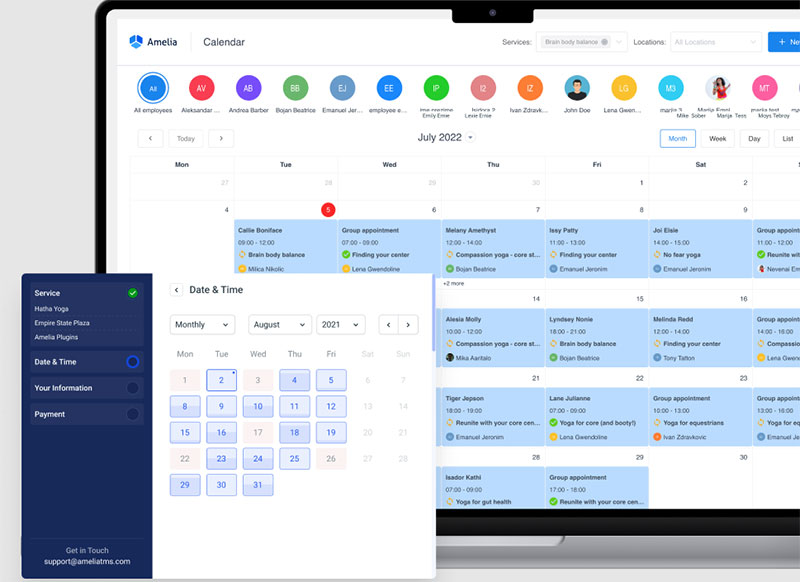
Amelia runs booking directly inside WordPress, and it syncs two ways with Google Calendar, Outlook Calendar, and Apple Calendar. Staff appointments land in whichever calendar they already open every morning.
That two-way link matters. When a client books, the event appears on the team’s calendar; when staff block time off, the booking form hides that slot. WordPress powers roughly 41% to 42% of all websites (W3Techs, 2026), easing back from a peak above 43%, so a plugin that syncs bookings into Google Calendar appointment scheduling fits a large base of sites.
Zippia reports 67% of consumers prefer booking online, and automated reminders cut no-shows by 29%. A plain calendar does neither.
What we found testing the booking tools: we connected each to a Google Calendar and watched what happened in both directions. Calendly was live in under five minutes and is the fastest of the three by a clear margin, though on the free tier it reads a single calendar, so a busy slot on a second unconnected calendar stayed invisible and it offered that time anyway.
Amelia took longer to set up, closer to half an hour, since you’re configuring services and staff rather than one link, and the two-way sync we wanted sits on the Pro tier rather than the entry plan.
Once connected, blocking staff time in Google did correctly hide the slot on the booking form. Acuity landed between the two on setup time and was the strongest of the three on intake forms and deposits. Pick on what you’re booking, not on which syncs “better,” since all three handle the calendar side competently.
Amelia sits among the stronger WordPress booking plugins for exactly that reason: it turns a static calendar into a client-facing booking engine. It’s also the wrong tool if you don’t run WordPress, where Calendly or Acuity are the better answer.
Acuity Scheduling covers standalone service booking outside WordPress. If you’re weighing options, a rundown of tools that compete with Calendly shows where each one fits.
What Features Should You Compare Before Switching?
Compare six features before switching: sync standard (CalDAV, ICS, two-way versus one-way), cross-platform coverage, sharing permissions, time-zone handling, recurring-event reliability, and booking capability. These decide whether an alternative fits personal use, team scheduling, or client-facing appointments.
| Feature | What to Check | Matters Most For |
|---|---|---|
| Sync standard | CalDAV, ICS, one-way vs two-way | Multi-app users |
| Cross-platform | Web, iOS, Android, desktop | Everyone |
| Sharing | Permission levels per calendar | Teams, families |
| Time zones | Auto-adjust for travel | Remote workers |
| Booking | Client self-booking, reminders | Service businesses |
Sync standard decides whether your data stays portable. Two-way sync updates both calendars; one-way only pushes in a single direction.
Cross-platform coverage is non-negotiable. The US Bureau of Labor Statistics found 37.4% of employees worked remotely at least part-time in 2024, and remote work means switching between phone, laptop, and web all day.
Recurring events and time zones break more often than people expect. Test a weekly recurring event across a time-zone change before you commit. In our own runs this was the single most common point of failure, ahead of import errors or missing features.
Booking capability separates personal apps from business tools. If clients need to self-book, reminders and payment support move from nice-to-have to required.
Reminders alone earn their keep. GetApp research shows 95% of people would pick a provider that offers online booking, and reliable appointment reminder tools are what keep no-shows down.
How Much Do Google Calendar Alternatives Cost?
Google Calendar alternatives cost nothing to $13 per month for calendar apps, and $49 per year and up for booking tools. Apple, Outlook web, Zoho, Notion, and Thunderbird stay free. Proton, Fastmail, and Amelia charge for advanced features.
| Tool | Free Tier | Paid From |
|---|---|---|
| Zoho Calendar | Yes | Free |
| Proton Calendar | Yes | $4.99/mo (Mail Plus) |
| Fastmail | No | ~$5/mo |
| TeamUp | Yes | $10/mo |
| Amelia | Yes (Lite) | $49/yr |
Which Alternatives Are Completely Free?
Five apps cost nothing for core use: Apple Calendar, Outlook.com web, Zoho Calendar, Notion Calendar, and Thunderbird.
Zoho Calendar runs free for everyone and reports over 16 million users (Capterra). Resource booking sits behind a Zoho Mail Premium plan.
Proton Calendar has a free tier too, though the polished features arrive with a paid Proton plan.
What Do Paid Privacy and Booking Tools Cost?
Proton: Mail Plus at $4.99/month bundles Proton Calendar; Unlimited runs $12.99/month (Costbench, 2026).
Fastmail: paid-only, starting around $5/month with no free tier.
TeamUp: free plan for small groups, Plus tier at $10/month.
Amelia: a free Lite version lives on WordPress.org with 90,000+ active installs and a 4.6 rating across 761 reviews. Paid annual licenses run from $49 (Starter) through $89 (Standard), $149 (Pro), and $259 (Elite), with lifetime options on the higher tiers.
The free Amelia tier makes it a rare no-cost WordPress booking plugin that still syncs to a calendar, though Lite is limited to one employee with Square payments. Google Calendar two-way sync unlocks on the Pro tier and up, which is the detail to budget for if calendar sync is the reason you’re here.
For a service business weighing cost against features, a broader look at scheduling tools built for small businesses puts these numbers in context.
How Do You Migrate From Google Calendar to Another App?
Migrate from Google Calendar by exporting your events as an ICS file, importing them into the target app, and running both calendars in parallel until sync is confirmed. Then reconnect any booking tools and verify recurring events survived the move.
Export first. Open Google Calendar settings, then Import and Export, and download your calendars as an ICS file.
Import into the new app. Most alternatives accept an ICS file directly, or subscribe to your calendar over CalDAV for a live link.
Some tools automate this. Proton offers Easy Switch for admin-led migration of mail, contacts, and calendars straight from Google Workspace (Proton).
Run both in parallel. Keep Google Calendar live for a week or two while you confirm every event landed in the new app.
Reconnect booking tools. Booking systems like Amelia or Calendly do not follow automatically. Reauthorize each staff member’s calendar so appointments keep flowing into the right place.
Verify the tricky parts. Recurring events and time zones break more often than anything else during a move. Test a repeating event across a time-zone shift before you trust it.
What we found running the migration: the export and import themselves were uneventful, which is the reassuring part. Two things did go wrong and both are worth planning for. First, an ICS export is a snapshot, not a connection, so events we added to Google after downloading the file never appeared in the new app. Export last, not first. Second, recurring events with exceptions came through as either the full unbroken series or with the exception silently dropped, depending on the app, so a skipped week reappeared as a booked one. Nothing warned us. Checking a handful of repeating events by hand after the move is the only reliable catch. The parallel-running advice isn’t cautious boilerplate; it’s what surfaces both problems before they cost you a meeting.
Once everything checks out, you can safely clear out the old Google Calendar events and commit fully to the new setup.
Frequently Asked Questions
What is the best Google Calendar alternative?
Best depends on need. Proton Calendar leads for privacy, Outlook and Apple Calendar for ecosystem fit, and Amelia for client booking on WordPress. Each covers events, reminders, and cross-device sync through CalDAV or ICS.
Is there a free alternative to Google Calendar?
Yes. Apple Calendar, Outlook.com web, Zoho Calendar, Notion Calendar, and Thunderbird are all free. Zoho Calendar alone reports over 16 million users, and Amelia offers a free Lite version on WordPress.org limited to one employee.
What is the most private alternative to Google Calendar?
Proton Calendar. It applies end-to-end encryption to event titles, notes, and attendees under Swiss law. Tuta encrypts events too, while Fastmail runs a paid no-ads model that keeps your schedule out of advertising. Encryption does cost you fast server-side search across event content.
Can Apple Calendar replace Google Calendar?
Yes, for Apple users. Apple Calendar syncs across iPhone, iPad, and Mac through iCloud, with Siri voice entry. It matches Google’s core features and beats it on continuity inside the Apple ecosystem.
Does Outlook Calendar sync with Google Calendar?
Yes, though read the direction carefully. Outlook and Google exchange events through ICS subscription links, which run one way by default and refresh on a delay rather than instantly. In testing, events created in Outlook did not travel back to Google over a subscription link, so set up two-way sync deliberately to avoid double bookings.
What is the difference between a calendar app and a booking system?
A calendar app tracks your personal events. A booking system lets clients self-book open slots, then pushes the confirmed appointment into your calendar. Calendly and Amelia are booking tools, not calendar replacements.
Does Amelia work with Google, Outlook, and Apple Calendar?
Yes. Amelia syncs two ways with Google Calendar, Outlook Calendar, and Apple Calendar, and blocked time hides those slots from the booking form. Note that full two-way sync sits on the Pro tier rather than the entry plan.
How do I move my events off Google Calendar?
Export Google Calendar as an ICS file from settings, then import it into the new app or subscribe over CalDAV. Export last rather than first, since the file is a snapshot and later additions won’t follow. Run both in parallel briefly, then check recurring events by hand.
Do calendar alternatives support CalDAV and ICS?
Most do. Proton, Fastmail, Zoho, Thunderbird, Apple, and Outlook all support CalDAV or ICS. These standards let events move freely between apps, so you are never locked into one platform.
Which alternative is best for appointment booking?
Amelia for WordPress sites, Calendly for personal scheduling links, and Acuity for standalone service booking with intake forms and deposits. Automated reminders cut no-shows by 29% (Zippia), something a plain calendar cannot do.
Conclusion
The right pick among Google Calendar alternatives comes down to what you value most: privacy, ecosystem fit, or client-facing appointment booking.
Proton and Fastmail guard your data with encrypted calendars. Apple Calendar and Outlook win on native cross-device sync across iCloud and Microsoft 365.
For service businesses, Amelia turns a WordPress site into a booking engine, with two-way sync to the calendars your staff already run.
Whatever you choose, CalDAV and ICS support keeps your events portable, so migration never traps you on one platform.
Export your schedule, test recurring events, reconnect your booking tools, and you are set.
The best calendar is the one that matches how you work, not the one with the biggest name.
The post Google Calendar Alternatives That Fit Your Workflow appeared first on Amelia WordPress Booking Plugin.
]]>The post Setmore Alternatives That Drop the Per-Seat Bill appeared first on Amelia WordPress Booking Plugin.
]]>That billing quirk, plus the 4-staff cap on free, is usually what starts the search for Setmore alternatives.
The market is crowded. Calendly, Acuity, SimplyBook.me, Square Appointments, Bookly, Trafft, and Amelia each solve a different slice of the problem. For WordPress site owners, the short answer is Amelia: a self-hosted booking plugin with a flat license instead of monthly per-seat fees. For anyone who wants to stay on hosted software, Trafft is the closest like-for-like swap.
Worth saying up front: Amelia publishes this article, and Trafft comes from the same company. The reasoning sits under every pick and both get an honest “where it falls short” section like everything else here. Several tools below beat them outright for specific jobs, and Setmore’s own free tier is more generous than Trafft’s, which we’ve said plainly in the section where it comes up.
How We Tested These Alternatives
We built the same scenario in each tool during July 2026: a service with two staff members, a deposit taken at booking, and a connected calendar, then ran a test appointment through the client-facing flow.
Amelia and Bookly went onto a clean WordPress 6.9 sandbox. Setmore, Trafft, Calendly, Acuity, SimplyBook.me, and Square Appointments were tested on their free tiers or trials. Where a feature sits behind a tier we didn’t buy, we’ve said so rather than guessing at it. Findings appear in each section below.
What Is Setmore and Why Look for Alternatives
It’s a cloud-based appointment scheduling app built for solo operators and small service teams, and it’s genuinely good at that job. The reasons people leave are structural rather than about quality.
The free tier reads as generous until you hit its edges: 4 staff and 200 appointments per month.
Past that, every staff calendar counts as a paid user on Pro. A 10-person salon pays $50/month billed annually, or $120/month billed monthly, since Pro runs about $5 per user annually and $12 per user monthly.
The usual triggers for switching:
- Per-login tax. Costs scale with every staff calendar, not actual usage
- Rented booking pages. The booking flow sits on Setmore’s domain, not yours
- SMS behind the paywall. Text reminders require the paid tier, while the free plan sends email reminders only
- Calendar sync gripes. Two-way sync sits on paid plans, and sync reliability is among the most repeated complaints in user reviews
Setmore holds an overall rating of 4.6 from 958 reviews on Capterra, with ease of use at 4.6 and value for money at 4.7, so switching is rarely about quality. It comes down to ownership and pricing model.
What we found testing Setmore itself: setup was the fastest of anything here, we had a working booking page in well under fifteen minutes with no configuration screen to wrestle. That speed is the reason it holds the ratings it does. The free tier genuinely handled four staff calendars and email reminders at no cost, which is more generous than several paid competitors. The walls arrived exactly where reviewers say: SMS reminders required the paid tier, two-way calendar sync did too, and the booking page sat on Setmore’s domain with no way to move it. Adding a fifth staff member is what turns a free account into a monthly bill.
What Should You Look for in a Setmore Alternative
Data ownership, flat pricing instead of per-user monthly fees, wide payment gateway support, and staff scaling without penalty. The best scheduling software for small businesses also handles SMS, email, and calendar sync natively.
| Criterion | What to Check | Setmore Gap |
|---|---|---|
| Hosting | Self-hosted vs SaaS lock-in | SaaS only |
| Pricing | Flat license vs per-seat monthly | Per-calendar billing |
| Payments | Stripe, PayPal, WooCommerce range | Narrow gateway support |
| Scaling | Staff and locations without fees | 4-staff free cap |
Two more factors decide the fit: notification depth across SMS, email, and WhatsApp, and two-way calendar sync with Google Calendar and Outlook.
North America holds roughly 43% of the appointment scheduling software market, where per-seat SaaS pricing dominates. Self-hosted tools break that recurring cost pattern.
Which Setmore Alternative Is Best Overall
For WordPress owners, Amelia. It’s a self-hosted plugin with a one-time or annual license, native Stripe, PayPal, WooCommerce, Mollie, and Razorpay support, plus group bookings, events, and packages that Setmore handles thinly.
Built by TMS and first published in December 2018, it runs on 90,000+ active installs of its free version and holds 4.9/5 on Capterra from 245 reviews, alongside 4.6/5 from 761 reviews on WordPress.org.
The whole pitch is control. Your booking flow lives on your own domain instead of a rented page, which matters when WordPress powers roughly 41% to 42% of all websites (W3Techs, 2026). It sits among the strongest WordPress booking plugins for that exact reason.
Amelia Core Features
What you get out of the box:
- Step-by-step or catalog booking forms, embedded with two shortcodes
- Native payments through a WordPress booking system with payment gateways including Stripe, PayPal, Mollie, and Razorpay
- Group appointments, events with QR-coded tickets, and service packages
- Two-way Google Calendar, Outlook, and Apple Calendar sync on higher tiers
- Repeat bookings through built-in recurring appointment scheduling
- Automated email and SMS reminders, plus a built-in Zoom meeting scheduler
Online booking also tends to cut no-shows. Self-scheduled appointments consistently show lower no-show rates than phone-booked ones across published studies, and reminders plus deposits compound the effect.
What we found testing it: on a clean WordPress 6.9 install we built the two-staff service with a deposit and walked the booking wizard from date and time through payment, committing a live appointment without errors. Adding the second staff member cost nothing extra, which is the structural argument against per-seat billing and it holds up in practice. The booking records sat in our own database, visible in the WordPress admin, not on anyone else’s server. We also generated a QR e-ticket from the events module, which is the piece Setmore has no equivalent for. Two frictions were real. Setup ran closer to half an hour against Setmore’s fifteen minutes, and connecting Google Calendar for two-way sync required moving above the entry tier.
Amelia Pricing and Licensing
Amelia sells annual subscriptions and lifetime licenses. A free Lite version ships on WordPress.org.
| Plan | Billing | Price |
|---|---|---|
| Lite | Free | $0 |
| Starter | Annual | $49/yr |
| Standard | Annual | $89/yr |
| Pro | Annual | $149/yr |
Lifetime licenses are available on most tiers, commonly listed from around $299 for Standard, and they beat per-seat SaaS math within a couple of years. Sale pricing moves often, so confirm current lifetime rates on wpamelia.com. Teams that want a free WordPress booking plugin to test first can start on Lite, then upgrade.
Where Amelia Falls Short
It’s not a universal pick. Some honest drawbacks:
- Key integrations, including two-way calendar sync, sit behind higher tiers rather than the entry plan
- The free Lite version is limited to one employee, so Setmore’s free tier covers more staff
It also needs a WordPress site. No WordPress, no Amelia.
Is Trafft the Closest Hosted Swap for Setmore
If you want to stay on hosted software, yes. Trafft serves the same crowd Setmore does, salons, clinics, studios, coaches with a handful of staff, and it fixes the per-login tax at the structural level by bundling users into the plan instead of billing each staff calendar.
As noted at the top, Trafft comes from the same company as Amelia. Judge the section on the detail, not the recommendation, and note that we’ve listed the places where Setmore’s free tier is actually the more generous of the two.
How Trafft Handles the Per-Login Problem
Each plan ships with a block of users. You don’t buy seats one at a time until you exceed that block, and only then does a per-user add-on kick in.
| Plan | Users Included | What It Unlocks |
|---|---|---|
| Free forever | 1 user | 100 appointments a month, booking website, Square |
| Mini | 3 users | Calendar sync, group bookings, coupons, taxes |
| Growth | 5 users | Stripe, PayPal, Mollie, Zoom, custom fields, invoices |
| Professional | 15 users | Deposits, packages, recurring, gift cards, Zapier |
| Business | 30 users | API, webhooks, WhatsApp, custom domain, no branding |
That’s the whole difference for a ten-chair salon. On Setmore Pro you’re buying ten calendars. On Trafft Professional those ten sit inside a plan built for fifteen, and you add seats only past that line. Prices move with promotions, so check the Trafft pricing page before running the math on your own headcount.
Where Trafft Beats Setmore
- Multiple locations without a separate account per branch, unlimited on the upper tiers
- WhatsApp reminders alongside email and SMS, which Setmore doesn’t offer at any tier
- Money features Setmore treats thinly: deposits, coupons, gift cards, service packages, taxes, automatic invoices
- Reserve with Google on the top tier, so bookings can start from Search and Maps rather than your link
- Booking channels beyond a page: embeddable form, QR code, booking chatbot, and a free WordPress plugin that drops the form onto your own site
- Customer records with notes, custom fields, and per-client stats, closer to a light CRM than a calendar
Both ship iOS and Android apps, so that one’s a wash. Both also generate a booking website for businesses without one.
What we found testing it: we set up the free tier first, then tested paid features on a trial. Building a booking website with no existing site took minutes, and the multi-location handling from one dashboard did what Setmore requires separate accounts for. WhatsApp reminders worked and have no Setmore equivalent at any tier. The free plan is where our expectations were wrong, though: one user and 100 appointments a month is genuinely thinner than Setmore’s four staff and 200, and we hit that ceiling faster than we hit anything on Setmore free. Deposits, the feature most salons want first, sit on Professional rather than a lower tier, which is a real jump for a two-person studio.
Where Trafft Falls Short
Being fair about this one matters, because the free tiers don’t land where you’d expect.
- The free plan is thinner than Setmore’s. One user and 100 appointments a month against Setmore’s four staff and 200. If free is where you plan to live, Setmore wins that round outright
- It’s still SaaS, so client records sit on Trafft’s servers rather than your own database
- Deposits, recurring appointments, and packages start at Professional, which is a jump for a two-person studio that only needs deposits
- Branding removal, custom domain, API, and webhooks are Business-tier only
- SMS runs on credits bought separately, so reminders aren’t fully covered by the sticker price
- The WordPress plugin embeds a hosted form. It doesn’t move your booking data onto your site, and people assume it does
How Does Calendly Compare as a Setmore Alternative

Calendly leads on meeting scheduling, not service booking. One-to-one and round-robin meeting links work beautifully. Salons and clinics fit poorly, since it lacks resource and staff-calendar depth.
- Strong: Zoom, Google Meet, and Salesforce integrations for sales teams
- Weak: no self-hosting, and booking pages stay on Calendly’s domain
- Watch: per-seat billing stacks up as headcount grows, from $10 per seat monthly on Standard to $16 on Teams billed annually
What we found testing it: a booking link was live in under five minutes, faster than anything else here including Setmore, and timezone handling across test invites was flawless. Then we tried to model the same two-staff service with a deposit and the tool simply isn’t shaped for it. There’s no service catalog and no staff roster in the sense a salon needs. On the free tier we also confirmed the single-calendar limit: a busy slot on our second, unconnected calendar was invisible, so Calendly offered that time anyway. For a consultant booking calls it’s excellent. For the businesses leaving Setmore, it usually isn’t the answer.
WordPress users who like Calendly’s flow often embed it through a Calendly WordPress plugin instead of switching platforms.
Is Acuity Scheduling a Strong Setmore Replacement
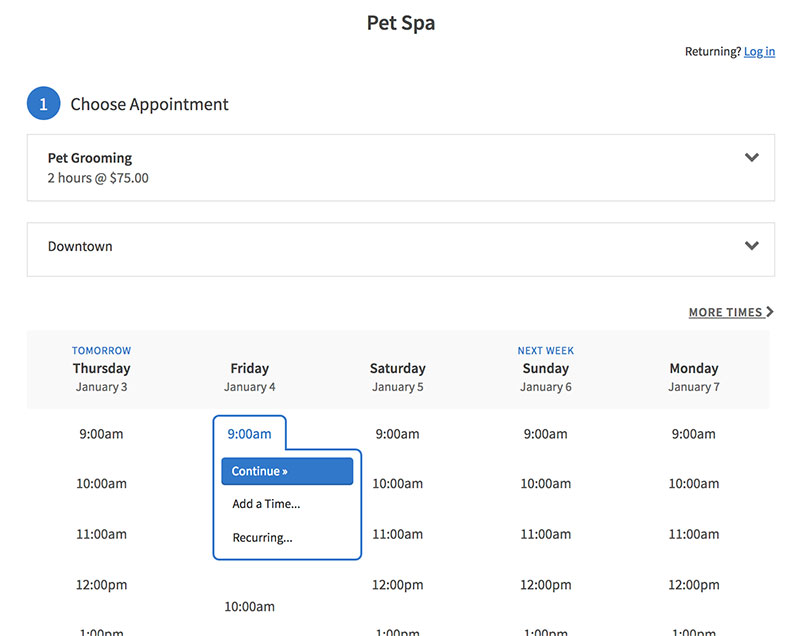
Acuity suits appointment-heavy solo operators and small businesses inside the Squarespace ecosystem. Intake forms, packages, subscriptions, and gift certificates are all strong, as is client self-rescheduling and time-zone handling. Like Setmore, it’s SaaS, so you never own the data.
- Deep intake forms, packages, and gift certificates
- Squarespace-native tie-in for existing site owners
- Monthly per-plan pricing with a 7-day trial and no permanent free tier
Acuity renamed its plans in early 2026, so older comparisons citing Emerging, Growing, and Powerhouse now map to Starter, Standard, and Premium.
What we found testing it: on the 7-day trial we built a paid service with a conditional intake form and a deposit at booking. The intake builder handled branching questions cleanly, so client context and payment both arrived before the appointment, which is deeper than anything Setmore offers. A 10-session package sold as one product and drew down per booking. Two costs stood out. Availability rules took the longest to configure of any hosted tool we tried, well past Setmore’s fifteen minutes, and there’s no permanent free tier, so the trial clock starts the moment you sign up with nowhere to practise first.
The head-to-head between these two stays close on features, so the call often comes down to ecosystem and pricing model. The full Acuity Scheduling vs Setmore breakdown covers where each one pulls ahead.
How Does SimplyBook.me Stack Up Against Setmore
SimplyBook.me targets service businesses that want a feature-modular SaaS. You get a custom booking website plus widgets and a broad multi-industry template range. The free tier caps at 50 bookings a month with one provider, and paid plans scale by booking volume.
What it does well is the custom booking website with an embeddable widget, plus a template library that runs deep across many industries.
The trade-offs are the flip side of that modularity:
- Each add-on feature raises the recurring bill
- Booking-volume caps push growing businesses up tiers
What we found testing it: we set up the free plan with one provider and switched the booking page to a second language, which rendered cleanly and is a genuine edge over Setmore for cross-border businesses. The modular system is the friction: you toggle each capability on individually, and it took real time to work out which combination produced a finished booking page. The free tier’s 50-booking monthly cap is tighter than Setmore’s 200 and bit sooner than the single-provider limit did. Adding a few paid modules also pushed the running total past what a flat-rate competitor would charge for the same result.
Patient and client surveys consistently find that online booking, cancellation, and rescheduling rank among the features people most expect from a service provider, so modular booking features carry real weight.
Is Bookly a Good WordPress Alternative to Setmore
Bookly is the other major self-hosted WordPress booking plugin, with a free core and a paid Pro version. It rivals Amelia on data ownership, but stacks most real features as paid add-ons that raise the true cost.
The core plugin looks cheap. Then you add SMS, then recurring bookings, then Google Calendar two-way sync, and the total climbs. It fits people who prefer paying only for the pieces they use, as the Bookly plugin overview lays out.
What we found testing it: we installed the free core on the same sandbox as Amelia. Basic booking worked, and for a solo operator wanting nothing more than a form and a calendar, the free version is genuinely usable. The modular model showed itself as soon as we tried to build our test scenario: payments, recurring bookings, and two-way calendar sync each turned out to be separate purchases. Reaching feature parity with a bundled tier meant assembling several add-ons rather than buying one thing. Whether that’s better or worse depends entirely on how many of those pieces you actually need.
Bookly vs Amelia on Total Cost
| Plugin | Model | Entry Price |
|---|---|---|
| Amelia Starter | Bundled tiers, annual | $49/yr |
| Amelia Pro | Bundled, sync included, annual | $149/yr |
| Bookly Pro | Core plus paid add-ons | Varies by add-on stack |
One caveat on that comparison: Bookly Pro has historically been sold as a one-time CodeCanyon purchase rather than an annual subscription, with add-ons priced separately. Compare the total add-on stack rather than a headline figure, and confirm current terms before buying.
Amelia folds calendar sync and events into fixed tiers. Bookly charges separately for two-way sync and Outlook, so the modular route often ends up pricier once you need the full feature set. The Amelia vs Bookly comparison runs the full math side by side.
How Does Square Appointments Compare for Setmore Users
Square Appointments fits businesses built around in-person card payments. Scheduling is free and tied to the Square POS ecosystem, so you pay through processing fees instead of software fees. It works best for retail, salons, and barbershops already running Square hardware.
The free plan covers one location, online booking, calendar sync, and email reminders. Staff management, class bookings, and SMS reminders need the Plus plan at $49/month per location.
Square overhauled this pricing in October 2025, raising the in-person per-transaction fee from 10¢ to 15¢, so older comparisons quoting 2.6% + 10¢ are out of date.
| Plan | Monthly Cost | In-Person Rate |
|---|---|---|
| Free | $0 per location | 2.6% + 15¢ |
| Plus | $49 per location | 2.5% + 15¢ |
| Premium | $149 per location | 2.4% + 15¢ |
The fees are where it adds up. A salon processing $8,000/month in card payments pays over $210 in processing on the Free plan before any subscription cost.
What we found testing it: we opened the free single-location plan and ran a test card payment, which felt identical to any Square retail transaction and is the smoothest checkout of anything here. Online booking, calendar sync, and email reminders all worked at no monthly cost. Then we tried to add a second staff member and SMS reminders, and both required the Plus plan at $49 per location, which is where the “free” framing stops holding. The processing fee is the real cost, and unlike a software subscription it scales with revenue rather than headcount, so a busy salon can pay more here than on a paid plan elsewhere.
Square locks you into its own payment loop and offers no WordPress-native control. If you want to weigh it against a Squarespace-based tool, the Acuity Scheduling vs Square Appointments breakdown lines them up.
Amelia vs Trafft vs Setmore Direct Comparison
The core split is simple: Amelia is a self-hosted WordPress plugin you own, Setmore and Trafft are SaaS you rent. Amelia wins on ownership and pricing model, Trafft wins on hosted feature depth and how it counts users, Setmore wins on setup speed and a free tier that fits four staff.
| Factor | Amelia | Trafft | Setmore |
|---|---|---|---|
| Hosting | Self-hosted WordPress | SaaS with WP embed | SaaS only |
| Pricing | Annual or lifetime license | Tiers with users bundled in | Per-login monthly |
| Free tier | 1 employee, Square only | 1 user, 100 appointments a month | 4 staff, 200 appointments a month |
| Payments | Stripe, PayPal, WooCommerce, Mollie, Razorpay | Square, Stripe, PayPal, Mollie, Authorize.net | Narrower gateway range |
| Events, packages | Native, with QR tickets | Packages and deposits from Professional | Thin or absent |
| Data ownership | Full, on your domain | Held by Trafft | Held by Setmore |
Amelia carries native PayPal booking and WooCommerce checkout, so payments run through gateways you already use. Setmore keeps you inside a narrower processing setup, and Trafft sits between the two, wider than Setmore on gateways but still holding the records for you.
Which Setmore Alternative Fits Your Business Type
It depends on where your site lives and how you sell.
- WordPress owners and agencies: Amelia, for full control across a beauty salon booking website or a multi-client build
- Multi-staff service businesses staying hosted: Trafft, which is the nearest swap for Setmore and stops billing you per calendar
- Sales and consulting calls: Calendly, or dedicated consultant scheduling software
- Squarespace-based solos: Acuity Scheduling
- Retail and salons on Square hardware: Square Appointments
- Budget WordPress users who tolerate add-ons: Bookly
- Businesses staying on a free plan indefinitely: Setmore, which beats both our own tools on free-tier generosity
The large majority of clients now prefer providers that offer online booking, so the platform you pick shapes revenue, not just admin time.
For most service businesses running on WordPress, Amelia is the alternative that removes Setmore’s per-login tax, hands back your data, and covers appointments, events, and packages in one license. For the ones with no site to build on, Trafft removes the same tax without asking you to run anything.
Frequently Asked Questions About Setmore Alternatives
What is the best Setmore alternative overall?
For WordPress site owners, Amelia is the best Setmore alternative. It is a self-hosted booking plugin with a flat annual or lifetime license, native Stripe and PayPal payments, plus group bookings, events, and packages in one purchase. If you have no website to build on, Trafft is the closest hosted swap.
Why do people switch away from Setmore?
The main triggers are the 4-staff free cap, per-calendar billing that counts every staff member as a paid user, SMS reminders locked behind the paid tier, and booking pages that live on Setmore’s domain instead of yours.
Is there a free Setmore alternative?
Yes. Amelia ships a free Lite version on WordPress.org, and Square Appointments offers a genuinely free plan for one location. Calendly and SimplyBook.me also have free tiers, though each caps bookings or features. Worth knowing that Setmore’s own free tier covers four staff, which is more than most alternatives allow.
Which Setmore alternative works best on WordPress?
Amelia leads for WordPress. Bookly is the other self-hosted plugin worth testing. All three keep your booking data on your own domain, unlike SaaS tools such as Setmore, Calendly, or Acuity.
How does Amelia pricing compare to Setmore?
Amelia charges a flat license: $49/year Starter, rising through Standard and Pro, with lifetime options available. Setmore bills per login monthly, so a 10-person team pays roughly $50 to $120 monthly depending on billing period. Amelia’s math wins as teams grow.
Does Amelia support more payment gateways than Setmore?
Yes. Amelia connects to Stripe, PayPal, WooCommerce, Mollie, Razorpay, and Square. Setmore offers a narrower range. Wider gateway support means you keep the processor you already use.
Is Calendly a good Setmore replacement?
Calendly suits meeting scheduling, not service booking. It handles one-to-one and round-robin links well but lacks staff-calendar and resource depth for salons or clinics. Per-seat monthly pricing also climbs fast for teams.
What is the difference between Bookly and Amelia?
Both are self-hosted WordPress plugins. Bookly sells a cheap core, then charges add-ons for SMS, sync, and packages. Amelia bundles those into fixed tiers, so total cost usually stays lower once you need full features.
Can I move my data off Setmore easily?
Setmore exports appointments and customer lists, but the booking page and links belong to Setmore. Switching to a self-hosted plugin like Amelia means rebuilding the booking flow on your own domain, then redirecting existing links.
Which alternative fits a salon or clinic best?
Salons and clinics need staff calendars, resources, and deposits. Amelia covers all three on WordPress, while Square Appointments fits shops already on Square hardware. Both beat Setmore’s thin multi-staff handling.
Conclusion
Choosing between Setmore alternatives comes down to two questions: who owns your booking data, and how does the price scale as your team grows?
SaaS tools like Calendly, Acuity, and Square Appointments keep the setup light but hold your data and bill per seat.
Self-hosted plugins flip that. Bookly gives you a WordPress online booking system, though add-ons stack up.
Amelia stays the strongest pick: a lifetime license, unlimited staff on higher tiers, two-way calendar sync, and group events with QR-coded tickets, all on your own domain.
Match the tool to your business, not the other way around.
For most WordPress service businesses, that answer is Amelia.
The post Setmore Alternatives That Drop the Per-Seat Bill appeared first on Amelia WordPress Booking Plugin.
]]>The post PayPal Booking System: Everything You Need to Know appeared first on Amelia WordPress Booking Plugin.
]]>A PayPal booking system takes that friction out by pairing online appointment scheduling with a payment gateway clients already know and trust.
PayPal has 434 million active accounts globally. That kind of brand recognition cuts checkout hesitation in a way lesser-known processors just can’t, and the rest of this gets into how it actually works: how PayPal connects to booking platforms, which tools support it natively, what it really costs, where it falls short against Stripe, and how to handle deposits, refunds, and recurring payments.
What Is a PayPal Booking System?
It’s a scheduling or reservation platform that uses PayPal as the payment processor to collect deposits or full payments at the moment of booking.
PayPal doesn’t make a native booking product. It works as the payment layer inside third-party booking software, handling the financial transaction while the scheduling platform runs the calendars, availability, and confirmation logic.
Think of it as two separate products working together. The booking platform owns the customer-facing scheduling experience. PayPal owns the checkout.
What Are the Core Components of a PayPal Booking System?
Every functional PayPal booking setup comes down to three pieces. There’s the scheduling interface, the front-end page where clients pick a date, time, and service. There’s the calendar availability engine, the backend logic that manages open slots, blocks time, and stops double bookings. And there’s the PayPal payment gateway connection, the API bridge that handles transaction authorization, deposit collection, and the booking confirmation triggers.
The online booking software market was worth $2.5 billion in 2024, growing at a 12.4% CAGR through 2032 (Verified Market Research, 2024). Small and medium-sized businesses make up roughly 60% of it.
What Types of Businesses Use a PayPal Booking System?
61% of bookings are now made online globally, with 47% of users preferring instant mobile-based reservations (Business Research Insights, 2024).
A few categories reach for a PayPal-connected setup more than the rest. Service businesses, the consultants, personal trainers, therapists, and hair salons running single-provider, appointment-based work.
Rental businesses, where equipment hire, vacation rentals, and vehicle rental run on time-block reservations with upfront deposits. Event-based businesses like fitness classes, workshops, and tours, juggling multi-seat capacity with pre-payment. And online service providers, the coaches, tutors, and freelance consultants scheduling virtual appointments with PayPal checkout.
Each category has different booking logic underneath. A consultant scheduling setup handles single-slot, one-person sessions. A class-based business manages capacity limits across multiple seats per session. Both can use PayPal, but the platform layer differs significantly.
A beauty salon booking website typically needs staff assignment, service duration management, and deposit collection at checkout. A barber shop has similar requirements. These are exactly the use cases where a PayPal booking system performs well out of the box.
How Does PayPal Integration Work in a Booking System?
PayPal connects to a booking platform one of two ways: through the PayPal REST API or the PayPal Checkout SDK. The REST API gives developers full control over the transaction flow. The SDK provides pre-built payment buttons that booking platforms embed without any custom code.
The standard booking-to-payment flow runs in five steps. The customer selects a time slot, enters their details, moves to the payment screen, completes payment through PayPal Checkout or an embedded PayPal button, and receives a booking confirmation email triggered by the payment success event.
How Does Payment Confirmation Trigger Booking Confirmation?
This is where most of the technical work happens. Booking platforms listen for a PayPal IPN (Instant Payment Notification) or a webhook event to confirm the payment cleared before they lock the reservation.
Without that webhook confirmation, a booking could look confirmed on the client’s end while the payment is still pending. Most professional booking tools handle this automatically once PayPal is connected through OAuth credentials from the PayPal Developer Dashboard.
Both deposit and full-payment setups are supported. Deposit configurations collect a partial amount at booking and take the balance at the time of service. PayPal handles the partial capture through its Orders API, though not every booking platform exposes that option in its UI.
PayPal REST API vs. Checkout SDK in Booking Platforms
| Method | Best for | Setup complexity | Customization |
|---|---|---|---|
| PayPal REST API | Custom-built or developer-led booking tools | High (requires coding) | Full control over flow |
| PayPal Checkout SDK | Third-party platforms (Acuity, Bookly, SimplyBook.me) | Low (platform handles it) | Limited to platform UI |
| PayPal Sandbox | Testing before going live | Low | Mirrors live environment |
For most service businesses on an off-the-shelf booking platform, the Checkout SDK is the only integration they’ll ever touch. The REST API matters when you’re building a custom booking flow or adding logic the platform doesn’t natively support.
What Are the Best Booking Systems That Support PayPal?
Dozens of platforms support PayPal, but the depth of that integration varies a lot. Some offer native PayPal connections with deposit logic, refund automation, and webhook confirmation. Others limit PayPal to a basic redirect-and-pay flow.
Booking Platforms With Native PayPal Integration
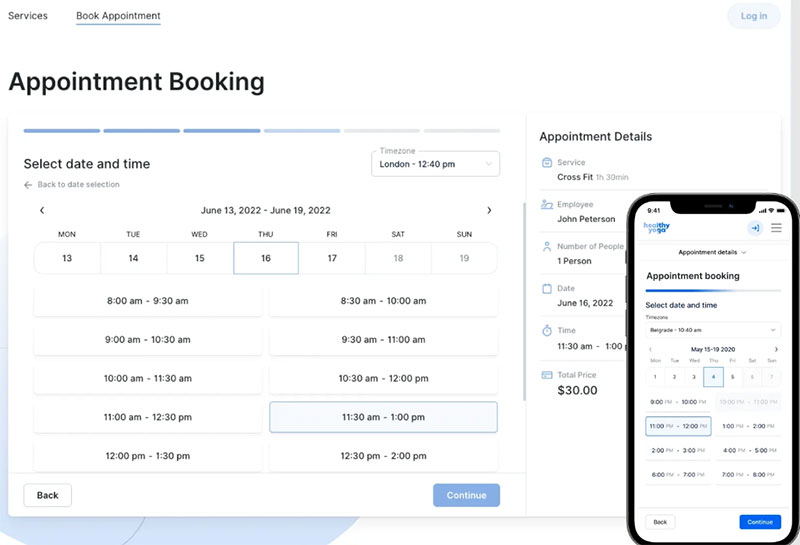
Trafft is a standalone scheduling platform (with a WordPress plugin available separately) that supports PayPal natively alongside Stripe, Square, Mollie, and Authorize.net. PayPal sits there as a one-click payment option at the moment of booking.
Trafft also supports deposit payments with fixed or variable amounts, automatic invoice delivery, and a transaction dashboard that tracks payment status per appointment, customer, and employee.
One thing worth noting: Mollie on Trafft is limited to Euro transactions, but PayPal has no such restriction. It works well for service businesses that operate outside WordPress and want a hosted solution with full payment visibility.
Acuity Scheduling connects directly to PayPal across all three of its paid plans (Starter, Standard, Premium). It supports full payments, partial deposits, tipping, and automatic receipt emails. As of April 2026, new PayPal connections in Acuity show a pop-up payment window right on the scheduler rather than redirecting clients to PayPal’s domain (Acuity Help Center, 2026), which cuts checkout friction significantly.
SimplyBook.me includes PayPal as one of 15+ supported payment providers, with support for PayPal invoicing alongside standard checkout. It’s a good option for businesses that also use PayPal for manual invoice-based billing outside the booking system.
Checkfront targets rental operators and tour companies specifically. Its PayPal integration supports partial payments and deposit configurations, which suits vacation rentals and equipment hire where upfront deposits are standard practice.
Setmore includes PayPal payment links on its free plan, though the confirmation is manual rather than webhook-triggered. That’s functional for low-volume businesses that can live with a manual step in the booking confirmation flow. If you’re comparing alternatives, a detailed breakdown of the best WordPress booking plugins shows how Setmore stacks up against the paid options.
WordPress-Specific PayPal Booking Plugins
WordPress users have two main routes: a dedicated booking plugin with PayPal built in, or WooCommerce paired with a bookings extension.
Amelia is a WordPress booking plugin with built-in PayPal support across all paid plans. It handles full payments, deposit payments, and automatic refunds when clients cancel. The PayPal integration runs alongside Stripe, Mollie, Square, WooCommerce, RazorPay, and Barion, so you’re not locked into a single gateway.
Deposit payments are especially flexible. You can set a fixed or percentage-based amount per service, and customers can pay the remaining balance on-site or through a secure payment link sent by email.
Amelia also auto-generates invoices with tax support, which makes it a good fit for WordPress-based businesses that want PayPal as part of a broader, multi-gateway payment setup.
WooCommerce Bookings + WooCommerce PayPal Payments builds a full e-commerce booking stack. This combination gives you the most control over product pages, pricing rules, and checkout logic, but it takes more configuration than a standalone booking plugin. It’s the right approach when booking is one part of a broader product catalog rather than the whole point of the site.
A proper WordPress booking system with payment gateway support should handle deposit collection, send confirmation emails automatically, and block the calendar slot the moment payment clears. Not every plugin does all three cleanly.
The Best PayPal Booking System: Amelia
Amelia is the best PayPal booking system because you can connect PayPal to your appointment scheduling system for all of your clients. Using Amelia, you can be assured that your clients will pay for their appointments before you meet in person.
The PayPal booking system integrated with Amelia streamlines online payments, making it easy for you to accept money with minimal hassle. Clients can choose their preferred payment method, ensuring a smooth transaction process.
Amelia offers a user-friendly interface that simplifies the booking and payment process for your services. It allows you to manage and accept payments automatically, reducing the need for customer interaction if you prefer a hands-off approach. Plus, you can also process partial payments and refunds with this powerful integration.
What is Amelia?
Curious about Amelia? Here’s why you should pay attention to this booking system.
Amelia is a powerful WordPress booking plugin that works flawlessly with WordPress sites of all kinds. It has a minimal, yet powerful appointment booking interface designed to ease your workflow, automate repetitive tasks, avoid double booking, and make appointment booking a breeze for your customers.
You can even have email notifications and SMS notifications so that nobody forgets about their appointment bookings.
In order to book an appointment, the complete user interaction takes a few clicks with this WordPress plugin. Moreover, with it you can accept payments via PayPal and Stripe, perfect for those who want to pay in advance to book appointments.
As a business owner, you can monitor KPIs in the WordPress dashboard and analyze other important data to keep a pulse on your business. Amelia is a straightforward, no-nonsense booking calendar plugin and an amazing option for those who want an around-the-clock solution for their WordPress site.
Amelia also has an Events Calendar module integrated within its features.
You can now automate your event bookings as well. To be more precise, it means that you will be able to schedule a single day, a multi-day, and also recurring events with Amelia.
Did we mention that you can manage multiple locations and that you have Google Calendar integration?
All of these and much more are under only one license, no add-ons are needed.
To test things for yourself, I’d suggest checking out the demos and seeing how things look on the front end as well as in the back end.
PayPal Booking System Examples
Wanna see Amelia and PayPal in action? We’ve got you covered with both frontend and backend demos!
Medical/Health online booking page demo

A website of a demo private clinic, where a visitor can read about provided medical procedures and services, and schedule an appointment.
→ View Frontend Demo – Backend demo
Barbershop booking page demo
A dummy WordPress website for Barbershops with online booking – a nice and easy implementation with the Bridge theme and the Amelia WordPress booking plugin.
→ View Frontend Demo – Backend demo
Fitness Gym / Yoga booking page demo
A pseudo Yoga/Gym online booking page where you can browse through possible Yoga classes, schedule individual or group training, and book a package of appointments.
→ View Frontend Demo – Backend demo
Spa/salon booking page demo

A dummy cosmetology website – look through different cosmetic procedures and treatments, pick an employee and schedule appointments.
→ View Frontend Demo – Backend demo
Consultant booking page demo

A pseudo Business Consultant / Coach / Lawyer website, where a customer can browse through provided consultancy and lawyer services and book an appointment.
→ View Frontend Demo – Backend demo
How to Set Up PayPal Booking System & Amelia?
Using the payment settings in Amelia, you can customize the pricing format and select payment gateways for your site. The chosen format applies to all prices displayed on both the front-end and back-end of the plugin.
This feature lets your customers pay directly with PayPal using their credit card, debit card, or PayPal balance. To get started, activate the PayPal Service option. You can then choose between Live Mode and Sandbox Mode.
For Live Mode, you’ll need to:
- Copy the Live Secret and Live Client ID from your PayPal account.
- Paste these into Amelia by navigating to Settings > Payments > PayPal.
If you’d rather test the payment environment first, use PayPal Sandbox Mode. It’s designed for testing, not for full business use. To set up Sandbox Mode:
- Visit PayPal Developer
- Select Dashboard on the left side of the page, then go to My Apps & Credentials.
- Create a new app or use an existing one in the REST API apps area.
- Copy the Client ID and Secret into the Sandbox PayPal Payment Settings in Amelia, just like with Live Mode.
- Navigate to the Sandbox menu and select Accounts.
- Use the developer account email and password to test the payment system.
Once PayPal is enabled, you’ll see an option to set MetaData and Description. PayPal lets you set a description for each payment, so use this to tell customers what they’re signing up for on the payment screen. You can customize descriptions for different appointments or events as needed.
With PayPal integrated, managing bookings and appointment scheduling becomes effortless. You can also generate and export monthly reports to track how well the system is working. And if you’d rather not deal with reports, you can disable that feature.
What Are the Costs of Running a PayPal Booking System?
A PayPal booking system carries two cost layers: PayPal’s transaction fees and the booking platform’s subscription. Most businesses underestimate the combined total until they run the numbers on a full month of transactions.
PayPal Transaction Fees for Booking Payments
PayPal charges 3.49% + $0.49 per transaction for standard online payments through PayPal Checkout (PayPal merchant fee schedule, 2026). Standard card payments processed outside the PayPal Checkout flow cost 2.99% + $0.49 per transaction.
In-person payments via PayPal QR code cost 2.29% + $0.09 per transaction, which is lower than most alternatives, Square and Shopify included.
International transactions add a cross-border fee of 1.5% on top of the base rate. Businesses taking bookings from clients in other countries should fold that into their pricing.
Booking Platform Subscription Costs
| Platform | Starting price | PayPal included | Best for |
|---|---|---|---|
| Setmore | Free (limited) | Yes (manual confirmation) | Very low-volume bookings |
| Amelia (WordPress) | $49/yr | Yes (all paid plans) | WordPress service businesses |
| Acuity Scheduling | $20/mo | Yes (all plans) | Appointment-based businesses |
| SimplyBook.me | $9.90/mo | Yes (as add-on) | Multi-service providers |
| Checkfront | $49/mo | Yes | Rental and tour operators |
The real cost is transaction fees multiplied by booking volume, plus the monthly platform fee. A business processing 100 bookings a month at an $80 average transaction value pays roughly $279 in PayPal fees alone at the 3.49% + $0.49 rate. Add the platform subscription and you’re looking at $330 to $380 a month in payment infrastructure before anything else.
For businesses just getting started, pairing a free WordPress booking plugin with PayPal Checkout can drop the platform cost to zero while keeping transaction fees standard. That works well at low volume. At higher volume, a paid platform with better automation usually saves more time than it costs.
What Are the Limitations of Using PayPal in a Booking System?
PayPal works well for plenty of booking setups. But there are documented friction points that hit some business types harder than others, and they’re worth knowing before you build your whole payment flow around it.
PayPal Checkout Abandonment Rates
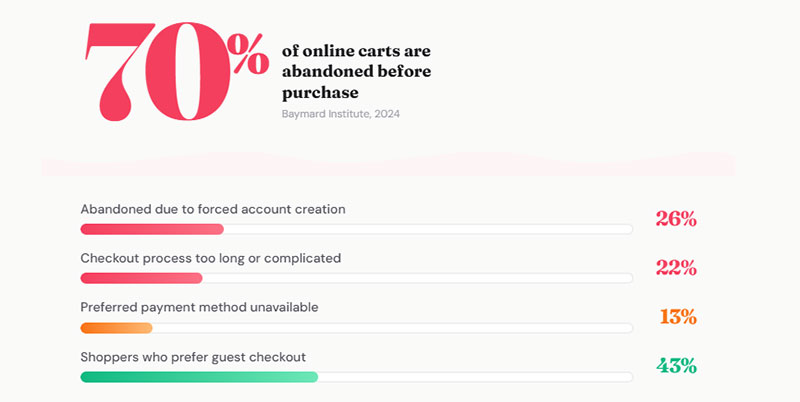
The global cart abandonment rate hit 70.19% in 2024 (Baymard Institute), and a sizeable slice of that traces back to account-required checkout flows.
26% of shoppers abandon their cart specifically because mandatory account creation gets in the way (Baymard Institute via PayPal, 2024). PayPal’s checkout historically required logging into a PayPal account. Guest checkout has improved this, and 43% of shoppers now say they favor guest checkout for online purchases (Drip, 2023).
For booking systems, abandonment at checkout means a lost appointment slot that may never get rebooked. A look at common appointment scheduling mistakes shows checkout friction as one of the top reasons clients fail to complete their booking.
Refund and Dispute Conflicts With Booking Cancellation Policies
PayPal’s buyer protection can override a booking platform’s no-refund terms. If a client files a dispute through PayPal’s Dispute Resolution Center, PayPal evaluates the claim on its own, independent of whatever cancellation policy the business published on its booking page.
To defend against chargebacks, businesses need to document three things: the booking confirmation emails, the client’s acknowledgment of the cancellation policy at checkout, and any communications after the booking was made. Most platforms generate the confirmation emails automatically. The policy acknowledgment at checkout is often an optional setting, but it should be switched on.
PayPal Fund Hold Policy for New Accounts
New PayPal sellers can have payments held for up to 21 days (PayPal, official help documentation). For a new service business launching with a PayPal booking system, that means the first several weeks of booking revenue may not be immediately accessible.
This is a genuine cash flow issue, not a minor inconvenience. Businesses that need immediate access to booking revenue should either set up their PayPal account well before launching the booking system, or consider a processor like Stripe that deposits funds in roughly 2 business days after the initial payout period.
How Does PayPal Compare to Stripe in a Booking System?
PayPal and Stripe are the two processors most commonly wired into booking platforms. They have similar base fees but very different approaches to developer flexibility, payout timing, and recurring billing.
Fee Comparison
Stripe’s base fee is 2.9% + $0.30 per transaction for standard card payments. PayPal’s standard PayPal Checkout fee is 3.49% + $0.49 per transaction for online payments (PayPal merchant fee schedule, 2026).
For low-ticket bookings, the fixed fee difference ($0.30 vs $0.49) matters more than the percentage gap. A $30 booking costs $1.17 in Stripe fees and $1.54 in PayPal Checkout fees. A $300 booking costs $9.00 in Stripe fees and $10.96 in PayPal Checkout fees. At high volume, that gap adds up.
Developer Flexibility and Recurring Billing
Stripe’s API is significantly more customizable than PayPal’s. Booking platforms built on Stripe can implement custom logic, dynamic pricing, and subscription billing with fewer constraints. PayPal’s Billing Agreements exist for recurring payments but are less straightforward to configure for session-based recurring bookings like weekly coaching or monthly retainers.
For small business scheduling software, this usually doesn’t matter, since the pre-built platforms handle the integration complexity. But if you’re building a custom booking tool or need recurring billing that charges clients automatically each week, Stripe handles that more cleanly.
Consumer Recognition and Trust
PayPal has 434 million active accounts globally (PayPal, end of 2024). That familiarity is a real conversion advantage in markets where PayPal is the default digital wallet. Clients who see a PayPal button at checkout already trust it, which takes the edge off any hesitation.
Stripe isn’t consumer-facing in the same way. Clients paying through Stripe see a generic card form or a branded checkout page, not the Stripe name. Stripe processes payments in more than 135 currencies. PayPal supports 25 currencies, which matters for booking businesses with international clientele.
| Factor | PayPal | Stripe |
|---|---|---|
| Standard checkout fee | 3.49% + $0.49 | 2.9% + $0.30 |
| Active accounts | 434 million (end 2024) | Not consumer-facing |
| Currency support | 25 currencies | 135+ currencies |
| Payout timing | ~3 business days | ~2 business days |
| Recurring billing | Billing Agreements (complex) | Native Subscriptions API |
| API customization | Moderate | Extensive |
The right choice between them comes down to who your clients are and how technically complex your booking flow needs to be. PayPal wins on brand recognition and ease of setup. Stripe wins on fee structure, recurring billing, and developer control. Platforms like Acuity Scheduling let you connect both at once, which sidesteps the choice entirely.
How to Set Up a PayPal Booking System Step by Step
Setup runs anywhere from 30 minutes to a few hours depending on the platform. The PayPal side is straightforward. Most of the configuration time goes into the booking platform itself.
Setting Up a PayPal Business Account for Bookings
Personal PayPal accounts can’t receive service payments in most regions, so a PayPal Business account is required. Setup is free and takes about 10 minutes.
After you create the account, a few things need verifying before you go live: identity verification (a government ID or SSN, depending on country), a linked bank account for withdrawals, and a confirmed business category, which affects which features and rates apply.
New accounts run into the 21-day payment hold mentioned earlier. Running a few low-value test transactions and building a short payment history before launching the full booking system helps clear that hold faster (PayPal, official documentation).
Connecting PayPal to Your Booking Platform
The connection process varies slightly across platforms but follows the same pattern. For most platforms using the PayPal Checkout SDK:
- Log into the PayPal Developer Dashboard and create an app to get the Client ID and Secret
- Go to your booking platform’s payment settings and select PayPal as the processor
- Paste the Client ID and Secret into the required fields
- Toggle between sandbox (testing) and live mode
- Configure the deposit amount, currency, and refund policy within the booking platform settings
Run three to five test bookings through the PayPal sandbox before you switch to live. Check that the booking confirmation email fires after payment, the calendar slot blocks correctly, and the refund flow works as expected. Those are the three failure points that most commonly cause problems in real transactions.
For WordPress-based setups, a WooCommerce appointments approach adds another configuration layer but gives more flexibility over product pages and pricing rules. If you’re building an appointment system on WordPress and plan to take online deposits through PayPal, that route is worth weighing against a standalone booking plugin.
Once the connection is live and tested, the booking system handles everything on its own. Clients book, pay via PayPal Checkout, get a confirmation email, and the calendar updates in real time. No manual steps on the business side unless a cancellation or refund needs processing.
What PayPal Features Directly Support Booking Workflows?
PayPal isn’t just a payment button. Several specific features within the PayPal Commerce Platform map directly to booking use cases, and most service businesses only ever use a fraction of what’s available.
PayPal Pay Later for High-Ticket Bookings
PayPal Pay Later (also called Pay in 4) lets clients split a booking payment into four interest-free installments. It’s especially relevant for higher-priced services where a single upfront payment makes people hesitate.
51% of Pay in 4 users are Millennials or Gen Z (Digital Silk, 2024). PayPal leads the BNPL category overall, used by 56% of BNPL users across all providers (LendingTree, 2024).
For a $400 photography session or a $600 multi-day tour, offering Pay Later at checkout can be the difference between a confirmed booking and an abandoned one. The business gets the full amount upfront. The client pays in installments. PayPal absorbs the split.
PayPal Invoicing for Low-Volume Booking Businesses
Not every business needs a full scheduling platform. PayPal Invoicing works as a lightweight booking payment tool for sole traders and freelancers handling a small number of sessions a week.
It’s simple enough: you create and send a professional invoice through the PayPal Business dashboard, the client gets an email link, and they pay by card, PayPal balance, or PayPal Credit. The PayPal REST API v2 also supports QR code generation directly from an invoice, so clients can scan and pay from any mobile device (PayPal Developer documentation).
Invoicing won’t automate calendar blocking or send booking confirmation emails. It handles the payment only. Pair it with a Google Calendar link or a basic booking form for a functional low-overhead setup.
PayPal QR Codes for In-Person Appointment Businesses
Walk-in and hybrid businesses, the salons, barbershops, and yoga studios with drop-in classes, can use PayPal Business QR codes for on-site payment collection. A client scans the QR at the front desk, completes payment through their PayPal app, and the transaction confirms instantly.
QR codes require a PayPal Business account. The in-person QR transaction rate is 2.29% + $0.09 per transaction, lower than the standard online PayPal Checkout rates (PayPal merchant fee schedule, 2026).
Businesses running a barber booking website alongside walk-in traffic can use the online booking system for pre-scheduled appointments and QR codes for same-day drop-ins, keeping all payments routed through a single PayPal Business account.
PayPal Subscriptions API for Recurring Bookings
Weekly coaching clients. Monthly retainer consultations. Recurring fitness class packages. All of these need a payment method that charges automatically on a set schedule rather than a fresh checkout for every session.
The PayPal Subscriptions API handles recurring billing configurations, including fixed billing cycles, trial periods, and plan upgrades. It’s separate from PayPal Billing Agreements (the older method) and is the current recommended approach for new integrations (PayPal Developer documentation).
Most off-the-shelf booking platforms don’t expose the full Subscriptions API in their UI. Businesses that need true recurring billing automation often need either a custom integration or a platform with native subscription support. Acuity Scheduling handles recurring packages but routes them through Stripe more cleanly than PayPal for this specific use case.
Platforms built for recurring class-based or session-based bookings are worth comparing if recurring billing is central to the business model. A studio scheduling software review shows which platforms have genuine recurring payment support versus basic workarounds.
How Does a PayPal Booking System Handle Cancellations and Refunds?
Cancellations and refunds are where PayPal booking setups create the most operational friction.
The mechanics are straightforward, but the clash between PayPal’s buyer protection policies and a booking platform’s cancellation terms catches businesses off guard.
PayPal’s Refund Window and Fee Structure
PayPal allows full refunds within 180 days of the original transaction. There’s no refund fee to the merchant, but the original transaction fee doesn’t come back.
On a $150 booking processed through PayPal Checkout, the merchant paid roughly $5.73 in fees (at 3.49% + $0.49). If that booking is refunded in full, the client gets $150 back and the business eats the $5.73 as a sunk cost. At scale, that adds up fast, especially for businesses with frequent cancellations.
Dispute fees apply separately, $15 standard, rising to $30 for high-volume merchants (PayPal merchant fee schedule, 2026). A chargeback through the client’s bank (bypassing PayPal entirely) costs $20 per occurrence (Chargebacks911, August 2024).
PayPal Buyer Protection vs. Booking Cancellation Policies
eCommerce chargeback rates rose 222% between Q1 2023 and Q1 2024 (Sift, Q4 2024 Digital Trust Index). Service businesses with no-refund or limited-refund policies are increasingly exposed.
72% of chargebacks are filed for illegitimate reasons (Chargebacks911, 2024 Cardholder Dispute Index). For booking businesses, “item not as described” and “service not received” are the two most common dispute categories, and both are hard to defend without documentation.
PayPal’s buyer protection can override a booking platform’s stated no-refund policy. A client who books a photography session, attends, then files a dispute claiming the service was “not as described” can initiate a chargeback through their bank. PayPal has 10 days to respond on the merchant’s behalf (PayPal Resolution Center documentation).
Defending successfully comes down to three specific kinds of evidence: the booking confirmation email showing the client acknowledged the cancellation policy, proof of service delivery (photos taken, session logs, communications), and a written record of any post-service contact with the client.
Automating Refunds Through Booking Platforms
Several booking platforms support automated PayPal refunds when a cancellation meets a specific threshold, and that automation matters. A business processing cancellations manually through the PayPal dashboard piles on administrative overhead that compounds at volume.
Acuity Scheduling can trigger refunds automatically when a client cancels within a defined window. Checkfront supports partial and full refund automation for rental and tour operators. SimplyBook.me has configurable cancellation rules with refund triggers.
The practical move is to set the cancellation policy window inside the booking platform to be shorter than PayPal’s dispute filing window (20 days for PayPal disputes, 180 days for chargebacks). A 48-hour cancellation policy with an automated refund outside that window gives the business a defensible paper trail if a dispute lands later.
For businesses managing cancelled appointments at volume, building automated refund logic into the booking platform is worth the configuration time. Manual refund processing through PayPal for every cancellation doesn’t hold up beyond a few bookings a week.
An event registration setup using PayPal runs into the same refund challenges, especially for multi-ticket events where partial refunds (one attendee cancels, the others stay booked) need manual handling unless the platform supports per-attendee refund logic.
How Does Deposit Collection Work in a PayPal Booking System?
Deposit collection is one of the most practical reasons to run a PayPal booking system. Taking a partial payment at booking cuts no-shows, protects revenue, and filters out low-commitment clients before they occupy a slot someone else would have taken.
No-Show Rates and the Financial Case for Deposits
No-show rates across appointment-based businesses run from 15% to 30% (Apptoto / Zenamu, 2025). Hair salons average 15%, fitness trainers 20%, and medical practices climb as high as 23% (Etisia, 2026; NIH systematic review).
For a service business with 30 weekly appointments at an average of $120 each, a 20% no-show rate costs roughly $37,440 in lost annual revenue. SMS reminders cut no-shows by 38-50% (Etisia, 2026). Deposits cut them further by giving the client financial skin in the game.
How PayPal Handles Partial Payments at Booking
| Method | How it works | Platform support |
|---|---|---|
| Split payment (platform-level) | Platform charges deposit at booking, balance collected later via separate PayPal transaction | Acuity Checkfront SimplyBook.me Trafft Amelia |
| PayPal Orders API partial capture | Authorize full amount at booking, capture deposit only, capture balance later | Custom integrations only |
The platform-level split payment approach is the one most businesses actually use. It charges the deposit as a separate complete PayPal transaction, not a partial capture of the total, which means two separate PayPal fees apply, one for the deposit and one for the balance. Worth factoring in when you set the deposit amounts.
Setting Deposit Amounts That Actually Reduce No-Shows
A deposit that’s too small doesn’t create enough commitment. A deposit that’s too large creates friction at checkout and drags down conversion.
The amounts tend to settle by business type. Hair and beauty salons usually take 20-30% of the service price. Photographers and videographers run 25-50% of the total package. Tour operators and rental businesses sit at 20-30%, sometimes the full 100% for short bookings. And coaches and therapists often just take the full session fee upfront, since it’s the simplest to administer.
Deposit logic is configured inside the booking platform, not PayPal. The platform passes the deposit amount to PayPal checkout as the transaction value, and PayPal processes it as a standard payment with no awareness that it’s a partial booking payment.
Businesses focused on reducing missed sessions should pair deposit collection with automated appointment reminders. A booking form that collects a deposit and triggers a reminder sequence 48 hours before the session cuts no-shows from both directions, financial commitment and timely notice.
For businesses wanting to see how deposit collection compares across booking tools before committing, a look at how appointment scheduling works effectively across different setups gives a useful framework for weighing platform flexibility against setup complexity.
FAQ on PayPal Booking Systems
Does PayPal have its own booking system?
No. PayPal doesn’t offer a native booking system. It works as the payment gateway layer inside third-party scheduling platforms like Acuity Scheduling, SimplyBook.me, or Bookly. The booking logic, calendar, and availability management come from the platform, not PayPal.
Which booking platforms support PayPal payments?
Acuity Scheduling, SimplyBook.me, Checkfront, Setmore, and Bookly all support PayPal natively. WooCommerce Bookings also works with the WooCommerce PayPal Payments plugin. Most major scheduling tools include PayPal as a supported payment processor in their settings panel.
Can I collect a deposit through PayPal when someone books?
Yes. Platforms like Acuity and Checkfront let you configure a partial deposit at the time of booking. The deposit processes as a standard PayPal transaction, and the remaining balance is collected separately, either manually or through an automated follow-up payment trigger.
What are PayPal’s transaction fees for booking payments?
PayPal charges 3.49% + $0.49 per transaction for standard online payments through PayPal Checkout. Standard card payments processed outside the Checkout flow cost 2.99% + $0.49. In-person QR code payments cost 2.29% + $0.09, the lowest rate PayPal offers for service businesses (PayPal merchant fee schedule, 2026).
How long does PayPal hold funds for new booking businesses?
New PayPal sellers can have payments held for up to 21 days. This applies to accounts with no established payment history. Building a track record with small transactions before launching the full booking system helps clear the hold period faster, per PayPal’s official documentation.
What happens if a client disputes a booking payment through PayPal?
PayPal opens a dispute case and may hold the funds pending resolution. Merchants have 10 days to respond with evidence. A standard dispute fee of $15 applies, rising to $30 for high-volume accounts (merchants with a dispute rate above 1.5%). Chargebacks filed directly through the client’s bank cost $20 per occurrence.
Can PayPal override my booking cancellation policy?
Yes, it can. PayPal’s buyer protection program evaluates disputes independently of your platform’s stated cancellation terms. A client can file a claim even if your policy says no refunds. Documenting the booking confirmation, the policy acknowledgment, and any service delivery evidence is your best defense.
Does PayPal support recurring payments for regular booking clients?
Yes, through the PayPal Subscriptions API. It supports fixed billing cycles, trial periods, and plan changes for recurring sessions like weekly coaching or monthly retainers. Most off-the-shelf booking platforms don’t expose this fully, so custom integrations or Stripe may handle recurring billing more cleanly.
Is PayPal or Stripe better for a booking system?
PayPal wins on consumer brand recognition with 434 million active accounts (end of 2024). Stripe wins on lower fixed fees ($0.30 vs $0.49), broader currency support (135 vs 25 currencies), and cleaner recurring billing through its native Subscriptions API. Platforms like Acuity let you connect both at once.
Can I use PayPal for event ticket booking and registration?
Yes. PayPal integrates with event registration platforms and supports ticket payment collection through standard checkout. It also works with PayPal Pay Later for higher-priced events, letting attendees split the cost into installments while the organizer receives the full amount upfront from PayPal.
Conclusion
This conclusion is for an article presenting the full picture of what a PayPal booking system actually involves, from integration mechanics to real operational costs.
PayPal works well as a payment gateway for appointment scheduling, but it is never the whole solution.
The scheduling interface, calendar availability engine, and booking confirmation logic all live inside the platform you choose, whether that is Acuity Scheduling, Checkfront, SimplyBook.me, or a WordPress-based setup.
Deposit collection reduces no-shows. The PayPal Subscriptions API handles recurring sessions. Buyer protection disputes require documentation from day one.
Pick the right booking platform for your business type, connect PayPal through the Developer Dashboard, test thoroughly in sandbox mode, and the system runs itself.
The post PayPal Booking System: Everything You Need to Know appeared first on Amelia WordPress Booking Plugin.
]]>The post WordPress Speed Optimization: How to Make Your Site Load Faster appeared first on Amelia WordPress Booking Plugin.
]]>If your WordPress site is slow, you’re already losing – visitors, rankings, and revenue. Research shows that even a one-second delay in page load time can reduce conversions by 7% (1), and Google has made site speed a confirmed ranking factor through Core Web Vitals.
The good news: WordPress speed optimization is not a mystery. There’s a clear, repeatable process you can follow to diagnose problems, apply fixes one by one, and actually measure the impact of each change. That’s exactly what this guide walks you through.
By the end, you’ll know how to speed up your WordPress site the right way – starting with a proper audit, moving through hosting, images, caching, JavaScript, CSS, and Core Web Vitals, and finishing with a testing workflow that makes sure your improvements actually stick.
Let’s get into it.
Measure First: Run a WordPress Speed Test Before Touching Anything
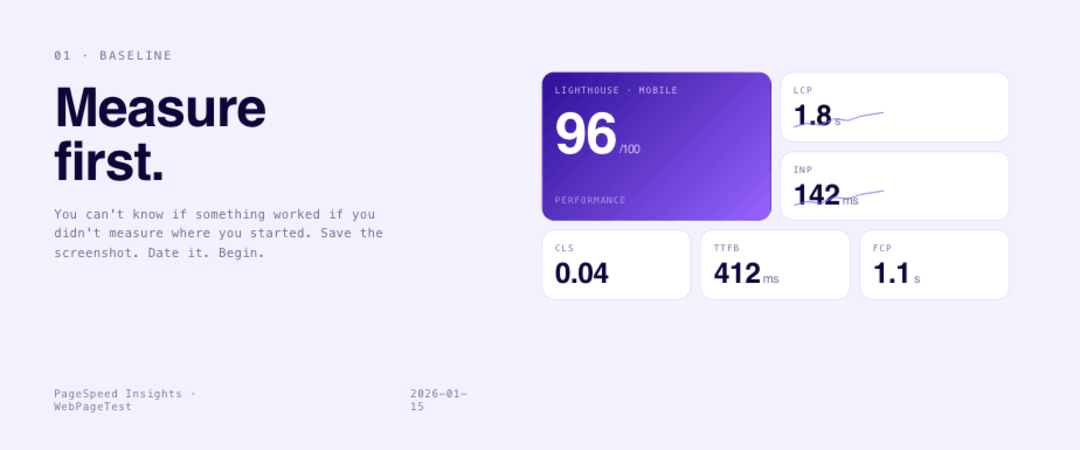
Before you change a single setting, you need a baseline. This is the most important rule in WordPress performance optimization – you can’t know if something worked if you didn’t measure where you started.
Run your site through both of these tools before making any changes:
- Google PageSpeed Insights – gives you both lab data (Lighthouse) and real-world field data from actual Chrome users. Use this as your main benchmark.
- WebPageTest – more technical and more powerful. The waterfall view shows you exactly what loads in what order, which makes it invaluable for diagnosing render-blocking resources.
What metrics to actually focus on
When your test finishes, don’t just stare at the overall score. Here’s what the individual metrics mean and what you’re aiming for:
What metrics to actually focus on for WordPress speed
| Metric | What It Measures | Target |
| LCP (Largest Contentful Paint) | How fast your main content loads | ≤ 2.5 seconds |
| INP (Interaction to Next Paint) | How quickly your page responds to clicks | ≤ 200ms |
| CLS (Cumulative Layout Shift) | Whether things jump around while loading | ≤ 0.1 |
| TTFB (Time to First Byte) | How fast your server responds | ≤ 800ms |
| TBT (Total Blocking Time) | How long the main thread is blocked | ≤ 200ms |
| FCP (First Contentful Paint) | When the first visible content appears | ≤ 1.8 seconds |
If your TTFB is above 800ms, your server is the problem – not your plugins or images. If your LCP is above 2.5 seconds, you likely have an unoptimized hero image or a render-blocking resource above the fold. Knowing which metric is broken tells you exactly where to focus.
A Lighthouse Performance score of 90+ is considered “Good.” For mobile, 75+ is a realistic and competitive target for most WordPress sites – and it’s worth bookmarking that number as your baseline before any optimization work begins.
One important thing to understand about these two data types
PageSpeed Insights shows you two types of data: field data (from real Chrome users) and lab data (a simulated test). Field data is what Google actually uses in its ranking algorithm. Lab data is what you can control and test in real time.
You want both to be green – but if you have to prioritize, fix the field data first.
Before moving on: Screenshot your results and save them. Name the file with the date and page name (e.g., homepage-pagespeed-before-2026-01-15). You’ll thank yourself later when you’re trying to prove that your changes worked.
Start With Your Hosting – The Foundation Everything Else Builds On
No amount of plugin configuration can fix a bad server. If your hosting is slow, your TTFB will be high, and everything downstream – LCP, FCP, the user experience – suffers.
Your TTFB result from PageSpeed Insights tells you a lot. A TTFB above 800ms is a clear signal that you need to look at your hosting environment before anything else.
Hosting types and what they mean for performance
Shared hosting is the most common cause of slow WordPress sites. When you’re on a shared server, your site competes for CPU and RAM with dozens or hundreds of other sites. On high-traffic days – especially someone else’s high-traffic days – your server might deprioritize your requests entirely.
If you’re on shared hosting and struggling with speed, the single highest-leverage thing you can do is upgrade.
VPS (Virtual Private Server) hosting gives you dedicated virtual resources. You’re still on a physical machine with other tenants, but your slice of CPU and RAM is reserved for you. Performance is dramatically more consistent.
Managed WordPress hosting (Kinsta, WP Engine, Cloudways, Rocket.net) takes this further by optimizing the entire server environment specifically for WordPress – with built-in caching, CDN integration, and PHP configuration tuned for WordPress workloads. The cost is higher, but the performance floor is much better.
Other server-side factors to check
- PHP version – Make sure you’re running PHP 8.1 or higher. Older PHP versions are significantly slower. You can check and update this from your hosting control panel.
- HTTP/2 or HTTP/3 – These protocols allow parallel loading of multiple files over a single connection, which is much faster than the older HTTP/1.1. Most quality hosts enable this by default, but it’s worth confirming.
- GZIP or Brotli compression – Text-based files (HTML, CSS, JS) should be compressed before being sent to the browser. Ask your host if this is enabled, or check via WebPageTest’s “Compression Savings” section.
Choose a Lightweight Theme and Audit Your Plugins
After hosting, your theme and plugins are the biggest contributors to page weight and load time.
What makes a theme “fast”
A performant WordPress theme does a few specific things:
- It loads only the scripts and styles that the current page actually needs. A theme that dumps its entire stylesheet on your blog post is not a fast theme.
- It uses native WordPress features instead of reinventing them with custom JavaScript.
- It has a modular architecture – features are modules you can turn off, not bundled code that always loads.
Well-known lightweight themes include Astra, GeneratePress, Kadence, and Blocksy. If you’re using a heavy page builder theme with a massive CSS file and dozens of JavaScript libraries, switching themes alone can dramatically improve your scores.
How to find plugin bloat
Every plugin you install can add HTTP requests, database queries, and JavaScript to your pages. The question isn’t “how many plugins is too many” – it’s whether each plugin earns its performance cost.
Here’s how to audit your plugins:
- Make a list of every active plugin.
- For each one, ask: what does this do, and is there a native WordPress feature or a lighter alternative that does the same thing?
- Deactivate plugins one at a time and re-run your speed test after each deactivation. If your score improves noticeably, you found a culprit.
Watch out especially for plugins that load scripts on every page even when they’re only used on one (contact form plugins are a common offender). Tools like Perfmatters let you disable specific plugin scripts on specific pages, which is one of the most targeted ways to reduce unnecessary JavaScript.
Not all plugins are performance liabilities – a well-built WordPress booking plugin like Amelia, for example, loads its scripts only on booking-enabled pages and adds no overhead to the rest of your site. The distinction is between plugins that respect your performance budget and those that don’t. Auditing them with a speed test is the only way to know for certain.
Master Your Above-the-Fold vs. Below-the-Fold Loading Strategy
This is one of the most impactful – and most overlooked – performance concepts in WordPress. How your assets load depends heavily on where they appear on the page relative to what’s visible when the page first loads.
What “above the fold” (ATF) means for performance
Above the fold refers to everything visible on screen before the user scrolls. For performance, ATF elements are critical because Google’s LCP metric measures how fast your largest visible content element appears. If your hero image, banner, or logo is slow to load, your LCP score takes a direct hit.
The rule for ATF assets: preload them. This means telling the browser to fetch them as early as possible in the loading sequence, before it even encounters them in the HTML. This applies to:
- Your hero image
- Promotional banners
- Logo and icons in the header
- Critical fonts used in above-fold text
You can verify which elements are actually above the fold on mobile by looking at the screenshot in PageSpeed Insights. It shows exactly what the browser “sees” on first paint.
One thing we’ve seen repeatedly when optimizing WordPress sites: accidentally applying both preloading and lazy loading to the same image. This happens more often than you’d expect – especially after plugin configuration changes, or when switching from one caching plugin to another – and it causes the browser to load the image twice. We spotted it on a booking plugin demo site where the hero image was being fetched twice: once via a preload link tag added by WP Rocket, and once more as the native browser discovered the <img> tag with no loading=”lazy” override. Check the Network tab in Chrome DevTools to confirm each asset loads exactly once.
Lazy load everything below the fold (BTF)
Everything below the fold should be lazy loaded – meaning the browser defers loading it until the user scrolls toward it. This dramatically reduces the initial page weight and lets the browser focus on rendering what’s actually visible first.
This includes:
- All images and icons below the fold
- Videos and iframes (YouTube, Vimeo, etc.)
- Background images in sections further down the page
- Any interactive widgets that aren’t immediately visible – including booking forms, event calendars, and scheduling widgets such as those built with a WordPress event plugin
Most WordPress caching and optimization plugins handle lazy loading for images. Make sure yours is turned on.
The decoding attribute: a small detail with a real impact
For images, the decoding attribute tells the browser how to prioritize decoding:
- ATF images: Use decoding=”sync” – the browser decodes the image immediately, which improves LCP.
- BTF images: Use decoding=”async” – the browser decodes in the background without blocking rendering.
This is a relatively small tweak, but it consistently improves LCP scores on pages with large hero images.
A note on videos and GIFs
Videos are one of the most common performance problems on WordPress sites. Never load an actual video player (iframe or <video> tag) above the fold on page load. Instead:
- Replace the video with a lightweight image placeholder (WebP, under 100KB, preloaded if ATF)
- Add a play button overlay to make it look clickable
- Load the actual video only when the user clicks
For YouTube embeds specifically, use a lazy-loaded facade. The thumbnail should be a WebP image preloaded if it’s ATF.
If you have different assets for mobile and desktop (for example, a GIF on desktop but a static image on mobile), make sure the device-specific asset is only loaded on the right device. Having both in the HTML – even if one is hidden via CSS – means both assets are downloaded.
Optimize Every Image on Your WordPress Site
Images are typically the largest contributor to page weight, and they’re the single most common cause of poor LCP scores. The good news is that image optimization is one of the easiest wins available to you.
The 100KB rule
Every image on your site – before any plugin compression – should be under 100KB. This is the standard to aim for before you upload anything to WordPress.
If you’re uploading a 2MB hero image and relying on a plugin to compress it down to something reasonable, you’re working against yourself. Compress and resize images before they enter WordPress, then let the plugin handle the final conversion and additional optimization.
Convert images to WebP
WebP is a modern image format that delivers significantly smaller file sizes than JPEG or PNG at comparable visual quality. For most images, you’ll see 25–35% size reduction compared to JPEG.
You don’t need to do this manually. Plugins like ShortPixel, Imagify, or the image optimization built into WP Rocket or NitroPack handle WebP conversion automatically. Enable it in your chosen plugin and make sure your server is configured to serve WebP to browsers that support it (all modern browsers do).
Always set fixed image dimensions
One of the most common causes of a high CLS score is images without defined width and height attributes. When the browser loads your page, it doesn’t know how much space to reserve for an image until the image file starts downloading – so it collapses that space, and everything below it jumps down when the image loads.
The fix is simple: always define width and height attributes on every image. Your developers should set these for every image for every screen size during development. This is non-negotiable for good CLS scores.
Write SEO-focused alt text and titles
Image alt text and titles aren’t just accessibility features – they’re ranking signals. Each image title and alt text should describe the image meaningfully and, where natural, include a relevant keyword.
Good title: Amelia Booking Plugin Dashboard
Bad title: screenshot-1234.png
Good alt text: Overview of Amelia’s booking plugin dashboard showing upcoming bookings for a spa business
Bad alt text: booking plugin screenshot
Keep alt text to approximately one sentence. It should describe what’s actually in the image in a way that would make sense to someone who can’t see it.
Fix Render-Blocking JavaScript and CSS
Render-blocking resources are scripts and stylesheets that force the browser to stop building the page until they’ve fully downloaded and executed. They’re one of the most common causes of poor TBT (Total Blocking Time) and delayed LCP.
Both PageSpeed Insights and WebPageTest will flag these directly. WebPageTest’s waterfall view is especially useful – you can see exactly which files are blocking the rendering of everything below them.
JavaScript: async vs. defer
When you have render-blocking JavaScript, you have two options: async or defer. Knowing when to use each matters.
Use async when:
- The script doesn’t depend on any other scripts
- Execution order doesn’t matter
- Typical examples: Google Analytics, third-party chat widgets, standalone tracking pixels
Use defer when:
- Scripts depend on each other and need to run in a specific order
- The script should execute after the HTML is fully parsed
- Typical examples: most scripts in the <head>, jQuery-dependent plugins
The key distinction: async scripts execute as soon as they’re downloaded (potentially out of order), while defer scripts wait until HTML parsing is complete and execute in document order.
Never use a plain <script> tag in the <head> without defer or async – it will block rendering every time.
For third-party scripts specifically (live chat, advertising, social embeds), consider adding a delay of a few seconds before they load. These scripts are almost never needed for the initial page render, and delaying them can meaningfully improve your TBT score.
CSS: critical vs. non-critical
CSS can be just as problematic as JavaScript for render-blocking. Here’s how to handle it:
For critical CSS (styles needed to render above-fold content):
- Use rel=”preload” as=”style” to start downloading the file as early as possible
- The browser will automatically switch to applying it as a stylesheet once loaded
- This gets your critical styles fast without blocking rendering
For non-critical CSS (styles only needed below the fold or in secondary states):
- Load asynchronously using the media=”print” trick with an onload handler
- Or load it after the page is interactive
Other CSS best practices:
- Minify all CSS files to remove whitespace, comments, and redundant rules
- Remove unused CSS – many page builders and themes load entire stylesheets for features your site doesn’t use. Plugins like PurifyCSS or the built-in unused CSS removal in WP Rocket can help, though test carefully as aggressive removal can break things.
- Don’t put too much CSS in the <head>. Every kilobyte in the head delays the first paint.
Set Up Caching and a CDN
Caching is one of the highest-leverage optimizations available in WordPress. Without caching, every page request triggers PHP execution and a database query. With caching, the server serves a pre-built static HTML file – dramatically reducing server response time.
How WordPress page caching works
When a visitor lands on a cached page, WordPress serves them the pre-generated static HTML version instead of rebuilding it from scratch. This bypasses PHP and database queries entirely, which is why TTFB drops so significantly with caching enabled.
Most caching plugins also handle browser caching (telling the visitor’s browser to store static assets locally for a period of time) and cache preloading (automatically generating cache files for your most important pages before anyone requests them).
Which caching plugin to use
The right choice depends on your hosting environment and technical comfort level:
- WP Rocket – The most beginner-friendly option. 80% of optimizations are active immediately on installation. Works on all hosts including managed WordPress hosts like Kinsta. Includes minification, lazy loading, and database cleanup. No free version ($59/year).
- LiteSpeed Cache – Free and extremely powerful if your host runs LiteSpeed Web Server. Includes image optimization via QUIC.cloud, object caching, and CDN. Requires more configuration than WP Rocket.
- NitroPack – A cloud-based solution that handles optimization on external servers, meaning your server resources aren’t consumed. Includes CDN, image optimization, and critical CSS generation. Has a free tier.
- W3 Total Cache – Free and highly configurable, but requires technical knowledge to set up correctly. Not ideal for beginners.
One critical rule: Never run two caching plugins simultaneously. They will conflict, and the results are unpredictable – usually broken pages.
CDN: what it does and when you need it
A Content Delivery Network (CDN) distributes your static assets (images, CSS, JavaScript) across servers in multiple geographic locations and serves each visitor from the location closest to them. This reduces the physical distance data has to travel, which directly reduces latency.
If most of your visitors are in one country, you may not see dramatic CDN improvements for dynamic page loads. But for static assets – especially images – a CDN will consistently shave load time for users who aren’t geographically close to your server.
Cloudflare is the most widely used free option. Many managed WordPress hosts include CDN functionality. WP Rocket integrates with Cloudflare and RocketCDN. NitroPack has its own built-in CDN.
If your WordPress site handles bookings or appointments – say, you’re running a salon booking plugin for WordPress – a CDN is especially important because your visitors come from a wide geographic area and every millisecond of TTFB affects whether they complete a booking.
Clean Up Your WordPress Database
Over time, your WordPress database accumulates a significant amount of junk that it doesn’t need: old post revisions, auto-drafts, spam comments, orphaned metadata, expired transients, and deleted content that was never fully purged. None of this is visible to users, but all of it slows down database queries.
What typically accumulates
- Post revisions – Every time you save a draft, WordPress saves a new revision. A post edited 30 times has 30 revisions in the database. Most of these are never needed.
- Auto-drafts – WordPress saves these automatically while you’re writing. They pile up.
- Spam and trashed comments – These are counted even after moving to trash.
- Orphaned metadata – When you delete a post, some associated metadata records aren’t always deleted with it.
- Expired transients – Plugins store temporary data as transients. Old ones accumulate after expiry.
- Pingbacks and trackbacks – Usually spam and rarely useful.
How to clean it up
Always back up your database before cleaning it. This is not optional – a bad database cleanup can break your site.
The easiest approach is a plugin that handles this safely. If you’re already using WP Rocket or WP-Optimize, database cleanup is built in. Perfmatters includes it too. For dedicated database management, WP-DBManager and Advanced Database Cleaner are reliable options.
Understand Your Core Web Vitals – And Actually Fix Them
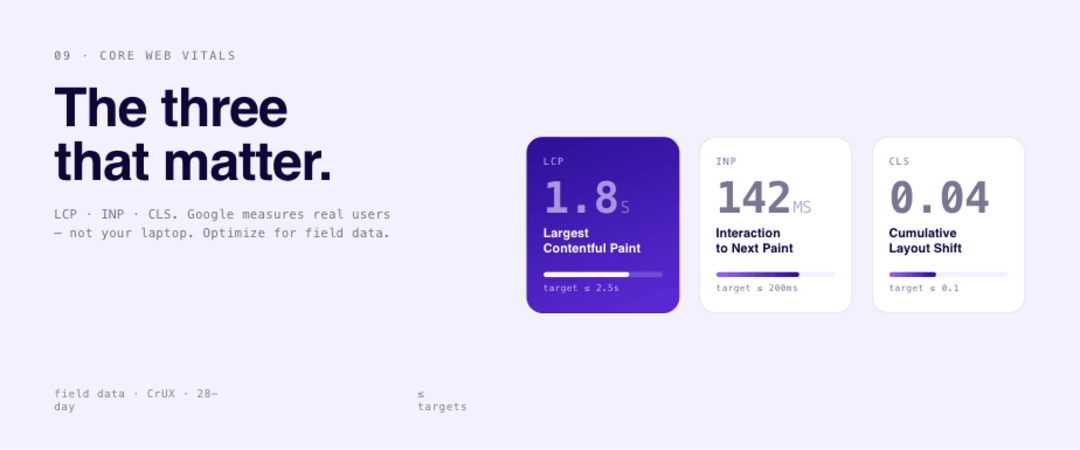
Core Web Vitals are Google’s standardized set of metrics for measuring real user experience. They’re not just a ranking factor – they’re a direct measure of how your site feels to use. There are three:
LCP – Largest Contentful Paint (target: ≤ 2.5s)
LCP measures how long it takes for the largest visible element on the page to fully render. This is usually your hero image, a large heading, or a prominent banner.
The most common causes of poor LCP:
- A large, unoptimized image above the fold (fix: compress and preload it)
- The image isn’t preloaded, so the browser discovers it late in the loading process
- Render-blocking CSS or JavaScript delaying the page from rendering at all
- Slow server response time (TTFB > 800ms)
LCP has phases: server response → resource load delay → resource load time → render time. You can see these phases in WebPageTest’s LCP breakdown. Address whichever phase is largest first.
INP – Interaction to Next Paint (target: ≤ 200ms)
INP measures how long it takes for your page to respond after a user interacts with it – a click, a tap, a keyboard input. It replaced First Input Delay (FID) in March 2024 and is a much more comprehensive measure of interactivity.
The most common causes of poor INP:
- Long JavaScript tasks blocking the main thread (check TBT in Lighthouse – high TBT usually means high INP)
- Heavy click handlers or event listeners on interactive elements
- Too many third-party scripts executing in the foreground
Fixes: Use defer for non-critical scripts, delay third-party scripts, reduce JavaScript bundle size, break up long tasks with requestAnimationFrame or scheduler.yield.
CLS – Cumulative Layout Shift (target: ≤ 0.1)
CLS measures how much the page layout unexpectedly shifts while loading. A page that “jumps” when an image loads, an ad appears, or a font swaps is experiencing layout shift.
The most common causes of poor CLS on WordPress sites:
- Images without defined width and height attributes (fix: always set dimensions)
- Web fonts loading and causing text to reflow (fix: use font-display: swap and preload critical fonts)
- Ads or embeds that inject content without reserved space
- Elements injected by JavaScript that push other content down
Lab data vs. field data – know the difference
Lighthouse (lab data) runs in a controlled, ideal environment. It’s useful for development and testing. But it doesn’t represent real user conditions – real devices, real network speeds, real browser extensions.
Field data (from the Chrome User Experience Report, shown in PageSpeed Insights as “Discover what your real users are experiencing”) is what Google actually uses in its ranking algorithm. It’s collected from real Chrome users across 28 rolling days.
Your lab score and field data can differ significantly. Always check both, and always prioritize fixing field data issues.
Test After Every Change – One Thing at a Time
This is the rule that separates productive optimization work from guesswork.
Change one thing, then test. If you change your theme, update your caching plugin settings, and enable CDN all at once, and your score improves, you have no idea which change helped or whether one of the changes was actually hurting you. If your score gets worse, you have no idea what caused it.
The testing workflow is simple:
- Record your baseline score (you did this in step 1)
- Make one change
- Run PageSpeed Insights and WebPageTest again
- Record the new score alongside a description of what you changed
- If the change helped, keep it. If it didn’t, revert it.
Always test both mobile and desktop. Mobile scores are almost always lower, and mobile is where Google primarily indexes your site. Don’t declare victory because your desktop score is green.
Save your test results. PageSpeed Insights results disappear after a period of time. Use the GoFullPage Chrome extension to screenshot the full results page, or just screenshot the Lighthouse section. Name your screenshots clearly and store them in a shared folder where your team can access them.
This methodology isn’t just good for performance – it’s good for accountability. When a developer deploys a change, they should run a performance test before and after and attach the screenshots to the relevant task or ticket. If you’re building sites for clients or running a WordPress booking plugin for web developers, this documentation practice protects you and gives clients clear evidence of the improvement delivered.
Quick Checklist: WordPress Speed Optimization in One Page
Use this as a reference when auditing a WordPress site for performance.
Baseline Testing
- Run PageSpeed Insights on key pages (homepage, landing pages, top blog posts)
- Run WebPageTest and review the waterfall view
- Note LCP, INP, CLS, TTFB, TBT, and FCP for both mobile and desktop
- Save screenshots of baseline results
Hosting & Server
- TTFB is under 800ms (if not, investigate hosting)
- Running PHP 8.1 or higher
- HTTP/2 or HTTP/3 enabled
- GZIP or Brotli compression enabled
Theme & Plugins
- Theme is lightweight and loads only needed scripts/styles
- No unused or duplicate plugins installed
- Plugin scripts are disabled on pages where they’re not needed
Above the Fold
- Hero image, logo, header icons are preloaded
- No image has both preload and lazy load applied simultaneously
- ATF images use decoding=”sync”
- Videos above the fold use a lightweight image placeholder (WebP, <100KB)
- Mobile-only and desktop-only assets are only loaded on the correct device
Below the Fold
- All BTF images, icons, videos, and iframes are lazy loaded
- BTF images use decoding=”async”
Images
- All images are under 100KB before upload
- Images are converted to WebP
- All images have defined width and height attributes
- Alt text is descriptive (one sentence, image content + context)
- Image titles are SEO-focused
JavaScript & CSS
- No render-blocking JavaScript in <head> without async or defer
- Third-party scripts are delayed (3+ seconds) or loaded asynchronously
- Critical CSS is preloaded; non-critical CSS loads asynchronously
- CSS and JS files are minified
- Unused CSS is removed
Caching & CDN
- A caching plugin is installed and configured (WP Rocket, LiteSpeed Cache, NitroPack)
- Browser caching is enabled
- Cache preloading is enabled
- CDN is configured for static assets
Database
- Database is backed up
- Post revisions are cleaned up
- Spam, draft, and trashed content is purged
- Expired transients are removed
Core Web Vitals
- LCP ≤ 2.5s (check field data in PageSpeed Insights)
- INP ≤ 200ms (check field data)
- CLS ≤ 0.1 (check field data)
- All <h1> through <h6> tags are used for content hierarchy, not styling
Testing
- Changes are made one at a time
- Mobile and desktop are both tested after each change
- Before/after screenshots are saved
Frequently Asked Questions
How do I check my WordPress site speed?
Use Google PageSpeed Insights for both lab and real-user data, and WebPageTest for a detailed waterfall analysis. Run tests on your most important pages – homepage, product/service pages, and top blog posts. Test mobile and desktop separately.
What slows down a WordPress site the most?
The most common culprits are: slow hosting (high TTFB), unoptimized images (especially above the fold), render-blocking JavaScript and CSS, too many poorly-coded plugins, and no caching configured. In most cases, fixing just two or three of these will produce a significant improvement.
How fast should a WordPress site load?
For Core Web Vitals, aim for LCP under 2.5 seconds, INP under 200ms, and CLS under 0.1. For overall load time, under 3 seconds on mobile is a solid target. A Lighthouse Performance score of 90+ is considered “Good” – for mobile, 75+ is a realistic competitive target. Focus on Core Web Vitals over raw load time – they’re what Google actually measures.
Does the number of plugins affect WordPress speed?
Yes, but the number alone isn’t the issue – it’s what each plugin loads and where. A site with 30 well-coded plugins can outperform one with 8 bloated ones. For example, Amelia is a WordPress booking and appointment plugin that loads its scripts only on pages where booking functionality is active – so it doesn’t add overhead to the rest of your site. The key is making sure each plugin only loads its scripts on pages that actually use it, and that no two plugins duplicate the same functionality.
Which is the best caching plugin for WordPress?
It depends on your setup. WP Rocket is the most beginner-friendly and works everywhere. LiteSpeed Cache is the best free option if your host uses LiteSpeed Web Server. NitroPack has the highest real-world Core Web Vitals pass rate and handles optimization automatically. Avoid running more than one caching plugin at a time.
What’s the difference between Lighthouse scores and Core Web Vitals?
Lighthouse (lab data) simulates performance in a controlled environment – it’s useful for testing and development. Core Web Vitals (field data) are collected from real Chrome users and represent actual performance on real devices and connections. Google uses field data for ranking. Both are important, but field data is the one to optimize for if you’re prioritizing SEO impact.
Do I need a CDN for my WordPress site?
If your audience is geographically concentrated near your server, the impact is smaller. But if you have visitors from multiple regions, a CDN meaningfully reduces load time by serving assets from a location closer to each user. Cloudflare is free and easy to set up. Many managed WordPress hosts include CDN. For image-heavy sites, a CDN almost always pays off.
References
The post WordPress Speed Optimization: How to Make Your Site Load Faster appeared first on Amelia WordPress Booking Plugin.
]]>The post How to Make Money Hosting Events: The Only Guide You Need appeared first on Amelia WordPress Booking Plugin.
]]>But most people have no idea how to make money hosting events beyond selling tickets and hoping for the best.
The reality is that event revenue comes from multiple streams at once: sponsorship packages, vendor fees, upsells, and recurring ticket sales. Miss even one of them and you’re leaving real money on the table.
This guide covers everything from ticket pricing strategies and brand partnerships to virtual event income and the tools that keep your margins intact.
By the end, you’ll have a clear picture of how event profitability actually works, and how to build it deliberately.
What Hosting Events for Profit Means
There’s a lot of confusion about this, so let’s clear it up fast. Hosting events for profit and event planning are two completely different roles, and mixing them up is the first mistake most people make.
When you host events for profit, you own the event. You keep the revenue. You also absorb the risk. An event planner, on the other hand, gets paid a flat fee or a percentage to execute someone else’s vision.
That distinction matters a lot when you’re figuring out your business model.
Key difference: With event hosting, your upside is uncapped. Your downside is also real. Poor attendance, a bad venue deal, or a last-minute cancellation can wipe out your margins in one shot.
The profit model depends entirely on which side of the transaction you control. Most people who ask how to make money hosting events are actually asking how to build a recurring event income stream, not just execute a single paid gig.
Both approaches can work. But they require different thinking from day one.
| Role | Revenue Model | Risk Level | Upside |
|---|---|---|---|
| Event Host | Ticket sales, sponsorships, upsells | High (you own the P&L) | Uncapped |
| Event Planner | Fixed fee or % of budget | Low (client bears risk) | Capped at fee |
| Venue Partner | Rental + revenue splits | Moderate | Predictable, recurring |
The event industry data consistently shows that hosts who understand their revenue model from the start outperform those who figure it out mid-planning. Worth knowing before you book anything.
Event Types That Generate the Most Revenue
Not all events are equal when it comes to profit potential. Some formats consistently produce strong margins. Others look great on paper and barely break even.
The global events industry generated $122.28 billion in revenue in 2023 (Brainy Insights), with corporate events and seminars holding the largest single segment share at 32.3%. That tells you where money is actually flowing.
Ticketed Experiences
Workshops, conferences, and niche community events sit at the top for independent hosts. Low venue overhead and high repeat attendance potential make these the most reliable path to event profitability.
- Paid workshops (skills-based, professional development)
- Conferences and summits in specialized industries
- Music and arts events with defined fan communities
- Fitness and wellness events (these have strong fitness event ideas that monetize well)
Corporate and Private Hire Events
Corporate events and seminars were valued at $304.60 billion globally in 2023 (Technavio). This segment grows at 8.86% CAGR, the fastest among all event types.
Private hire sits slightly differently. You negotiate a fixed fee upfront, which removes ticket sales uncertainty. Corporate clients also tend to have larger budgets and clearer briefs.
Niche vs. Broad Events
Vesta’s 2025 Event Trends Report found that only 12.5% of promoters in 2024 saw “plenty of room for new events” in their markets, down from roughly one-third in 2023. Broad events face fierce competition. Niche events with a defined audience and a reason to attend still have real room to grow.
Coachella is the obvious reference point at scale, but locally, a well-run monthly networking event for a specific industry vertical can generate steady recurring event income with almost no overhead. That’s actually the model worth studying.
| Event Format | Revenue Potential | Best For |
|---|---|---|
| Corporate seminars | High (consistent budgets) | Established hosts with B2B networks |
| Ticketed workshops | Medium-high | Niche expertise holders |
| Virtual conferences | Medium (lower overhead) | Global reach, content-heavy formats |
| Recurring community events | Lower per event, higher lifetime value | Audience-building focused hosts |
How Ticket Pricing Works
Pricing is the single decision that affects event revenue more than almost anything else. Set it wrong and you either leave money on the table or kill demand before the event even has momentum.
The average ticket price in 2024 sat around $41.90, with smaller organizers averaging $19 versus $59 for larger events (Vesta 2024). Your price needs to reflect your event’s actual positioning, not just what feels reasonable.
Tiered Pricing
Strategic tiered pricing consistently drives 25-40% more revenue while attracting larger audiences, based on analysis of 1,000+ events (SimpleTix, 2024).
The structure that works:
- Early bird: 25-30% below regular rate, covering first 30% of capacity
- General admission: Core pricing, covering roughly 40% of capacity
- Late tier: 15-20% above regular, as demand builds
- VIP: Premium access with clear differentiation in experience, not just a label
One festival organizer restructured their pricing tiers and added $247,000 in revenue without changing anything else about the event (SimpleTix, 2024). The math is real.
Platforms for Ticket Sales
Choosing the wrong platform quietly kills your margins. Most organizers underestimate how much platform fees affect final revenue per ticket.
Eventbrite and Ticket Tailor are the most commonly used for independent hosts. Eventbrite’s reach is larger, but Ticket Tailor’s flat-fee model often works out better for events with higher ticket volumes. Selling tickets on WordPress is also worth considering if you want to avoid per-ticket commissions entirely and keep the customer relationship on your own domain.
For events using WordPress as a base, options like WooCommerce events calendar integrations can handle ticketing without paying platform fees on every sale. That difference compounds fast at scale.
Free Events That Still Make Money
Free admission is a real strategy, not a fallback. 56% of attendees would use buy now, pay later for tickets over $100, and 51% are more likely to attend if installment payment is available (Eventbrite 2025 TRNDS Report). For free events, the monetization path shifts to sponsorships, upsells on-site, and vendor fees. The event ticket pricing approach changes completely, but the profit potential does not.
Sell More Event Tickets with Amelia
Amelia’s event management plugin handles the full booking process from first click to payment confirmation. Used by 30,000+ event businesses.
What You Get Out of the Box
Flexible ticketing lets you create general admission, VIP, early-bird, age-based, and deposit payment options. Attendees pick what fits them, you pick when sales open and close.
Automated emails go out instantly after purchase, then again as reminders before the event. Fewer no-shows, less manual follow-up.
Real-time availability updates prevent overbooking and keep ticket counts accurate across all sessions.
Payment gateways supported: WooCommerce, PayPal, Stripe, Mollie, and Razorpay. All in one license, no add-ons needed. This makes ecommerce payment processing simpler by supporting multiple popular payment options in one solution.
Reporting and analytics give you a clear view of ticket sales, revenue, and attendee data per event.
Scheduling Options
- Single-day events
- Multi-day events
- Recurring events (daily, weekly, monthly, yearly, or custom schedule)
- Multiple locations per event
Calendar and Booking Views
Amelia includes both a calendar view and a list view for displaying events on the front end. Attendees can browse, get event details, and buy tickets without leaving your site.
Integrations
Google Calendar and Outlook sync keep your hosts on schedule. Zoom and Google Meet are supported natively for virtual and online events. Attendees can also add events directly to their own calendars.
Want the full feature list? Check out everything Amelia can do.
Sponsorship and Brand Partnerships
Sponsorship is the most underused revenue stream for independent event hosts. Most people think it’s only for large-scale events. It’s not.
In 2023, $97.4 billion was invested in sponsorship globally, with sponsorship making up 12% of the average brand’s marketing budget (Event Academy). The money is there. Getting access to it comes down to how you package the offer.
What Sponsors Actually Want
Vague exposure is not enough anymore. Sponsors in 2024 want data, qualified leads, and something measurable they can put in front of their leadership team.
Lead generation: Direct access to your attendee list or on-site capture tools.
Brand visibility: Logo placement, stage presence, named sessions. The sponsorship segment held a 46.3% share of the global events industry revenue in 2023 (Allied Market Research), largely because it delivers brand awareness at scale.
Audience data: Demographics, engagement metrics, post-event survey results.
Learn more about how to get sponsors for an event and what a proper outreach process actually looks like. Most event hosts skip the research phase entirely, which is why they get ignored.
Structuring a Sponsorship Package
Sponsors who see strong ROI renew at 70%+ rates and often come back with bigger budgets (Guidebook). Your job is to make the ROI story easy to tell.
- Title sponsorship (naming rights, maximum visibility)
- Category sponsorship (exclusive rights to a vertical like “official tech partner”)
- Session or stage sponsorship (tied to specific programming)
- Local business sponsorship (smaller dollar amounts, easier to close)
An event proposal template helps structure these conversations. Before you send anything, treat the outreach like a sales proposal: lead with the audience data, show the ROI clearly, and make the ask specific. Sending a well-formatted deck with tiered package options converts far better than a casual email pitch.
Also, 91% of large-scale event hosts generate revenue through sponsorship-based sessions (Markletic). Even mid-size events can use this model by letting sponsors “own” a breakout session or workshop slot.
Venue and Vendor Revenue Splits
This section covers money most first-time hosts completely miss. The arrangement between you and your venue or vendors can either add a meaningful revenue stream or quietly drain your margins depending on how you negotiate it.
Food and beverage sales are the biggest revenue driver after ticket sales for event organizers, according to Eventbrite’s 2025 TRNDS Report. Live Nation data confirms on-site per-attendee spending topped $40 at amphitheater shows in 2023.
Bar and Catering Splits
Negotiating a revenue share on bar and food sales is standard practice in venue agreements. Most venues default to keeping 100% of F&B revenue. You can push back on this, especially if you’re bringing volume.
A split of 15-25% on bar revenue is realistic for hosts bringing 200+ attendees. Less than that and it probably is not worth complicating the agreement.
Vendor Table Fees
Markets, pop-ups, and expos use this model regularly. You charge vendors a flat fee for table or booth space, usually $50 to $500 depending on event size and foot traffic expectations.
- This revenue is collected upfront, before a single ticket sells
- Vendors also help promote the event to their own audiences
- Works especially well for craft markets, wellness expos, and trade-style events
Co-Hosting Arrangements
Co-hosting splits both costs and profits between two or more organizers. This reduces your financial exposure significantly, especially for a first event in a new format or location.
The tradeoff: You give up some control over decisions and split the upside. Worth it early on, less so once you’ve proven the model.
One practical approach is partnering with a venue directly as a co-promoter rather than renting the space outright. The venue takes a percentage of ticket revenue instead of a flat rental fee. Your upfront cost drops to near zero. Their incentive to help fill the room goes up. Taken seriously, this is one of the more underrated ways to reduce the cost structure of event hosting as a business.
Upsells and Add-On Revenue Streams
Ticket revenue gets most of the attention. Upsells are where experienced hosts actually build their margins.
Two in five consumers are willing to pay extra for an event focused on community building, and 51% are more likely to attend if flexible payment options exist (Eventbrite 2025 TRNDS Report). That willingness to spend more extends well beyond the ticket itself.
On-Site Upsells
Meet-and-greets, backstage access, early entry, and reserved seating all convert well when they are offered clearly and early. The mistake is waiting until the event to mention them.
Merchandise is another consistent performer. Coachella reportedly generates tens of millions annually from branded merchandise alone, but even a small local event can build meaningful merch revenue with a focused approach.
Selling relevant and valuable merchandise, meaning products your specific audience actually wants rather than generic branded items, is what separates merch that moves from merch that sits in a box after the event. A few hundred dollars in upfront inventory can return two to three times that on the day.
If your event has a content angle, pairing it with a podcast adds another layer of interaction with your audience and opens up additional monetization options between events.
Post-Event Revenue
This one surprises people. The event ending does not mean the revenue stops.
- Replay recordings sold as on-demand access
- Session slides or workshop materials packaged as downloads
- Photo packages from event photographers
- Follow-up online courses tied to event content
For digital content specifically, a WordPress plugin for online courses lets you package recorded sessions into a paid course without building a separate platform.
VIP and Premium Experiences
VIP pricing targets attendees willing to pay more for enhanced experiences and can significantly increase per-ticket revenue while serving your highest-value customers.
The key is real differentiation. “VIP” needs to mean something tangible, not just a different coloured wristband. Priority seating, dedicated staff, private networking sessions, exclusive speaker access. These justify a 2-4x premium over general admission when delivered well.
Done right, upsells can add 30-50% on top of base ticket revenue without adding proportional costs. That is where event profit margins actually move.
Virtual and Hybrid Events as a Revenue Channel
Virtual events are not just a backup for when in-person is too expensive. They are a full revenue model on their own. The global virtual events market hit $98.07 billion in 2024 and is projected to reach $297.16 billion by 2030 at a 20% CAGR (Grand View Research).
That growth matters for independent hosts. Lower production costs, no venue deposits, and broader audience reach make virtual formats genuinely attractive, not just convenient.
Revenue Breakdown by Format
Virtual events generate 12% more revenue per attendee compared to in-person events on average, and save around $42,000 per event in overhead (99firms). That margin difference is what makes them worth taking seriously.
| Format | Cost Profile | Revenue Upside | Best For |
|---|---|---|---|
| In-person | High (venue, AV, catering) | Highest per-attendee spend | Premium, experiential events |
| Virtual | Low (platform fees only) | Higher margin per ticket | Webinars, summits, courses |
| Hybrid | Medium | Up to 15% revenue lift | Conferences with global audience |
Platforms Worth Using
Platform choice affects both the attendee experience and your net revenue. Most hosts start with Zoom Events or Hopin for simplicity. Airmeet and Riverside work better when you want broadcast-quality output with replay potential built in.
If your events are content-heavy and you want to build a library of recorded sessions, distributing through an OTT platform lets you sell on-demand access long after the live event ends, without relying on a third-party ticketing site to host the content.
For WordPress-based operations, an EventOn integration or a dedicated virtual events calendar handles registration and scheduling without sending attendees to third-party platforms.
Hybrid Events
Hybrid events can increase attendance by up to 50% and boost attendee engagement by as much as 80%, according to ElectroIQ 2024 data. The ROI case is strong. 86% of B2B organizations report a positive return from hybrid events within 7 months (Markletic).
Worth knowing: hybrid event ideas do not require enormous production budgets. A livestream component added to an existing in-person workshop is enough to open a second revenue stream through virtual ticket sales.
Costs That Kill Event Profits
Profit margins in event hosting are not lost at the ticket pricing stage. They erode during execution, through costs that compound quietly until the final P&L looks nothing like the original plan.
Food and beverage represents the largest expense area for planners at 73%, followed by AV setups at 66% and venue costs at 29% (Fielddrive 2025). Knowing this does not automatically save money. Understanding which of these you can control does.
The Venue Deal
Venue deposits and hidden fees are the most common first hit. Always negotiate the full fee structure upfront, including setup and breakdown time, which venues frequently charge separately.
Watch for: overtime charges, mandatory AV packages at inflated rates, minimum F&B spends that exceed your realistic consumption, and cleaning fees that arrive after the event.
One Studio 87 venue owner in Baltimore documented a clear pattern: the events that drained margins were almost always ones where the fee structure was agreed verbally rather than in writing.
Catering Over-Orders
Catering overproduction costs operators 5-12% of total food cost on average (Wexford Insurance, 2025). For an event with $8,000 in catering, that is $400-$960 leaving your margin for no reason.
Set hard RSVP deadlines and use attendance tracking tools. Order to 85-90% of confirmed attendees, not 100%.
Marketing Without Tracking
Event promoters expanded their average marketing channels from 4.79 in 2022 to 9.5 in 2024 (Vesta 2025). More channels without attribution data means more spend with no clarity on what actually sold tickets. Before launching any marketing campaign, map out exactly which actions you want to track and set up your UTM parameters first.
- Use UTM parameters on every promotional link
- Track which channel drove registrations, not just clicks
- Cut channels that produce traffic but no conversions
Refunds and Chargebacks
A permissive refund policy combined with poor cancellation terms is a fast way to lose event revenue after the fact. Set clear terms at checkout. Use platforms that support partial refund structures so you are not forced to issue full refunds for late cancellations.
Stripe and Square both handle chargeback disputes better than manual invoicing. Worth factoring into your payment setup early rather than after a dispute arrives.
Tools and Platforms for Managing Event Revenue
The tools you use affect how much you actually keep from every ticket sold. Platform fees compound at scale. Getting this stack right matters.
Eventbrite reported $326 million in revenue in 2024, a 23% year-over-year increase, driven by a 40% surge in paid creators (PortersFiveForce). That growth tells you the ecosystem is busy and competitive, so platform choice is a real decision.
Ticketing Platforms Compared
| Platform | Fee Structure | Best For |
|---|---|---|
| Eventbrite | 3.5–7.5% + fixed per-ticket fee | Discovery, large audiences |
| Ticket Tailor | Flat monthly fee | High-volume recurring events |
| Luma | Free for most events | Community and niche events |
| WordPress plugins | One-time cost or subscription | Hosts who own their audience |
For WordPress-based event hosting, WordPress Eventbrite integration brings ticketing into your existing site without losing Eventbrite’s discovery reach. Alternatively, Event Espresso or WP Event Manager handle registration natively with no per-ticket commissions.
Payment Processing
Stripe is the default choice for most independent event hosts. Instant daily payouts improve cash flow significantly compared to platforms that hold funds until after the event. Square works well for on-site sales, particularly merchandise and upsells during the event itself.
For events with attendee registration through WordPress, a PayPal booking system or a WordPress event registration form with Stripe connected handles checkout without relying on third-party ticketing commissions.
P&L Tracking
Most organizers track ticket sales but miss the full cost picture. QuickBooks or a simple spreadsheet with consistent categories gives you the data you need to run a real break-even analysis before committing to the next event.
Track: ticket revenue by tier, sponsorship income, vendor fees collected, upsell revenue, and then costs line by line. Vague “event expenses” categories are useless for improving margins on the next event.
Email and CRM Tools
Organic social media and email marketing drive the most tickets sold for repeat events, according to Vesta 2025. Mailchimp and ConvertKit both integrate directly with Eventbrite and most WordPress ticketing plugins, keeping your attendee list in one place across events.
Julia McCoy, who hosted Content Hacker Live in Austin in 2024, sold 200 tickets primarily through 50+ targeted emails to an engaged list of under 5,000 subscribers, confirming that list quality outperforms list size every time (Beehiiv, 2024).
Scaling from One Event to a Recurring Business
Email is the most reliable channel. According to Vesta 2025, organic social and email drive more ticket sales than paid channels for events with repeat audiences.
Running a content marketing campaign between events, whether that is a newsletter, a short video series, or a behind-the-scenes blog, keeps your audience engaged and reduces how much you need to spend on paid promotion for each new ticket launch. Your list from event one is your marketing budget for event two.
Teams that adopted event-led growth strategies were 75% more likely to see over 50% revenue growth in 2023 compared to those who did not (Splash 2024). The difference is treating events as a repeatable system, not a one-off project.
Audience Between Events
The work that scales an event business happens between events, not during them. Solid event marketing does not start the week before tickets go live. It runs continuously, keeping your audience warm between launches so you are not starting from zero every time.
- Build an email list from every event, not just a post-event thank you sequence
- Create a community space (Slack, Discord, Facebook Group) that stays active between events
- Send content between events so your list stays warm, not just active during ticket launches
Email is the most reliable channel. According to Vesta 2025, organic social and email drive more ticket sales than paid channels for events with repeat audiences. Your list from event one is your marketing budget for event two.
Cadence and Format Decisions
Annual vs. monthly events is a real strategic decision that most new hosts skip. Monthly recurring events build audience familiarity faster but require much lower production overhead. Annual events justify higher ticket prices and larger sponsorship packages.
A single event marketer planned an average of 14 events in 2023, roughly one per month (Splash 2024). At that volume, systematizing everything, from venue contracts to ticketing flows, is what separates profitable operations from chaotic ones. Good event management skills compound here. The more organized you are behind the scenes, the more you can actually produce.
When to Register as a Business
Once you move past your first two or three events and revenue becomes consistent, operating as a sole trader is a real liability risk. Sponsorship agreements and venue contracts become more favorable once you have a registered business entity, an operating agreement, and a business bank account.
Consulting a local accountant before signing your first major sponsorship deal costs a few hundred dollars. Getting hit with unexpected tax exposure on event revenue costs considerably more. Good event planning resources will flag this, but it’s one of those things most new hosts find out the hard way.
Licensing and Expansion
Once you’ve proven a format works, you have options beyond just running the same event again. Licensing your event concept to organizers in other cities, franchising the format, or creating a digital version for virtual access all let you grow revenue without proportionally growing your workload.
This is where the real upside in event hosting as a business lives. Not in running more events yourself, but in owning a format that others want to replicate.
FAQ on How To Make Money Hosting Events
How much money can you make hosting events?
It varies widely. Small recurring events can generate $500-$3,000 per event. Larger ticketed experiences with sponsorship and upsells can produce $10,000-$50,000 or more. Event profitability depends heavily on your pricing model and cost control.
What types of events make the most money?
Corporate seminars, paid workshops, and niche conferences consistently generate the strongest margins. Private hire events offer predictable income with less risk. Recurring event income from monthly community formats builds the most reliable revenue over time.
Do you need a large audience to profit from hosting events?
No. A focused audience of 50-100 people paying premium ticket prices outperforms a crowd of 500 paying very little. Niche events with high willingness to pay deliver better event revenue streams than broad, low-ticket formats.
How do event hosts make money beyond ticket sales?
Sponsorship packages, vendor table fees, merchandise, VIP upsells, and post-event replay sales all add income. Food and beverage revenue splits with venues are another option. Most profitable hosts use at least three of these simultaneously.
How do you get sponsors for an event?
Build a sponsorship deck with audience data, attendance projections, and tiered packages. Approach local businesses first. Brand partnerships convert better when sponsors see clear ROI potential, such as lead capture, logo placement, or named sessions.
What platforms are best for selling event tickets online?
Eventbrite suits hosts who need built-in discovery. Ticket Tailor works better for high-volume recurring events due to flat-fee pricing. Luma is free and strong for community formats. WordPress plugins eliminate per-ticket commissions entirely for established audiences.
How do virtual events generate revenue?
Through ticket sales, sponsored sessions, on-demand replay access, and digital upsells. Virtual events save roughly $42,000 per event in overhead costs on average. Hybrid event revenue adds a second income stream by selling both in-person and online access.
What costs most commonly kill event profit margins?
Venue hidden fees, catering over-orders, untracked marketing spend, and loose refund policies. AV costs and last-minute staffing changes hit hardest. Running a proper break-even analysis before booking anything is the most reliable way to protect margins.
How do you turn a one-off event into a recurring business?
Build an email list from every event and keep the audience engaged between events. Systematize your venue, ticketing, and sponsorship processes. Recurring events with a defined format and loyal audience are far easier to sell and scale than one-offs.
Do you need to register a business to host paid events?
Not for your first event, but once revenue is consistent, a registered entity protects you legally and makes sponsorship contracts easier to close. Most hosts formalize after their second or third profitable event to manage tax and liability properly.
Conclusion
This conclusion is for an article presenting a complete picture of how to make money hosting events, from your first ticketed workshop to a fully recurring event business.
The path is clearer than most people expect. Pick the right event format, layer in multiple revenue streams, and control your costs before they control you.
Sponsorship packages, vendor fees, upsells, and virtual ticket sales do not require a massive audience. They require a plan.
Tools like Eventbrite, Stripe, and Mailchimp keep your event registration and payment flows tight, so you spend less time on admin and more time building attendance.
Start with one format. Prove the model. Then scale it.
The post How to Make Money Hosting Events: The Only Guide You Need appeared first on Amelia WordPress Booking Plugin.
]]>